---
title: Custom HTML Field in Fluent Forms
description: "The **Custom HTML** field in Fluent Forms allows you to personalize your forms by adding **custom HTML code** or **shortcodes**. You can also add **custom text, images, embedded elements, or Smartcodes** to enhance the user experience. This article will guide…"
url: "https://fluentforms.com/docs/custom-html-field-in-fluent-forms/"
updated: "2025-06-03"
category: Field Types / General Fields
---
# Custom HTML Field in Fluent Forms
The **Custom HTML** field in Fluent Forms allows you to personalize your forms by adding **custom HTML code** or **shortcodes**. You can also add **custom text, images, embedded elements, or Smartcodes** to enhance the user experience.
This article will guide you through adding the **Custom HTML**field to your WordPress Site's Fluent Forms.
[How to add a custom HTML input field to your Form Builder | WP Fluent Forms](https://www.youtube.com/embed/eDQwZrroca8?feature=oembed)
## Adding Custom HTML Field
To learn how to add the custom HTML field to the Fluent Forms, follow the steps with the screenshots below –
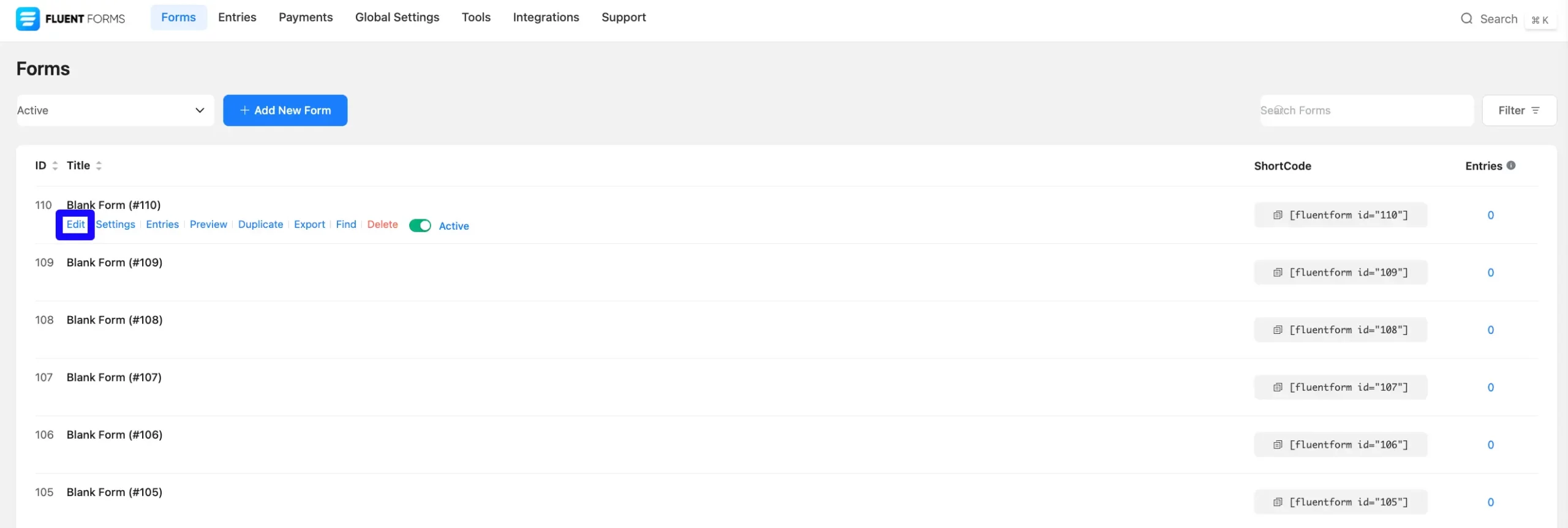
First, go tothe**Forms**section from the **Fluent Forms Navbar,**chooseadesired**Form,**and click the **Edit** icon to open the **Editor** page of that form.
> If you do not have any existing forms, read [Create a Form from Scratch](https://fluentforms.com/docs/how-to-create-a-form-with-fluent-forms/) or [Create a Form using Templates](https://fluentforms.com/docs/using-and-customizing-pre-built-quick-forms-in-fluent-forms/) documentation to create a new one.
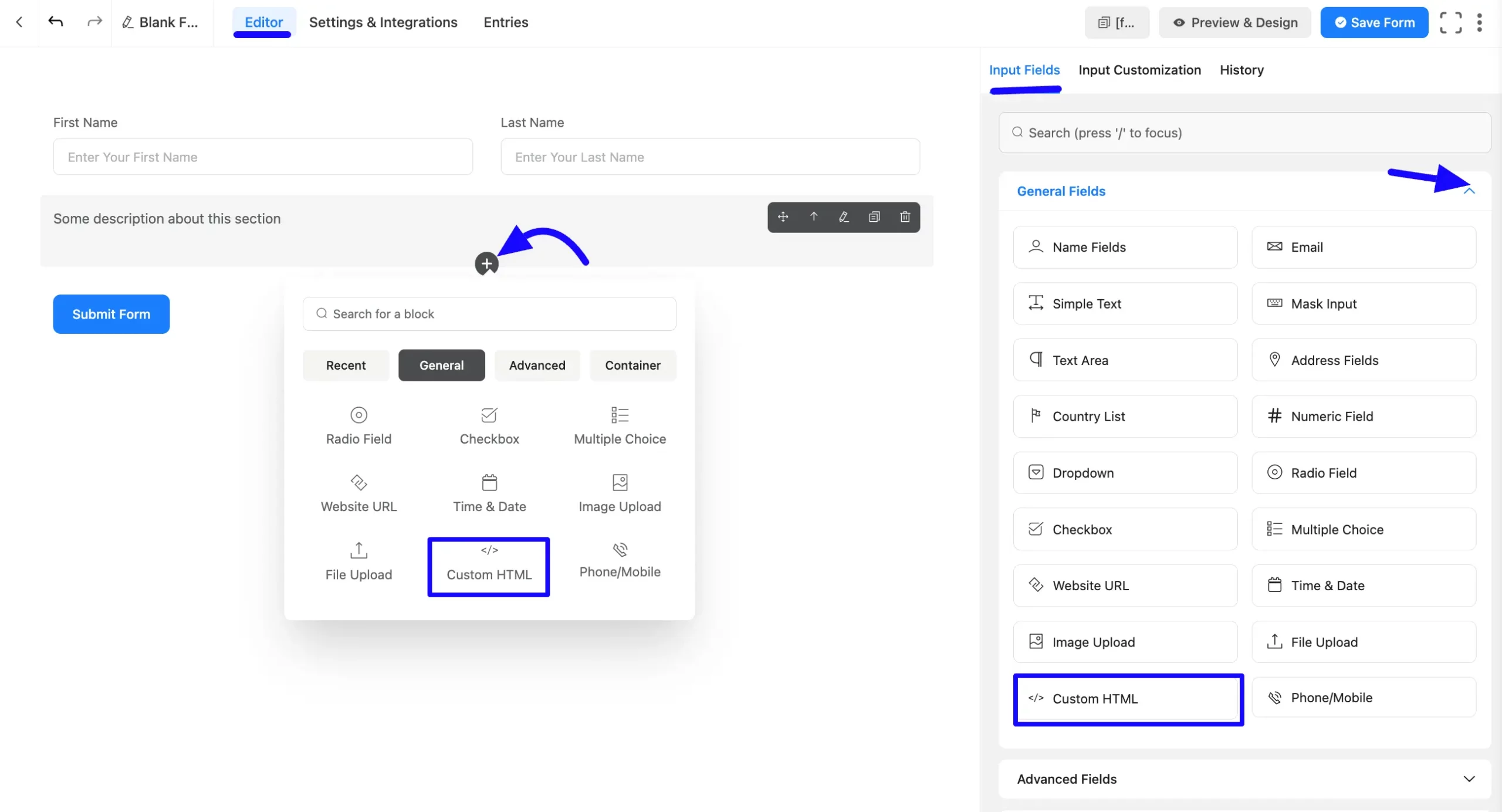
Once on the **Editor** page, click the **Plus** **Icon** in your form editor and open the **General Fields** module. The **General Fields**option is also in the right sidebar under the **Input** **Fields** tab.
Select the desired **Custom HTML**fieldby **Dragging**or**Dropping**it into your editor.
## Customizing the Custom HTML Field
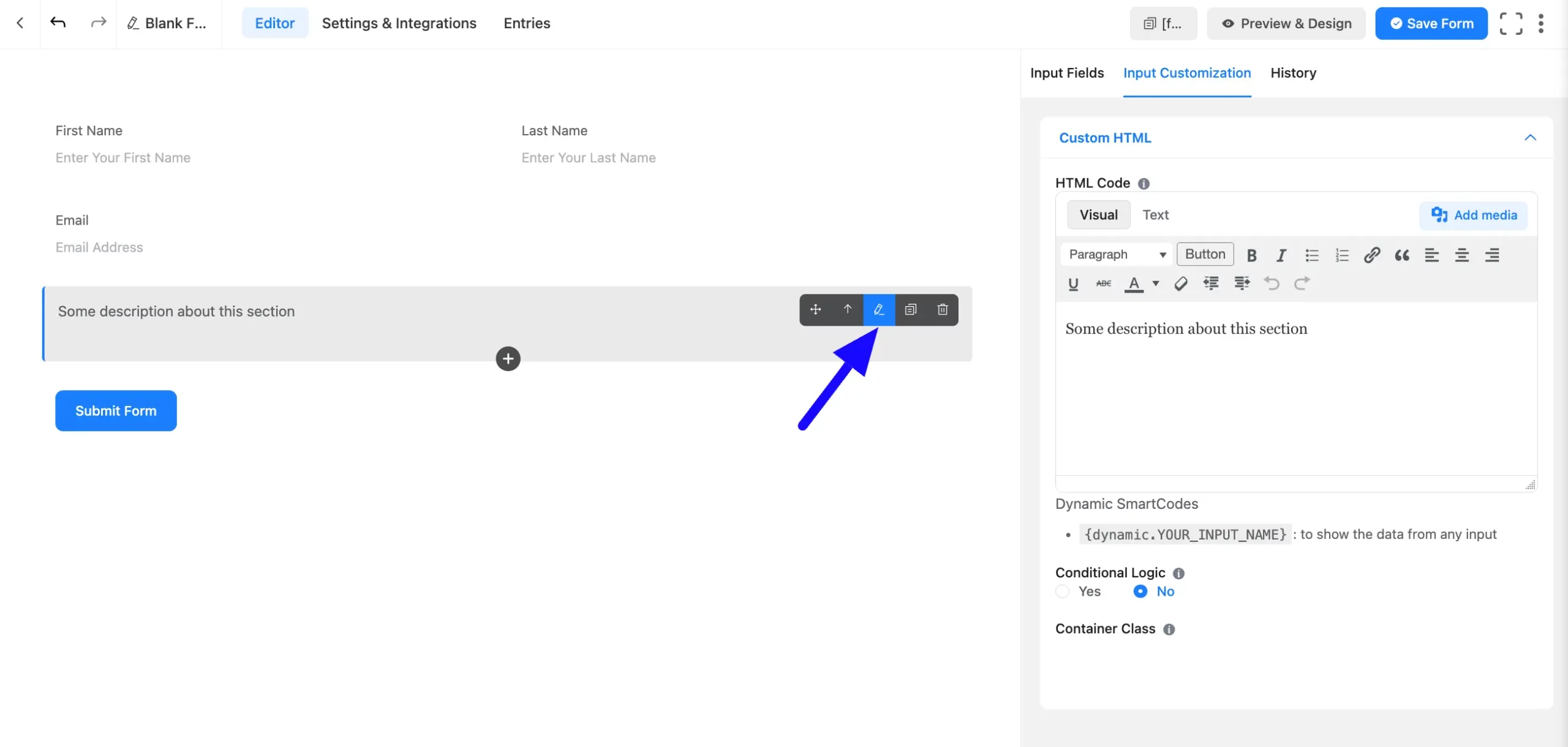
A custom HTML field has been added. You can edit this field by**hovering over it** and clicking the **Pencil Icon**. It will take you to the **Input Customization** tab on the right side and offer the following options for customizing the field.
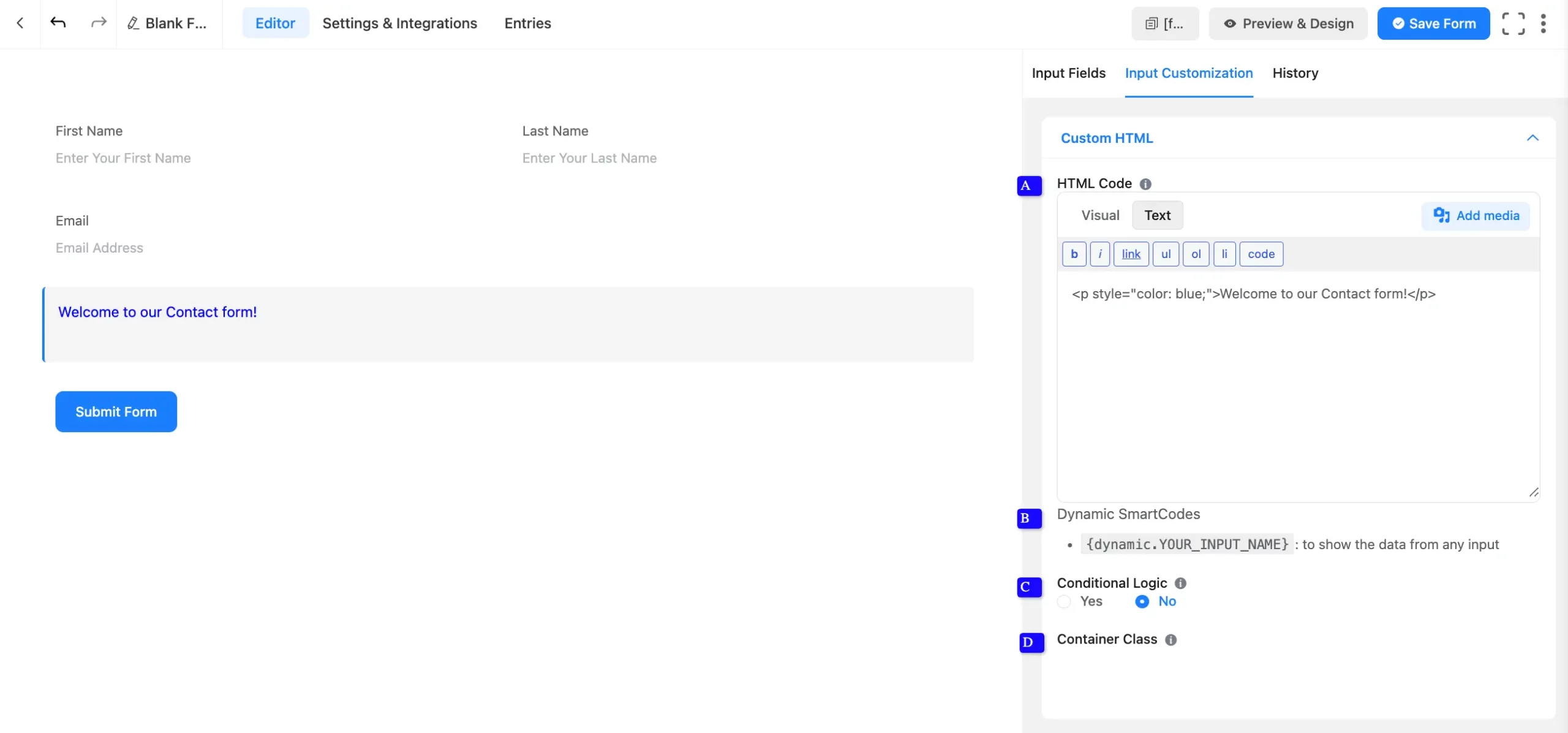
**A. HTML Code:**In the HTML Code section, you can add any valid HTML code that will be displayed as regular content within the form.
For example:
```
Welcome to our registration form!
```
**B. Dynamic SmartCodes:**By using Smartcodes, the user can show data from any input.
For example, the shortcode could be {dynamic.YOUR_INPUT_NAME}.
> Other ShortCodes will work in this field as well as.
**C. Conditional Logic:** This option allows you to create specific rules to dynamically hide/show the input field to function conditionally based on your submission values according to your set of conditional logics. To learn more, read this [Documentation](https://fluentforms.com/docs/set-up-forms-with-conditional-logic-in-fluent-forms/).
**D. Container Class:** Use this option to add your custom CSS classes to the field’s wrapper. This can be used to style the current element.
## Embed the Form into Frontend
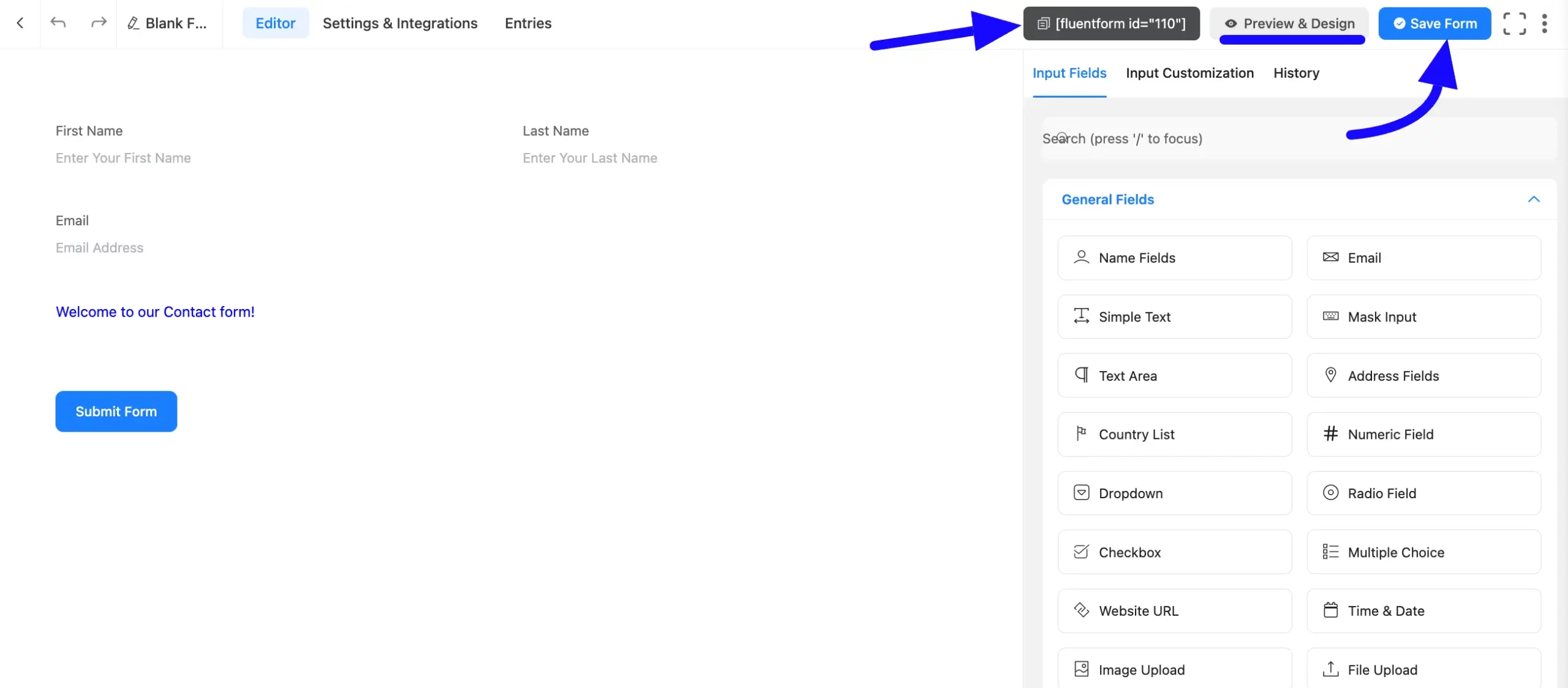
Once you complete the customization, click the **Save** **Form** button to save all your changes. Click the **Preview & Design**buttonin the middle to see the form preview.
To integrate and display the form on a specific page or post, **copy** the **Shortcode** from the top right side and **paste** it into your desired **Page or Post**.
## Preview of Added Custom HTML Field
Here is the **Preview**of the **Form** to test the custom HTML field functionality.
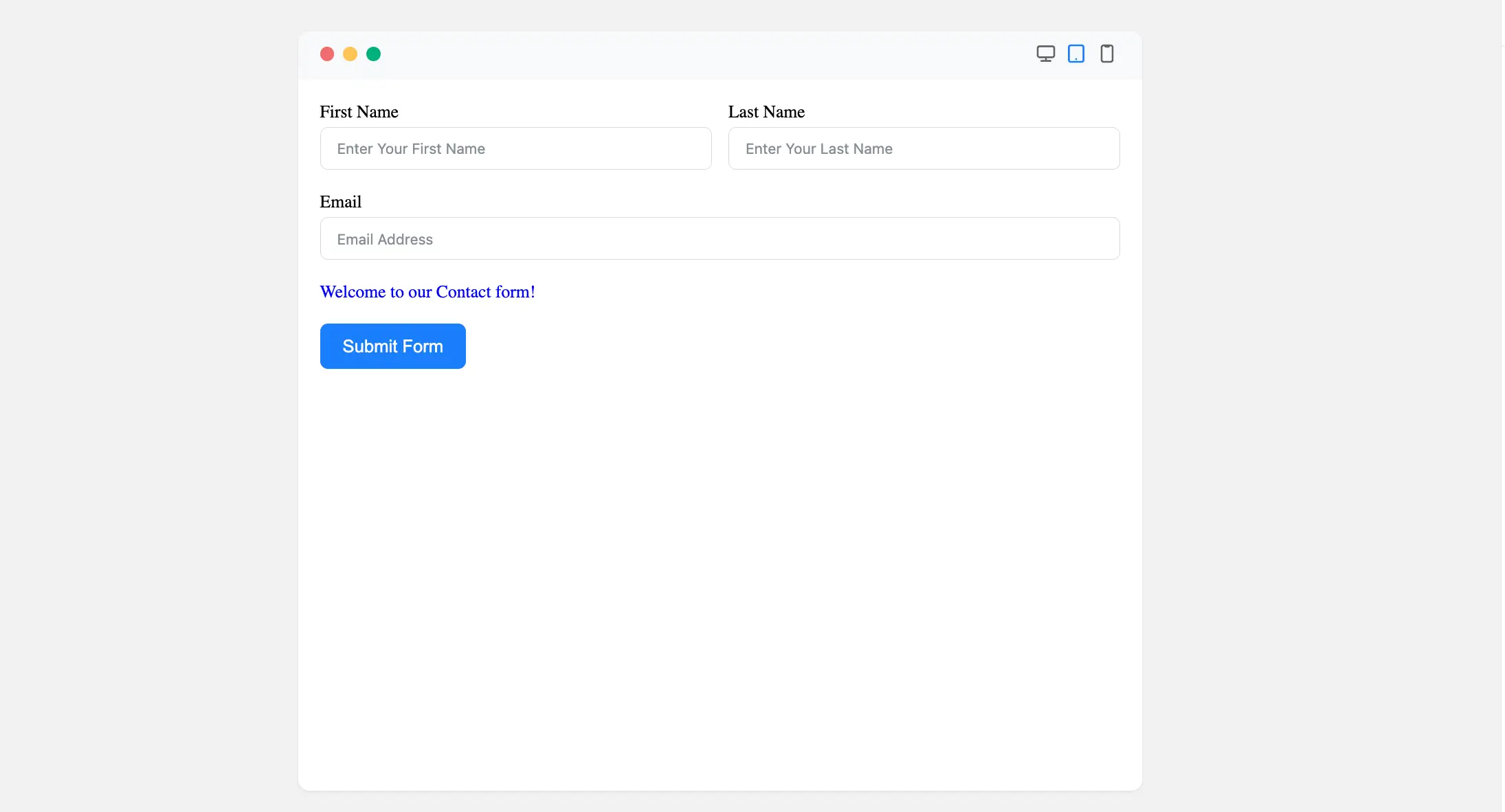
Congratulations. You will successfully add the Custom HTML field in your Form.
If you have any further questions, concerns, or suggestions, please do not hesitate to contact our [support team](https://wpmanageninja.com/support-tickets/?utm_source=wpmn&utm_medium=home&utm_campaign=site#/). Thank you.