---
title: PDF Template Manager Class
description: "## Introduction [Fluent Forms PDF](https://wordpress.org/plugins/fluentforms-pdf/) extension's TemplateManager class allows developers to create custom PDF templates in an easy way. You will need to extend the class **TemplateManager** and push the class using the filter hook ***fluentform/pdf_templates*** to create a new…"
url: "https://fluentforms.com/docs/pdf-templatemanager-class/"
updated: "2023-07-25"
category: Reference API Classes
---
# PDF Template Manager Class
## Introduction
[Fluent Forms PDF](https://wordpress.org/plugins/fluentforms-pdf/) extension's TemplateManager class allows developers to create custom PDF templates in an easy way.
You will need to extend the class **TemplateManager** and push the class using the filter hook ***fluentform/pdf_templates*** to create a new template. Please follow this documentation and create your own PDF template extension Plugin.
You can find this **TemplateManager** class file here :
*wp_lab/wp-content/plugins/fluentforms-pdf/Classes/Templates/TemplateManager.php*
## Methods
### __construct()
This is the construct method of this class. You have to pass an Application object. To pass the Application object you can include it using the following namespace. Here is an example of the code so far:
```php
use FluentForm\Framework\Foundation\Application;
class FluentExtraTemplateDemo extends \FluentFormPdf\Classes\Templates\TemplateManager
{
public function __construct(Application $app)
{
parent::__construct($app);
}
}
```
### getDefaultSettings()
This method will store the default settings of the PDF template. You will need to return an array of the settings key & value.
```php
public function getDefaultSettings()
{
return [
'header' => 'Hello From My Demo Template
',
'footer' => 'Footer
',
'body' => 'Hello There',
'demo' => ''
];
}
```
### getSettingsFields()
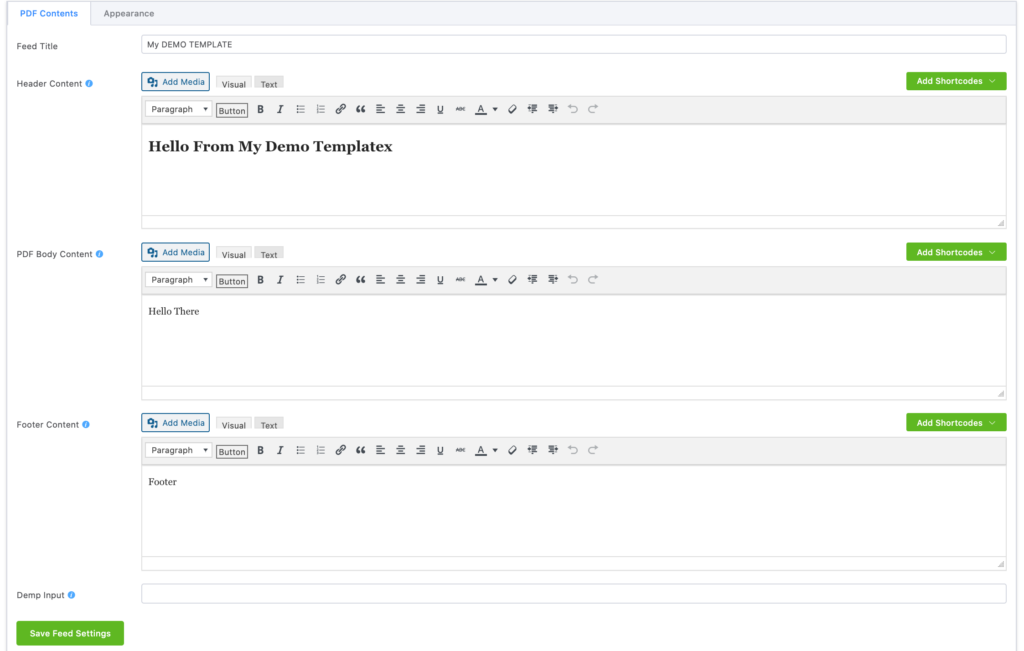
This method will render input fields for the PDF template settings page, based on the returned data. The key value used in this field needs to match with the **getDefaultSettings()**
You can use the prebuilt input components to create your settings page, here is a documentation [link](https://fluentforms.com/docs/integration-feed-fields-api/) where you can find the details list of these input components.
Required properties for the fields array:
- key : Settings Unique Key
- label : Settings Input Label
- component : Pass the prebuild input component.
Here is example of this method:
```php
public function getSettingsFields()
{
return array(
[
'key' => 'header',
'label' => 'Header Content',
'tips' => 'Write your header content which will be shown every page of the PDF',
'component' => 'text'
],
[
'key' => 'body',
'label' => 'PDF Body Content',
'tips' => 'Write your Body content for actual PDF body',
'component' => 'wp-editor'
],
[
'key' => 'footer',
'label' => 'Footer Content',
'tips' => 'Write your Footer content which will be shown every page of the PDF',
'component' => 'wp-editor'
],
[
'key' => 'demo',
'label' => 'Demp Input',
'tips' => 'Input Help Text',
'component' => 'text'
],
);
}
```
The filed 'tips' will show the additional help text on hover, this method is almost identical to [getSettingsFields()](https://fluentforms.com/docs/integrationmanager-class/#8-toc-title) in the [Integration Manager Class](https://fluentforms.com/docs/integrationmanager-class/). Here is a screenshot of the above code :
### generatePdf()
This is the most important method where the PDF will be generated. You will get four parameters here :
- **$submissionId** : Current submission ID
- **$feed** : PDF feed settings
- **$outPut = 'I**' : Do not change this
- **$fileName = ''**: File name
The $submissionId will contain the current submission ID. $feed contains array data of the PDF template feed settings. This will store the input data which was generated from **getSettingsFields()** method. $fileName will be the generated PDF filename.
\**Do not change the value of the $outPut = 'I'*
Finally, you will need to call a pre-built function pdfBuilder() and return it to create the PDF file. This method needs four parameters to be passed, these are :
- **$fileName** : PDF File name
- **$feed** : $feed Parameter
- **$htmlBody** : The HTML body and style of your PDF template
- **$footer** : PDF Footer
- **$outPut** : $output Parameter
Do not add a pdf extension (.pdf) in the file name, it will be done automatically.
```php
return $this->pdfBuilder($fileName, $feed, $htmlBody, $footer, $outPut);
```
The HTML can be created by fetching the user submitted form data and your custom data. Here is an example :
```php
public function generatePdf($submissionId, $feed, $outPut = 'I', $fileName = '')
{
$submission = wpFluent()->table('fluentform_submissions') //submission data object
->where('id', $submissionId)
->first();
$htmlBody = 'My PDF body
'; // Html Body
$footer = $submission->created_at; // footer
$fileName = 'my-pdf-'.$submissionId; // filename
return $this->pdfBuilder($fileName, $feed, $htmlBody, $footer, $outPut);
}
```
## All Together
A demo TemplateManager class will look like this :
```php
use FluentForm\Framework\Foundation\Application;
class FluentExtraTemplateDemo extends \FluentFormPdf\Classes\Templates\TemplateManager
{
public function __construct(Application $app)
{
parent::__construct($app);
}
public function getDefaultSettings()
{
return [
'header' => 'Hello From My Demo Template
',
'footer' => 'Footer
',
'body' => 'Hello There',
];
}
public function getSettingsFields()
{
return array(
[
'key' => 'header',
'label' => 'Header Content',
'tips' => 'Write your header content which will be shown every page of the PDF',
'component' => 'wp-editor'
],
[
'key' => 'body',
'label' => 'PDF Body Content',
'tips' => 'Write your Body content for actual PDF body',
'component' => 'wp-editor'
],
[
'key' => 'footer',
'label' => 'Footer Content',
'tips' => 'Write your Footer content which will be shown every page of the PDF',
'component' => 'wp-editor'
],
[
'key' => 'demo',
'label' => 'Demp Input',
'tips' => 'Input Help Text',
'component' => 'text'
],
);
}
public function generatePdf($submissionId, $feed, $outPut = 'I', $fileName = '')
{
$submission = wpFluent()->table('fluentform_submissions') //submission data
->where('id', $submissionId)
->first();
$htmlBody = 'My PDF Body & other elements
'; // Html Body
$footer = $submission->created_at; // footer
$fileName = 'my-pdf-'.$submissionId; // filename
return $this->pdfBuilder($fileName, $feed, $htmlBody, $footer, $outPut);
}
}
```
## Adding the Template extension as a Plugin
After completing the template class you need to push it into the PDF template list. You can use the *fluentform/pdf_templates* filter hook to push the class. This can be done by creating a new plugin or inside your function.php file.
You will get 2 parameters in the ***fluentform/pdf_templates*** filter.
- **$templates** (Array) Template class & configuration list
- key : template_key
- name : Template name
- class : Template class
- key : template_key
- preview : Template preview image location
- **$form** (Object) [The $form Object](https://fluentforms.com/docs/form-object/)
Here is an example of how we can create a new plugin and add the template you created. Here FluentExtraTemplateDemo.php file is the file name that you will create.
```php
add_action('fluentform/loaded', function () {
if(!defined('FLUENTFORM_PDF_VERSION')) {
return; //checking if fluent form is activated otherwise do nothing
}
include 'FluentExtraTemplateDemo.php'; // including the template class you just created
add_filter('fluentform/pdf_templates', function ($templates, $form) {
$templates['demo_template'] = [
'name' => 'My DEMO TEMPLATE',
'class' => '\FluentExtraTemplateDemo',
'key' => 'demo_template',
'preview' => get_template_directory_uri(). 'assets/images/tabular.png'
];
return $templates;
}, 10, 2);
});
```
You can include more classes and add new templates using this method. If you have any queries feel free to reach our support team or ask questions in our [facebook community group](https://www.facebook.com/groups/fluentforms/). Also do not forget to share your thoughts on this documentation, by adding your comment or a click on the icons below.