---
title: Ratings Input Field in Fluent Forms
description: "The **rating** input field in Fluent Forms allows users to provide feedback quickly. By default, the field includes five rating levels: **Nice, Good, Very Good, Awesome, and Amazing**. You can customize and add more rating options as needed. This guide…"
url: "https://fluentforms.com/docs/ratings-input-field-in-fluent-forms/"
updated: "2026-05-21"
category: Field Types / Advance Fields
---
# Ratings Input Field in Fluent Forms
The **rating** input field in Fluent Forms allows users to provide feedback quickly. By default, the field includes five rating levels: **Nice, Good, Very Good, Awesome, and Amazing**. You can customize and add more rating options as needed.
This guide will walk you through adding and customizing the **Rating Input Field** in Fluent Forms for your WordPress site.
> The **Ratings Input** field is an advanced feature of the Fluent Forms plugin. To use it, you require the **Fluent Forms Pro Add-on**.
[How to add Rating Input Field on your Online Form | WP Fluent Forms](https://www.youtube.com/embed/YGdkNspMaEs?feature=oembed)
## Adding Ratings Input Field
To learn how to add the **Rating** field to Fluent Forms, follow the steps below:
First, go tothe**Forms**section from the **Fluent Forms Navbar,**chooseadesired**Form,**and click the **Edit** **Icon** to open the **Editor** page of that form.
> If you do not have any existing forms, read[Create a Form from Scratch](https://fluentforms.com/docs/how-to-create-a-form-with-fluent-forms/) or[Create a Form using Templates](https://fluentforms.com/docs/using-and-customizing-pre-built-quick-forms-in-fluent-forms/) documentation to create a new one.
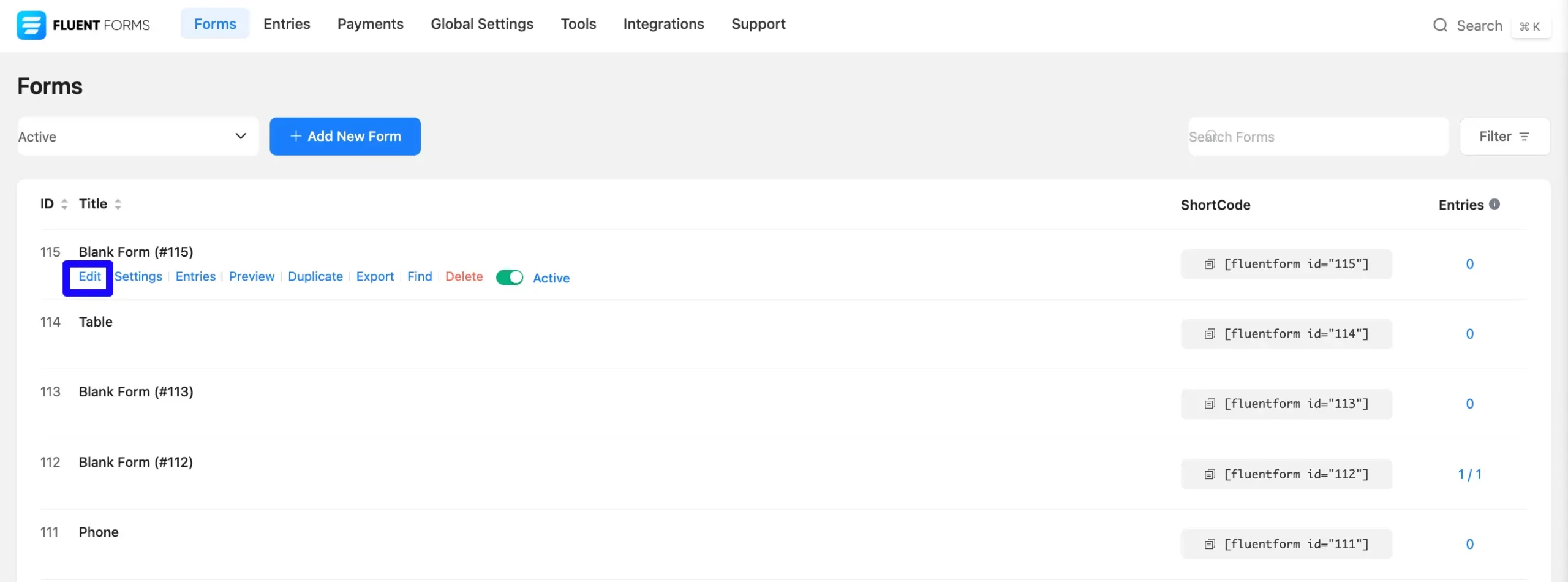
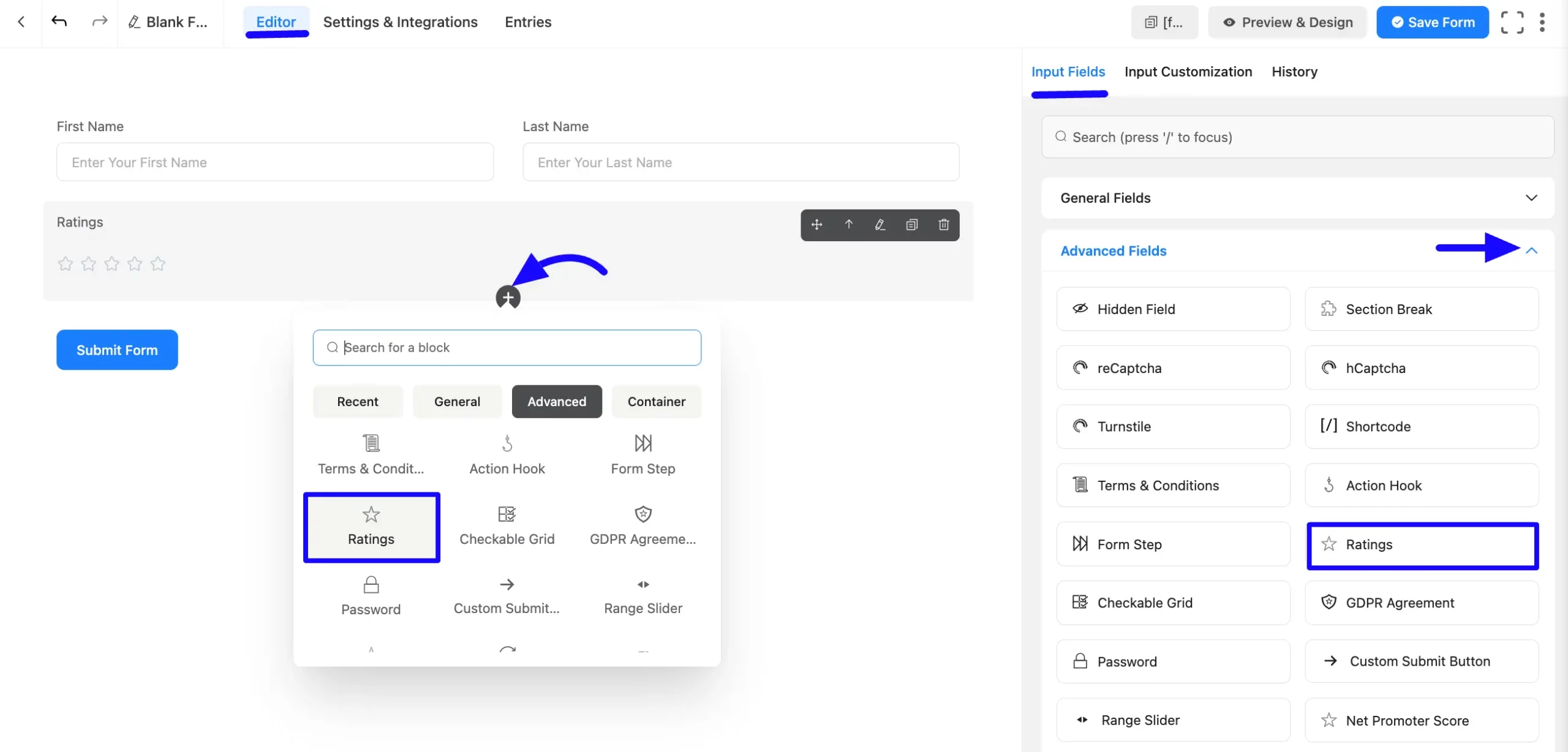
Once you are on the **Editor** page, click the **Plus** **Icon** in your form editor and open the **Advanced Fields** module. The **Advanced Fields**option is also in the right sidebar under the **Input** **Fields** tab.
Now, select the desired **Ratings** **Input**fieldby **clicking** on it or **Dragging**and**Dropping** it into your editor.
## Customizing the Ratings Input Field
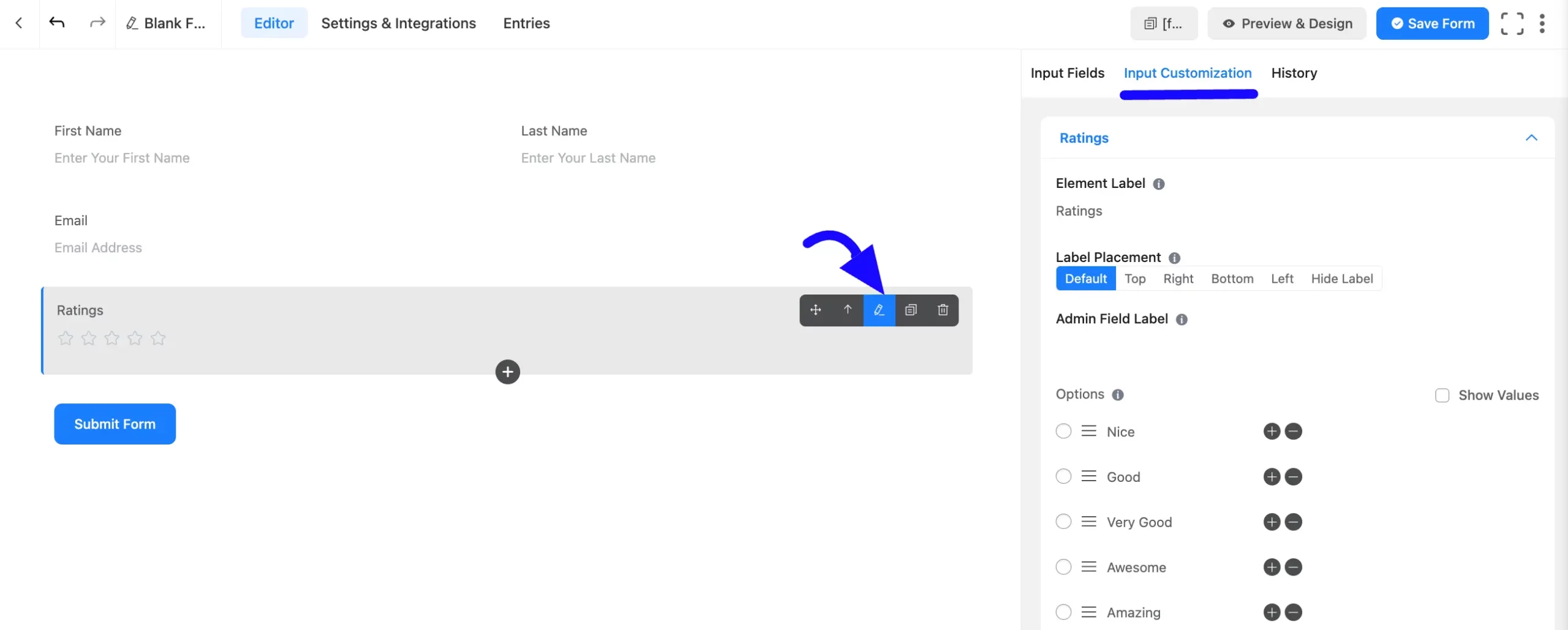
A Rating field has been added. You can edit this field by**hovering over it** and clicking the **Pencil Icon**. It will take you to the **Input Customization** tab on the right side and offer you the following options for customizing the coupon field.
- Rating Input field options
- Advanced Options
#### Ratings Input field Options
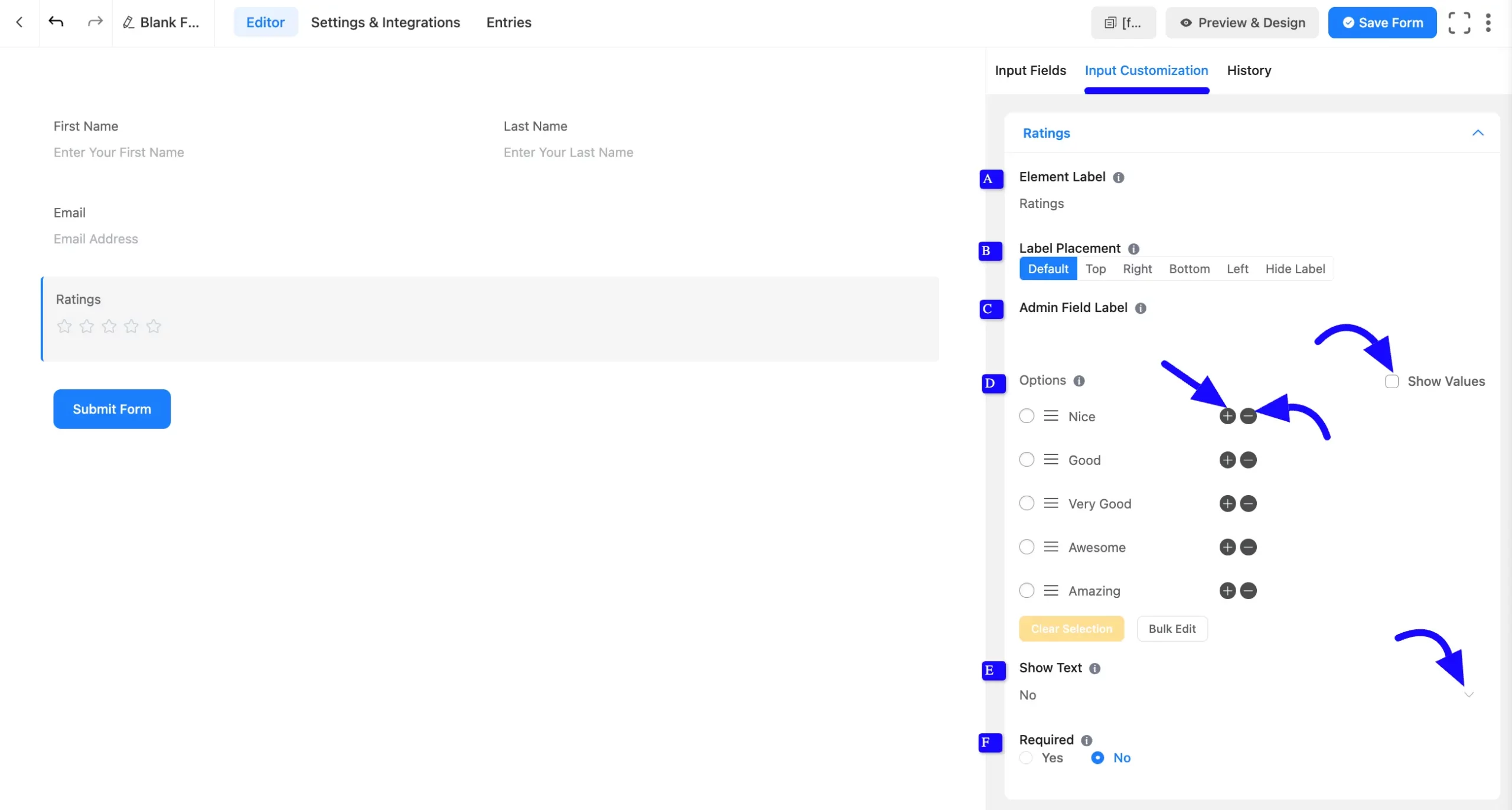
You will find various settings options for customizing the field. Located in the **Input Customization Tab**, these options allow you to configure essential aspects of the**Ratings Input**field.
**A. Element Label:** This is the field title the users will see when filling out the **Ratings**field in a form. You can enter any text here to help users understand the purpose of the field.
**B. Label Placement:** This option allows you to determine the position of the label title where the user will see it. The available options are **Top**, **Left**, **Right**, and **Default**. All of those are self-explanatory except the Default. If you select the **Default** option, it will represent your global label placement settings.
**C. Admin Field Label:** The admin field label is a field title displayed only to admin users. You can configure this option to show a different field label for your admin users when they view the form submissions.
**D. Options:**In this **Options** section, you can customize the rating options:
- Set a default rating.
- Rename rating levels.
- Rearrange options using drag & drop.
- Add new options by clicking the **Plus** (+) Icon.
- Remove options using the **Minus**(-) Icon.
- Check the **Show Value** option on the right side if you add more value.
Also, you can edit bulk by clicking the **Bulk Edit**options.
**E. Show Text**: Choose whether to display the rating option labels from the dropdown options.
**F. Required:** Decide whether users must select at least one option before submission.
#### Icon Source
The Ratings field allows **you** to change the icon styles and colors for each field directly from the editor panel. None of these settings is required; existing forms continue to render the default setup if left unchanged.
Locate the **Icon Source** dropdown option under the field customizer. **You** can choose between:
**1. Preset Icons (Default):** Selecting **Preset Icons** reveals a **Preset Icon** selection dropdown with built-in shapes:
- **Star** (Default)
- **Heart**
- **Thumb**
- **Smile**
- **Bolt**
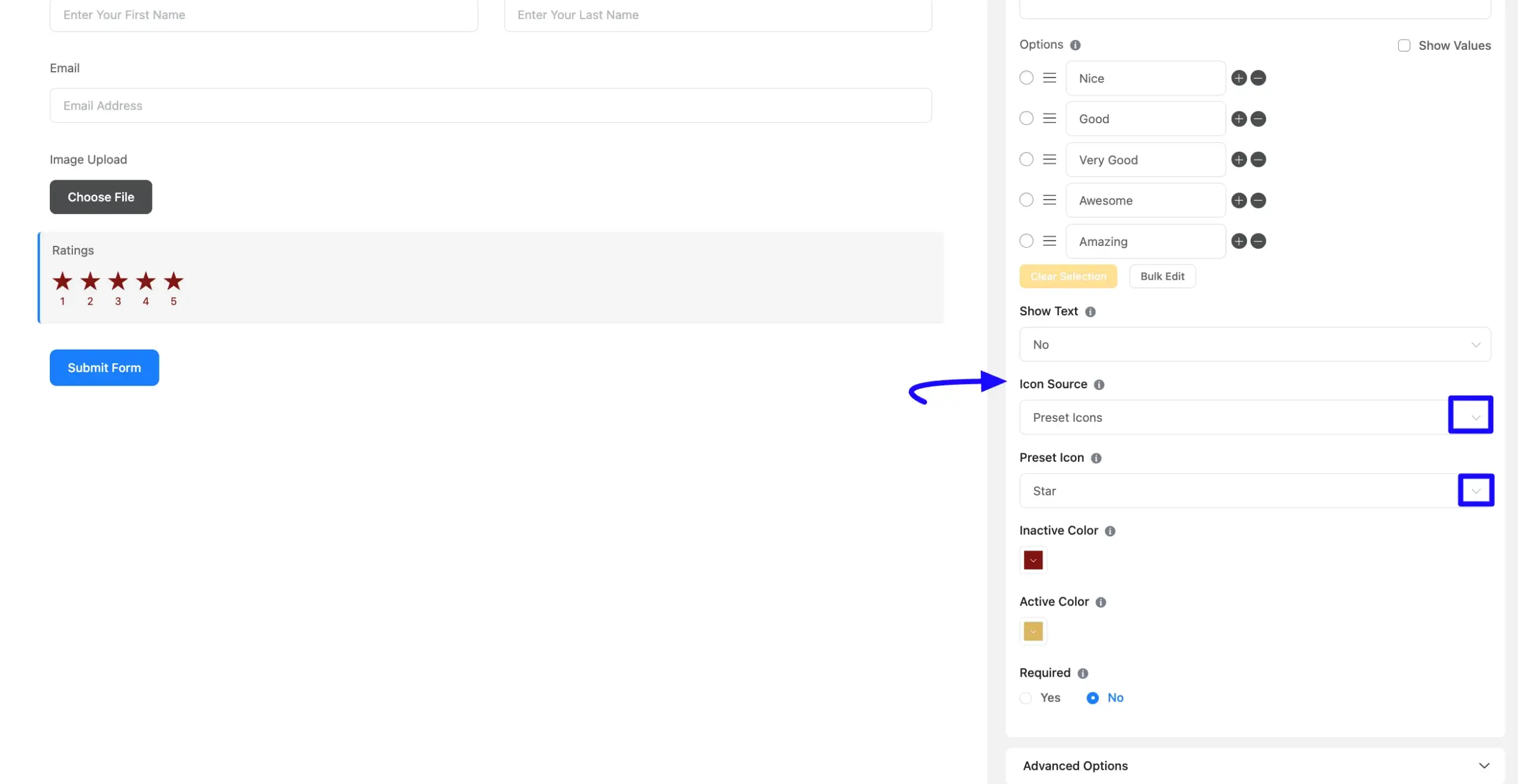
**2. Custom SVG:** Selecting **Custom SVG** reveals a textarea labeled **Custom SVG Icon**. **Paste** the full markup of **your** custom icon here. Use currentColor for your fill and stroke attributes within the markup so **your** icon accurately inherits the color pickers below.
**Tip:** Keep the SVG simple single-path icons with no gradients, which render most reliably across different browsers. Anything outside the