

In Fluent Forms, the Repeat Container field allows you to offer your users the option of submitting information through Single/Multiple Fields repeatedly by duplicating the field/s. More specifically, it allows you to include multiple fields inside a single container, enabling users to fill multiple sets of data for the same added fields within your form.
For example, if you want users to submit multiple emails, phone numbers, and website URLs through Fluent Forms, you can use the Repeat Container field. This allows users to add as many entries as needed by duplicating the set field/s with one click.
This article will guide you through the whole process of adding the Repeat Container field in your Fluent Forms for your WordPress Site.
Remember, Repeat Container is a premium feature and you need Fluent Forms Pro Plugin to use this field.
Add Repeat Container Field #
To learn how to add the Repeat Container field to the Fluent Forms, follow the steps with the screenshots below –
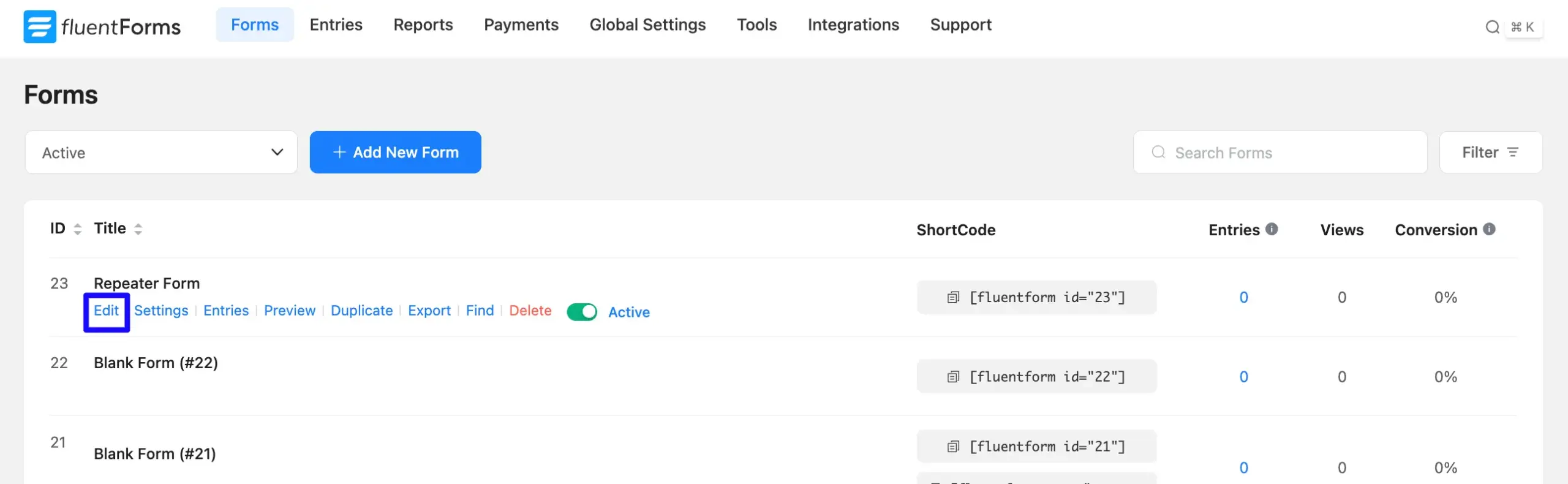
First, go to the Forms section from the Fluent Forms Navbar, choose the desired Form, and click the Pencil/Edit icon to open the Editor page of that form.
If you do not have any existing forms, read the Create a Form from Scratch or Create a Form using Templates documentation to create a new one.
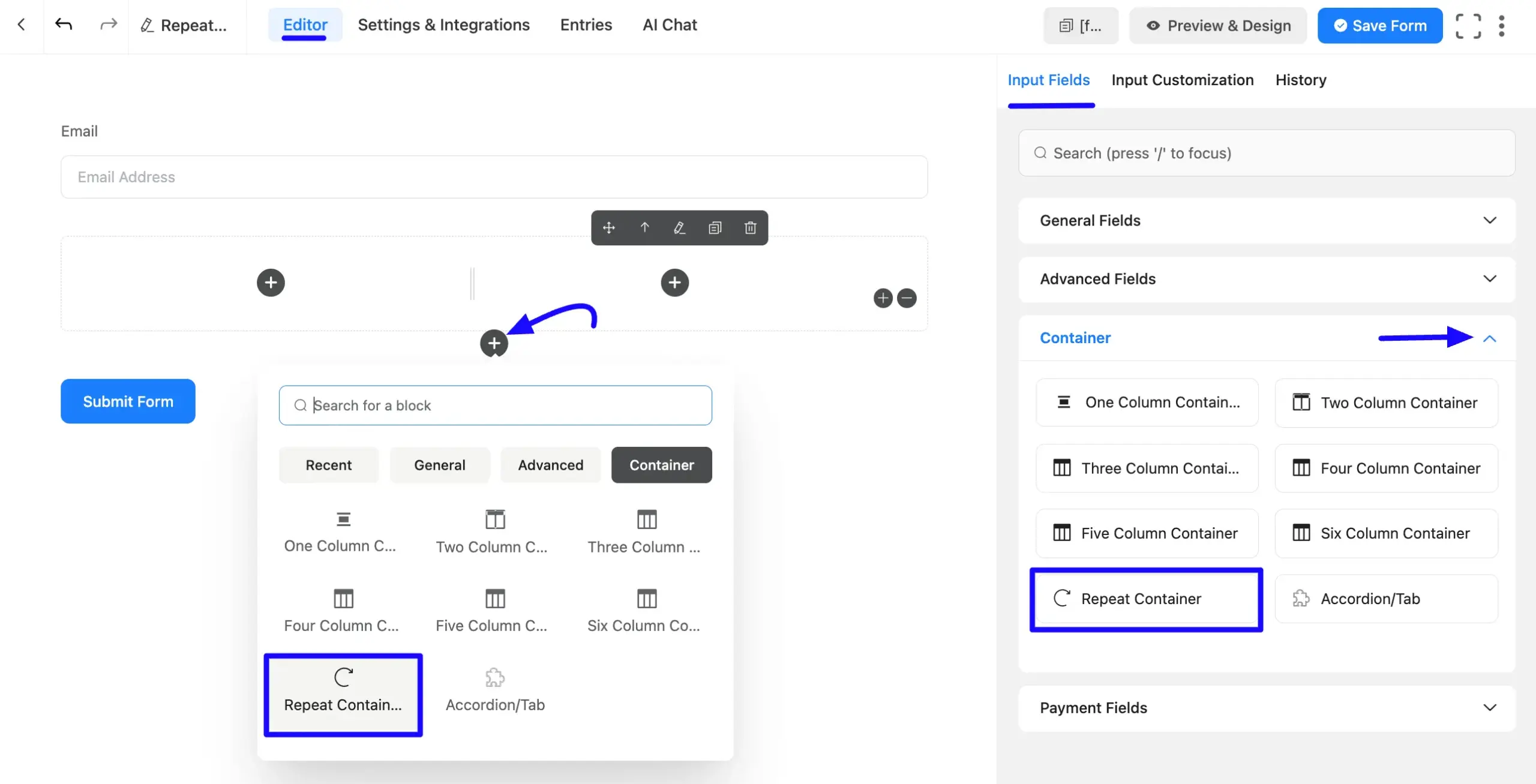
Once you are on the Editor page, click the Plus Icon in your form editor and open the Container input fields module. The Container option is also in the right sidebar under the Input Fields tab.
Now, choose the desired Repeat Container by clicking on it or Drag & Drop it into your editor.
Note: Only specific field types can be used within the Repeater Container. For example, the standard Name field is not supported; use a Simple Text field instead for name inputs.
Customize Repeat Container Field #
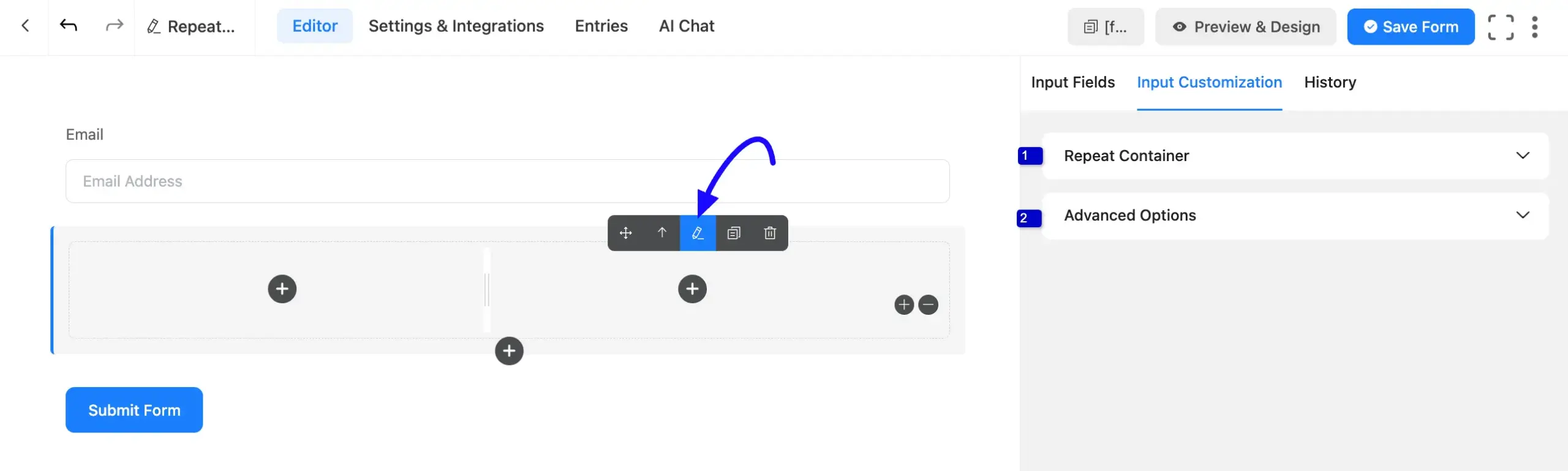
You can see that a Repeat Container field is added to the form. You can edit/customize this field by hovering over it and clicking the Pencil Icon.
It will take you to the Input Customization tab on the right side and offer you the following options for customizing the coupon field.
- Repeat Container
- Advanced Options
1. Repeat Container #
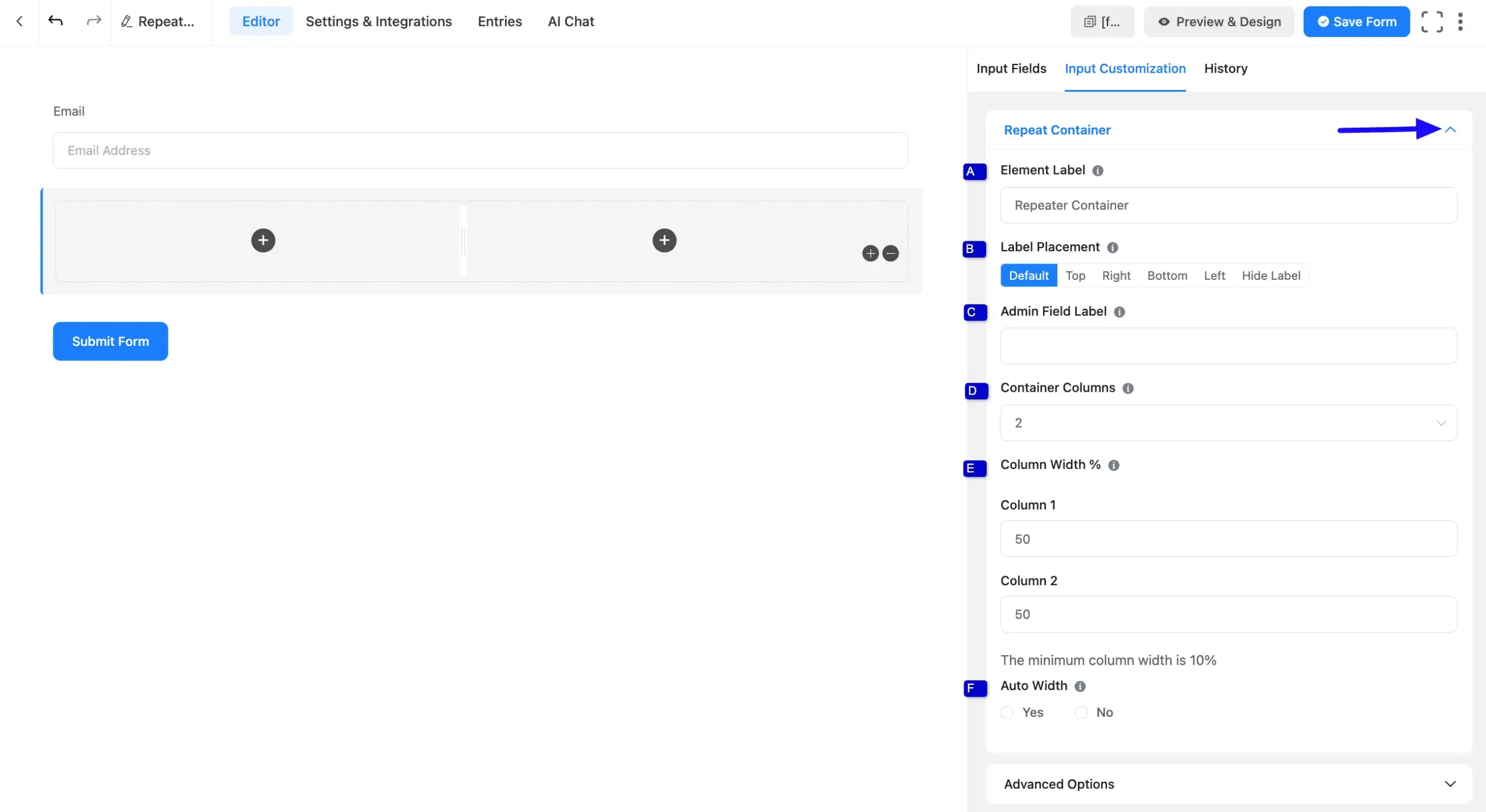
All the Settings under the Repeat Container tab mentioned in the screenshot are briefly explained below –
A. Element Label: This is the field title that the users will see when filling out the Repeat Container field in a form. You can enter any text here to help users understand the purpose of the field.
B. Label Placement: Using this option, you can determine the position of the label title where the user will see it. The available options are Top, Right, Bottom, Left, Hide Label, and Default. All of those are self-explanatory except the Default. If you select the Default option, it will represent your global label placement settings.
C. Admin Field Label: The admin field label is a field title displayed only to admin users. That means, if you want to show a different field label for your admin users when they view the form submissions, you can configure that using this option.
D. Container Columns: Here, you can select the number of columns you want to add to your Repeat Container Field. Remember, each column has the same functionality except for the number of added columns. For example, I added 3 columns.
E. Column Width %: Using this option, you can set the width of the columns. The minimum column width is 10%.
F. Auto Width: Enable the automatic width calculation for columns by clicking the Yes button. Otherwise, click the No button to adjust the width according to your preference.
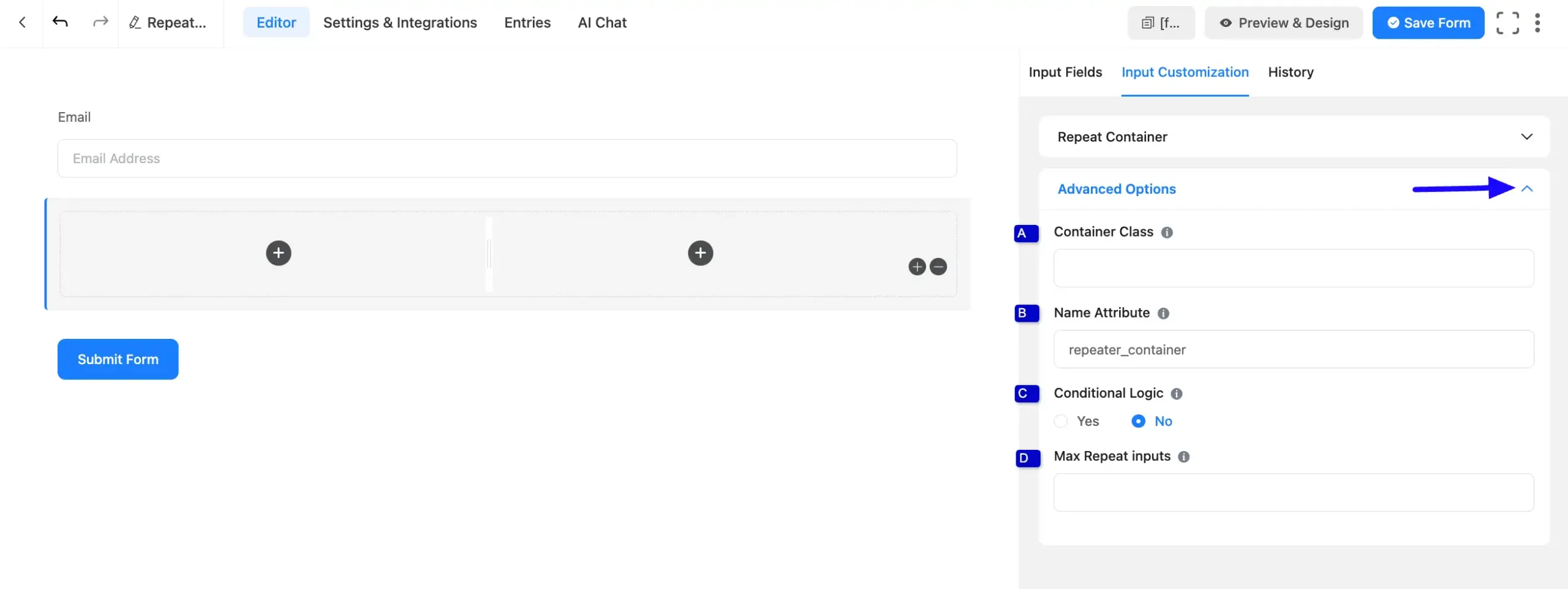
2. Advanced Options #
All the Settings under the Advanced Options tab mentioned in the screenshot are briefly explained below –
A. Container Class: Use this option to add your custom CSS classes to the field’s wrapper.
B. Name Attribute: The input field’s name attribute is the HTML equivalent of the same name. You don’t need to modify this.
C. Conditional Logic: This option allows the coupon field to function conditionally based on your submission values according to your set of conditional logic/s. To learn more, read this Documentation.
D. Max Repeat inputs: Using this option, you can specify the maximum number of times users can duplicate the fields within the Repeater Container.
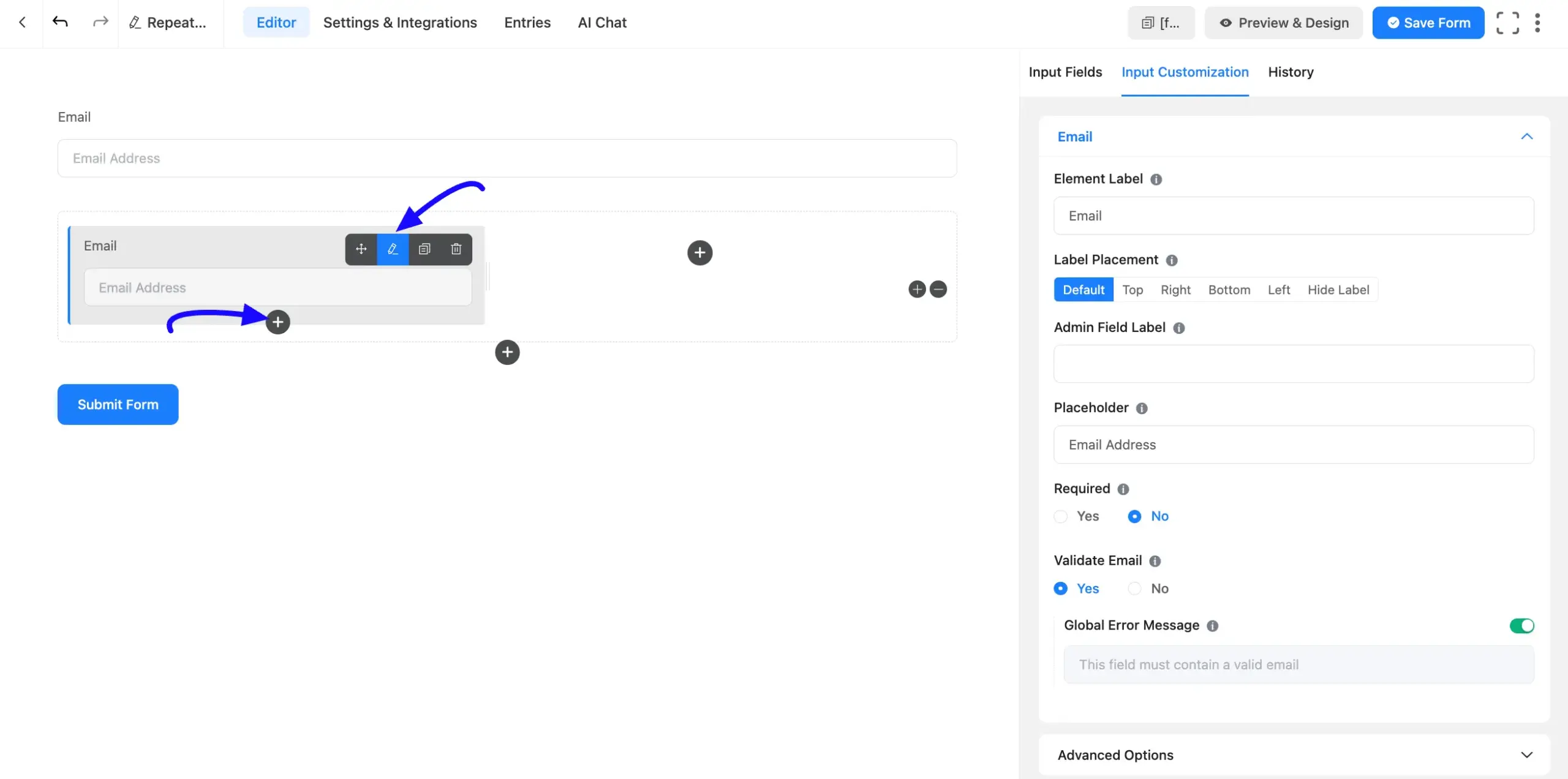
Now, click the Plus Icon to add three different fields horizontally inside three columns. Plus, you can adjust the position of the fields by dragging them.
You can also customize the fields you added inside the columns by hovering over them and clicking the Pencil Icon. It will take you to the Input Customization tab for the selected field and provide options for customization.
Embed the Form into Frontend #
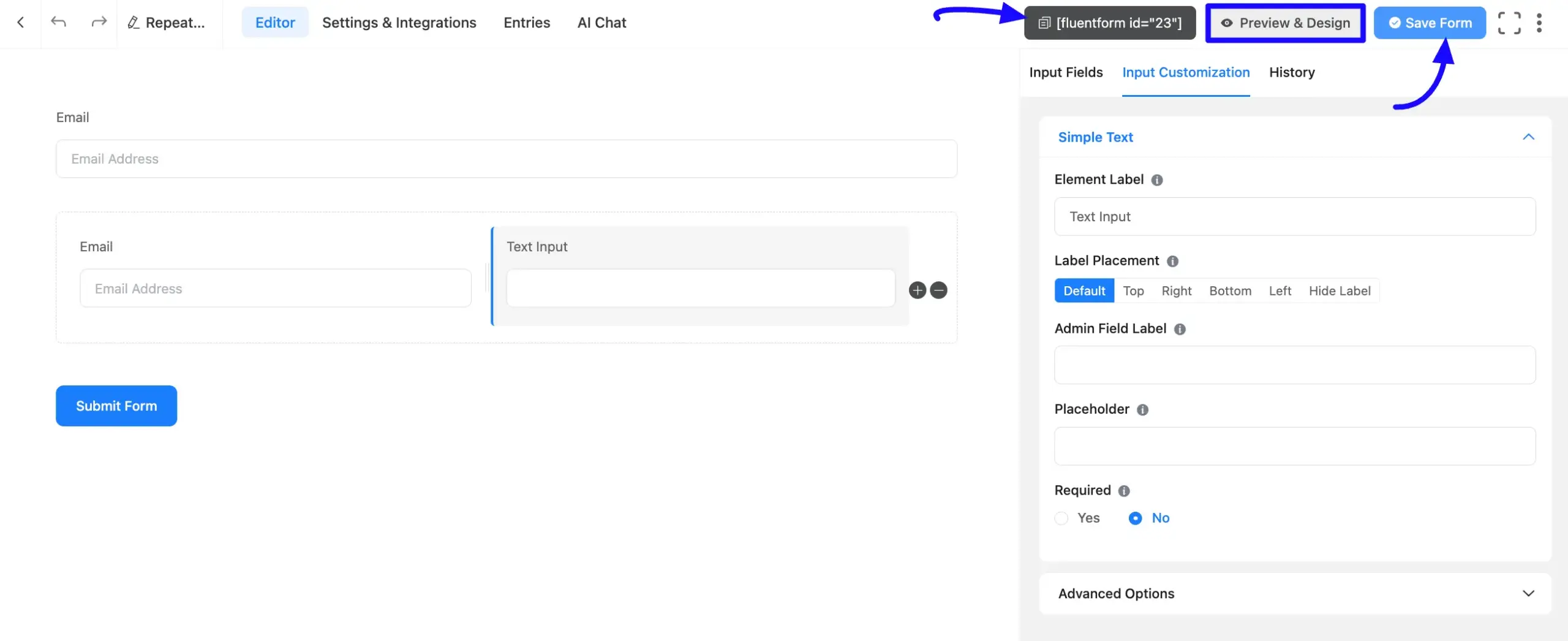
Once you complete the customization, click the Save Form button to save all the changes you made. Also, to see the form preview, click the Preview & Design button in the middle.
To integrate and display the form on a specific Page/Post, copy the Shortcode from the top right side and paste it into your desired Page/Post.
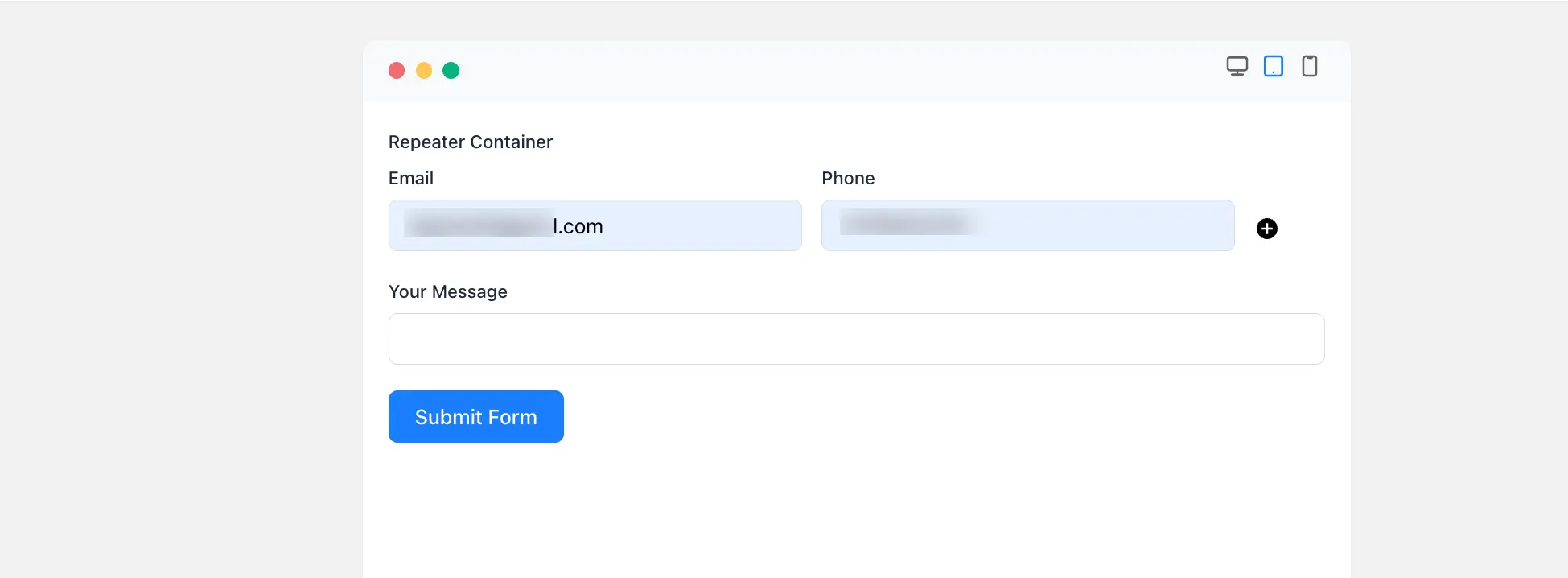
Preview of Repeat Container field #
Here is the preview of the added Repeat Container field under the Payment Form.
This way, you can easily add the Repeat Container fields in Fluent Forms!
If you have any further questions, concerns, or suggestions, please do not hesitate to contact our support team. Thank you.


