

The Default Form Style Template allows you to set a global design for every form you create. Instead of styling each form individually, you can define your brand’s look once in the Global Settings. This style is automatically applied to all new forms, though you still have the freedom to customize the design of any specific form whenever you like.
This guide will walk you through setting up and applying the Default Style Template on your WordPress site.
Setting Up a Default Style Template #
To configure your global form design settings, follow these steps:
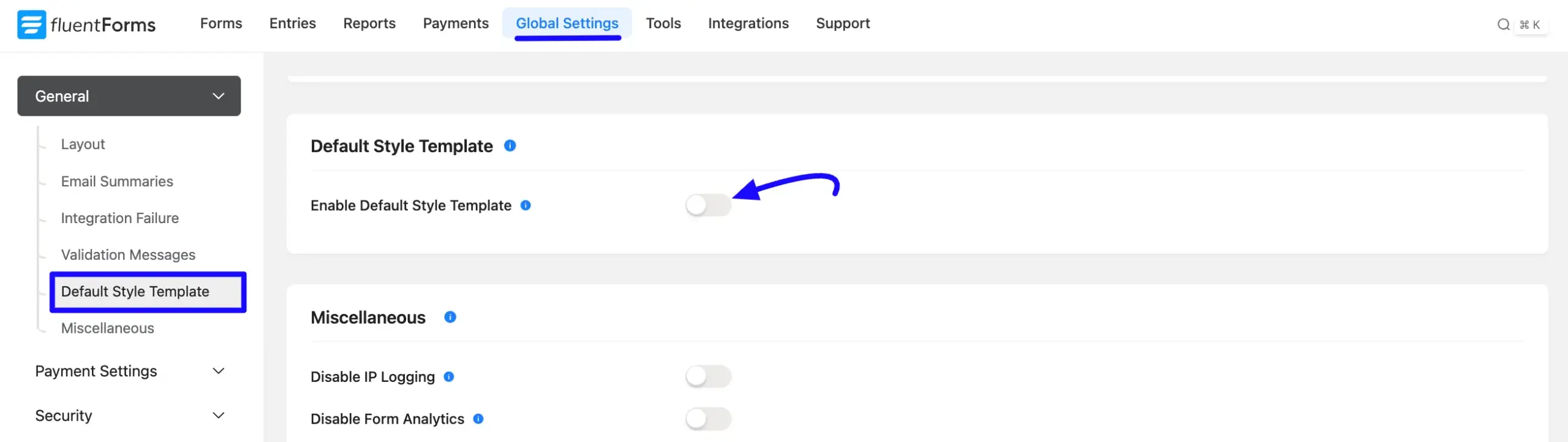
Navigate to Fluent Forms Pro from your WordPress dashboard and select Global Settings. Scroll down to the General category and locate the Default Style Template section.
Toggle the Enable Default Style Template switch to ON.
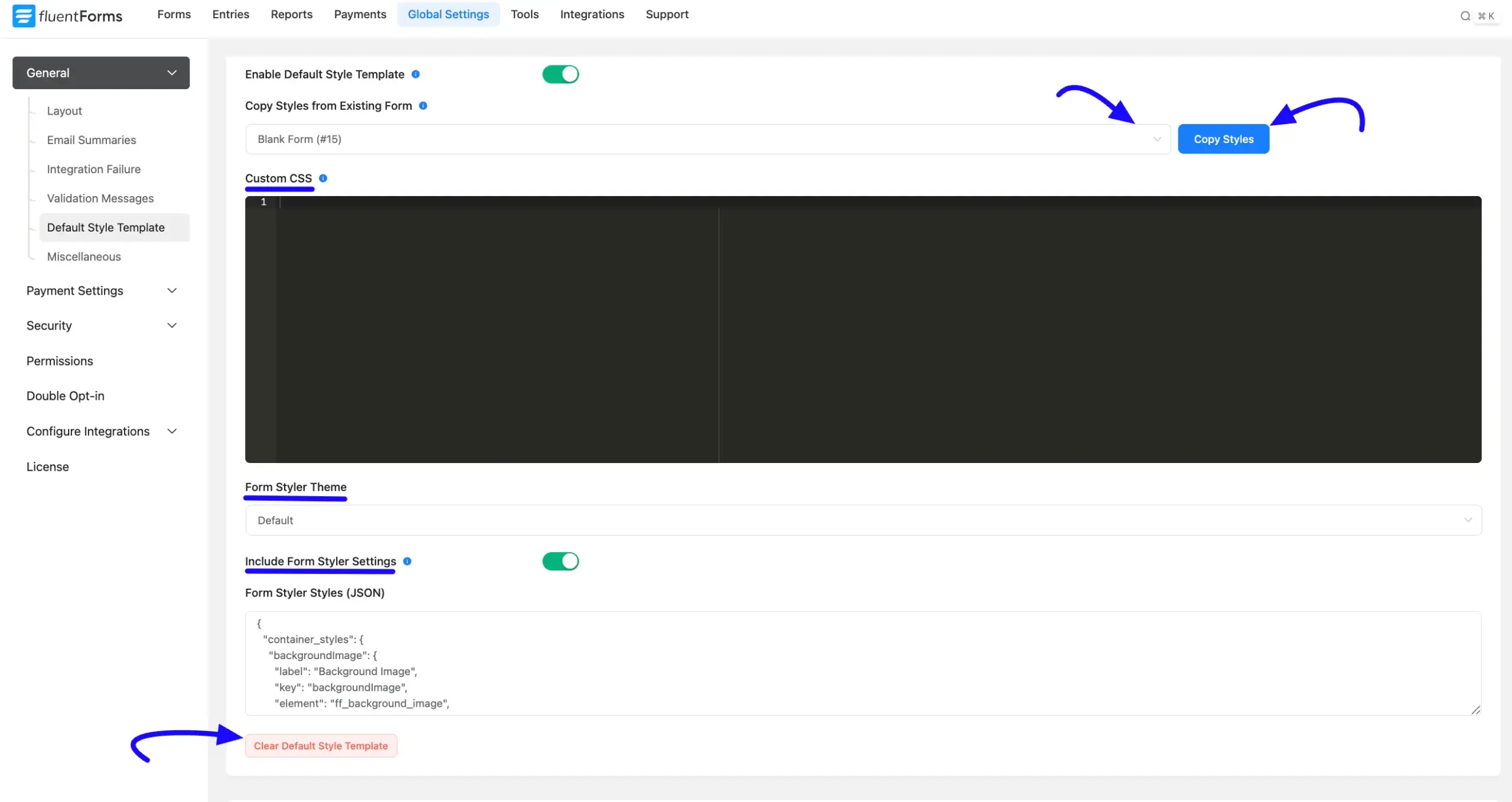
In the Copy Styles from Existing Form dropdown, choose a form that already has the design you want to use as your baseline.
For detailed instructions on styling your form, refer to this documentation.
Now, click the Copy Styles button to import those design settings.
Customizing the Global Template #
Once the template is enabled, you have advanced control over the global styling:
- Include Form Styler Settings: Toggle this to choose whether to include specific styler configurations in the template.
- Form Styler Styles (JSON): You can manually update or refine your design by editing the JSON code directly in the provided text area.
- Custom CSS: Add your own CSS rules in the Custom CSS box to apply site-wide styling tweaks to all forms.
- Clear Default Style Template: Use this button if you wish to reset or remove the global styling.
Click the Save Settings button at the bottom of the page to apply the global template.
Applying the Template to New Forms #
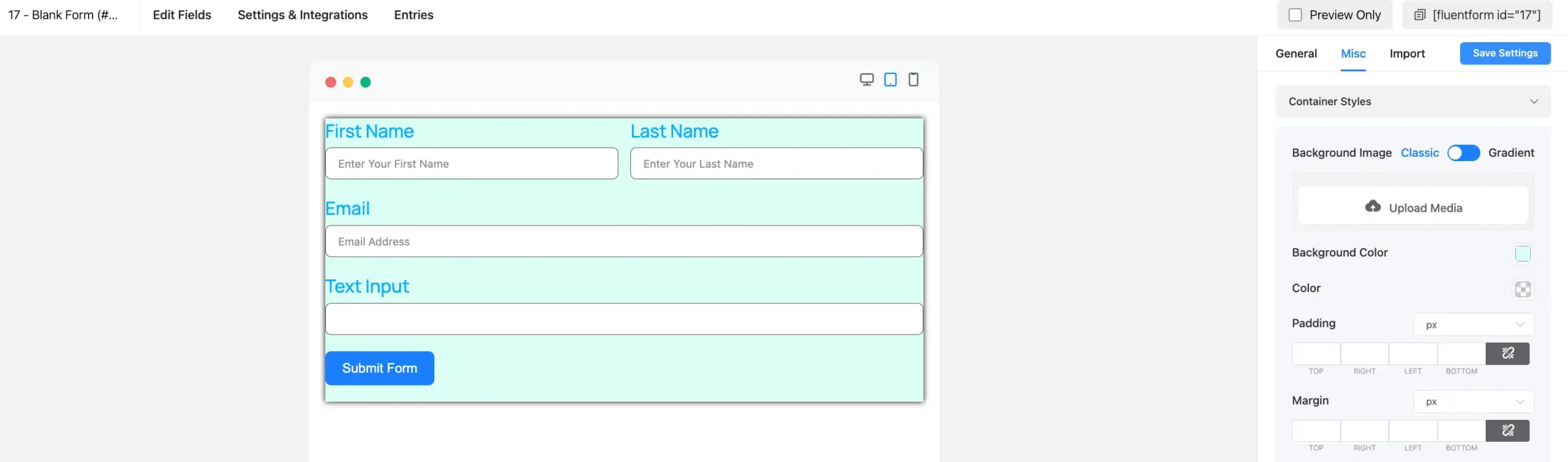
After saving your Default Style Template, any New Form you create will automatically inherit these styles.
Click on New Form and select Blank Form or a template. Add your fields and click Save Form.
When you click Preview & Design, you will see that the form already features your global colors, typography, and button styles.
Note: This template can also be applied to Imported Forms, ensuring they match your brand instantly without manual adjustments.
Congratulations! You have successfully set up a Default Style Template. Your forms will now maintain a professional, consistent look across your entire website.
If you have any further questions, concerns, or suggestions, please do not hesitate to contact our support team. Thank you!


