

Connect AI Assistants to Fluent Forms: The New MCP Server Explained
Until now, using your form data in an AI assistant meant exporting a CSV and pasting it into a chat. Fluent Forms 6.2.12 removes that step.
This release adds an optional MCP server to the Fluent Forms free version (core). It lets supported AI assistants work with your forms, entries, and reports directly, without database access and without sharing your WordPress admin password. I’ll show you what it does, what it can access, and how to turn it on in about five minutes.
TL;DR
- The MCP server lets AI assistants read and act on your Fluent Forms data. It is turned off by default.
- You need the free FluentHub plugin (or the WordPress MCP Adapter). Fluent Forms provides the actions; FluentHub exposes them over MCP.
- The free plugin exposes 20 tools. With Fluent Forms Pro active, three advanced reporting tools join them, for 23 in total.
- You ask questions in plain language, like “How many entries arrived last week, and which are still unread?” You never write JSON.
- Every request follows the permissions of the WordPress user you connect with. Form access still applies.
- Every action that changes data runs a preview, then a confirmation. Previews expire after five minutes.
- Setup takes about five minutes: install FluentHub, flip one toggle, create an application password, and connect your client.
What the MCP Server Actually Does
MCP, short for Model Context Protocol, is an open standard that lets AI assistants connect to other software. Through MCP, an assistant can see which actions a tool supports and use them when you ask. WordPress now has an official adapter for this connection.
With this, your assistant answers questions using information from your own forms, entries, and reports. You ask, it uses the available actions, and it replies with your data.
Why it needs FluentHub
The official WordPress MCP Adapter ships with FluentHub, the free companion plugin for Fluent products. The split is simple: Fluent Forms provides the available actions, and FluentHub makes them reachable over MCP. If FluentHub is missing or inactive, the settings card tells you what to do next.
You can also use the standalone WordPress MCP Adapter if you already have it installed. FluentHub is the easier path for most people because it bundles the adapter and adds a one-click install right on the MCP settings page when Fluent Forms Pro is active.
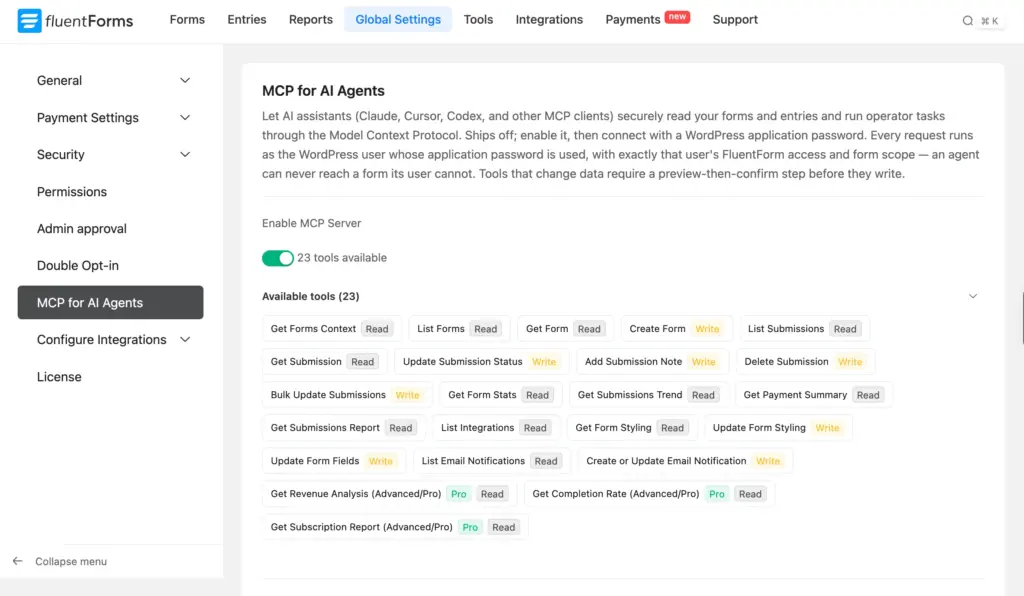
The 23 tools you get
Fluent Forms exposes 20 tools in the free plugin. With Pro, you get three additional advanced reporting tools. Every tool is labelled as Read or Write right in the settings card, so you can see what an assistant can view or change before you connect.
The advanced reporting tools below require Fluent Forms Pro. If you need revenue analysis, subscription reports, or completion rates, check out the Fluent Forms Pro pricing and plan details.
| Area | Tools | Target |
| Discovery | Get Forms Context, List Forms, Get Form | Read |
| Building | Create Form, Update Form Fields | Write |
| Entries | List Submissions, Get Submission | Read |
| Entry operations | Update Submission Status, Add Submission Note, Delete Submission, Bulk Update Submissions | Write |
| Reporting (Free) | Get Form Stats, Get Submissions Trend, Get Payment Summary, Get Submissions Report | Read |
| Styling | Get Form Styling, Update Form Styling | Read / Write |
| Notifications & integrations | List Email Notifications, Create or Update Email Notification, List Integrations | Read / Write |
| Advanced Reporting (Pro) | Get Revenue Analysis, Get Completion Rate, Get Subscription Report | Read |
The feature split follows Fluent Forms itself. Basic reporting and form styling stay available in Free, and advanced reporting requires Pro.
What It Looks Like in Practice
You ask a question, the assistant picks the right actions, and it answers with your Fluent Forms data. Here are prompts that work on day one, with what you ask and when to reach for them.
Prompts for reading your data
Summarise recent entries
Ask: “Show me the last 10 entries on the Contact Form and summarise the common themes.”
Reach for it when: You want the gist of what people are saying without opening every submission.
Find your busy periods
Ask: “Which form got the most submissions last month, and what’s the peak hour they arrive?”
Reach for it when: You’re timing a campaign, staffing support, or deciding when to publish.
Triage your inbox
Ask: “How many entries arrived last week, and which ones are still unread?”
Reach for it when: You start the day and want to know what needs attention.
Check revenue (Pro)
Ask: “What’s my revenue by payment method this quarter?”
Reach for it when: You’re closing out a quarter or comparing how people pay.
Instead of exporting a spreadsheet and pasting it into a chat, you ask the question directly and get the answer back in the same place.
Prompts for acting on entries and forms
Record a decision on an entry
Ask: “Add a note to entry #4021 saying the refund was approved.”
Reach for it when: You want a paper trail on an entry your team will see later.
Build a form from a description
Ask: “Build me a three-step event registration form: details, session choice, notes.”
Reach for it when: You want a working starting point in seconds instead of dragging fields from scratch.
Clear out flagged submissions
Ask: “Mark the last five spam entries on the Contact Form as read.”
Reach for it when: You’re cleaning up the entries list after a spam wave.
How Access and Security Work
The MCP server is built so an assistant can only do what you already can, and only after you say yes to each change. Three things make that true.
It is off until you turn it on
- Off by default. The MCP connection is unavailable until you enable it in settings.
- It uses an existing WordPress user. You connect with a WordPress application password, not your login password.
- You can turn it off any time. Disable the setting or delete the application password, and the connection stops.
Every request follows your own permissions
The assistant inherits the Fluent Forms permissions of the user you connect with. If that user is a manager assigned to specific forms, the assistant can reach only those forms through MCP. Nothing widens access.
Form submissions can contain text from anyone, so Fluent Forms treats submission content as untrusted. That content can’t quietly trigger a change on its own, because every change still runs through the preview and confirmation step below.
You confirm every change
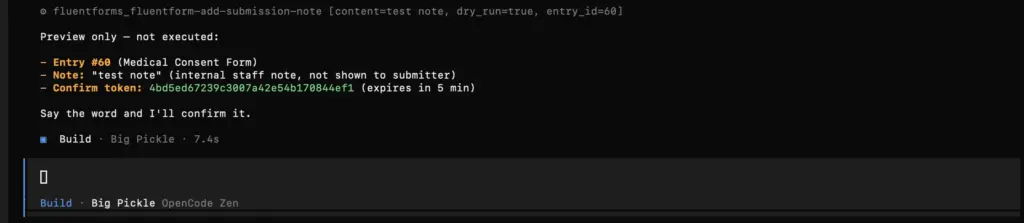
Every action that changes data follows two steps. First, the assistant creates a preview without saving anything. The change runs only after a second request confirms that preview.
- Previews stay tied to the current form or entry. If anything changes before you confirm, Fluent Forms requires a fresh preview.
- Previews expire after five minutes. An older preview cannot be used to make a change.
- Repeated requests are handled safely, so a brief connection hiccup won’t apply the same change twice.
Turn It On in About Five Minutes
1. Enable the MCP server
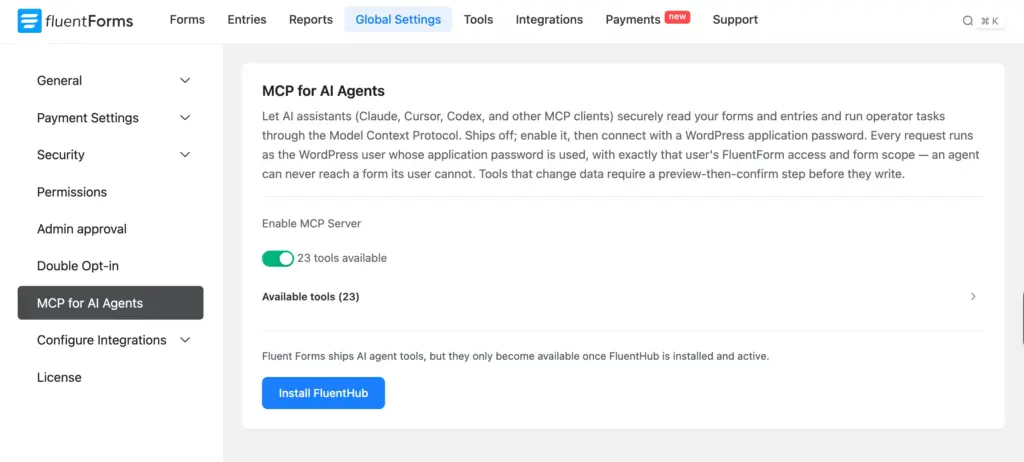
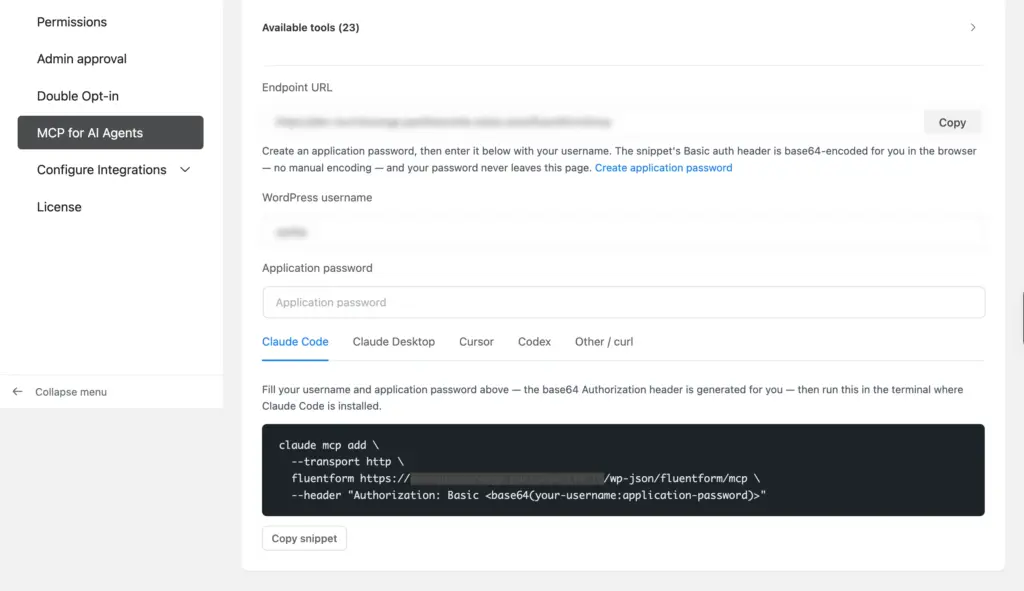
Go to Fluent Forms > Global Settings > MCP for AI Agents and flip Enable MCP Server. The card shows your endpoint (/wp-json/fluentform/mcp) and the tool count. A note on the card reminds you that the tools only become available once FluentHub is installed and active, which is the next step.
2. Install FluentHub
FluentHub includes the WordPress MCP Adapter that the connection needs. The easiest route is the Install FluentHub button right on the same settings card, which installs and activates it for you.
If you’d rather install it manually, download the FluentHub (fluent-toolkit) plugin from wpmanageninja.com, then upload it under Plugins > Add New > Upload Plugin. Once it’s active, the settings card confirms the tools are ready. If you already have the standalone WordPress MCP Adapter installed, that works too.
3. Create an application password
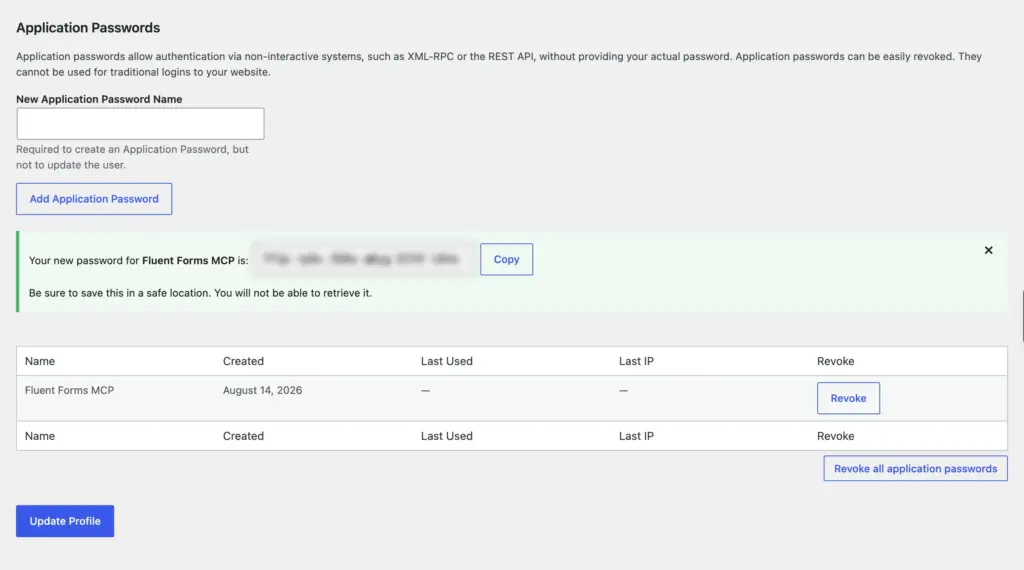
Use the direct link in the settings card to create a WordPress application password. Copy it when WordPress generates it, because it will not be shown again.
4. Connect your client
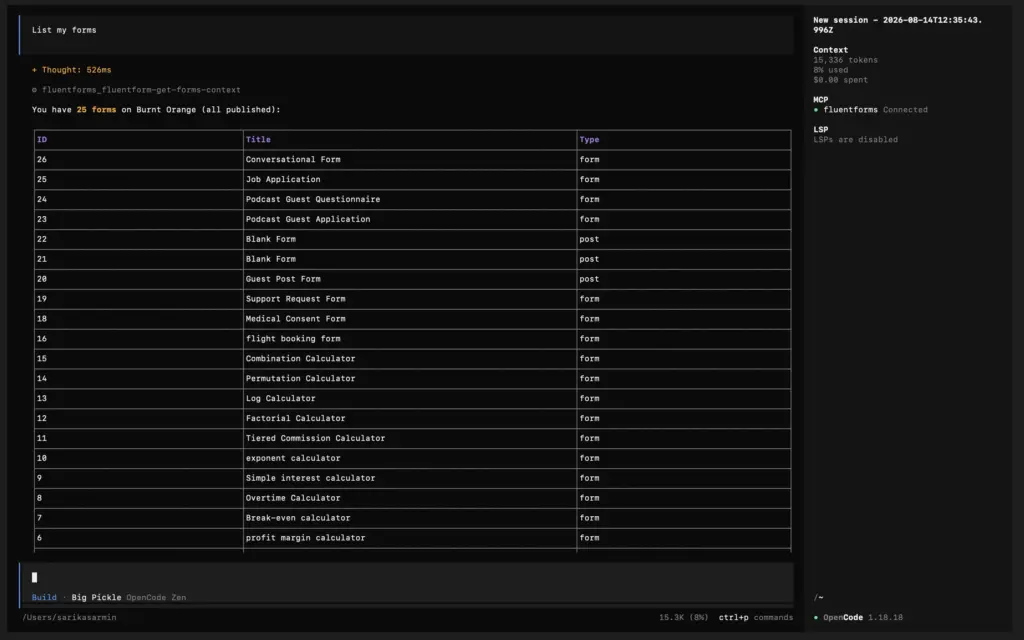
The card generates a ready-to-paste snippet for Claude Code, Claude Desktop, Cursor, Codex, and plain curl. Paste it into your client, then test the connection with a simple request like “List my forms.”
Who Should Use This (and Who Should Not)
This is an admin feature for you and your team. It is not a customer-facing chatbot, and it is not available to site visitors.
It fits site owners and managers who want faster answers about their own forms, who triage entries often, or who build and adjust forms regularly. If you’ve ever exported entries just to count them or summarise them, this replaces that habit. It’s not a widget for your visitors to talk to on the front end.
Talk to Your Form Data Today
You’ve seen what the MCP server does: it lets an AI assistant read and act on your forms, entries, and reports, while every change waits for your confirmation and every request stays inside your own permissions. The data was always yours. Now you can ask it questions in plain language.
Start small. Update to 6.2.12, install FluentHub, and turn the server on. Then open your assistant and ask something simple, like “List my forms” or “How many entries came in last week?” Once that feels natural, move on to summarizing entries, building a form from a description, or checking your revenue.
Build Smarter Forms for Free

Sarika writes for Fluent Forms and loves to offer insights into small businesses. She’s curious and enjoys discussing ideas, interests, and perspectives. In her free time, she’s either marvelling at architectural beauties or trying different cuisines.



Leave a Reply