

How to Grow Your Email List Before Black Friday (12 Ways That Bring in Buyers)
The people who join your email list in the weeks leading up to Black Friday are the most valuable leads, because they signed up to hear about this exact sale. That makes them some of the easiest buyers you’ll get all year.
You can collect these subscribers on your WordPress site with Fluent Forms and send them to FluentCRM or your email tool. I’ll show you how to build an early access form, 12 places to collect emails, and how to warm up new subscribers so they’re ready to buy when the sale opens.
TL;DR
- An early access list is the best Black Friday signup incentive for most businesses. It costs nothing and doesn’t lower your sale price.
- Match the follow-up to the signup date. Someone who joins four weeks out can get a short welcome series, while someone who joins two days out only needs the early access email.
- Ask for an email address and one interest question. In Omnisend’s 2025 data, popups with four fields converted at 1.5%, compared with about 2.1% for one to three fields.
- Put forms where intent is highest: the sale page, product pages, checkout, and the post-purchase page.
- Tag every subscriber by interest and source, so you can send targeted offers and see which channels produced buyers.
- Protect deliverability: block bot signups, use double opt-in for giveaways and popups, and keep spam complaints under 0.3%.
- The core build works with the free Fluent Forms plugin and the free FluentCRM plugin. Built-in popups, landing pages, and some email-tool integrations need Fluent Forms Pro.
What Black Friday List Building Is
Black Friday list building is collecting new email subscribers in the weeks before Black Friday, so you can send them your sale offer directly instead of paying to reach them with ads. Most stores run it around an early access list.
An early access list is a signup form that promises subscribers your Black Friday deal before the public sale opens, usually 24 to 48 hours earlier. The promise is the incentive, so you don’t have to give away a discount to get the signup.
Why it works
Email does a large share of the selling during the sale weekend. According to Klaviyo’s BFCM 2025 recap, email and text messages generated 42% of total revenue across its customers from Thanksgiving through Cyber Monday 2025.
Shoppers also ask for it: in a Sinch Mailjet survey, 56.5% of consumers said they prefer email for Black Friday and Cyber Monday promotions.
Early access works especially well. In one example from Klaviyo’s agency roundup, Harmless Harvest’s early VIP sale earned 110% more revenue per recipient than its campaigns during the main sale window.
Plan for the Warm-Up Window, Not Just the Signup Count
Someone who joins four weeks out has time to get to know you. New contacts who join two days prior get their first impression of you from the sales emails.
They’re also less likely to recognize you and therefore can ignore your emails or mark them as spam, which hurts delivery to your whole list. So plan the follow-up around the signup date.
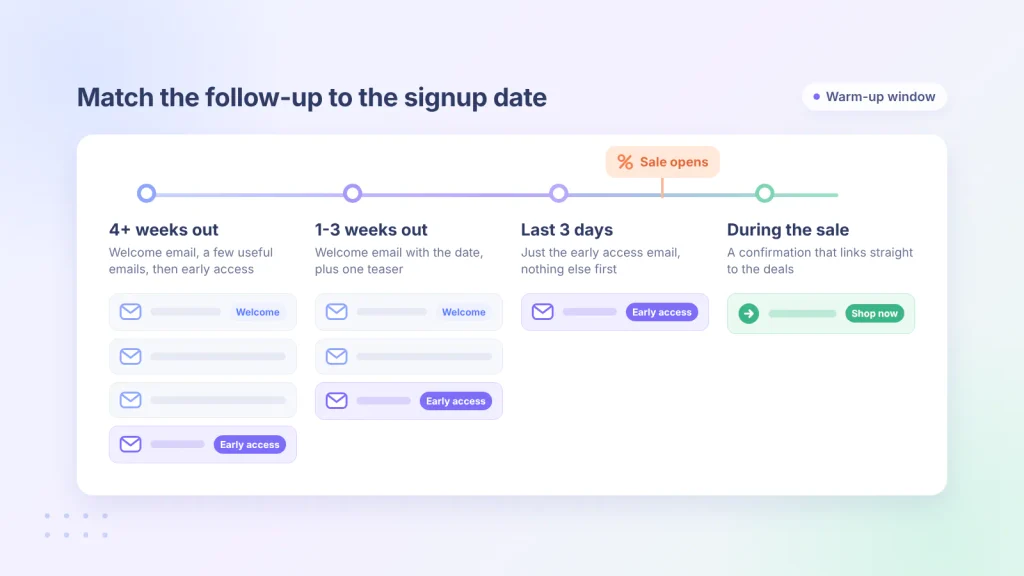
| When they join | What they should get | Why |
| 4 or more weeks before Black Friday | A welcome email, two or three useful emails (bestsellers, a gift guide, how-to tips), then the early access email | There’s time to build the habit of opening your emails before the sale |
| 1-3 weeks before | A welcome email that confirms early access and gives the exact date, plus one teaser | They know what to expect and when, without a long series |
| The last 3 days | The early access email as soon as it’s ready | There’s no time for nurturing, so give them what they signed up for |
| During the sale | A confirmation message that links to the live sale | They want the deal now |
Choose an Incentive That Doesn’t Undercut Your Sale
A signup discount is the default for many stores, but it creates a problem before Black Friday. Some visitors use it right away at a lower margin, which competes with your plan.
A safer rule: give subscribers something the public doesn’t get. That can be earlier access, an extra (like a free gift with a sale order), or something exclusive (like a product only sold to the list).
| Incentive | Best for |
| Early access (24-48 hours before the public sale) | Almost any business with a clear sale |
| Price-drop or “notify me” alerts | Stores with a few products people already want |
| Gift guide or buying guide | Content-led stores, SaaS, high-consideration products |
| Gift finder quiz | Catalogs with many products or variants |
| Giveaway | Fast growth, especially with a partner brand |
| Signup discount | Impulse categories with healthy margins |
12 Ways to Collect Emails Before Black Friday
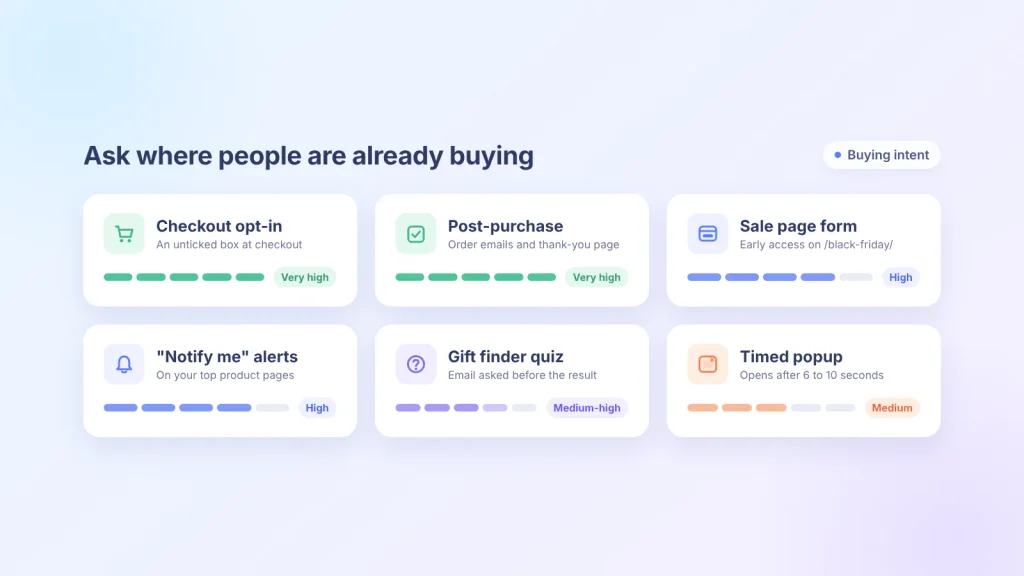
| Way | Intent | Effort | What you need |
| 1. Early access form on the sale page | High | Low | An inline form near the top of the sale page |
| 2. Timed popup | Medium | Low | A popup set to open after a short delay |
| 3. “Notify me” alerts on product pages | High | Medium | A small form on each top product page |
| 4. Checkout opt-in checkbox | Very high | Low | An unticked signup checkbox at checkout |
| 5. Post-purchase invite | Very high | Low | A line and link in order emails and on the thank-you page |
| 6. Gift guide with a signup | Medium | Medium | A useful guide with a form inside it |
| 7. Gift finder quiz | Medium to high | High | A short quiz that asks for the email before the result |
| 8. Partner giveaway | Low to medium | Medium | A co-hosted entry form with rules and consent for both brands |
| 9. Link-in-bio signup page | Medium | Low | A mobile-friendly signup page |
| 10. QR code on packaging or in store | High (existing buyers) | Low | A QR code that opens your signup page |
| 11. Partner and creator links | Medium | Low | A tracked link for each partner |
| 12. Forward-to-a-friend link | Medium | Low | A share line in your teaser emails |
1. Early access form on the sale page
Your sale page (for example, /black-friday/) attracts visitors who are actively looking for your deal. Publish it early with the early access form on it, then swap in the live offer on launch day. Keep the same URL every year, so the page builds search rankings over time.
2. A timed popup
Popups reach visitors who never scroll to an inline form. In Omnisend’s 2025 data, popups with a 6-10 second delay converted at 2.4%, higher than popups that appeared instantly (1.9%) or after more than 30 seconds. Exit-intent popups didn’t beat the 2.1% overall average.
Show the popup on product and category pages, not on checkout, where it would get in the way of a sale.
3. “Notify me” alerts on product pages
Many shoppers already know which product they want and are waiting for the price to drop. A small “Tell me if this goes on sale” form on your top product pages catches them.
Ask only for the email, and record which product page each signup came from. Then, when a product is discounted, you know exactly who to tell. In Fluent Forms, a Hidden Field with the smart code {embed_post.post_title} saves the page name for you.
4. A checkout opt-in checkbox
People at checkout are already buying from you, so a signup checkbox there converts well. Phrase it around the sale, such as “Send me early access to the Black Friday sale,” rather than “Subscribe to our newsletter.”
If you use WooCommerce or FluentCart, FluentCRM can add this checkbox for you under FluentCRM → Settings → General Settings.
Leave the box unticked by default. A box the buyer ticks is clear consent, and it keeps complaint rates down later.
5. A post-purchase invite
Customers who bought in October or early November are your warmest prospects for Black Friday. Add a line and a link to your order confirmation emails and thank-you page: “Join early access for our Black Friday sale.” Add ?utm_source=order-email to the link, so you recognize these signups later.
6. A gift guide with a signup
Gift guides attract searchers in November who are still deciding what to buy. Publish a guide for your niche and place a signup form inside it, after the first few recommendations. The visitor has seen useful content by then, so asking for the email feels fair.
7. A gift finder quiz
A short quiz helps shoppers who don’t know what to pick: who’s it for, what’s the budget, what do they like. Build it as a conversational form, which shows one question at a time. Ask for the email at the end, before the result.
Tag each subscriber by their answers, then send the matching picks in the welcome email. The quiz gives them a reason to sign up, and it tells you what they want to buy.
8. A giveaway with a partner brand
A giveaway co-hosted with a brand that sells to the same audience puts your signup form in front of their list as well as yours. Each brand promotes it, and entrants opt in to both brands’ emails, which you must say clearly on the form.
Giveaway entrants know your brand less than your other subscribers do, so give them the longer welcome path from the warm-up table instead of sending sale emails right away.
9. A link-in-bio signup page
Your social followers already like what you post, but most of them aren’t on your email list. Put a signup link in your bio and in story posts during the weeks before the sale.
A conversational form has its own shareable URL in the free plugin, which works well as a mobile-friendly bio link. Add ?utm_source=instagram (or the right network) to the link, so you can see which network sent each signup.
10. A QR code on packaging, receipts, or in store
Physical touchpoints reach people who already bought from you, even through a retailer you don’t control. Print a QR code on packing slips, product inserts, receipts, or a sign at events and pop-ups, with a line “Scan for early access to our Black Friday sale.”
Any QR generator works if you point it to your sale page URL with a UTM tag. Fluent Forms Pro‘s Landing Page mode also creates a QR code for the form.
11. Partner and creator links
If you work with affiliates, creators, or partner newsletters, ask them to send people to your early access page instead of only sharing a discount code. Give each partner their own link, such as ?utm_source=partner-name, so you can see who brought in subscribers who later bought.
12. A forward-to-a-friend link
In your teaser emails, add a line such as “Know someone who’d want early access? Send them this link,” pointing to the sale page with ?utm_source=referral. It’s a simple, honest version of a referral program, with no rewards to track.
How to Get More Visitors to Sign Up
Small changes to the form and its timing make a measurable difference. These tips come from Omnisend’s 2025 popup data, which covers 1.24 billion popup displays, plus what tends to work on sale pages.
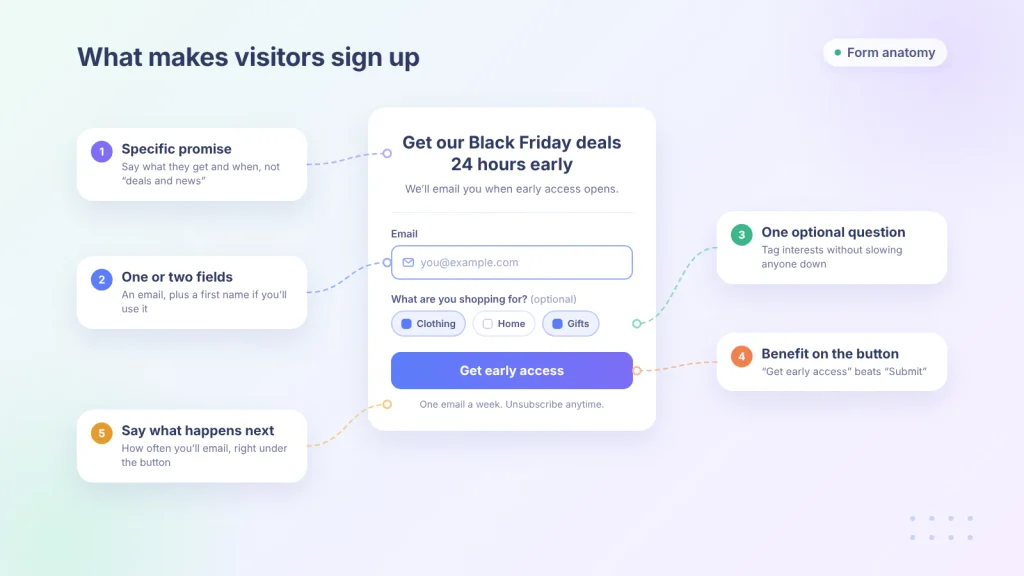
Keep the form to one or two fields
Every field asks for a bit more effort. Omnisend found that popups with one, two, or three fields converted at about the same rate (2.1-2.2%), but four fields dropped conversion to 1.5%. Ask for the email, maybe a first name, and collect the rest later through your emails.
Make the promise specific
“Get early access 24 hours before everyone else” tells visitors what they’ll get and when. Add how often you’ll email, so nobody signs up expecting one email and gets ten.
Name the benefit on the button
“Submit” and “Subscribe” describe what the visitor does. “Get early access” or “Send me the deals” describe what the visitor gets, which is the reason they’re filling in the form.
Time your popup
A popup that opens the instant a page loads interrupts visitors before they know what you sell. Omnisend’s data shows the best results with a 6-10 second delay. Turn popups off on checkout and cart pages.
Tell people what happens after they sign up
Visitors hesitate when they don’t know what comes next. A short line under the button, like “One email a week until the sale. Unsubscribe anytime,” answers their question.
Check the form on a phone
Most sale-season browsing happens on phones, so preview the page on a phone before you publish. The headline, the email field, and the button should all be visible without scrolling, and the keyboard shouldn’t cover the button.
Know your baseline before you set a goal
You can estimate new subscribers with one formula:
New subscribers = visits to pages with the form × signup rate
For example, 15,000 visits at a 2% signup rate brings in 300 subscribers. Raising the rate to 4% doubles that to 600 without a single extra visitor. That’s why fixing the form is often faster than buying more traffic.
For popups, Omnisend uses these bands: below 1.5% is underperforming, 1.5-3% is average, 3-5% is good, and above 5% is excellent.
How to Build a Black Friday Early Access Form in Fluent Forms
The early access form collects an email address, one interest answer, and where the visitor came from. Each subscriber then lands in FluentCRM with the right tags, and a welcome email goes out automatically.
1. Install Fluent Forms and FluentCRM
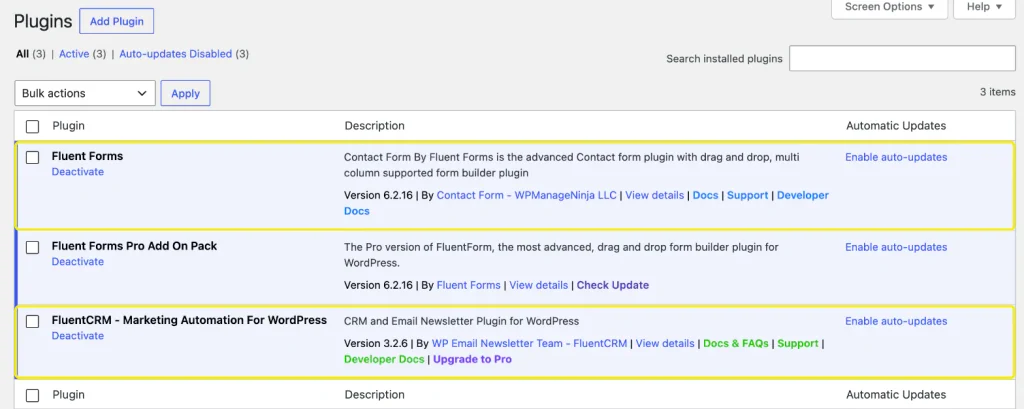
In your WordPress dashboard, go to Plugins → Add New Plugin, search for Fluent Forms, then install and activate it. Do the same for FluentCRM. The FluentCRM integration works with the free versions of both plugins.
If you send from Mailchimp instead, the Mailchimp integration is free too, while Kit, MailerLite, Brevo, and ActiveCampaign need Fluent Forms Pro.
2. Start from the Newsletter Subscription template
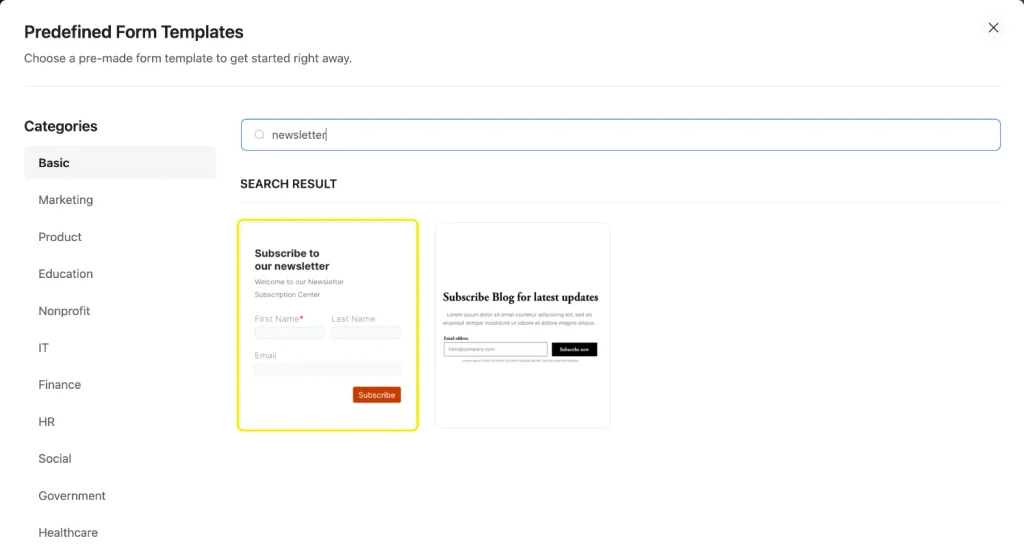
Go to Fluent Forms → New Form and choose to start from a template. Search for “newsletter” and pick the Newsletter Subscription Form, which already has the name and email fields you need.
Rename the form to “Black Friday early access.”
3. Write a specific promise above the fields
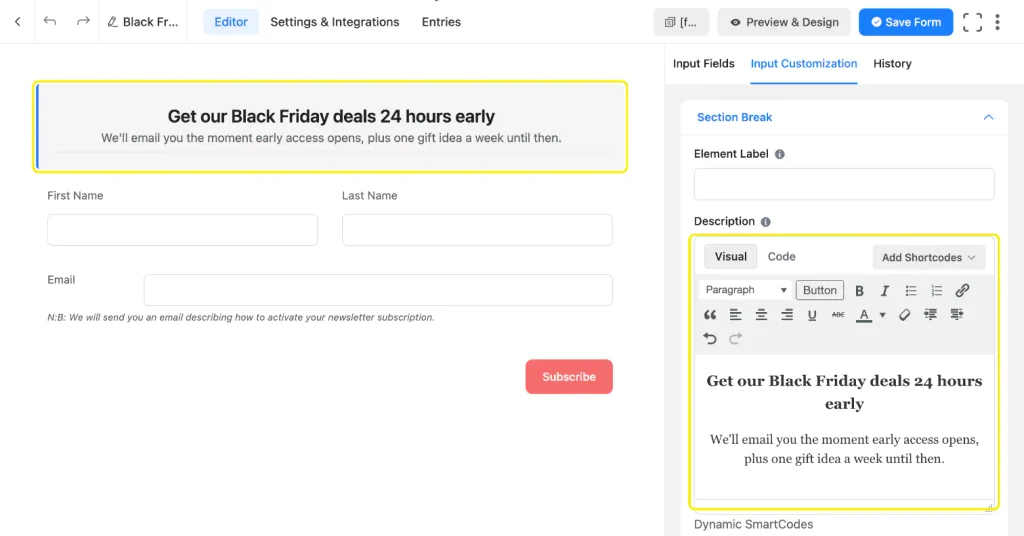
The template opens with a Section Break field at the top. Click it, put your headline in the Title, and write the promise in the Description. Say what subscribers get, when they get it, and how often you’ll email them.
Compare these two versions:
- Vague: “Sign up for our newsletter to get the latest deals.”
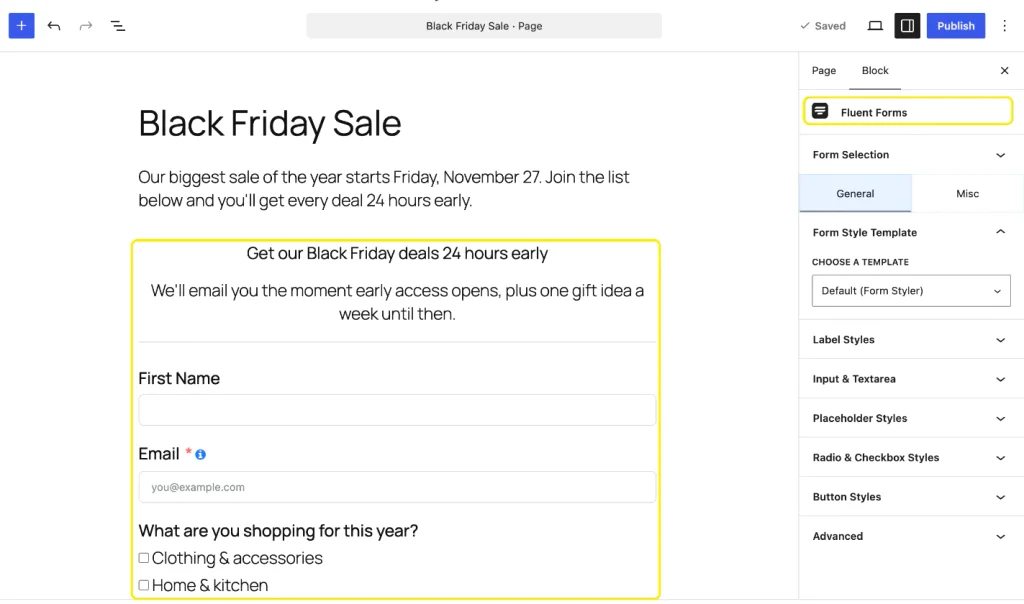
- Specific: “Get our Black Friday deals 24 hours early. We’ll email you the moment early access opens, plus one gift idea a week until then.”
The specific version tells visitors exactly what the email address buys them, and it sets the email frequency they’ve agreed to.
4. Keep the form to one or two fields
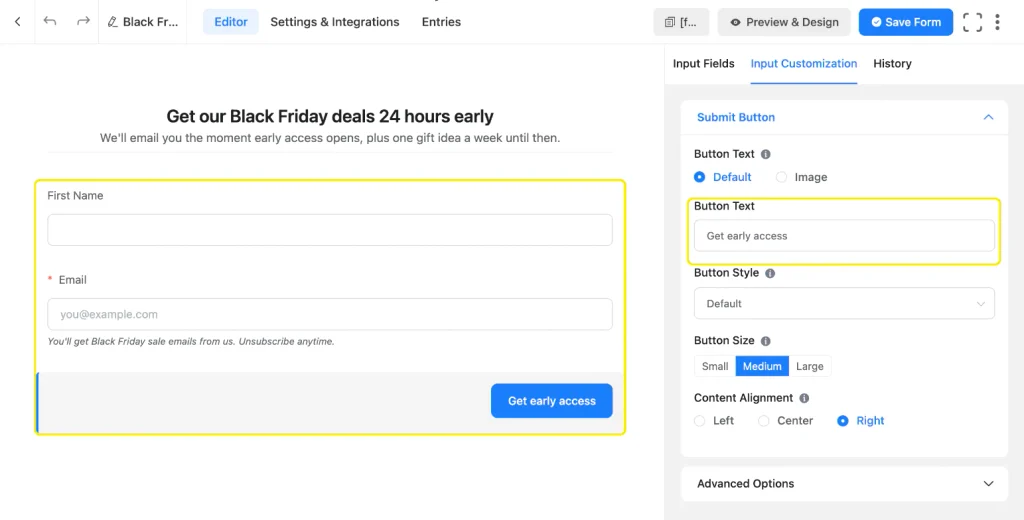
The template’s Email field isn’t required by default. Click it and set Required to Yes, because a signup without an email address is useless to you. Keep First Name only if you’ll use it in emails. It’s already optional in the template, so keep it that way.
Then click the submit button and change the Button Text to name the benefit, such as “Get early access.” The button is the last thing visitors read before they decide, so it should repeat the promise. The template’s Button Style is Red by default. Switch it to Default or Custom so the button matches your brand.
5. Add one interest question
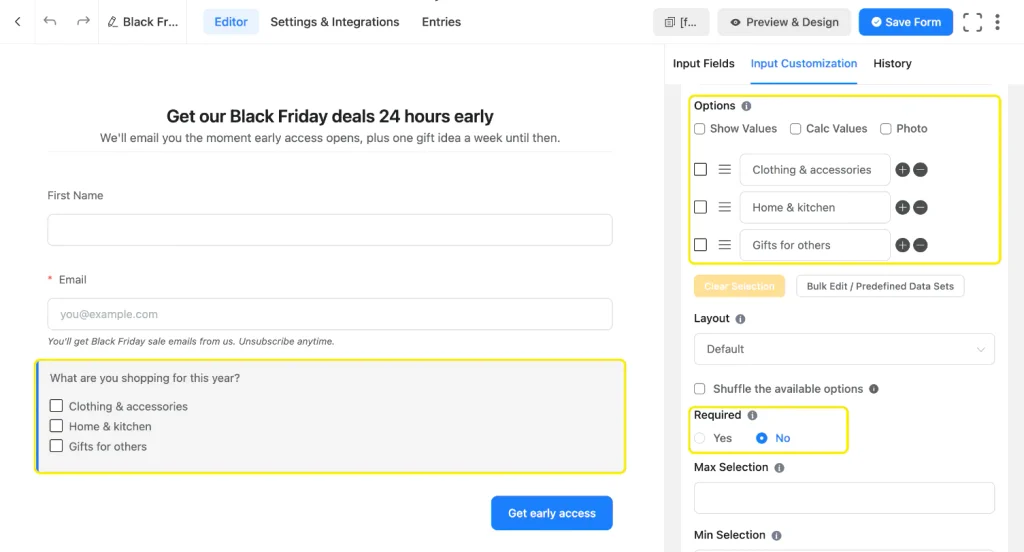
Add a Checkbox field labeled “What are you shopping for this year?” and list your main product categories as options. Leave it optional, so it doesn’t reduce conversion.
This question lets you send each subscriber the offers they want, and it shows you demand before the sale. If most early signups pick the same category, that category is a good candidate for your headline deal and your stock order.
6. Record where each signup came from
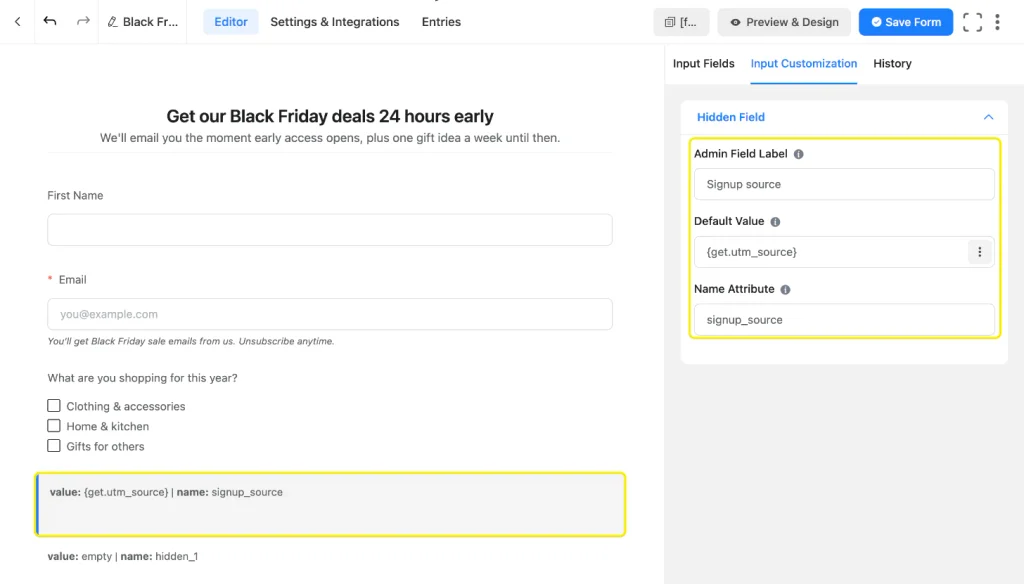
Add two Hidden Field fields. Visitors never see them, but they save useful data with every entry.
- Signup source: set the Name Attribute to signup_source and the Default Value to {get.utm_source}. When someone arrives from a link like yoursite.com/black-friday/?utm_source=instagram, the field saves “instagram.”
- Signup page: set the Default Value to {embed_post.permalink}. This saves the URL of the page the form was on, which tells you whether the sale page, a product page, or a blog post brought the signup.
Both smart codes work in the free plugin. In step 11, you can add Dynamic Tag Selection rows that tag subscribers by source too, such as “Source: Instagram” when the source field equals instagram. After the sale, the same fields let you compare sources in your entries.
7. Add clear consent
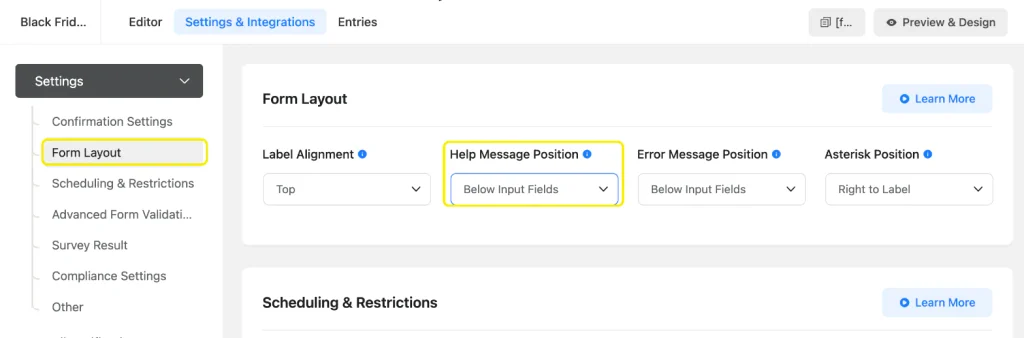
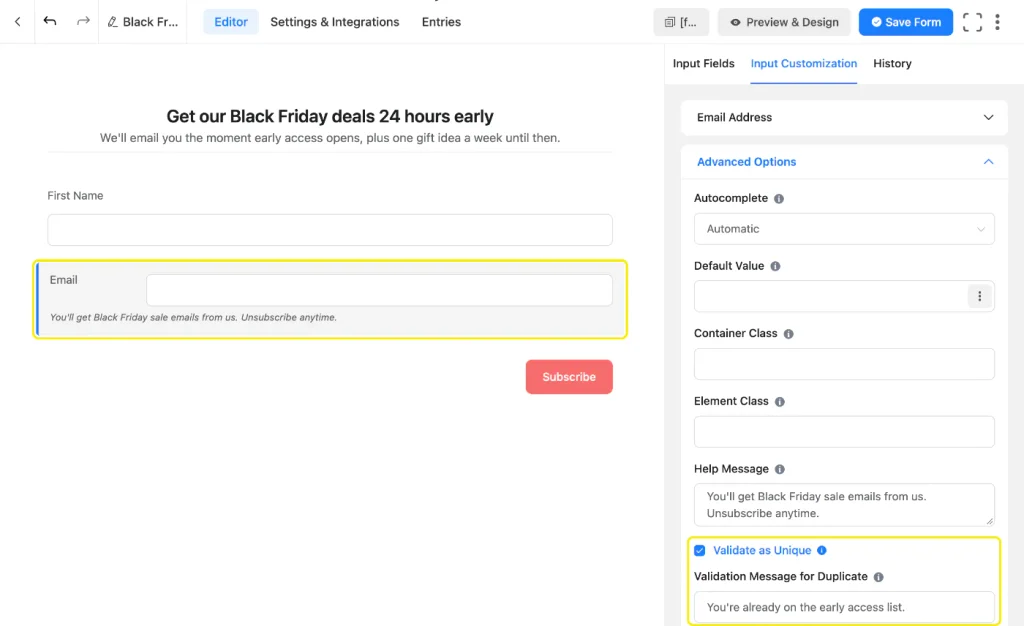
Tell people they’re signing up for marketing emails. Click the Email field, open Advanced Options, and add a short Help Message: “You’ll get Black Friday sale emails from us. Unsubscribe anytime.”
By default, Fluent Forms shows help messages as a tooltip beside the label, so most visitors would never see this line. To show it under the field instead, go to Settings & Integrations → Settings → Form Layout and set Help Message Position to Below Input Fields.
If you collect signups from the EU or UK, also add the free GDPR Agreement field. Write the consent statement in its Description.
8. Block bots and duplicate signups
Turn on the free spam protection before the form goes live:
- Honeypot and token-based protection: go to Global Settings → General → Miscellaneous and turn on both Honeypot and Token Based Spam Protection. Visitors never see them.
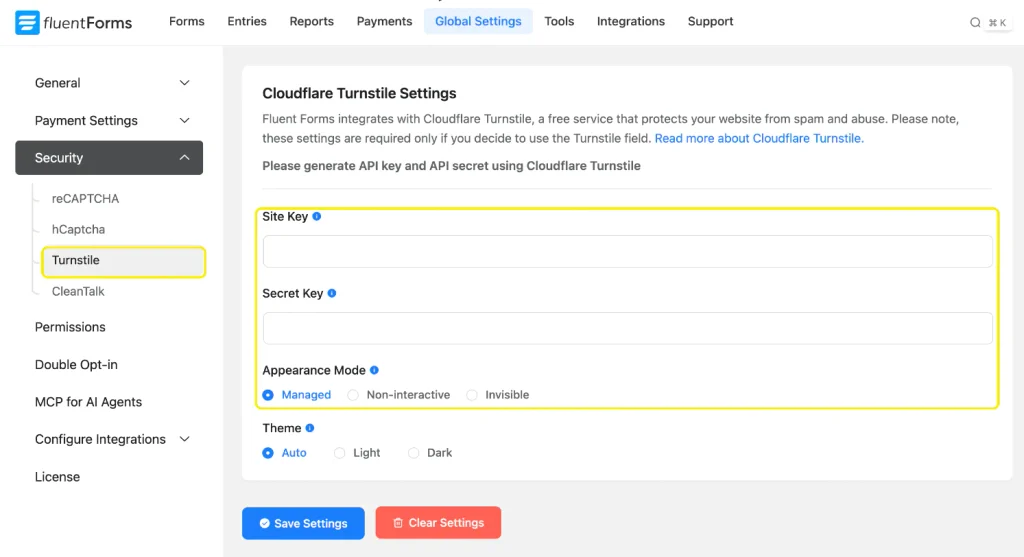
- Cloudflare Turnstile: go to Global Settings → Security → Turnstile, add your Site Key and Secret Key, and pick an Appearance Mode (Managed, Non-interactive, or Invisible). Then drag the Turnstile field into this form. Invisible mode doesn’t show a challenge to real visitors, so it won’t slow them down.
Then stop duplicate signups. Click the Email field, open Advanced Options, and turn on Validate as Unique. This option is free, and it stops the same email address from creating a second entry.
9. Write the confirmation message
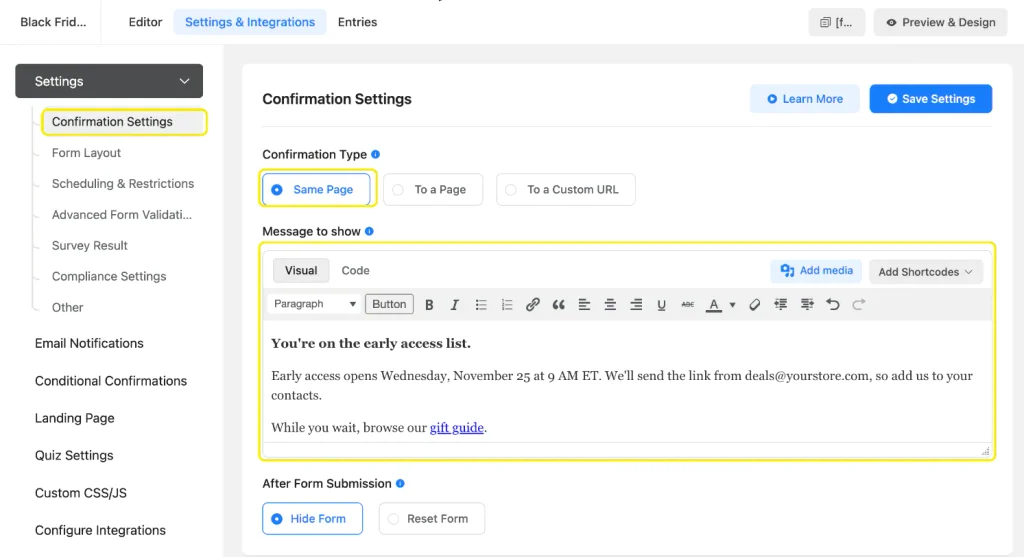
Go to Settings & Integrations → Confirmation Settings and show a message on the same page. This message is the first thing a new subscriber reads, so use it to confirm what happens next.
A good confirmation message says when early access opens, which address the email will come from, and one useful link while they wait, such as your gift guide.
10. Schedule when the form closes
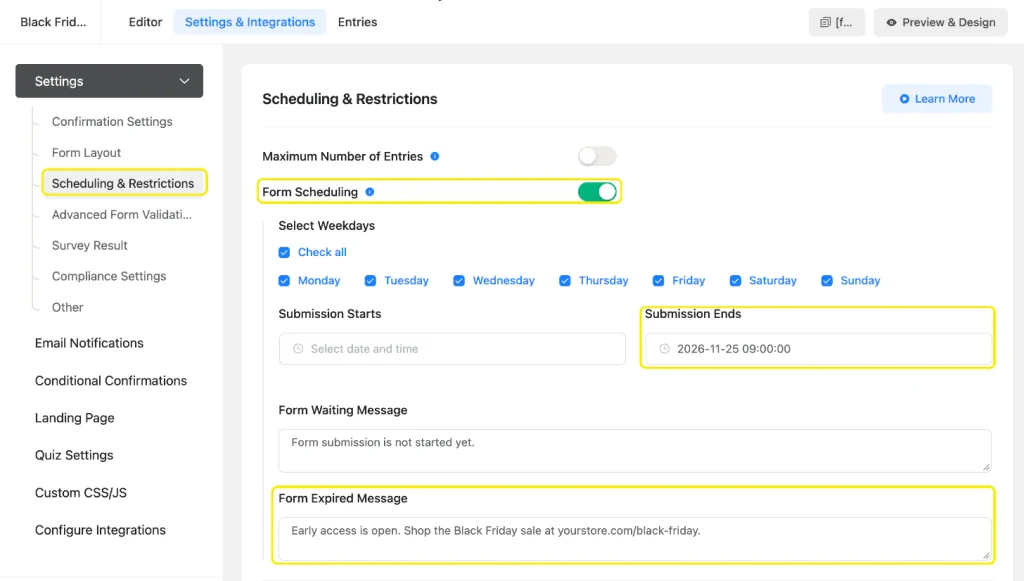
Go to Settings & Integrations → Settings → Scheduling & Restrictions. Turn on Form Scheduling and set Submission Ends to the moment early access opens.
In the Form Expired Message, point people to the live sale, such as “Early access is open. Shop the Black Friday sale at yourstore.com/black-friday.” Anyone who finds the form late still gets the deal instead of a dead end. Form scheduling is free.
11. Send subscribers to FluentCRM with tags
Once FluentCRM is active, open this form and go to Settings & Integrations → Configure Integrations → Add New Integration → FluentCRM Integration. Then set up the feed like this:
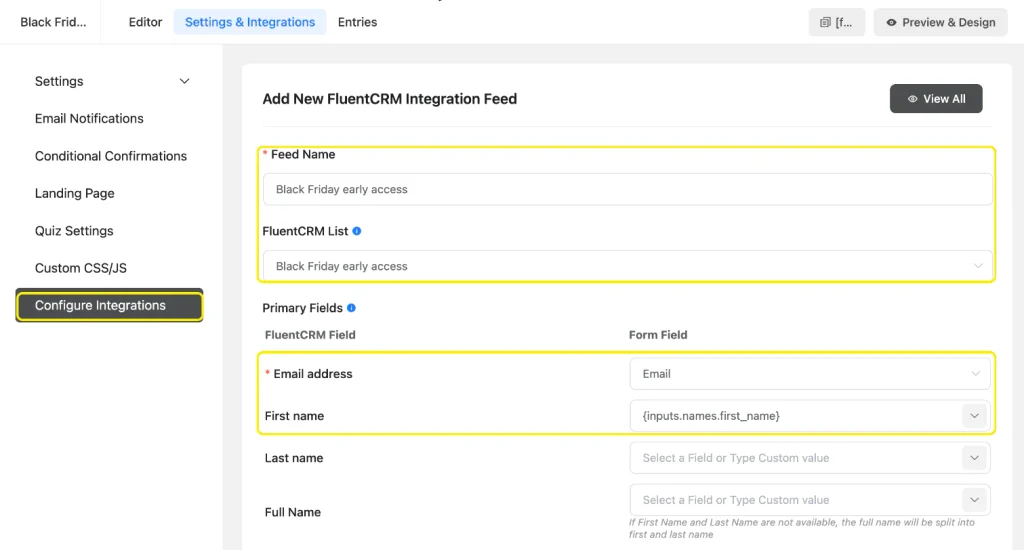
- Feed Name: “Black Friday early access.”
- FluentCRM List: choose or create an early access list. The list is how you’ll email this group on its own later.
- Primary Fields: map Email address to the Email field and First name to the first name field.
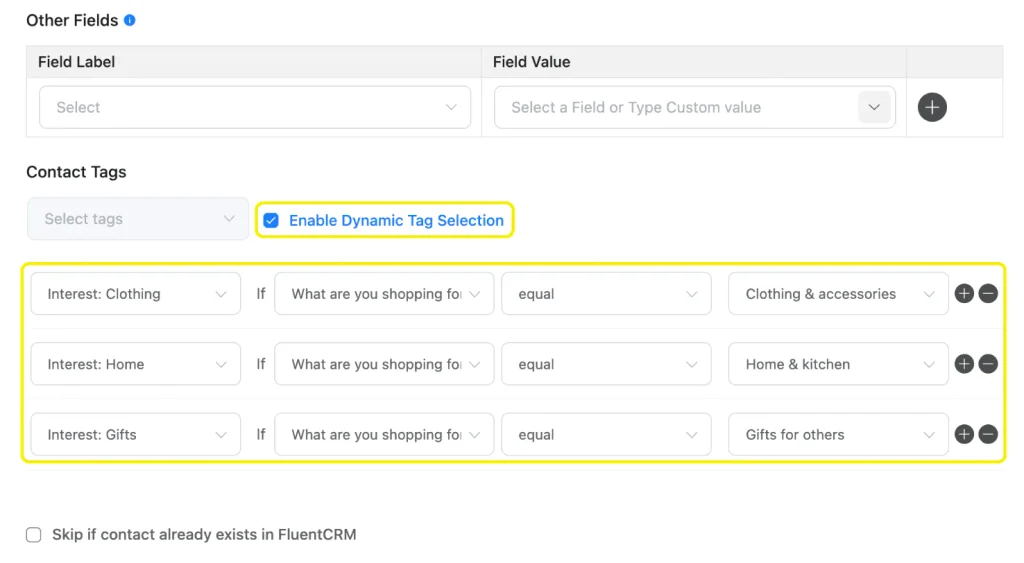
- Enable Dynamic Tag Selection: add one row per interest option. Each row reads “Set Tag [tag] if [field] equal [value],” so you’d set “Interest: Clothing” if “What are you shopping for” equals “Clothing & accessories.”
Turning on Dynamic Tag Selection disables the regular Contact Tags box, so you can’t add a fixed tag in the same feed. That’s why the list, not a tag, marks someone as an early access subscriber.
Click Save Feed.
12. Decide on double opt-in
Double opt-in sends a confirmation email, and the person joins your list only after clicking the link. You’ll get fewer subscribers, but every one of them has a working address and wants your emails.
To use it, check Enable double opt-in for new contacts in the same FluentCRM feed. New contacts then join FluentCRM with a Pending status, and they become Subscribed only after they click the link in the confirmation email. Leave the Double Opt-in Confirmation option in the form’s own settings off, so FluentCRM is the only tool sending a confirmation.
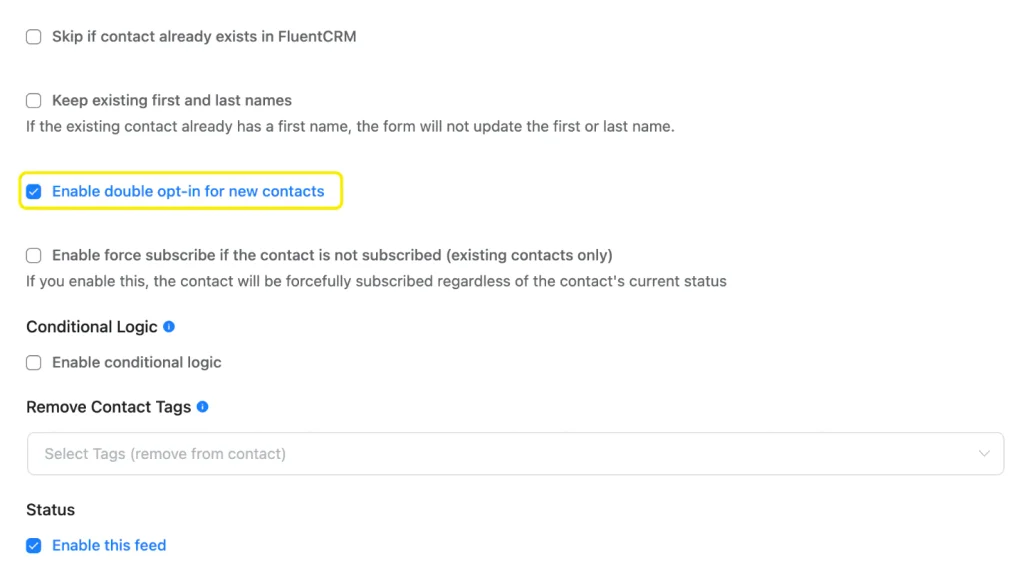
If you skip double opt-in, leave this box unchecked. New contacts then join as Subscribed right away.
13. Send a welcome email automatically
In FluentCRM, go to Automations → New Automation and select the New Form Submission (Fluent Forms) trigger.
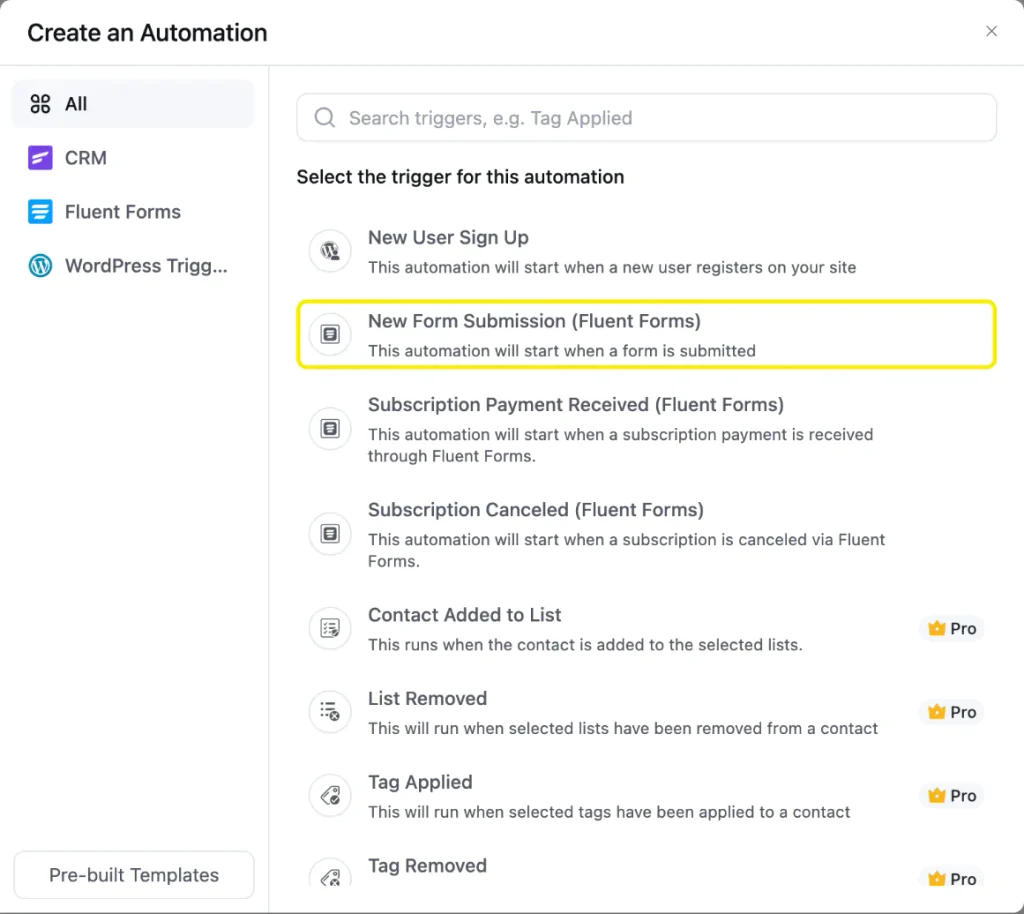
In the trigger settings, choose this form. Then set Subscription Status to match your choice in step 12:
- Double opt-in on: choose Pending. The automation then holds each new contact at “Waiting for double opt-in confirmation” and sends the welcome email only after they confirm.
- Double opt-in off: choose Subscribed, and the welcome email goes out as soon as someone signs up.
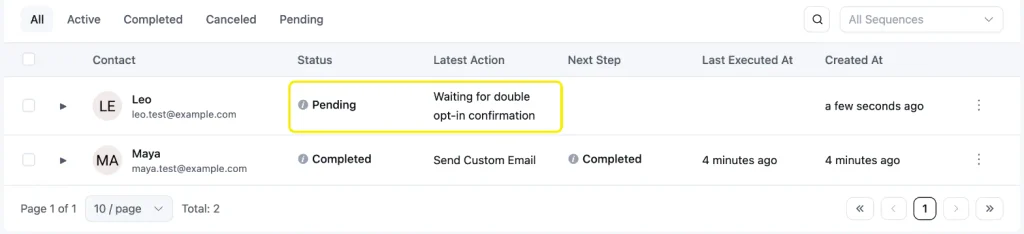
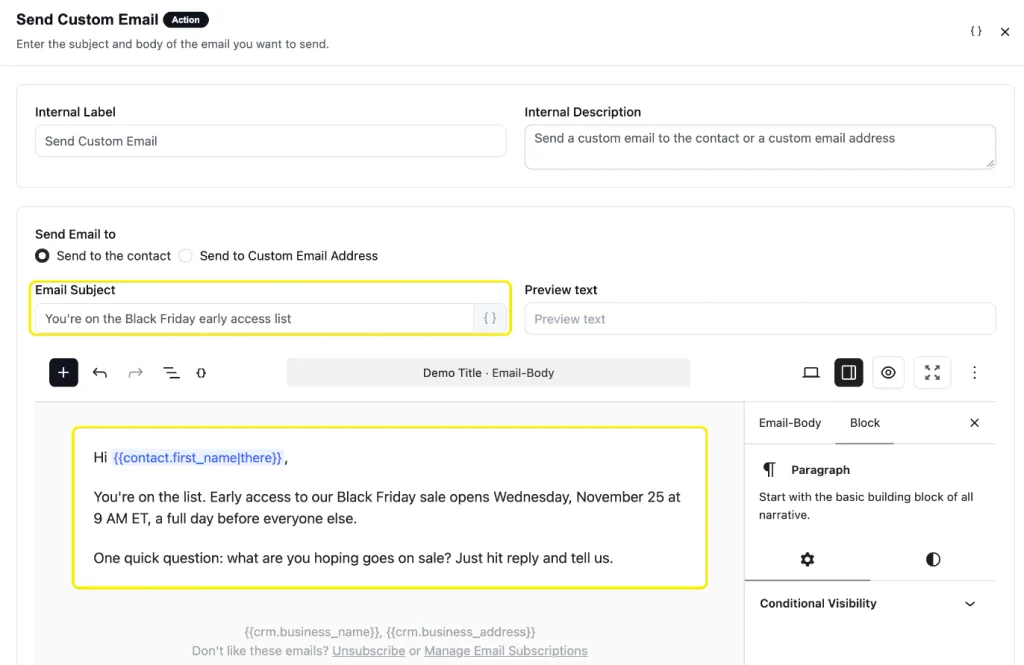
Next, add the Send Custom Email action and write the welcome message. Keep it short: confirm early access, give the date, and ask one question they can reply to, such as “What are you hoping goes on sale?” The replies give you more demand data, in the subscriber’s own words.
Use {{contact.first_name|there}} in the greeting. Because First Name is optional on the form, the fallback makes the email read “Hi there” when someone leaves it blank.
Turn on Published to start the automation.
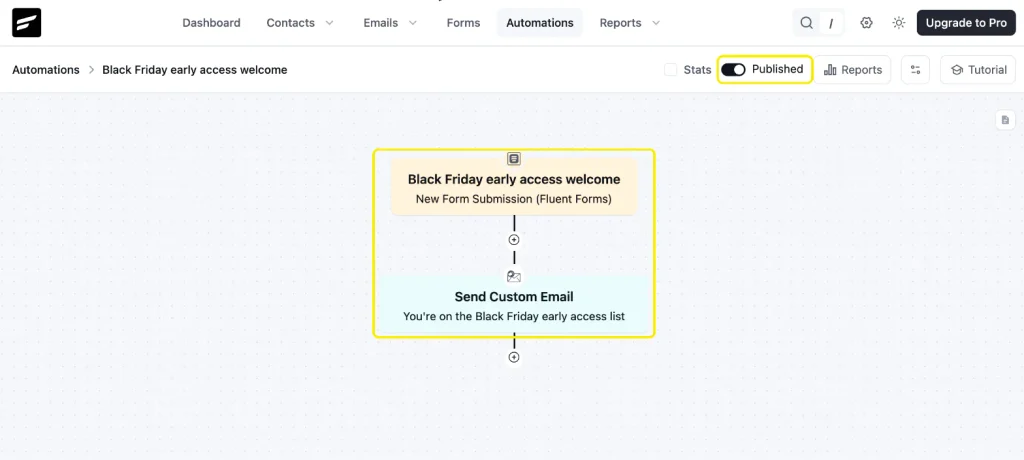
FluentCRM includes the Wait and Send Custom Email actions, so you can build the four-week warm-up from the table above in this same automation: add a wait, then an email, and repeat. Triggers like Tag Applied or Contact Added to List need FluentCRM Pro.
14. Embed the form and publish
Add the form to your Black Friday sale page with the Fluent Forms block in the editor, or paste its shortcode. Put it near the top, right under the line that explains your offer.
If you want the form in a popup too, Fluent Forms Pro’s modal shortcode opens it when a visitor clicks a button:
15. Test the live form as a visitor
Open the sale page in a private browser window, so you see what logged-out visitors see. Add ?utm_source=test to the URL and submit with a test address.
Then check the whole path:
- The confirmation message shows the correct date.
- The entry appears under Fluent Forms → Entries, with the page URL saved.
- The contact appears under FluentCRM → Contacts on the early access list, with one tag for each interest the visitor ticked.
- The contact’s status is Pending if double opt-in is on, or Subscribed if it’s off.
- The confirmation email (if double opt-in is on) arrives, and the welcome email follows only after you click its link. Both should land in the inbox, not spam.
If the welcome email lands in spam, fix your sending setup before the sale. Routing WordPress emails through FluentSMTP is the usual fix.
A Six-Week List-Growth Countdown
| When | What to do | Done when |
| 6 weeks before | Pick the incentive, publish the sale page, build the early access form | The form is live on the sale page and passes the logged-out test |
| 5 weeks before | Add the checkout opt-in, post-purchase invite, and product-page alerts | Every high-intent page has a way to join |
| 4 weeks before | Start the popup, social bio link, and gift guide; brief partners | Each channel has its own UTM link |
| 3 weeks before | Check signup rate per page; fix the weakest form or popup | Your best placement and your weakest are both known |
| 2 weeks before | Send the teaser with a forward-to-a-friend link; update the confirmation message to the shorter path | New signups get the 1-3 week path from the warm-up table |
| Final week | Update the welcome email to go straight to early access; confirm the form’s end date | Late signups get the early access email with no delay |
| Early access opens | Form closes on schedule; expired message links to the live sale | Nobody hits a dead end |
| After Cyber Monday | Move early access contacts into your main list and review sources | You know which sources produced buyers |
FAQs
When should I start growing my email list for Black Friday?
Start about six weeks before Black Friday. That leaves time to collect signups and send new subscribers a few emails before the sale, so they recognize you when your offer arrives. Starting earlier is better, but any amount of time helps if you match the follow-up to the signup date.
Is it too late to grow my list a week before Black Friday?
No. People still sign up in the final week, often with strong intent. Skip the long welcome series for these signups and send the early access email right away, so they get what they asked for before the sale opens.
What is the best incentive for Black Friday email signups?
Early access is the best incentive for most businesses. It gives subscribers a real advantage, costs you nothing, and doesn’t compete with your sale price the way a signup discount can.
How many fields should a Black Friday signup form have?
One or two: an email address and, if you’ll use it, a first name. An optional interest question is worth adding because it helps you segment. Omnisend found conversion dropped to 1.5% once a popup had four fields.
Can I grow my email list for Black Friday with free Fluent Forms?
Yes. The early access form, interest tags, source tracking, spam protection, form scheduling, conversational forms, and the FluentCRM and Mailchimp integrations all work in the free plugin. Pro adds a built-in popup, Landing Page mode, more email-tool integrations, and the Phone field for SMS.
Can I collect phone numbers for SMS at the same time?
Yes, but it needs the Phone/Mobile field, which is a Fluent Forms Pro feature. Make the phone field optional, because every required field lowers signups, and send SMS only to people who explicitly agreed to texts.
What should I do with new subscribers after Black Friday?
Keep them, thank them, and move them into your regular newsletter with the same welcome series any new subscriber gets. Keep them on the early access list and keep their interest tags, so you can invite them to early access first next year.
Put Your Early Access Form Live This Week
Every week the form is live gives you more subscribers and more time to warm them up. Start with the sale page form, then add the checkout opt-in and the post-purchase invite, since those reach people who already buy from you.
After the sale, keep the early access contacts and their tags. Move them into your regular newsletter list, thank them, and send them the same welcome series you send any new subscriber. Next year, invite them to early access first.
Install Fluent Forms, start from the Newsletter Subscription template, and connect it to FluentCRM. You can have your early access list collecting signups by the end of the day.

Sarika writes for Fluent Forms and loves to offer insights into small businesses. She’s curious and enjoys discussing ideas, interests, and perspectives. In her free time, she’s either marvelling at architectural beauties or trying different cuisines.


Leave a Reply