

Offload Uploads to Google Drive or Dropbox: Fluent Forms Cloud Storage Add-on Explained

If your Fluent Forms forms are collecting files at any scale, resumes, briefs, portfolios, or onboarding documents, your WordPress server is quietly filling up. Every upload lands locally, and that pile grows faster than most people expect.
Offloading the uploads is always a concern for businesses that have repetitive entries, including files. Big files eat up the space in hosting and slow down your WordPress website. Cloud storage is an alternative solution to this big problem.
FluentWiz is our official 3rd-party partner who has built a dedicated cloud storage add-on specifically for Fluent Forms users that fixes this automatically. This post covers what it is, how it works, and whether the free tier is enough.
TL;DR
- Fluent Forms does not ship with native cloud storage, but a WPManageNinja-approved add-on called Cloud Storage Manager fills that gap neatly.
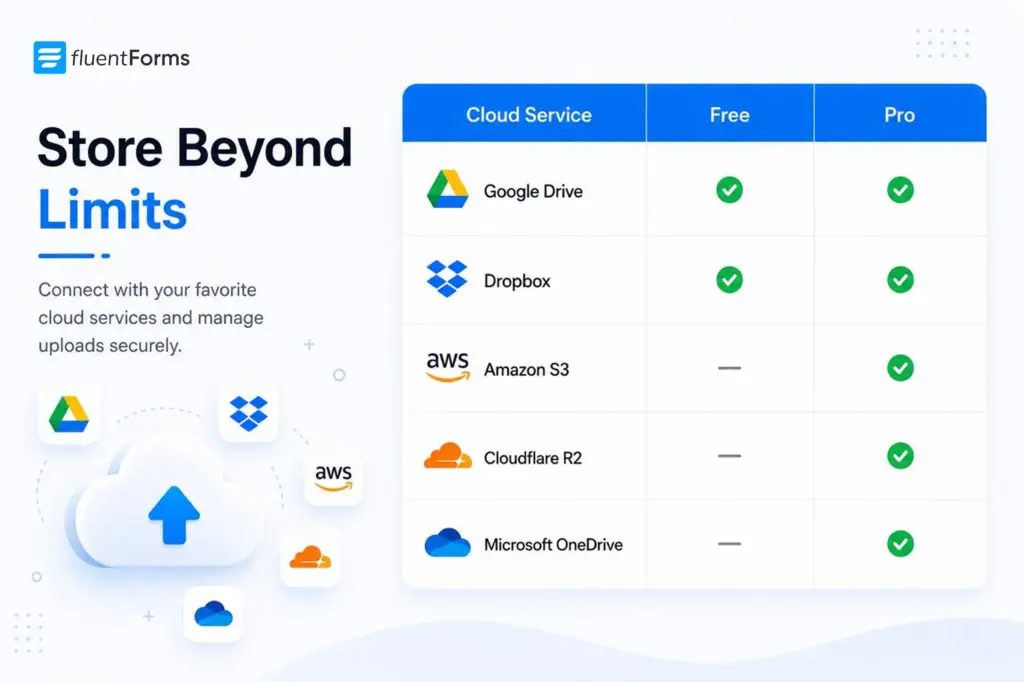
- It automatically offloads file uploads from Fluent Forms Pro to Google Drive, Dropbox, Amazon S3, Cloudflare R2, or Microsoft OneDrive.
- Google Drive and Dropbox integrations are completely free. Amazon S3, Cloudflare R2, and OneDrive need the Pro plan.
- Files upload in the background is designed to avoid slowdowns and friction for submitters.
- You can auto-delete local copies after upload and build dynamic folder structures with shortcodes.
- One cloud service can be active at a time across your forms.
- The add-on requires Fluent Forms Pro to use file and im
The Problem: Offloading File Uploads from Form Entries
Storing uploaded files on your WordPress server works fine at first. Then it does not.
As form submissions increase, server storage costs rise, and performance starts to drag. If you are running an agency intake form, an HR application form, a course submission form, or any form with a file upload field, the file load may keep increasing and hamper your site’s performance.
The obvious fix is to push the files to Google Drive, Dropbox, or S3, where storage is cheap, organized, and accessible. The question is how to connect those services to Fluent Forms without revealing all the data to a third party.
The Solution: Cloud Storage for File Uploads
What most Fluent Forms users are really after is not a cloud storage tool that sits somewhere in a separate tab and needs to be checked manually. They want something that feels native, preferably a system that works the moment a file is submitted, syncs automatically with their form entries, and does not ask them to think about it again. The cloud storage should include the following features to ensure a painless experience:
- Triggers automatically on every form submission, requiring no manual exports, no scheduled transfers
- Syncs with form entries so your cloud storage and your Fluent Forms dashboard stay in step with each other
- Requires zero changes to existing forms; your current upload fields keep working exactly as they are
- Feels invisible to the submitter, files move to the cloud in the background while the form confirms instantly
- Lives inside the Fluent Forms ecosystem, not a separate app, not a middleware layer, not an automation you have to maintain
The Choice: Fluent Forms Cloud Storage Add-on
Fluent Forms doesn’t have a built-in cloud storage, but you can access the Fluent Forms Cloud Storage add-on made by FluentWiz, officially approved by Fluent Forms’ parent company WPManageNinja. FluentWiz is a specialized agency that builds add-ons for Fluent Plugins. In keeping with that approach, FluentWiz built Cloud Storage Manager specifically for Fluent Forms users. It matches the experience you expect from any plugin in the Fluent ecosystem.
Cloud Storage Manager for Fluent Forms add-on installs like any WordPress plugin and connects directly to Fluent Forms upload workflow. No changes to your existing forms are needed.
The free version is available on the WordPress plugin repository, and the pro version is at FluentWiz.
It supports five cloud services:
- Google Drive (Free)
- Dropbox (Free)
- Amazon S3 (Pro)
- Cloudflare R2 (Pro)
- Microsoft OneDrive (Pro)
How Fluent Forms Cloud Storage Add-on Works
Cloud Storage Manager slots directly into Fluent Forms’ existing upload process. Here is the basic flow:
- A user fills out your form and submits a file.
- Fluent Forms handles the submission as usual, no change for the user.
- In the background, Cloud Storage Manager picks up the uploaded file and routes it to your connected cloud storage.
- The file lands in the folder you have designated in settings.
- Optionally, the local copy on your server gets deleted automatically.
Cloud Storage Manager Features highlights
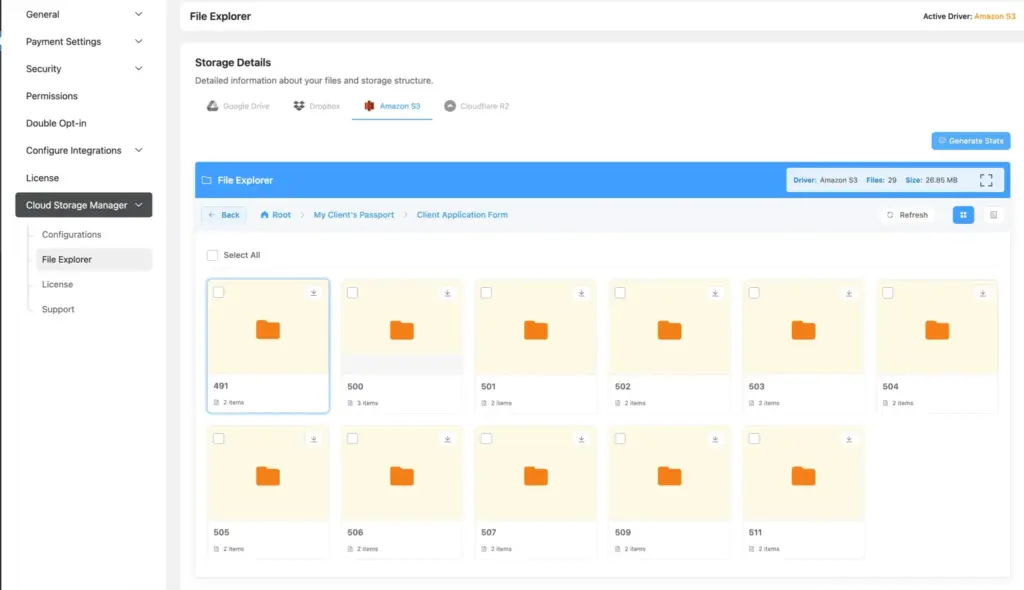
Cloud Storage Manager covers more ground than just moving files from point A to point B. It handles the organization, the cleanup, the visibility, and the sync. So, your cloud storage does not just receive files, it actually stays manageable as submissions grow. Along with transferring files consistently, it runs in the background without creating any backlogs.
Automatic cloud upload
Every file submitted through a Fluent Forms upload field gets pushed to your cloud storage without any manual action. You set it up once, and it works on every submission after that.
Background upload for fast submissions
Files are uploaded in the background, so form submitters never wait. The submission confirms instantly while the cloud transfer happens behind the scenes.
Auto-delete local files
Once a file is safely stored in the cloud, you can set the plugin to automatically delete the local copy from your server. It helps you reclaim disk space in your hosting without any ongoing maintenance.
Auto-delete cloud files on entry deletion
If a form entry is deleted inside Fluent Forms, the corresponding cloud file gets deleted too. This keeps your cloud storage clean and consistent with your entries.
Built-In file explorer
You can browse and manage uploaded files directly from within Fluent Forms, without switching between your WordPress dashboard and your cloud storage provider.
Full compatibility with Fluent Forms integrations
The add-on works alongside Fluent Forms’ existing integrations, so it does not disrupt your current automations, CRM connections, or notification flows.
The Configuration: As Simple as It Is
Setting up the Fluent Forms Cloud Storage Manager takes four steps. Here is the general process:
Step 1: Install the plugin
Search for Cloud Storage Manager for Fluent Forms in the WordPress Plugins screen and install it, or upload it manually. If you need Google Drive or Dropbox only, the free version is enough.
Step 2: Connect your cloud storage
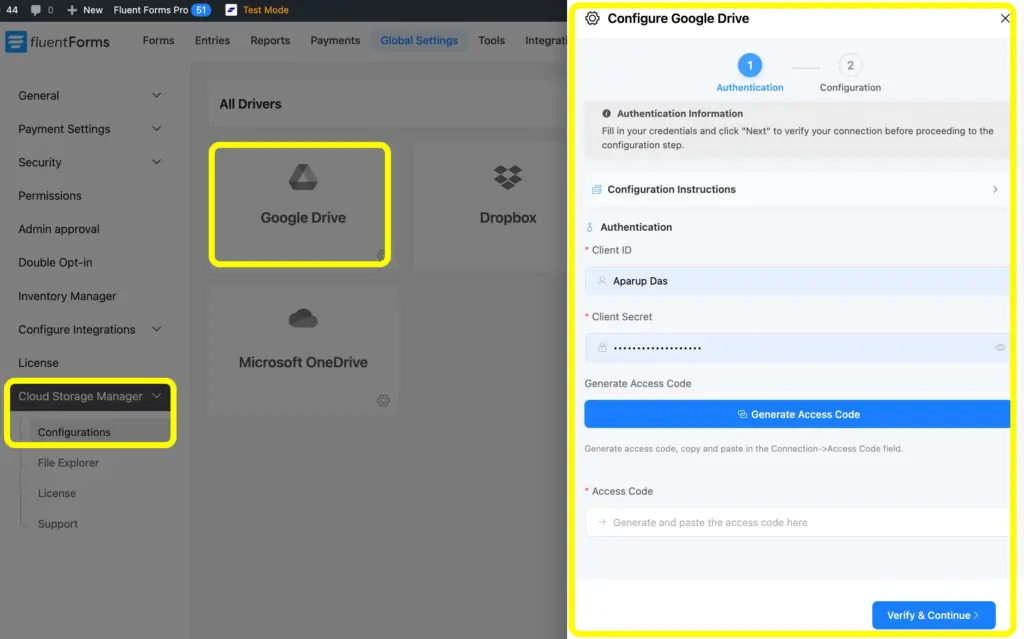
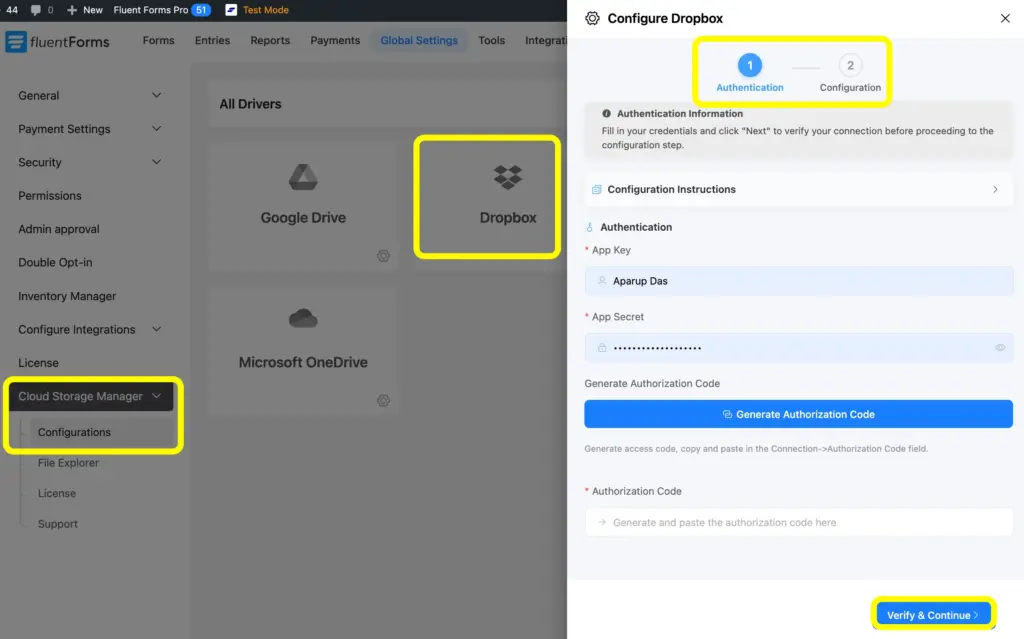
Go to Fluent Forms → Cloud Storage Manager in your dashboard. Select your cloud provider and enter your credentials.
- For Google Drive: create a project in Google Cloud Console, enable the Google Drive API, generate OAuth credentials (Client ID and Client Secret), and authorize your account.
- For Dropbox: create an app in the Dropbox Developer Console, note the App Key and App Secret, enter them in the plugin settings, and authorize the connection.
- For Microsoft OneDrive, Amazon S3 or Cloudflare R2: requires the Pro version and your cloud account credentials.
Step 3: Choose your destination folder
Pick or create the parent folder inside your cloud storage where form uploads will land. If you are on Pro, you can set up dynamic subfolders here.
Step 4: Configure deletion preferences
Decide whether to keep local copies or delete them after a successful cloud upload. Toggle the option in settings.
That is the initial setup. Every upload from that point forward goes to the cloud automatically. Read our blog tutorial on “How to Connect Fluent Forms to Cloud Storage for Efficient File Management”, we show the full setup in detail.
Fluent Forms Features That Work Alongside Cloud Storage
Once your file uploads are handled, a couple more Fluent Forms features will help you filter the entries before you store them on the cloud.
Advanced Data Validation
Advanced data validation helps you control what kind of files and inputs reach your form in the first place. You can enforce file types, sizes, and field formats before a submission even lands. Using this, you can ensure cleaner data in Fluent Forms and cleaner files in your cloud storage.
Auto-delete entries
Once your uploaded files are safely offloaded to the cloud, there is still the matter of the entries themselves stacking up inside your dashboard. Fluent Forms’ auto-delete form entries feature lets you automatically remove submissions after a set number of days, or immediately after submission.
One Add-on, Every Cloud Storage Covered
If you are already using Fluent Forms Pro and collecting file uploads, Cloud Storage Manager is a natural extension of what you have. The free version gives you Google Drive and Dropbox, which is enough for most teams.
The Pro version adds Amazon S3, Cloudflare R2, and OneDrive, along with dynamic folder structures using shortcodes. There is no middleware to maintain, no Zapier flows to build, and no manual file management to do. Fluent Forms files go where they need to go, automatically, every time.

Hi, this is Aparup. I am a Literature postgraduate, mixing my creative thoughts with my experience in the tech industry to surpass AI. Professionally, I am a content marketer seeking solutions to users’ problems regarding WordPress.




Leave a Reply