

How to Create an Employee Training Quiz on WordPress
If your idea of employee assessment still means a stopwatch, a printed sheet, and someone tallying scores by hand, you’re not alone. HR teams get stuck between clunky spreadsheets and LMS platforms that cost far more than the job needs.
WordPress can handle this natively. This tutorial covers building a complete employee training quiz with Fluent Forms‘ Quiz Module, from writing questions and scoring to personalized results and publishing, and getting the quiz live on your site.
TL;DR
- Turn a regular WordPress form into a scored assessment using a built-in Quiz Module.
- Enable the module, then add question fields like Radio, Checkbox, and Dropdown.
- Drop in a Quiz Score field to handle scoring automatically.
- Set correct answers and point values per question.
- Configure score and grade confirmations so employees see their results the moment they submit.
- Generate a downloadable PDF of the result for each employee, if you want a saved record.
- Review every submission from one WordPress dashboard, no LMS subscription and no manual grading.
Why Use Employee Training Quizzes
A quiz sounds like a small thing until you actually need one for twenty new hires or a mandatory compliance update. At that point, the difference between “a form with a few questions” and “a proper training quiz” becomes obvious.
- Measure knowledge retention by testing what employees remember right after a training session.
- Improve employee engagement by giving otherwise dry compliance training a clear goal to work toward.
- Standardize evaluations so every employee is scored against the same questions and the same rules.
- Track learning progress with a dated, scored record for every employee, every time.
Common Use Cases for Employee Training Quizzes
The same quiz structure works across a surprising range of situations. A few of the most common:
- Employee onboarding: checking that new hires actually read and understand the handbook, the tools walkthrough, or the culture briefing
- Compliance training: verifying understanding of legal, safety, or industry regulations, often with a required passing score
- Workplace safety: confirming staff know evacuation procedures, equipment handling, or hazard reporting steps
- Product knowledge: testing whether sales or support teams can speak confidently about what the company sells
- Sales and customer service training: measuring how well reps handle objections, scripts, or service standards
- Annual employee evaluations: running a lightweight, recurring check-in on skills or policy awareness
If your organization runs any kind of recurring training, even outside a formal HR department, this same setup applies. Coaching businesses, membership sites, and nonprofits use it for volunteer certification or member onboarding just as often as corporate teams use it for compliance.
What an Employee Training Quiz Should Include
Before opening the form builder, it helps to know what makes a training quiz useful rather than just a list of questions. A few pieces matter more than the rest:
A clear learning objective
Decide what the quiz is actually measuring before you write a single question. Is it “Did they read the handbook?” or “Can they apply the safety procedure correctly?” Also decide your passing criteria up front, whether that’s 70%, 80%, or a specific point total, so you’re not adjusting the bar after people have already taken it.
Different question types
A quiz made entirely of multiple choice questions gets predictable fast. Fluent Forms supports Radio Fields, Checkboxes, Dropdowns, and multiple choice inputs, so you can mix formats depending on what you’re testing. Checkboxes work well for “select all that apply” scenarios, while dropdowns are handy for longer answer lists that would otherwise take up a lot of screen space. You can browse the full set of available question types on the input fields page if you want to see what fits your content best.
Logical question grouping
Nobody wants to scroll through forty questions on one page. Break the quiz into sections with page breaks so employees move through it in digestible chunks, maybe grouping onboarding questions by department or safety questions by hazard type. This also makes the quiz feel less like an exam and more like a guided walkthrough.
Automatic scoring
This is where the Quiz Module actually earns its keep. Mark correct answers on each question, assign point values, and let Fluent Forms calculate the total, whether as raw points, a percentage, or a letter grade. Nobody on your team has to sit down and grade responses by hand.
Personalized quiz results
A flat “Thank you for submitting” message wastes an opportunity. Set up a pass or fail message, or better yet, a few different messages depending on the score range, so employees get feedback that actually reflects how they did. This part uses conditional confirmation messages that display different messages based on the quiz’s calculated score.
Employee information
Capture enough identifying details to make the results useful later: name, email, department, and an employee ID if your organization uses one. This turns anonymous quiz data into a record you can actually act on when reviewing training gaps.
Steps to Create an Employee Training Quiz on WordPress
Here’s the full build, from enabling the module to publishing the quiz.
Step 1: Enable the Quiz Module and start a new form
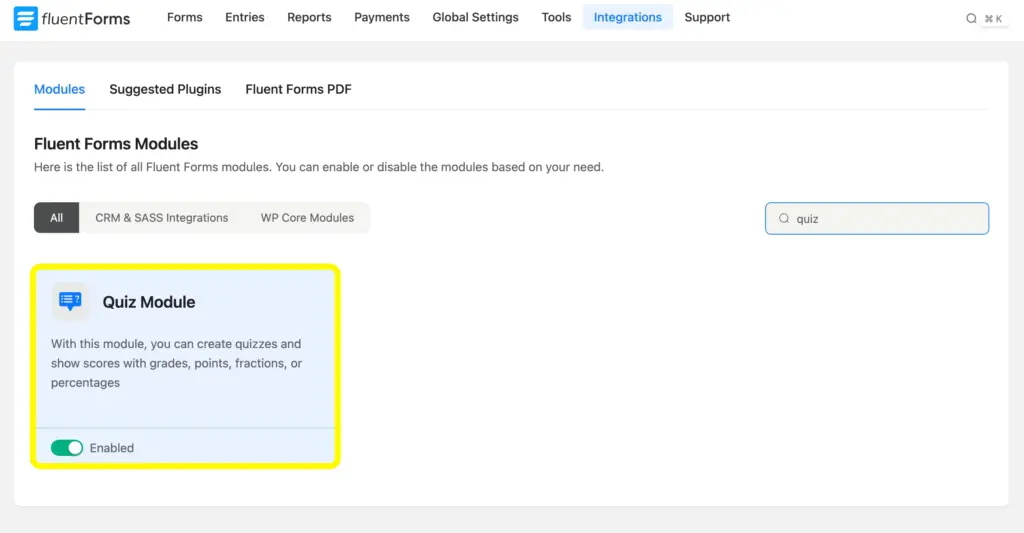
Head to Fluent Forms Pro > Integrations in your WordPress admin sidebar and turn on the Quiz Module. This unlocks the Quiz Score field and all the quiz-specific settings you’ll need later.
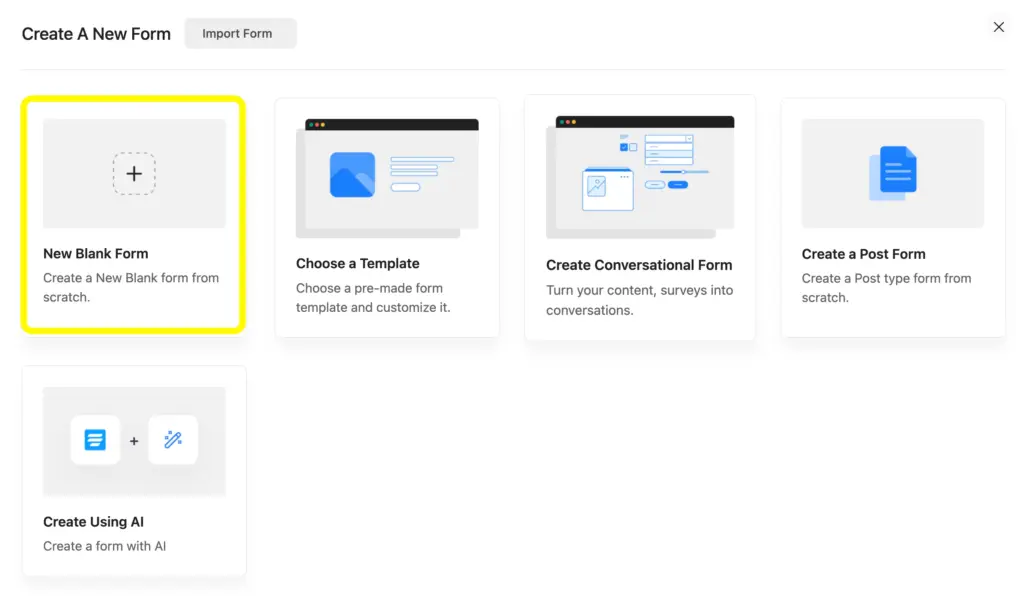
Once that’s done, go to Fluent Forms > Add New Form and either start from a blank form or pick a template close to what you need. You can browse the form templates if you’d rather adapt an existing layout than start from scratch.
Step 2: Add employee information fields
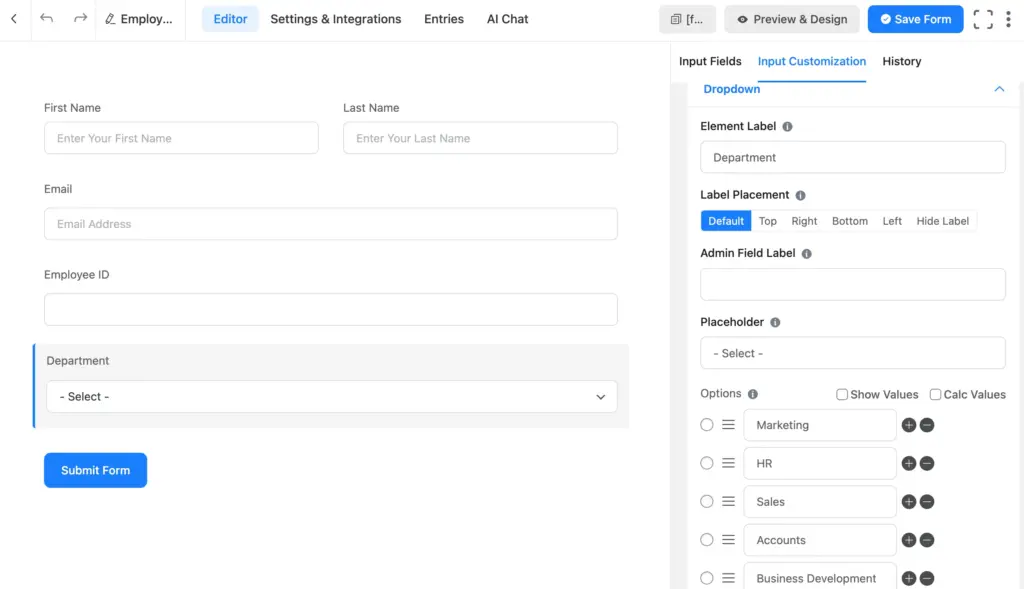
Before the quiz questions, add the fields that identify who’s taking the quiz. A Name field, an Email field, a Department dropdown, and an Employee ID numeric field cover most cases. These sit at the top of the form and give context to every score you collect later.
Step 3: Build the quiz questions
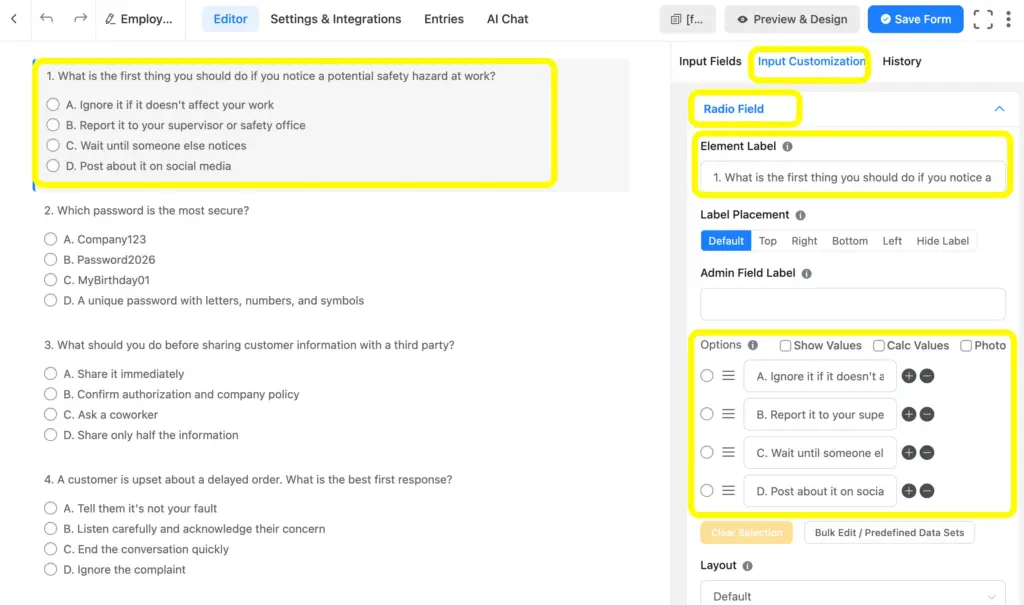
Add your Radio Field, Checkbox, or Dropdown fields one question at a time. Write the answer Options for each.
Step 4: Mark correct answers and assign scores
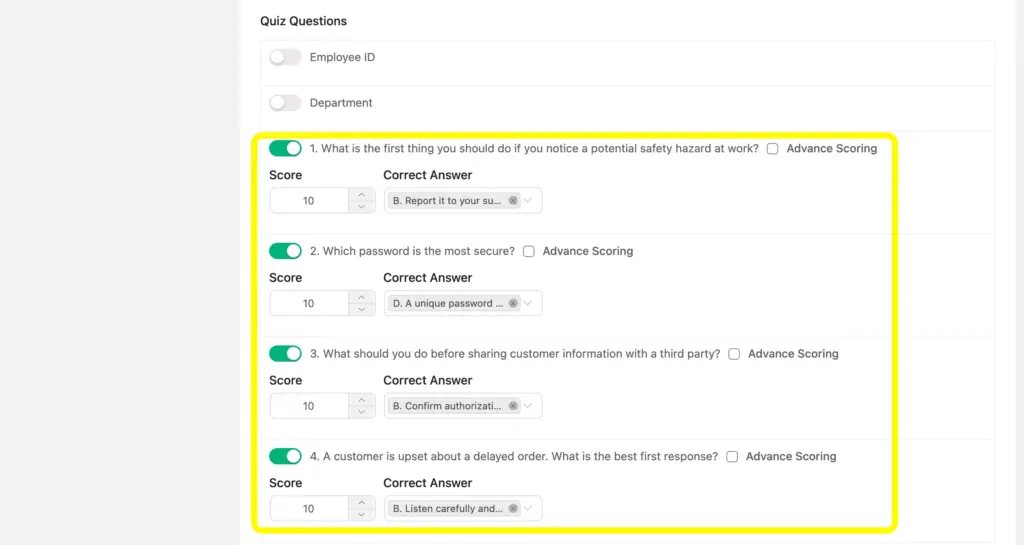
Go to Quiz Settings in the Settings and Integrations of the form. Click into each question field’s settings and mark the correct answer. Assign a point value to each question. This is also where you’d use Advanced Scoring if you want to assign partial values to multiple options instead of a strict right-or-wrong setup.
Step 5: Add and configure the Quiz Score field
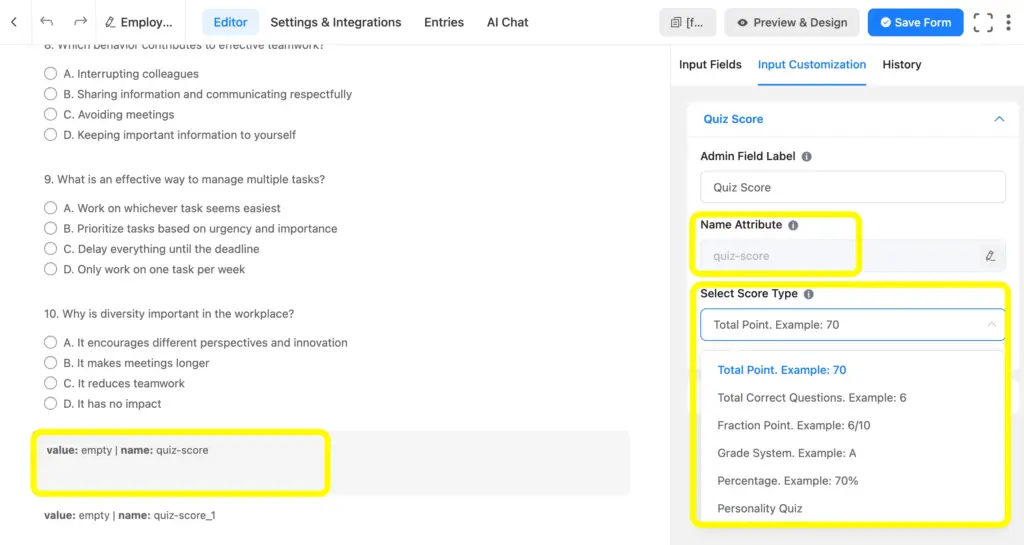
From the Advanced Fields section, drag in the Quiz Score field. This field is hidden from employees and only visible to admins, and it’s what actually totals up the points behind the scenes. Open its settings and choose your Score Type: Total Points, Total Correct Questions, Fraction Point, Grade System, and Percentage.
Step 6: Configure quiz settings
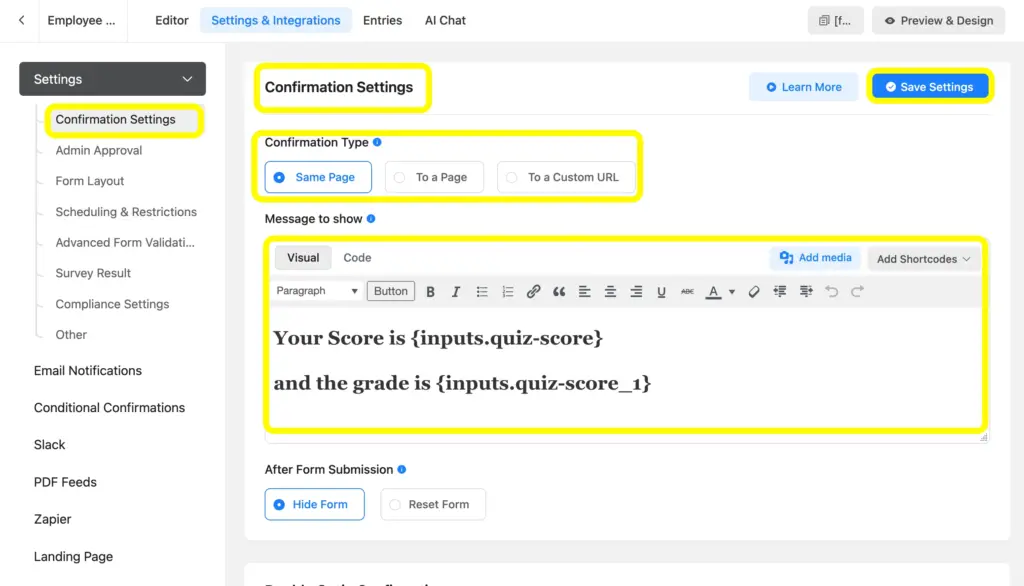
Go to the form’s Settings & Integrations > Quiz Settings and enable the Quiz Module for this specific form. Here you can turn on question and option shuffling if you want to reduce copying between employees taking the quiz at the same time, and finalize your grading thresholds. Then set up your confirmation message so the score displays immediately after submission, using shortcodes to pull in the calculated result.
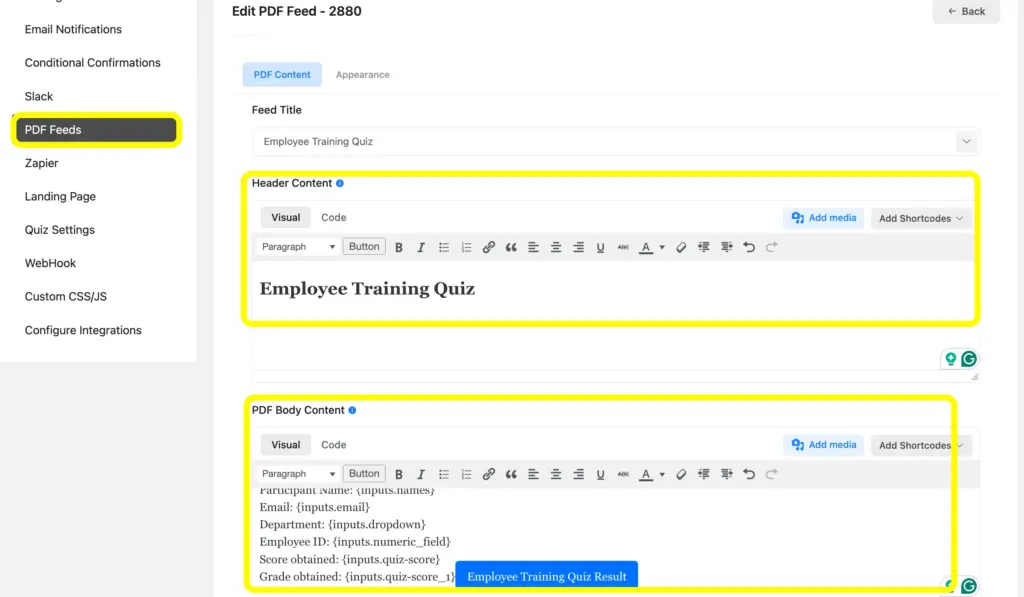
Step 7: Generate a downloadable quiz result PDF (optional)
If employees or managers need a record they can save or print, add a PDF Generator action to the form. This creates a downloadable PDF attached to the confirmation page or email, showing the employee’s score, department, and pass/fail status. It’s a nice touch for compliance training where a signed record matters, similar to how the same feature gets used to auto-generate documents like invoices in other Fluent Forms workflows.
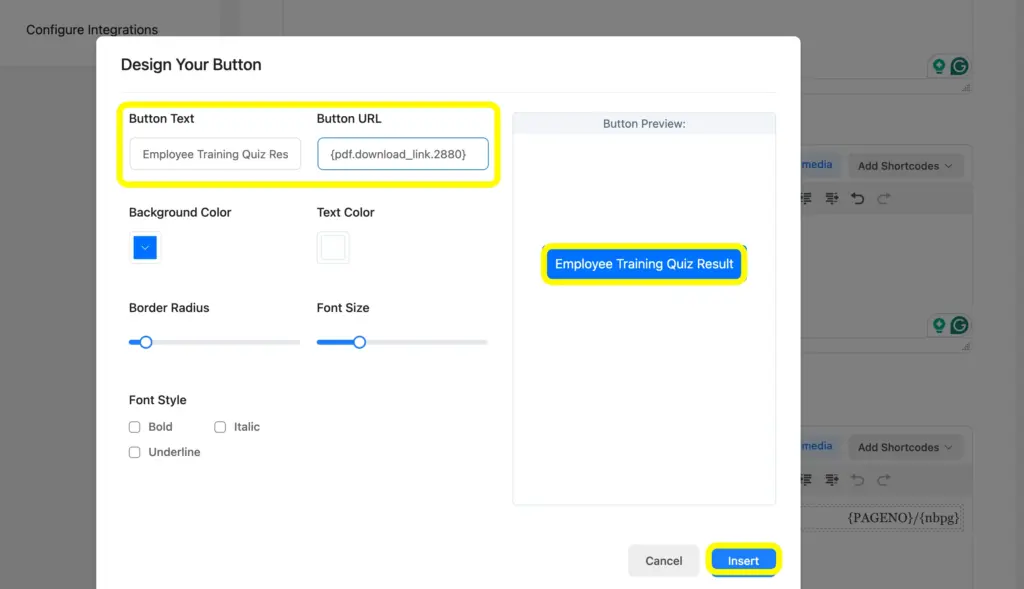
Also, use the Design Your Button to add the Button Text, Button URL, Background Color, Text Color, etc.
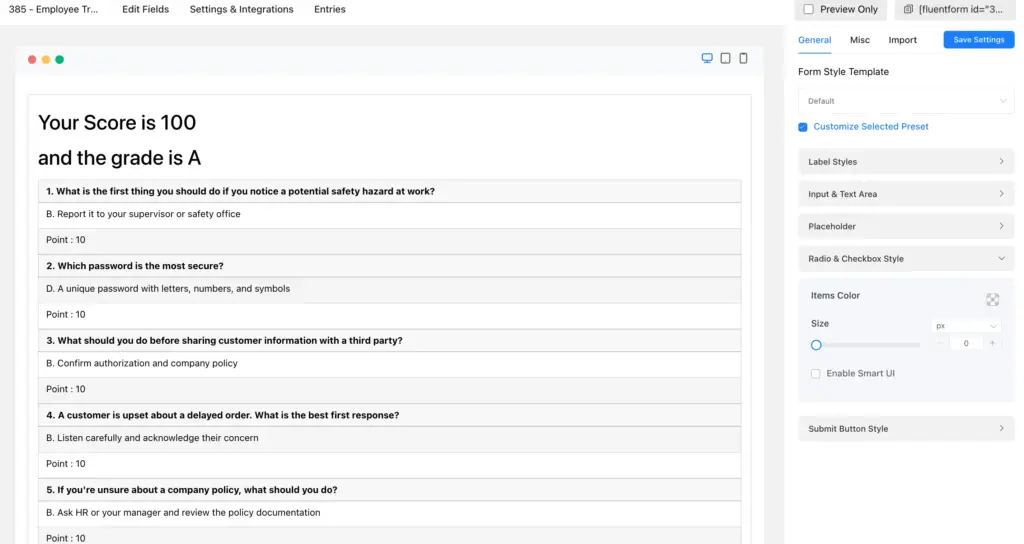
Step 8: Test the quiz and embed it on your site
Before rolling it out, submit a few test entries yourself, checking correct answers, wrong answers, and edge cases like leaving a question blank. Once you’re confident it works, publish the quiz using a Shortcode block, the Fluent Forms Gutenberg block, or as a standalone Landing Page if you want a cleaner, distraction-free quiz experience without your site’s usual header and sidebar.
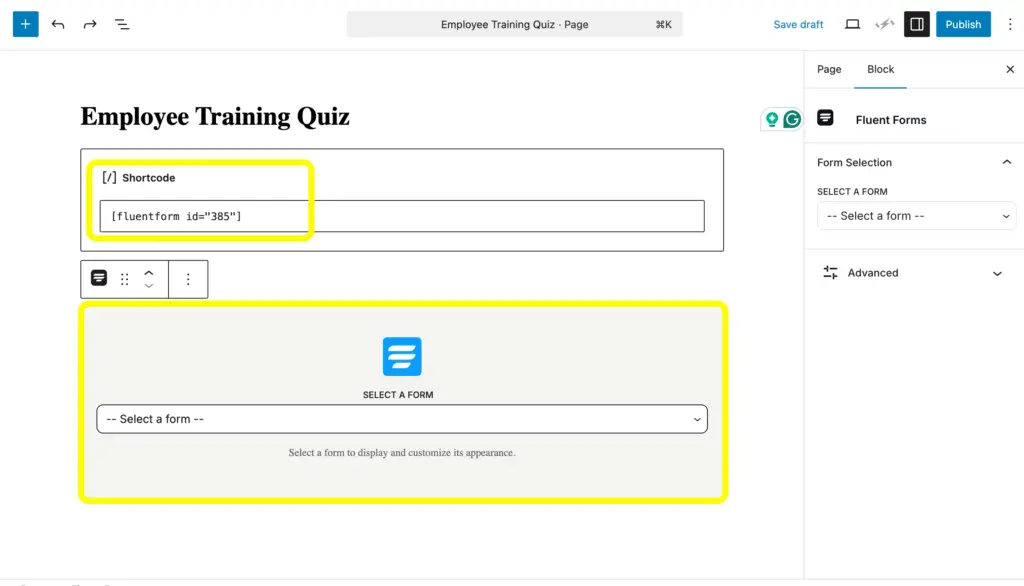
To embed the quiz form on your site’s page or post, copy and paste the form’s Shortcode, or use the Fluent Forms block to directly embed the form.
Managing Employee Quiz Results
Once responses start coming in, everything lives in the Entries tab under your quiz form.
View quiz entries
Every submission lands in the Entries tab under your quiz form, showing individual scores, timestamps, and the exact answers each employee gave. You can open any entry to see question-by-question responses, which helps when a manager wants to review one employee’s performance in detail rather than just a final number.
Analyze performance
Looking at results across a department or a training cohort makes patterns easier to spot, like one question that most employees consistently get wrong. This kind of comparison tells you more than any single score, since it points directly to where the training content might be falling short.
Export results
Every set of quiz entries can be exported to CSV or Excel in a couple of clicks, which comes in handy when leadership wants a summary or when the data needs to feed into a separate HR system. It gives you a backup of every score your team has collected.
Identify training gaps
Questions that trip up a lot of employees usually point to a weak spot in the training material rather than a quiz that’s too hard. Reviewing which questions get missed most often helps you decide what to rewrite or explain differently before the next group goes through the same program.
This reporting is a big part of what makes the quiz worth building in the first place. A one-time assessment is useful, but a searchable history of every employee’s scores over time is what actually helps you improve training year over year.
Best Practices for Creating Quizzes on WordPress
A few habits separate a quiz people actually complete from one they abandon halfway through.
Keep quizzes focused
Stick to one topic or training module per quiz rather than combining onboarding, compliance, and product knowledge into one long test. A focused quiz feels manageable to complete in one sitting, and it also makes it much easier to pinpoint which specific area an employee is struggling with.
Write clear questions
Avoid internal jargon, acronyms, or vague phrasing that only some employees will recognize, especially newer hires who haven’t picked up your company’s shorthand yet. Clear, specific wording means every employee is being tested on the same understanding, not on how well they can guess what a question actually means.
Use realistic workplace scenarios
Base scenario questions on situations employees will actually encounter on the job rather than abstract hypotheticals that feel disconnected from daily work. A safety question framed around a real task on the floor sticks better than a generic textbook example, and it shows employees how the training applies to them.
Keep quizzes mobile-friendly
A fair number of employees, especially those in retail, warehouse, or field roles, will be taking the quiz on a phone rather than at a desk. Test the layout on a smaller screen before publishing, checking that questions, answer choices, and buttons are all easy to tap without zooming in.
Automate Quizzing with Fluent Forms
Building one quiz manually is manageable. Building a new one every time a policy changes, a new hire joins, or a safety procedure gets updated is where the manual grading and scattered spreadsheets start to catch up with you. With the Quiz Module handling scoring and the Entries dashboard handling reporting, you can spin up a new assessment in the time it used to take to just organize a spreadsheet. It works whether you’re running a structured L&D program or a ten-person team keeping compliance training consistent, and it scales well for small business setups that don’t have a dedicated L&D department.
Ready to put this into practice? Get Fluent Forms Pro and start building your first employee training quiz today.

Hi, this is Aparup. I am a Literature postgraduate, mixing my creative thoughts with my experience in the tech industry to surpass AI. Professionally, I am a content marketer seeking solutions to users’ problems regarding WordPress.




Leave a Reply