

How to Fix Fluent Forms’ “Data Not Recording” to Google Sheets Error
You connected Google Sheets with Fluent Forms. The test submission went through. Everything looked fine. Then at some point, you check your spreadsheet and the latest submissions aren’t there. The form is collecting entries in Fluent Forms, but Google Sheets stopped updating.
Or maybe submissions never showed up at all. You set up the integration feed, mapped the fields, hit save, and submitted a test entry. The spreadsheet stayed empty.
Both are fixable. I’ve listed some common issues about Fluent Forms Google Sheet integration and how to fix each one, so you can troubleshoot the connection.
TL;DR
- The most common cause is WP-Cron not running. Fluent Forms uses WordPress scheduled actions to send data to Google Sheets. If WP-Cron is disabled or blocked by your server, submissions will queue up and never reach the spreadsheet. Check Tools > Scheduled Actions for pending fluentform/schedule_feed entries.
- If submissions never appeared at all, check your Spreadsheet ID, Worksheet name, and field mapping in the integration feed. These are the most frequent setup mistakes.
- If you see a “Requested entity was not found” error, the connected worksheet was likely renamed or deleted.
- If you see “The caller does not have permission,” the Google Sheet isn’t shared with the Google account you used during setup.
- Don’t manually add extra columns, checkboxes, or frozen rows to the connected Google Sheet. Changing the sheet structure can break the integration.
- Your data is safe. Every submission is saved in Fluent Forms regardless of whether the Google Sheets integration succeeds. You can export entries from Fluent Forms > Entries at any time.
How the Integration Works (Quick Recap)
Before you troubleshoot, it helps to understand the basic flow.
- A user submits your form.
- Fluent Forms saves the entry in its own database. This is why entries still appear in Fluent Forms even when Google Sheets fails.
- Fluent Forms checks for active integration feeds on that form.
- If a Google Sheets feed exists and is enabled (and any conditional logic conditions are met), Fluent Forms schedules a background action to send the data.
- WordPress runs that scheduled action through WP-Cron, and the submission data is sent to your Google spreadsheet.
Submissions are not sent to Google Sheets in real time. They go through WordPress scheduled actions (WP-Cron). If WP-Cron isn’t running on your site, submissions will pile up in the queue and never reach the spreadsheet.
If any step from 3 onward fails, the data won’t appear in your spreadsheet. But it will still be in Fluent Forms.
If you haven’t set up the integration yet, follow the full Google Sheet integration setup tutorial first. Come back here if you run into issues.
Confirm Where the Problem Is
Before trying any fixes, figure out which part of the chain is failing.
Check your entries first
Go to Fluent Forms > Entries and select the form connected to Google Sheets. If submissions appear here but not in your spreadsheet, the problem is somewhere in the integration, the connection, or the spreadsheet configuration.
If entries aren’t appearing in Fluent Forms either, the issue is with the form itself, not the Google Sheets integration.
Check the API logs
You can check these in two places:
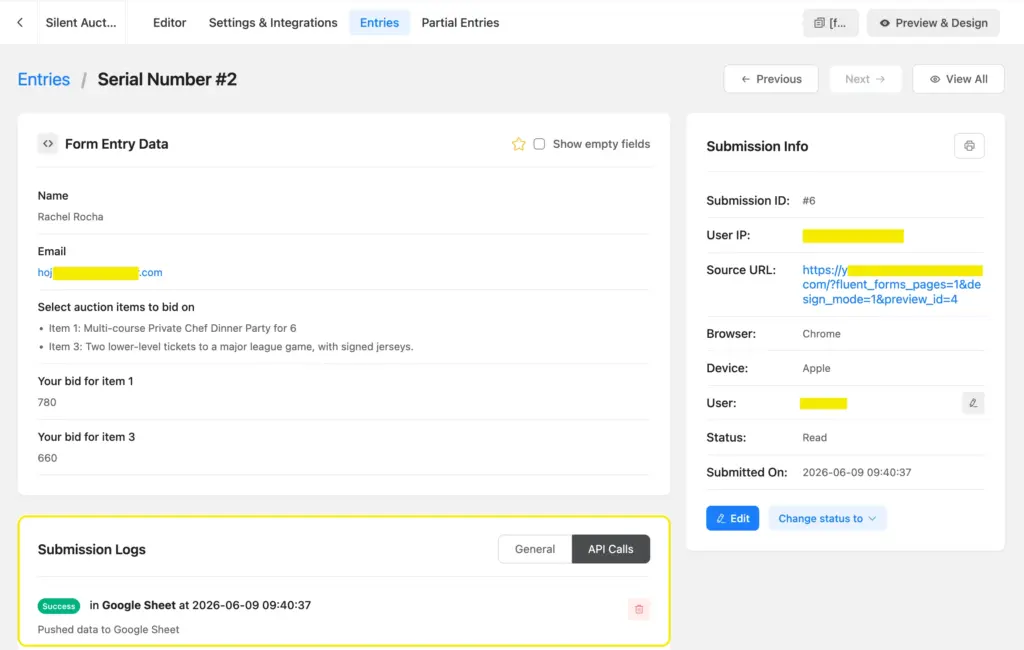
- For a specific entry: Go to Forms > [your form with Google Sheets connection] > Entries, open the entry you want to investigate, and scroll down to Submission Logs. Toggle from “General” to “API Calls”. This will show whether the Google Sheets feed was triggered for that submission and whether it succeeded or returned an error.
- For all entries at once: Go to Tools > API Logs. You can filter by form, component (Google Sheet), status, and date range to see all Google Sheets API activity across your site.
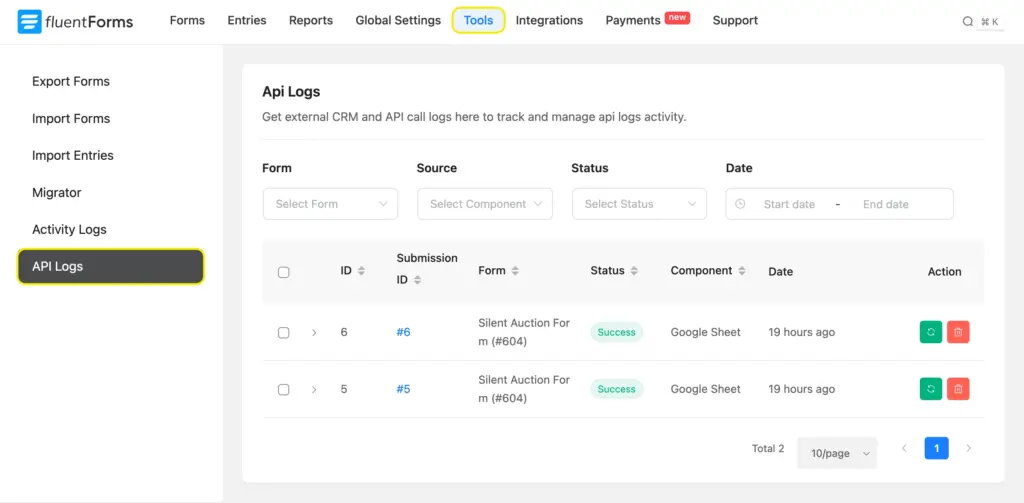
If the log shows “Success” but data isn’t in your spreadsheet, double-check the Spreadsheet ID and Worksheet name. If it shows an error, the message will point you to the right fix below.
Check your scheduled actions
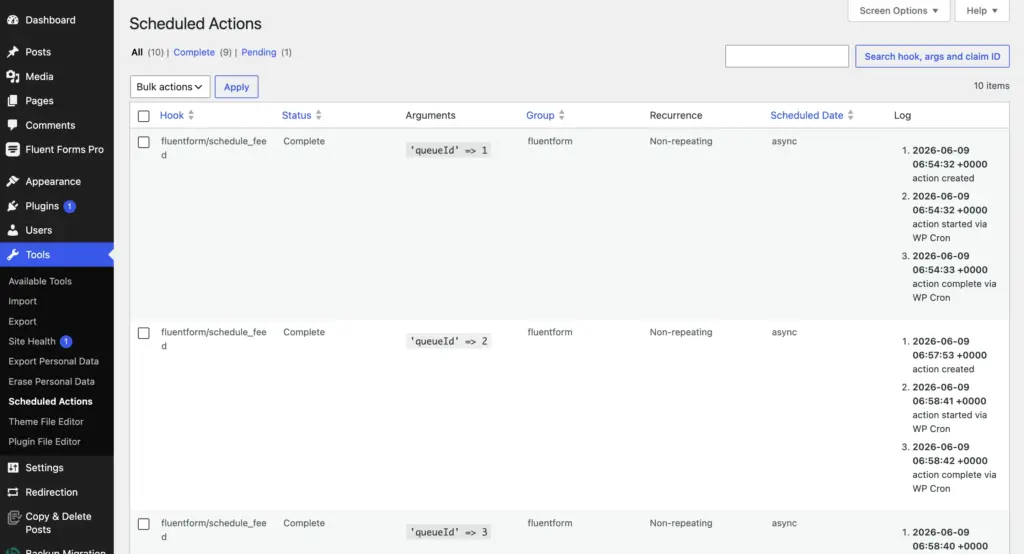
Go to Tools > Scheduled Actions in your WordPress dashboard. Look for entries labeled fluentform/schedule_feed. If you see several with a “Pending” status, WP-Cron is likely the problem (see Fix 1).
Check your Google Sheet
Open the spreadsheet and worksheet you connected. If data stopped appearing at a specific date, that helps narrow down what changed.
Fix 1: WP-Cron or Scheduled Actions Aren’t Running
This is the most common cause of Google Sheets data not recording.
Fluent Forms doesn’t send submissions to Google Sheets the instant someone fills out a form. It schedules a background action called fluentform/schedule_feed, and WordPress runs it through WP-Cron. If WP-Cron isn’t working, those actions stay pending, and your spreadsheet never updates.
How to confirm this is the issue
Go to Tools > Scheduled Actions in your WordPress dashboard. If you see multiple fluentform/schedule_feed entries stuck on “Pending,” this is your problem. You can manually run one of these pending actions to test. If the data shows up in Google Sheets after you run it manually, the integration itself is working. WP-Cron is the culprit.
Why WP-Cron fails
- WP-Cron is disabled
Some hosting providers or performance guides recommend adding define(‘DISABLE_WP_CRON’, true); to your wp-config.php file. If that line exists, WordPress won’t run scheduled actions on its own.
- Your server is blocking wp-cron.php
Some hosting setups, firewalls, or security rules block requests to wp-cron.php, returning a 403 Forbidden error. WP-Cron silently fails.
- Your site has low traffic
WP-Cron only triggers when someone visits your site. Low-traffic sites have this problem too. WP-Cron only fires when someone visits, so on a quiet site, scheduled actions can sit in the queue for hours or days.
How to fix this
- Check your wp-config.php file. If you see define(‘DISABLE_WP_CRON’, true);, that’s the issue. Contact your hosting provider and ask them to set up a real server-side cron job to run wp-cron.php every 5 to 10 minutes instead.
- If WP-Cron is not disabled, contact your hosting provider and ask them to check whether a firewall, security rule, .htaccess rule, or other server-level restrictions are blocking wp-cron.php.
- For low-traffic sites, setting up a real server-side cron job is the most reliable fix. Your host can configure this for you.
After fixing the cron issue, submit a test entry and check Tools > Scheduled Actions again. The fluentform/schedule_feed action should move from “Pending” to “Complete” automatically.
Fix 2: The Spreadsheet ID Is Wrong
The Spreadsheet ID is the long string of characters in your Google Sheets URL. A common mistake is copying too much or too little of the URL.
Here’s a Google Sheets URL:
https://docs.google.com/spreadsheets/d/19BXmmGQUB8v_jBNJZydbos-sFIzysSFTgeKmDsh-XLc/edit?gid=0#gid=0
The Spreadsheet ID is only this part: 19BXmmGQUB8v_jBNJZydbos-sFIzysSFTgeKmDsh-XLc
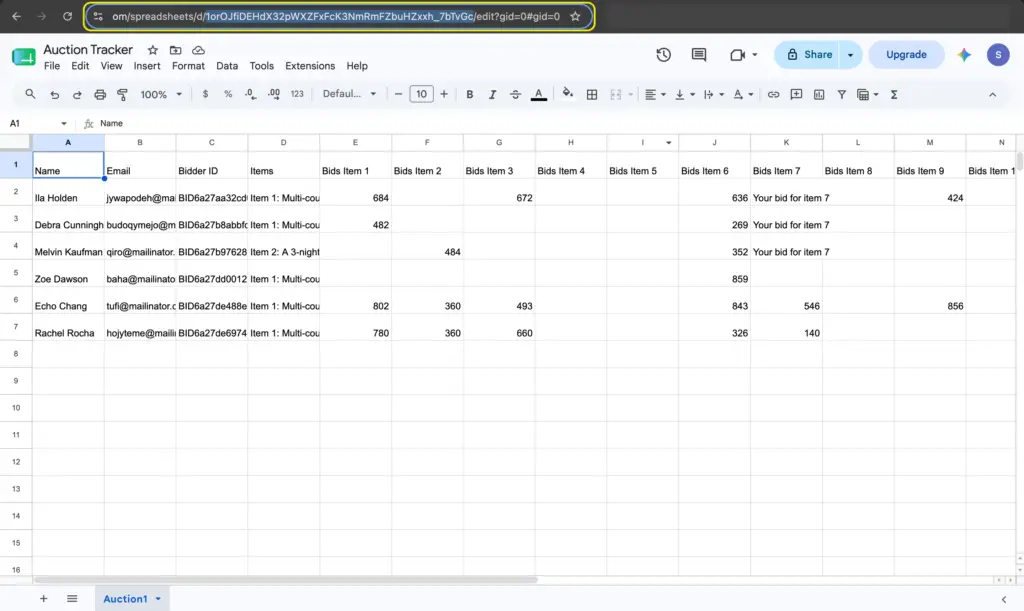
Do not include /edit or anything after it. If you copied 19BXmmGQUB8v_jBNJZydbos-sFIzysSFTgeKmDsh-XLc/edit, the ID is wrong, and submissions won’t record.
How to fix this:
- Open the Google Sheet where you want entries to appear.
- Look at the URL in your browser’s address bar.
- Copy only the string between /d/ and the next /. Nothing else.
- Go to your form’s Settings & Integrations > Configure Integrations.
- Open the Google Sheets feed.
- Paste the correct Spreadsheet ID.
- Save the feed.
Fix 3: The Worksheet Name Doesn’t Match
A single Google Sheets file can have multiple worksheets (tabs at the bottom of the spreadsheet). The integration feed sends data to a specific worksheet by name. If the name in Fluent Forms doesn’t match the actual tab name in Google Sheets, you’ll get a “Requested entity was not found” error.
When does it happen
- Rename a worksheet tab in Google Sheets after setting up the feed.
- Type the name with a typo or wrong capitalization (“sheet1” vs. “Sheet1”).
- Delete the worksheet and create a new one with a different name.
How to fix this
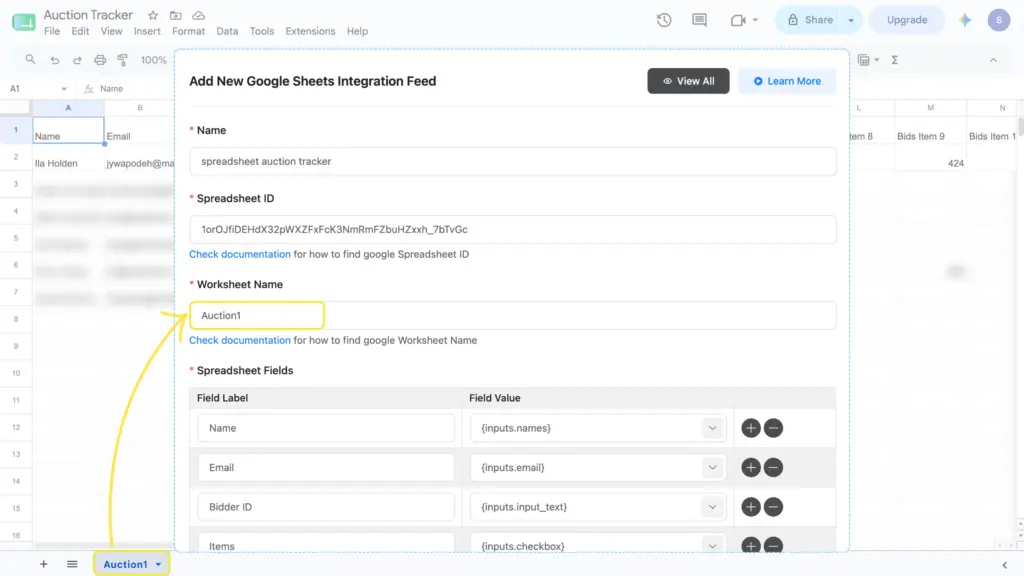
- Open your Google Sheet and check the exact name of the worksheet tab at the bottom.
- Go to your form’s Settings & Integrations > Configure Integrations.
- Open the Google Sheets feed.
- Check the Worksheet Name field. It must match exactly, including capitalization and spacing.
- Update the name if needed, and save the feed.
Fix 4: Field Mapping Is Broken or Incomplete
Field mapping tells Fluent Forms which form fields go into which spreadsheet columns. If the mapping is empty or broken, submissions won’t record even if everything else is working.
This commonly happens when you edit the form after setting up the integration. Changing a field’s label, deleting a field, or reordering fields can clear the mapping in the integration feed.
Another cause: using the wrong SmartCode format with the correct prefix. If the SmartCode is wrong, the field value will arrive empty in Google Sheets.
How to fix this
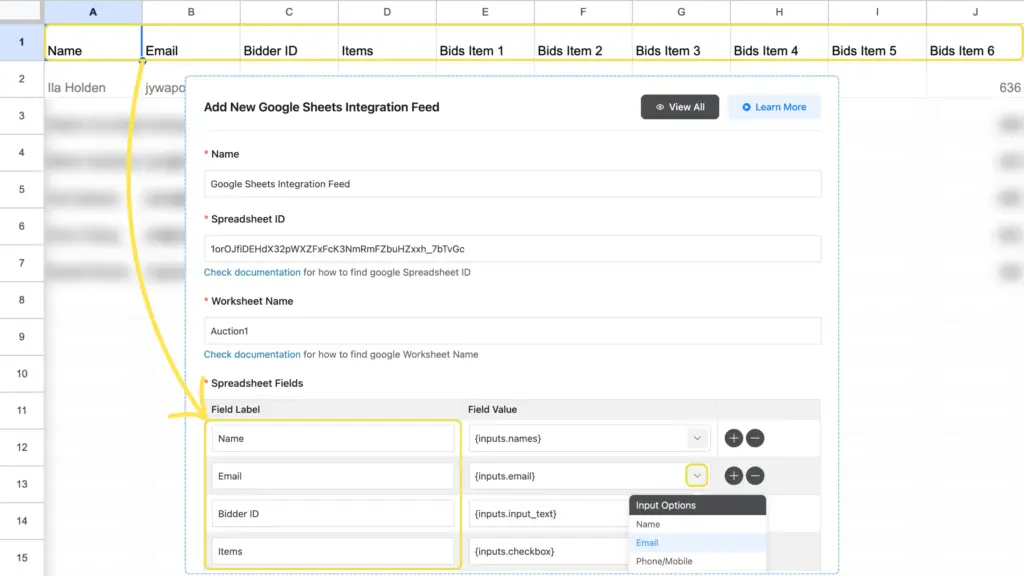
- Go to your form’s Settings & Integrations > Configure Integrations.
- Open the Google Sheets feed.
- Check the Spreadsheet Fields section. Look for empty rows or rows where the value dropdown shows nothing.
- Re-map each field by selecting the correct form field value (input) for each spreadsheet column label. Make sure select/dropdown fields use the correct SmartCode prefix.
- If you’ve added new fields to your form, add new mapping rows by clicking the plus icon.
- Save the feed.
After re-mapping, submit a test entry and check if it appears in Google Sheets.
Fix 5: The Integration Feed Is Disabled
Every integration feed in Fluent Forms has an Enable This Feed toggle. If it’s turned off, the feed won’t run on any submission.
How to fix this
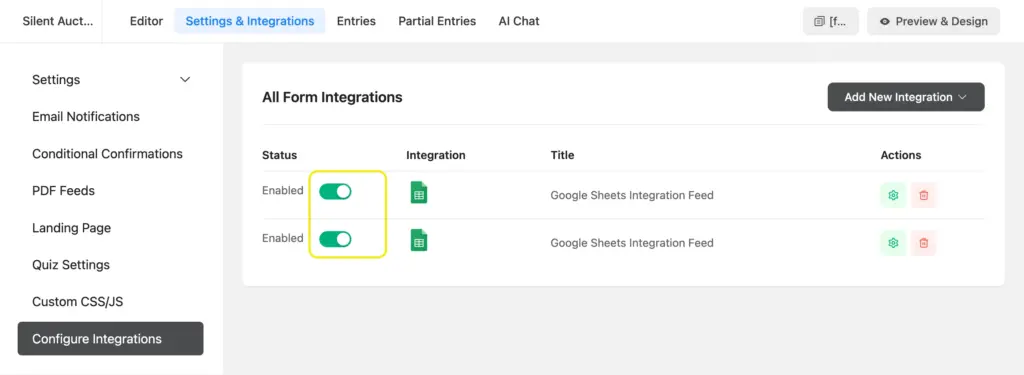
- Go to your form’s Settings & Integrations > Configure Integrations.
- Find the Google Sheets feed in the list.
- Check if the toggle next to the feed is turned on.
- Also open the feed and confirm that the Enable This Feed checkbox at the bottom is checked.
- Save the feed.
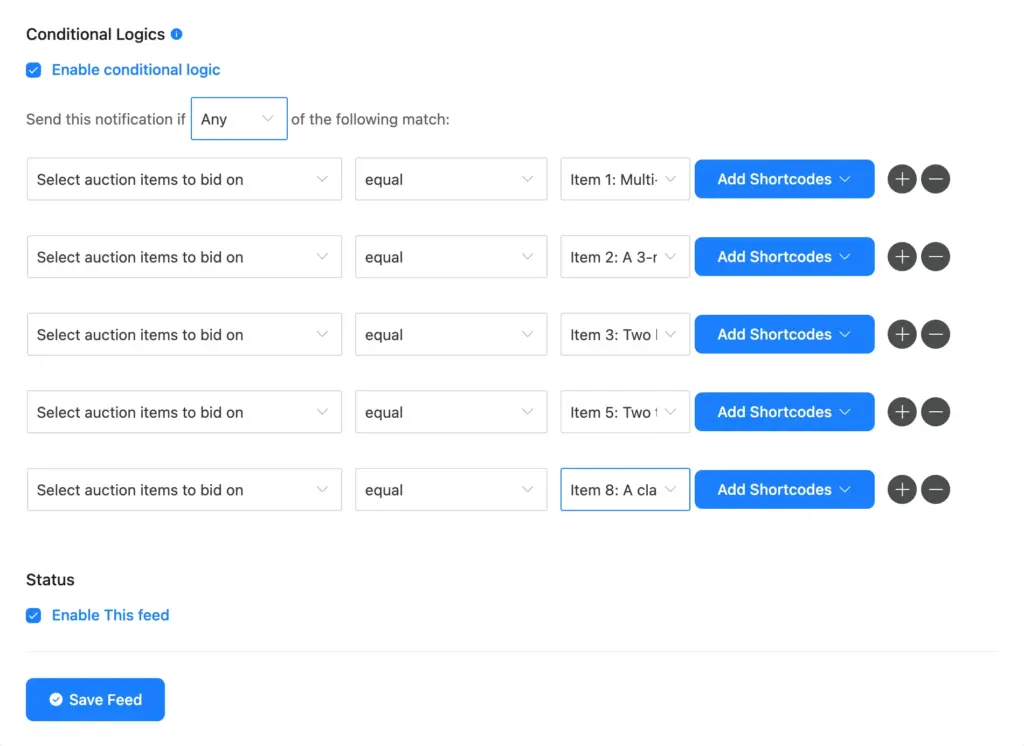
Fix 6: Conditional Logic on the Feed Is Blocking Submissions
If you added conditional logic to your Google Sheets integration feed, only submissions that match those conditions get sent to the spreadsheet. This is useful for filtering entries, but it can accidentally block everything if the conditions are misconfigured.
How to fix this
- Open the Google Sheets feed in your form’s integration settings.
- Scroll to the Conditional Logics section.
- If conditional logic is enabled, check the rules. Are the field references correct? Do the values match what users actually submit?
- If you’re not sure the conditions are right, temporarily disable the conditional logic, save the feed, and submit a test entry.
- If the test entry appears in Google Sheets, the conditional logic is the problem. Adjust the conditions to match your actual use case.
Fix 7: Your Google Sheets Access Code Has Expired
Fluent Forms connects to Google Sheets through an access code tied to your Google account. If that connection breaks, submissions will stop reaching the spreadsheet.
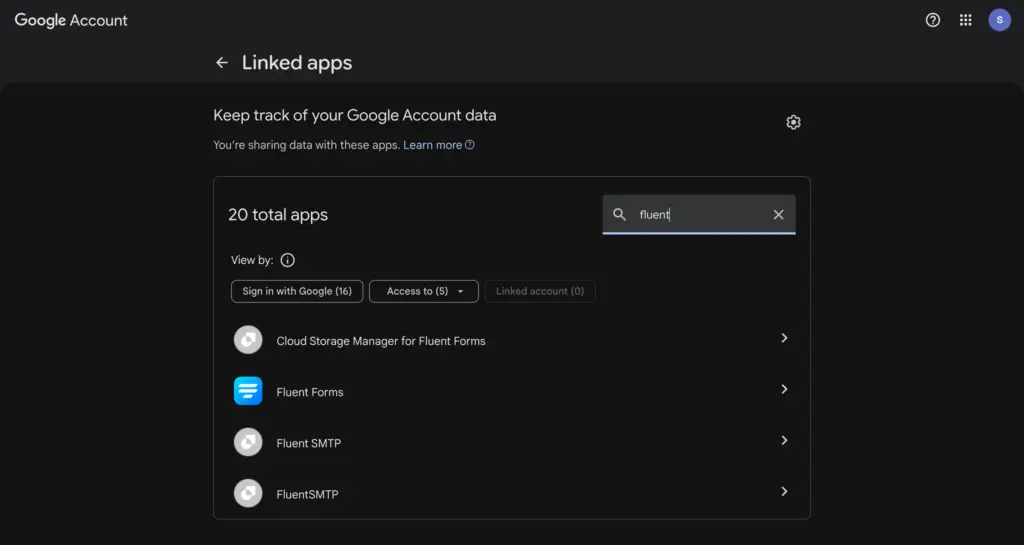
Your access can break if you changed your Google account password, removed Fluent Forms from your Google account’s authorized third-party apps, or if Google revoked third-party access for security reasons.
How to fix this
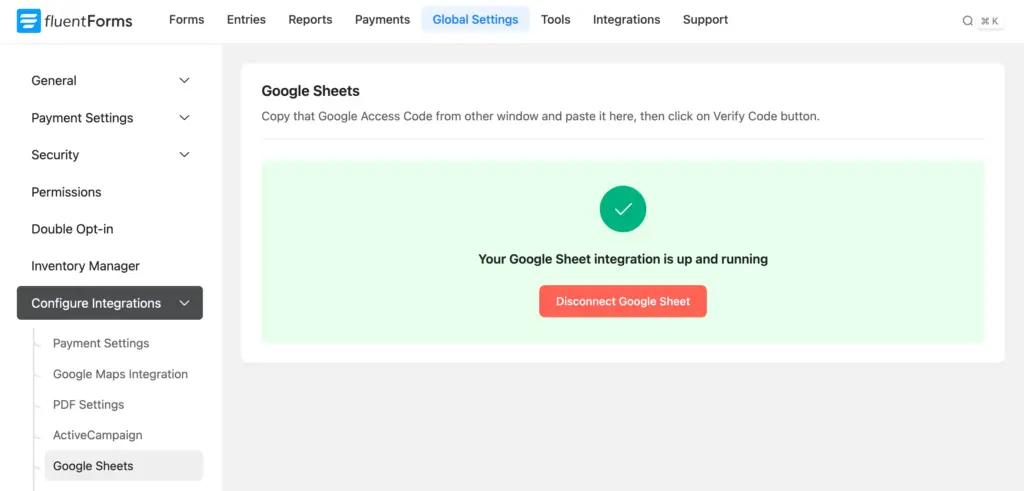
- Go to Fluent Forms > Global Settings > Configure Integrations > Google Sheets.
- Click Disconnect Google Sheet.
- Click Get Google Sheet Access Code.
- A new window will open. Select the Google account connected to your spreadsheet.
- Copy the access code that appears on the next screen.
- Paste it into the Access Code field in Fluent Forms and click Verify Code.
- Go to each form that uses Google Sheets and re-save the integration feed.
You can check whether Fluent Forms still has access to your Google account by going to myaccount.google.com > Security & sign-in > Your linked apps. If Fluent Forms isn’t listed there, that confirms the access was revoked.
Fix 8: The Google Sheet Isn’t Shared with the Connected Account
You authenticated Fluent Forms with a specific Google account. If that account doesn’t have edit access to the target spreadsheet, you’ll see a “The caller does not have permission” error.
This happens when the spreadsheet was created by someone else and not shared with your account, or when you authenticated with one Google account, but the spreadsheet belongs to a different one.
How to fix this
Open the target Google Sheet. Click Share in the top right corner. Confirm that the Google account you used during Fluent Forms authentication has Editor access. If it doesn’t, add it.
Fix 9: You Changed the Google Sheet Structure
The Google Sheets integration expects the sheet structure to match the mapped form fields. If you manually change the connected spreadsheet, the integration can break.
Things that cause problems:
- Adding extra columns (like a manually inserted checkbox column for tracking) between or after the mapped columns.
- Freezing rows or columns.
- Deleting and recreating columns.
How to fix this
If you recently made structural changes to the spreadsheet and the integration stopped working, try creating a fresh Google Sheet with clean columns. Update the Spreadsheet ID and Worksheet Name in the integration feed, remap the fields, and save.
If you need to track additional data (like a “Payment Received” status), add a corresponding hidden field in Fluent Forms and map it through the integration instead of manually adding columns to the sheet.
Fix 10: A Plugin Conflict Is Interfering
Other plugins on your site can interfere with the Google Sheets integration. In some cases, a conflicting plugin can even disable your integration feeds automatically after each form submission.
Plugins that have been known to cause issues include cloud storage plugins that interact with Google services, caching or performance optimization plugins, and security plugins with aggressive firewall rules.
How to fix this
- Deactivate all plugins except Fluent Forms and Fluent Forms Pro. Submit a test entry.
- If it works, reactivate plugins one at a time and test after each to find the conflict.
- If a specific plugin causes the conflict, check if it has settings to exclude Fluent Forms from its processing.
Other Factors Worth Knowing
Your form might not be submitting at all
CSS-ready classes like ff-hidden or custom JS don’t work on conversational forms. If you’re using them, those can create blank steps that block the form from ever reaching the submit button. In that case, the issue isn’t the Google Sheets integration. The form never submits, so there’s nothing to send. Check your Fluent Forms entries. If zero entries exist, the problem is the form, not the integration.
Date and time arrive as a single value
If you need date and time in separate Google Sheets columns, add two hidden fields to your form with default values {date.m-d-Y} for date and {date.H:i} for time. Then map those hidden fields to separate columns in your Google Sheets feed.
Deleted entries don’t sync
If you delete an entry from Fluent Forms, it won’t be removed from Google Sheets. The integration only sends new entries. It doesn’t update or delete existing rows.
Quick Troubleshooting Checklist
- Check Fluent Forms > Entries to confirm the form is actually receiving submissions
- Check Tools > Scheduled Actions for pending fluentform/schedule_feed entries
- Open a specific entry and check its API Logs tab for error messages
- Verify WP-Cron is not disabled, and wp-cron.php is not blocked by your server
- Confirm the Spreadsheet ID is correct (no /edit at the end)
- Confirm the Worksheet Name matches exactly (case-sensitive)
- Check that field mapping has no empty or broken rows, and SmartCodes are correct
- Confirm the integration feed is enabled (toggle and checkbox)
- Check if conditional logic on the feed is blocking submissions
- Verify the connected Google account has Editor access to the spreadsheet
- Make sure you haven’t manually added extra columns or frozen rows in the connected sheet
- Test with other plugins deactivated to rule out conflicts
Prevent Google Sheets Integration Issues
A few habits will save you from running into these problems again.
Test after every form change
If you add, remove, or rename form fields, go to the Google Sheets integration feed and verify the field mapping is still intact. Submit a test entry to confirm.
Don’t modify the connected Google Sheet manually
Avoid adding extra columns, checkboxes, or freezing rows in the sheet that receives form data. If you need to track something extra, add a hidden field in Fluent Forms and map it through the integration.
Make sure WP-Cron is running reliably
If your site is on shared hosting or gets low traffic, ask your hosting provider to set up a real server-side cron job. This is the single most effective thing you can do to prevent integration failures.
Check your scheduled actions periodically
A quick look at Tools > Scheduled Actions will tell you if anything is stuck in the queue before users notice missing data.
Keep a fallback
Every submission is saved in Fluent Forms’ own database regardless of what happens with Google Sheets. If the integration fails, your data isn’t lost. You can export entries from Fluent Forms > Entries at any time.
What to Do if You’re Still Stuck
If you’ve worked through every fix in this guide and submissions still aren’t recording, reach out to the Fluent Forms support team.
When you submit your ticket, include:
- Screenshots of the API log from the affected entry
- Your Spreadsheet ID and Worksheet name
- A screenshot of your integration feed and field mapping
- Whether this is a new setup or something that previously worked
- The status of your scheduled actions (any pending fluentform/schedule_feed entries?)
- Your Fluent Forms version and WordPress version
- Any troubleshooting steps you’ve already tried from this guide
The more detail you share, the faster the team can help.

Sarika writes for Fluent Forms and loves to offer insights into small businesses. She’s curious and enjoys discussing ideas, interests, and perspectives. In her free time, she’s either marvelling at architectural beauties or trying different cuisines.


Leave a Reply