

Fluent Forms 6.2.15: Stripe Apple Pay & Google Pay, Browser Autofill, AI-Ready Forms with WebMCP and More
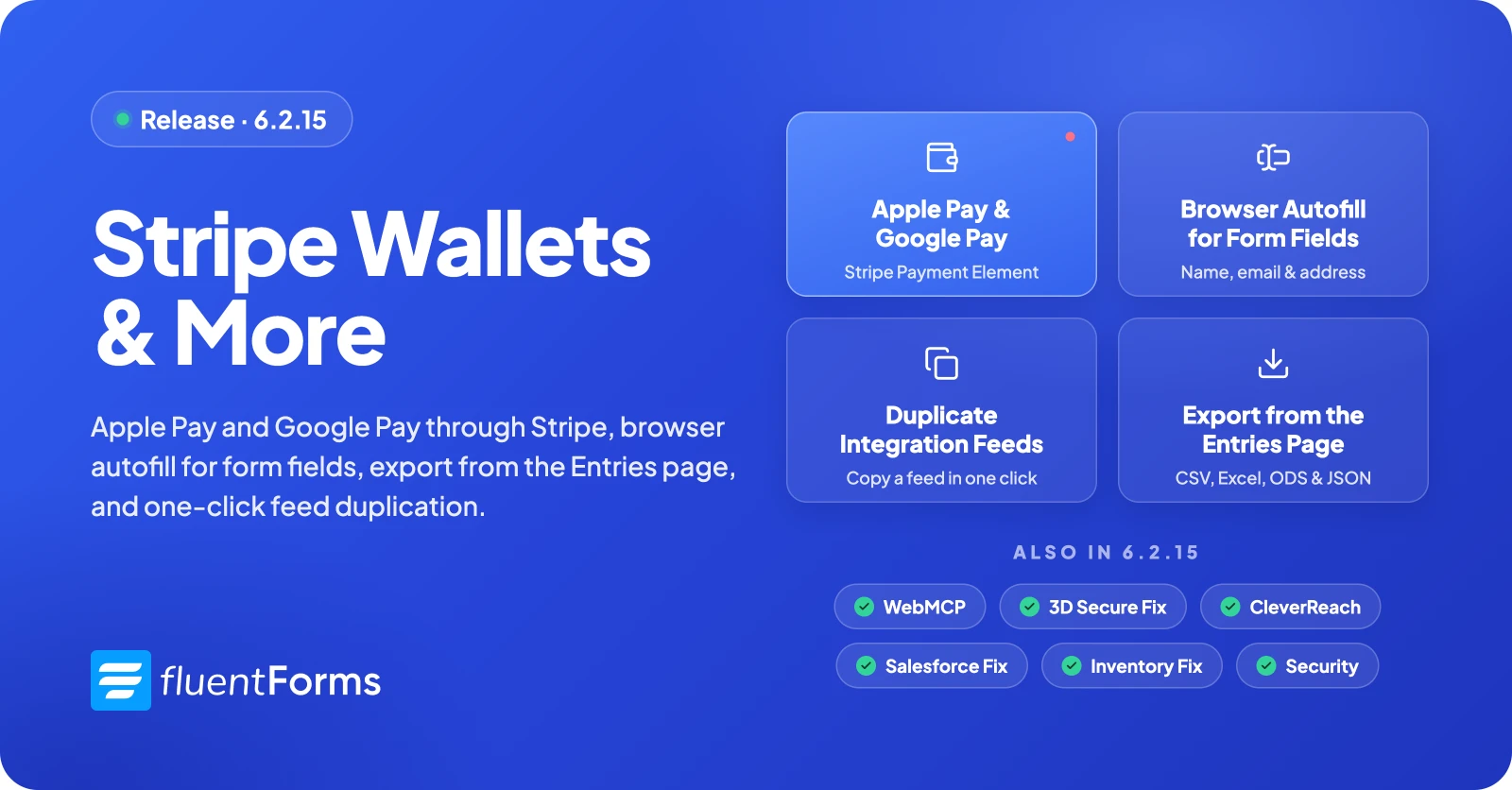
Fluent Forms 6.2.15 brings Apple Pay and Google Pay to your Stripe payment forms. Your customers can now pay with a tap instead of typing their card number.
This release also adds browser autofill for form fields, an Export button on the Entries page, a one-click way to duplicate integration feeds, and an optional setting that helps AI-powered browsers understand your forms. We’ve also fixed a range of issues and completed another round of security improvements in Fluent Forms Free and Pro.
Apple Pay and Google Pay with Stripe (Free)
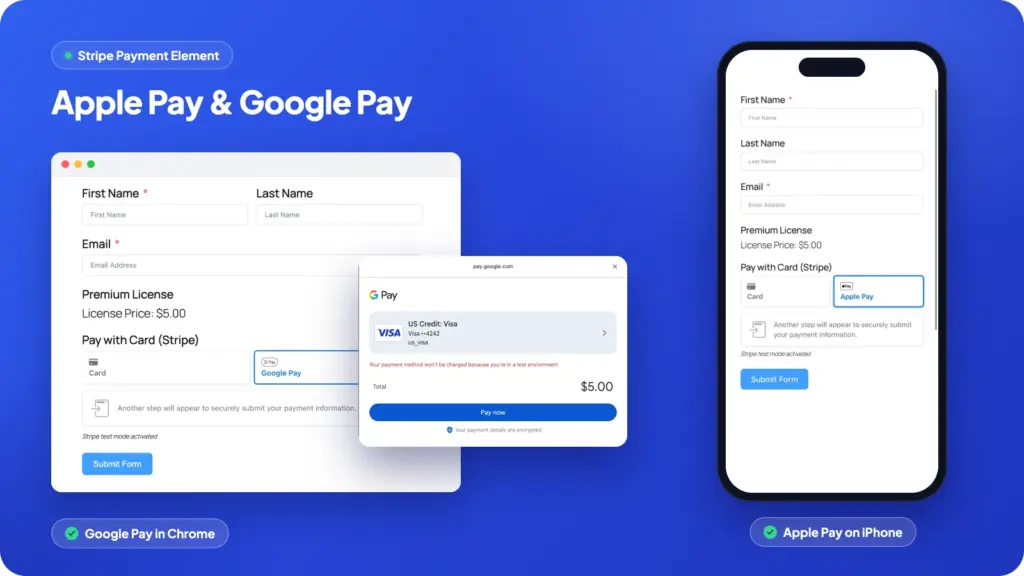
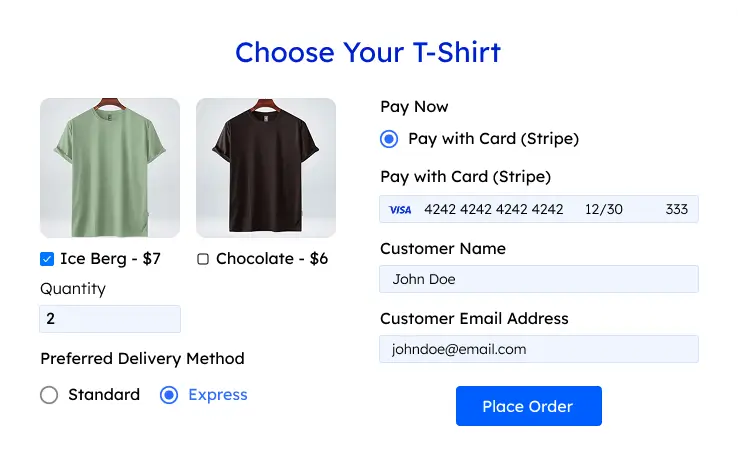
Typing a 16-digit card number on a phone is where many people give up. With 6.2.15, your Stripe forms can show Apple Pay and Google Pay right next to the regular card option. Customers pick their wallet, confirm with Face ID, Touch ID, or their Google account, and the payment is done.
This works through Stripe’s Payment Element. Visitors only see the wallets their device supports: Apple Pay in Safari on iPhone, iPad, and Mac, and Google Pay in Chrome when a card is saved. Everyone else sees the familiar card form, so nobody is left out.
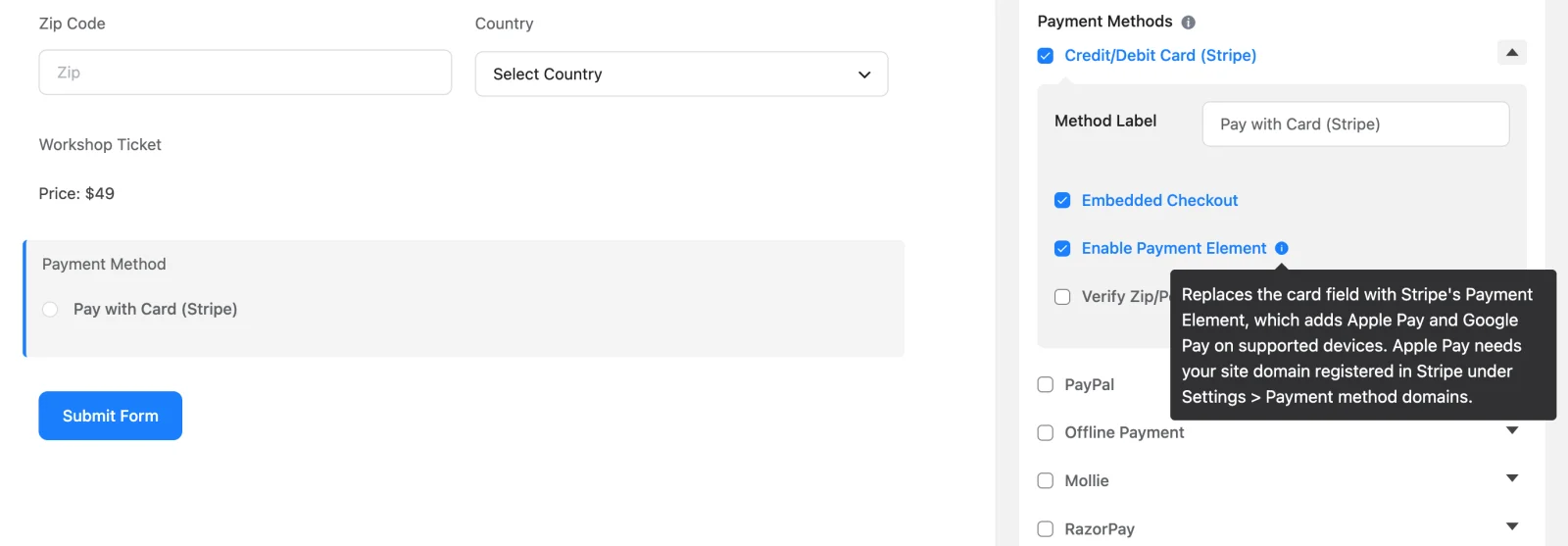
How to turn it on
- Open your form in the editor and click the Payment Method field.
- Under Credit/Debit Card (Stripe), keep Embedded Checkout on and tick Enable Payment Element.
- For Apple Pay, add your site’s domain in your Stripe Dashboard under Settings → Payment method domains. Apple Pay needs this to appear, and Stripe recommends it for Google Pay as well.
- Save the form. That’s it.
The setting is off by default, so your existing forms keep working exactly as before until you turn it on.
Browser Autofill for Form Fields
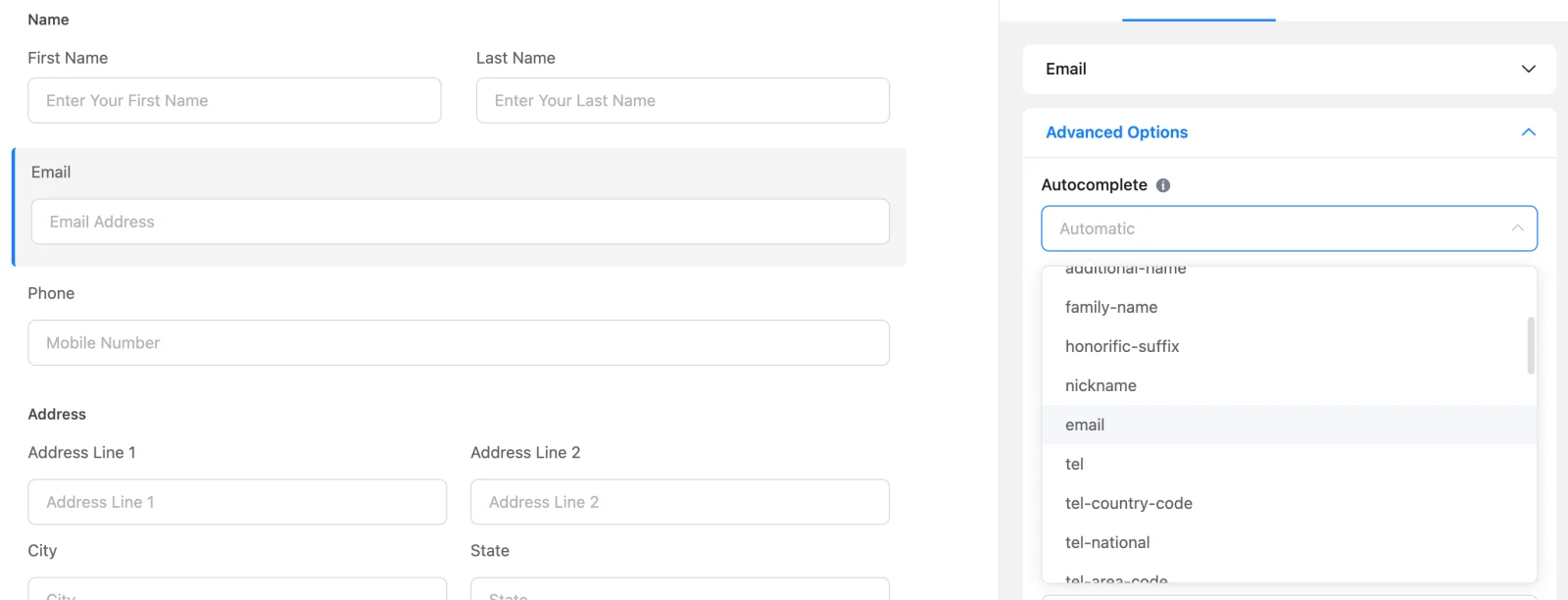
Your visitors’ browsers already know their name, email, phone number, and address. Now your forms can tell the browser which field is which, so it can fill them in with one click.
Each field now has an Autocomplete setting under Advanced Options. It’s set to Automatic, so email and website fields work right away. You can also pick exactly what a field collects, for example a billing or shipping address.
- Works on Name, Email, Text, Text Area, Address, Number, Dropdown, Website URL, Password, and Date fields in Fluent Forms Free
- The Phone field in Fluent Forms Pro gets it too
- Works in classic and conversational forms
- Helps your forms meet accessibility guidelines for identifying input purpose
Name and Phone fields start autofilling the next time you save the form. Address autofill is opt-in: choose it in each Address field’s Autocomplete setting. Nothing changes on your live forms until you save them.
Export Right from the Entries Page
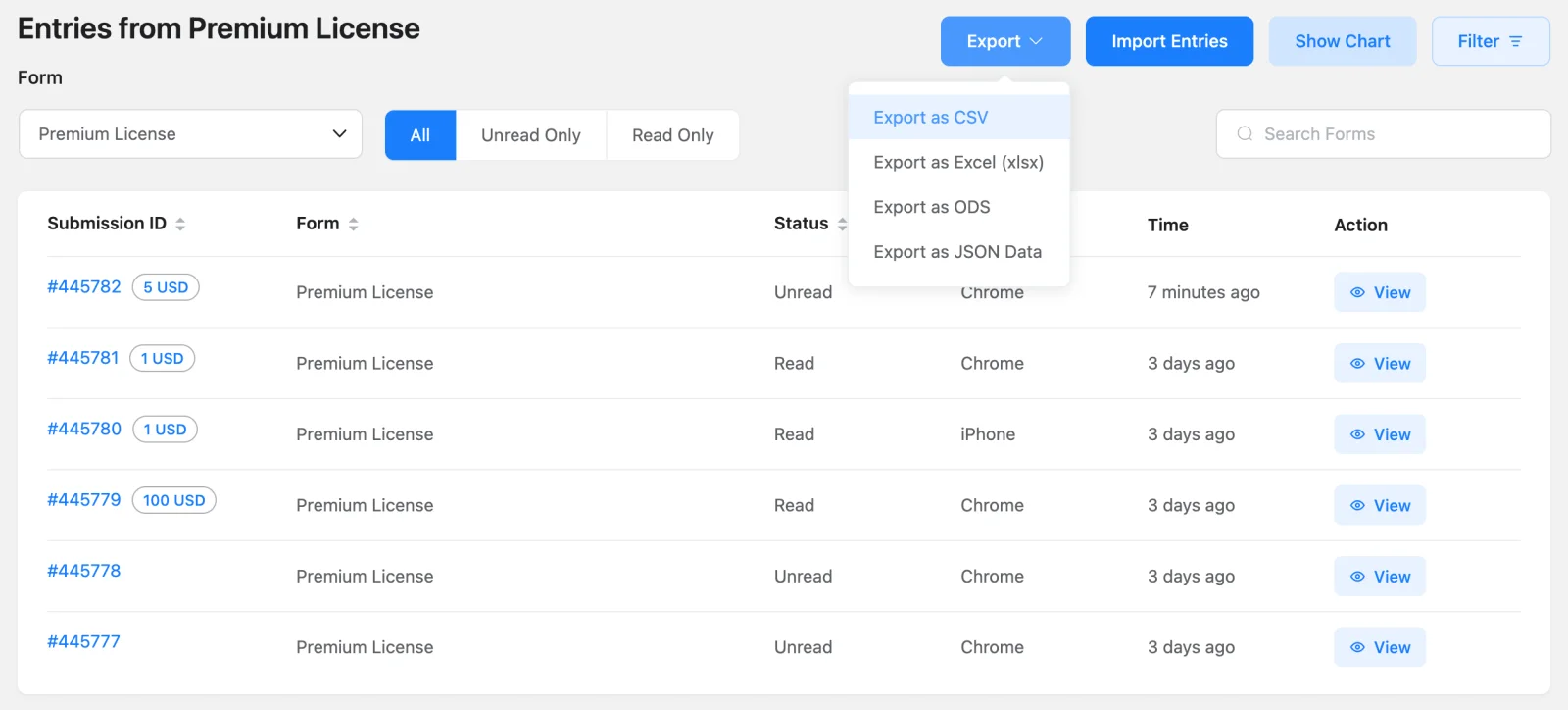
Most people manage their submissions from Fluent Forms → Entries in the left menu. Until now, exporting meant going into the form itself first. In 6.2.15, the Entries page in the free plugin has its own Export button.
Pick a form, then choose CSV, Excel, ODS, or JSON. The file matches what you see on screen: if you’ve filtered by read or unread entries, a search term, or a date range, the export follows the same filters.
Duplicate Integration Feeds
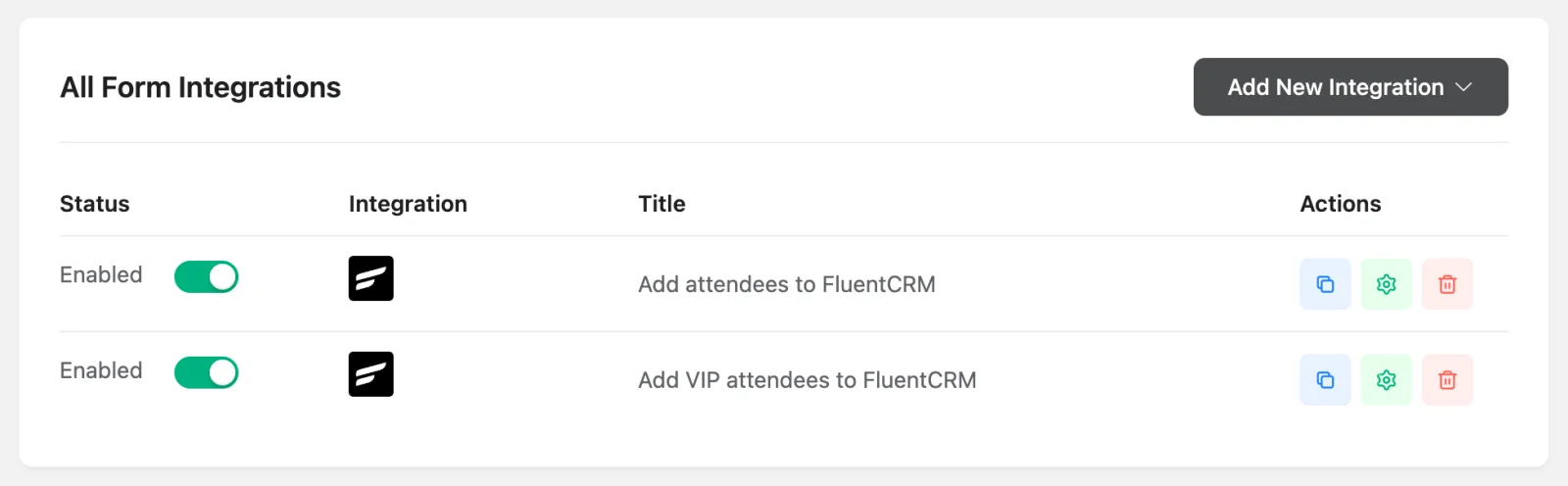
Setting up a second feed that’s almost the same as the first used to mean mapping every field again. Now each feed in Settings & Integrations → Configure Integrations has a Duplicate button, available in the free version of Fluent Forms.
Click it and a copy opens with all the settings already filled in. Give it a new name, change what you need, and save. Your original feed stays exactly as it was.
Help AI Browsers Understand Your Forms
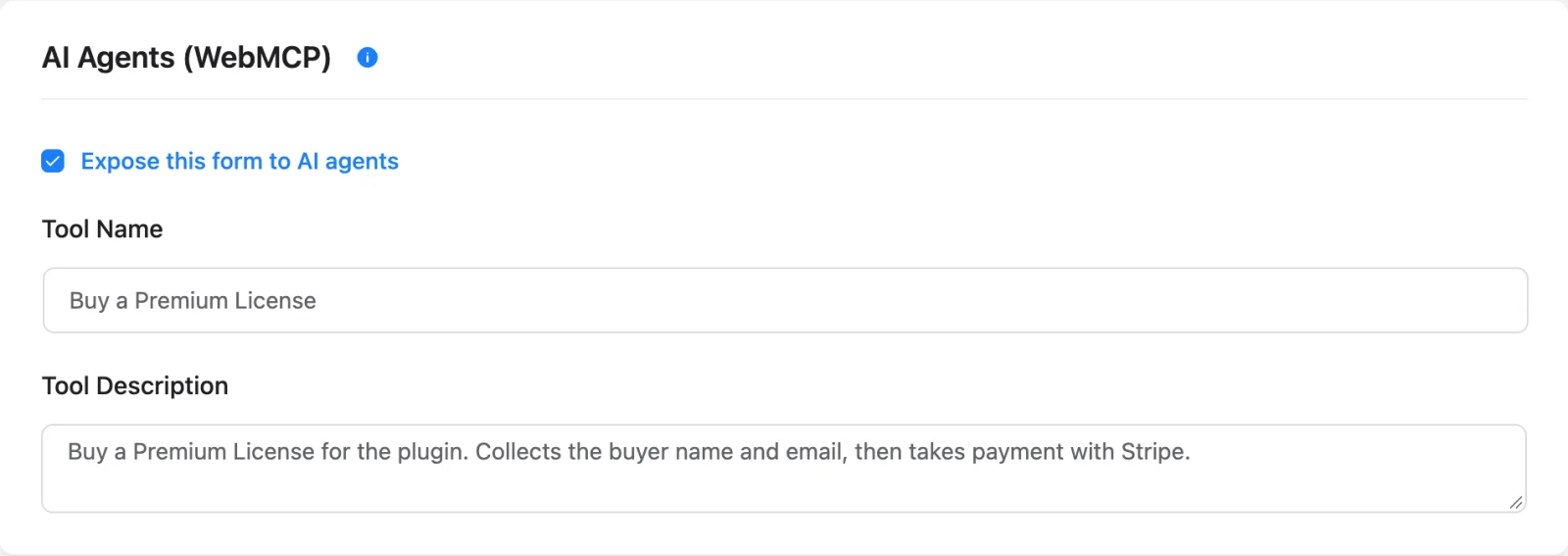
Some newer browsers include AI assistants that can fill in web forms for their users. They often have to guess what each field means. The new AI Agents (WebMCP) setting, part of the free plugin, lets you describe your form to them, so they can fill it in correctly.
You’ll find it under each form’s Settings. Turn on Expose this form to AI agents, then add a short name and description. It only adds a description to your form. It doesn’t let an assistant submit the form on its own, and it’s off by default.
This is different from the MCP server we added in 6.2.12, which lets your own AI assistant work with your forms and entries from the admin side.
CleverReach and Salesforce Improvements (Pro)
CleverReach Resubscribe. If someone who unsubscribed fills out your form again, CleverReach used to reject them as a duplicate. A new Resubscribe option on each CleverReach feed reactivates them instead. It’s off by default. Only turn it on if people are clearly opting in again through your form. The list dropdown also no longer misses lists on accounts with many groups.
Salesforce connection. Salesforce now requires an extra security step when you connect an app, which caused a “missing required code challenge” error. Fluent Forms Pro now supports it, and feeds stay connected when Salesforce refreshes its access tokens.
Key Fixes
3D Secure payments on conversational forms
When a card needed an extra 3D Secure check, the payment on a conversational form could fail after the customer approved it. These payments now complete normally.
Reports missing today’s entries
On sites in time zones ahead of UTC, the default “last 30 days” report could leave out entries submitted since midnight. Reports now use your site’s time zone, in both Free and Pro.
Stock held by a failed payment (Pro)
A declined card could keep an item reserved, so the next customer saw it as sold out. Failed payments no longer hold stock. A Global Inventory item set to 0 is now correctly treated as sold out instead of unlimited.
Ranking field survey results (Pro)
The survey results shortcode showed every Ranking option at 100%. It now shows how many people ranked each option first, with the average rank next to it.
Additional smaller fixes
- CleanTalk no longer checks the same submission twice
- Conversational forms stay editable after their fields are updated through MCP
- Net Promoter Score fields keep their custom Element Class, so read-only works again (Pro)
- The ChatGPT loader no longer hides form validation errors (Pro)
- and more, listed in the full changelog
Security Hardening
This release includes another round of security improvements across Fluent Forms Free and Pro:
- The
shortcode now escapes its output safely. If you use this shortcode, we recommend updating soon. Props to Patchstack for responsibly reporting the issue. - Input sanitization and permission checks were tightened across field settings, the form block, and the entries screens.
- Fluent Forms Pro adds extra protection to User Update and Post feeds, limits dynamic field results to what the form’s owner can see, and escapes field settings more strictly.
Full Changelog
Free (6.2.15)
- Adds a Stripe Payment Element option to the inline Stripe field, with Apple Pay and Google Pay
- Adds an Autocomplete setting on form fields so browsers can fill in details like name, email, and address
- Adds a Duplicate option for integration feeds
- Adds an Export option to the Entries page
- Adds an optional per-form AI Agents (WebMCP) setting that describes your form to AI-powered browsers, turned off by default
- Fixes the fluentform_info shortcode output so it is escaped safely
- Fixes Stripe 3D Secure payments not completing on conversational forms
- Fixes CleanTalk checking the same submission more than once
- Fixes the default report date range missing today’s entries on sites ahead of UTC
- Fixes conversational forms that could not be edited after their fields were updated through MCP
- Hardens input sanitization and permission checks across field settings, blocks, and entries
Build Smarter Forms for Free
Pro (6.2.15)
- Adds the Autocomplete setting to the Phone field
- Adds a Resubscribe option to CleverReach feeds to reactivate contacts who unsubscribed
- Fixes the Salesforce connection failing with a “missing required code challenge” error
- Fixes inventory stock staying reserved after a failed payment
- Fixes a Global Inventory item set to 0 being treated as unlimited instead of sold out
- Fixes ranking field survey results showing 100% for every option
- Fixes custom Element Class and read-only not applying to Net Promoter Score fields
- Fixes the ChatGPT loader hiding form validation errors
- Fixes the CleverReach list dropdown missing lists on large accounts
- Fixes the default report date range missing today’s entries on sites ahead of UTC
- Hardens security for user update and post feeds, dynamic field results, and field settings output
Update Today
Pro users: go to Plugins → Updates and update both Fluent Forms and Fluent Forms Pro. Keep both plugins on version 6.2.15.
Free users: update from Plugins, or download the latest version from WordPress.org. Apple Pay and Google Pay, browser autofill, Entries export, and feed duplication are all part of the free plugin. See what Pro adds.
New to Fluent Forms? Download the free plugin and try taking payments with Apple Pay and Google Pay on your own site.
Your feedback shapes what we build next. Share it on our community forum.
Happy form building! 💙
In Case You Missed Recent Updates
Fluent Forms 6.2.12: MCP for AI Agents, Better Navigation, and More
- An optional MCP server so AI assistants can work with your forms, entries, and reports
- Clickable step navigation and a Spam filter for entries
Fluent Forms 6.2.3: Step Tabs, PayPal Checkout v2, Image Crop & the Ranking Field
- Tabs for multi-step forms, image cropping for uploads, and the new Ranking field

Hello, this is Jewel, CEO & Head of Ideas at WPManageNinja. I am obsessed with WordPress since 2009. My aim is to be a user-centric developer first, and a serial entrepreneur second. You will find me discussing various tech issues and trying to come up with scalable solutions on different forums when I am not busy coding.



Leave a Reply