

The Complete Guide to Creating a Webinar Registration Form in WordPress
A webinar only works if the right people show up, and your registration form decides who those people are, whether they pay, and how they actually get onto the call.
You can build all of that in WordPress with Fluent Forms, with its own pre-built webinar template. I’ll show you how to qualify leads, handle free or paid registration, and share the join link.
TL;DR
- Start from Fluent Forms’ free Webinar Registration Form template instead of building the field list from scratch.
- Use Dropdown, Radio, Checkbox, or Multiple Choice for lead-qualification questions.
- Payment Item, Payment Summary, and Payment Method fields are free. Stripe is available for free too (with a 1.9 percent platform fee that’s removed when you upgrade to Fluent Forms Pro).
- Settings & Integrations → Scheduling & Restrictions (free) closes registration on a date or after a submission cap. Inventory (Pro) caps individual ticket tiers.
- Send the webinar link with your confirmation message or user email notification. Fluent Forms also integrates with Zoom or Google Meet via Zapier. Besides, FluentBooking (a separate scheduling plugin from the same team) connects directly to Zoom and Google Meet.
- Fluent Forms’ Landing Page mode (Pro) turns the form into a distraction-free registration page.
- FluentCRM (natively connects to Fluent Forms) can tag registrants and run your reminder and follow-up emails.
Why a Webinar Needs Its Own Registration Form
With a webinar registration, you want to know who’s actually a good fit, whether they’re paying for a seat, and how many people you can let in before hitting your platform’s limit.
Your webinar platform’s own sign-up page gets someone onto the call, but the data stays locked inside that platform, disconnected from your CRM and your site. A form built into WordPress keeps that data where you can tag and segment it for follow-up.
What Kind of Webinars This Works For
The build below adapts to different session types by turning different fields on:
- Free lead-generation webinar (a marketing team filling a pipeline): the qualifying fields in step 3 do most of the work.
- Paid workshop or training (a coach or course creator): follow the payment addition in steps 7 and 8.
- Product demo (a SaaS team, prospects already in a sales process): the open-ended question field in step 4 works as prep notes for whoever’s presenting.
- One-time training or community session (an agency or nonprofit): a simple free form with a seat cap, covered in step 9, is often all you need.
What to Decide Before You Start Building
A few decisions upfront save you from rebuilding the form halfway through:
- Free or paid: Fluent Forms handles both, but first decide whether the webinar is free or paid.
- One-time or a recurring series: A single form works for a one-off. A series usually works better with a session-picker field, covered as a bonus later, than a new form for every date.
- Number of seats you have: Your webinar platform sets its own participant cap. Decide that number now, since it determines whether the free scheduling tools or Pro’s inventory controls fit your build.
- The fields you will actually use: Every extra question is a reason to abandon the form. Keep only what’s relevant for your next action: how you route a lead, whether you approve them, or how you segment your follow-up list.
Building Your Webinar Registration Form With Fluent Forms
1. Install and activate Fluent Forms
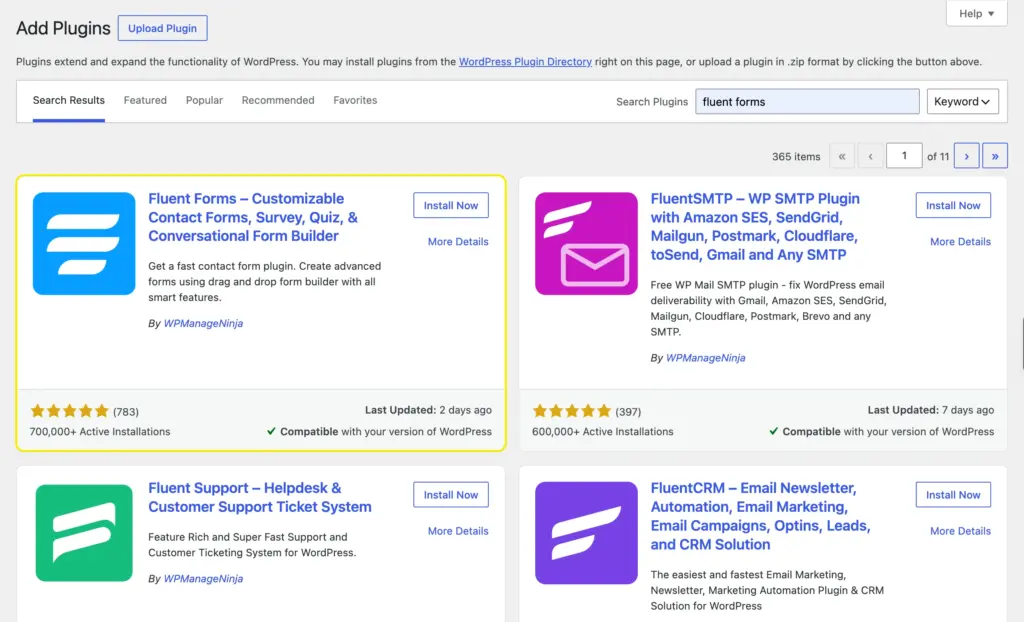
From your WordPress dashboard, go to Plugins → Add New, search for Fluent Forms, then click Install and Activate. The free version covers everything in the core build below; I’ll flag each spot where a feature needs Fluent Forms Pro.
2. Start from the Webinar Registration Form template
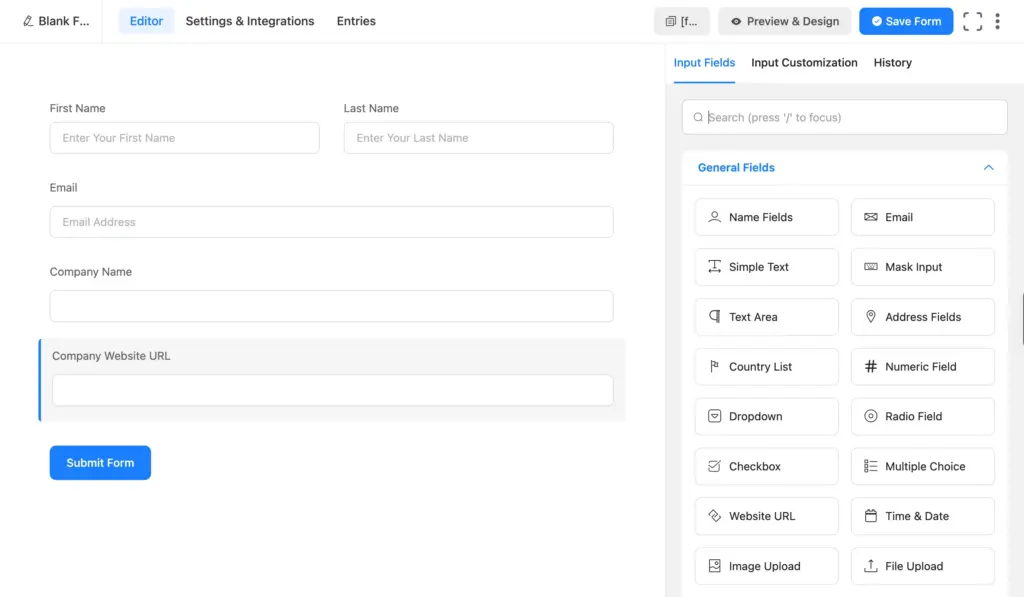
You can start with the webinar registration form template. It collects contact details, company information, and how the registrant heard about you. Download it, import it to your site, and edit from there.
You can also start from scratch: go to Fluent Forms → New Form → New Blank Form. In that case, add the contact fields like name, email, company, website URL, etc.
3. Add the fields that actually qualify a lead
The template covers contact and company basics. For a B2B or high-ticket webinar, add a job title or role field and a company size field so you can tell a decision-maker from someone who’s just curious.
Use Radio or Dropdown, as they allow the user to select only one option. Radio shows every option on the page at once, which works well for a short list like seniority level. You can also enable the “Other” option (Pro) from field settings, which lets a user type their own answer if none of the options are relevant to them.
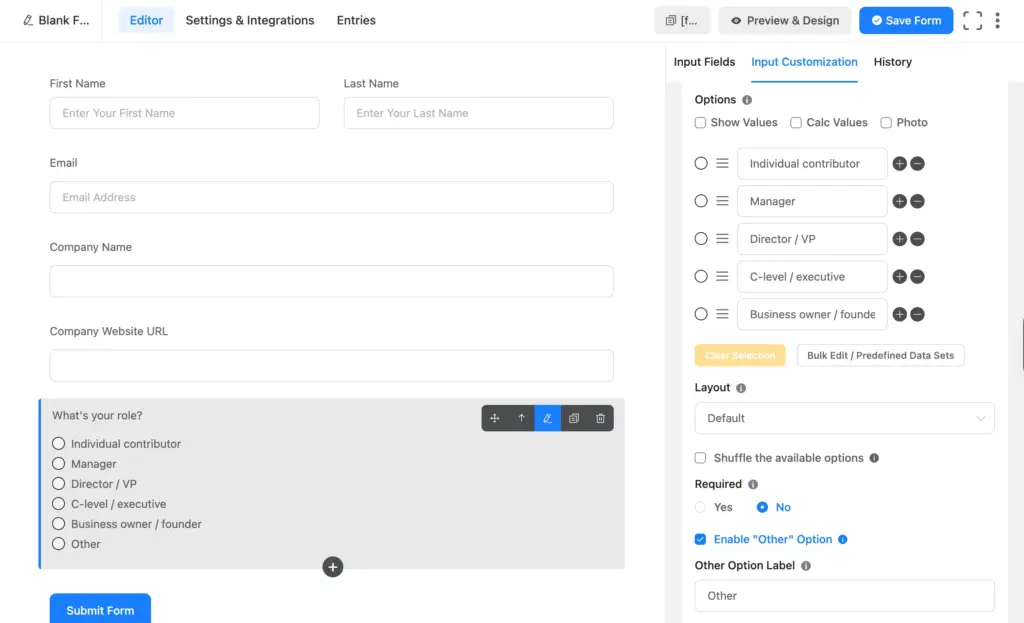
Dropdown collapses the list behind a menu, better suited to something longer, like a full list of job titles.
4. Ask what attendees want from the session
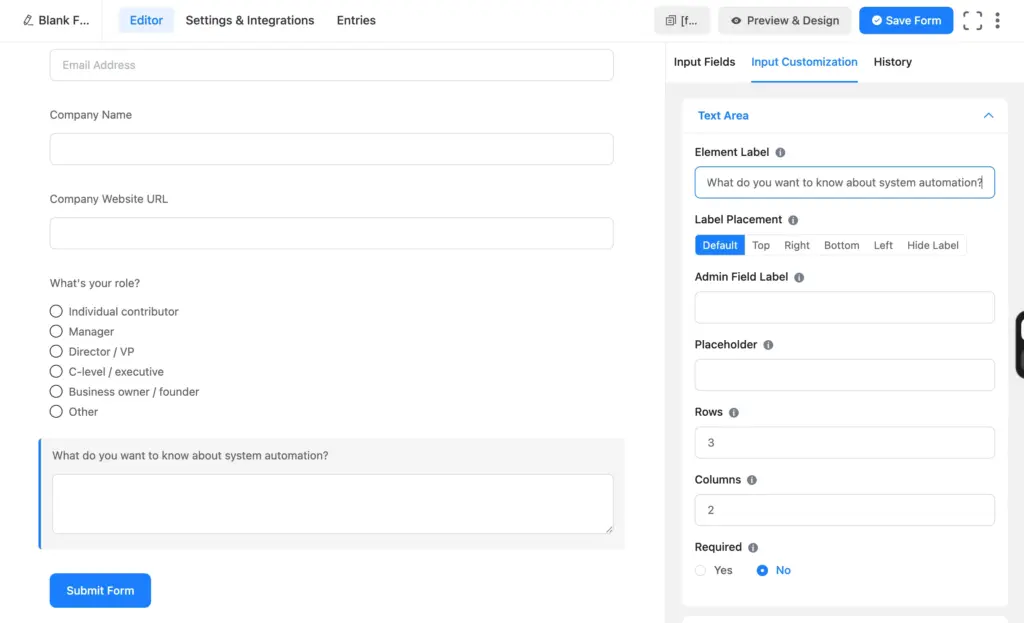
Ask what attendees want you to cover in the webinar. A short, optional Text Area labeled “What’s your biggest question about [topic]?” does two things. It gives you real content to address live, and it’s a second, softer signal of intent beyond a job title field.
Keep it optional. Attendees without a specific question should still be able to register.
5. Add a consent field
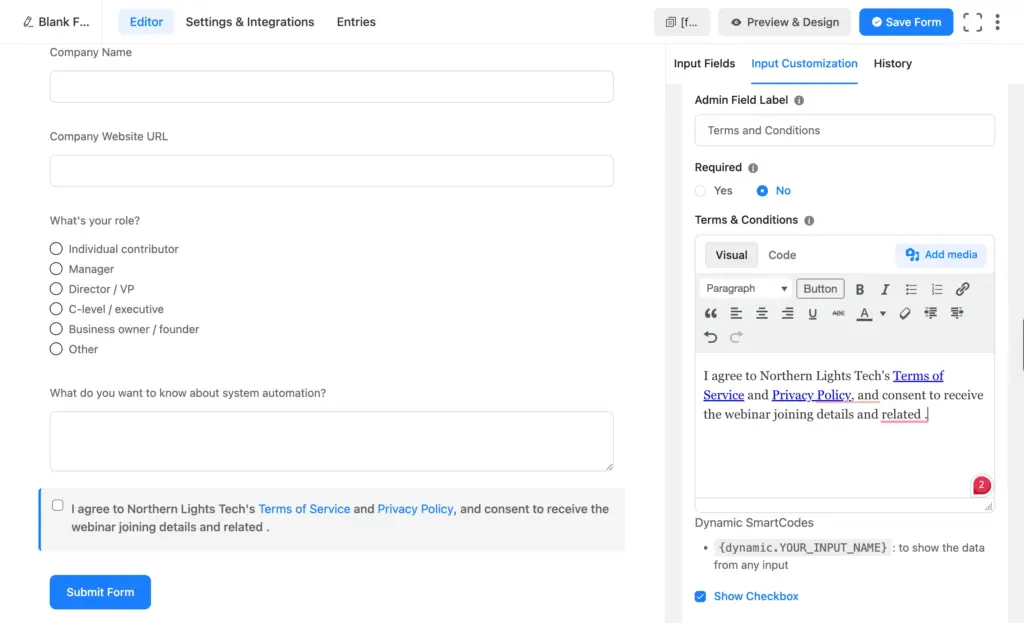
Terms & Conditions is a general consent checkbox with agreement text you write yourself. Add it if you need general consent to your terms. Use a GDPR Agreement field instead to state how you’ll collect, store, and use the registrant’s data.
6. Add spam protection
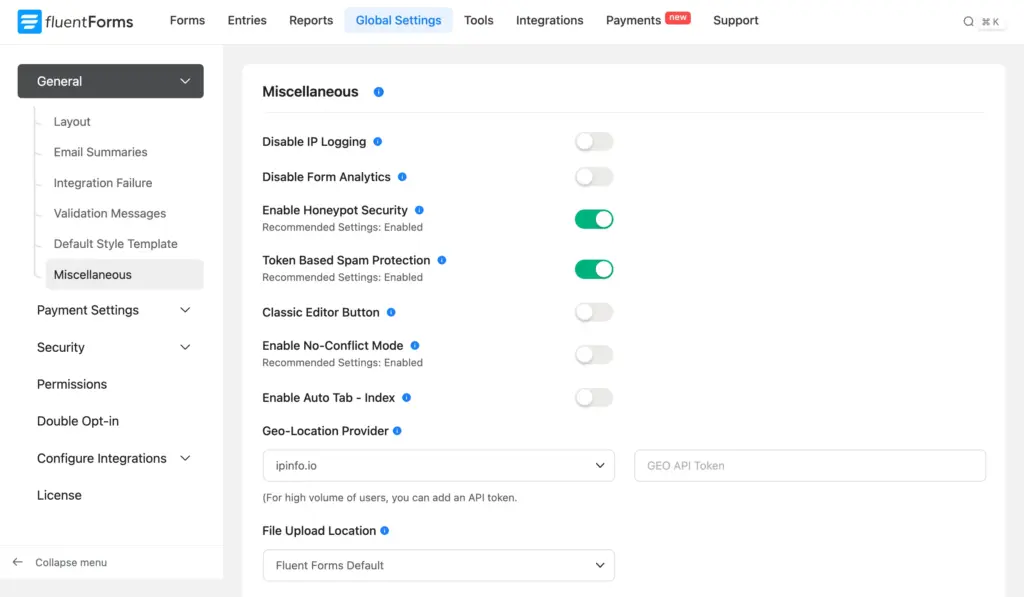
A public webinar sign-up attracts bots. Turn on Honeypot and Token-based Spam Protection from Global Settings → General → Miscellaneous. Under Global Settings → Security, add your reCAPTCHA, hCaptcha, or Turnstile keys and drop the field onto the form. All of these are free.
7. Price the ticket, if this is a paid webinar
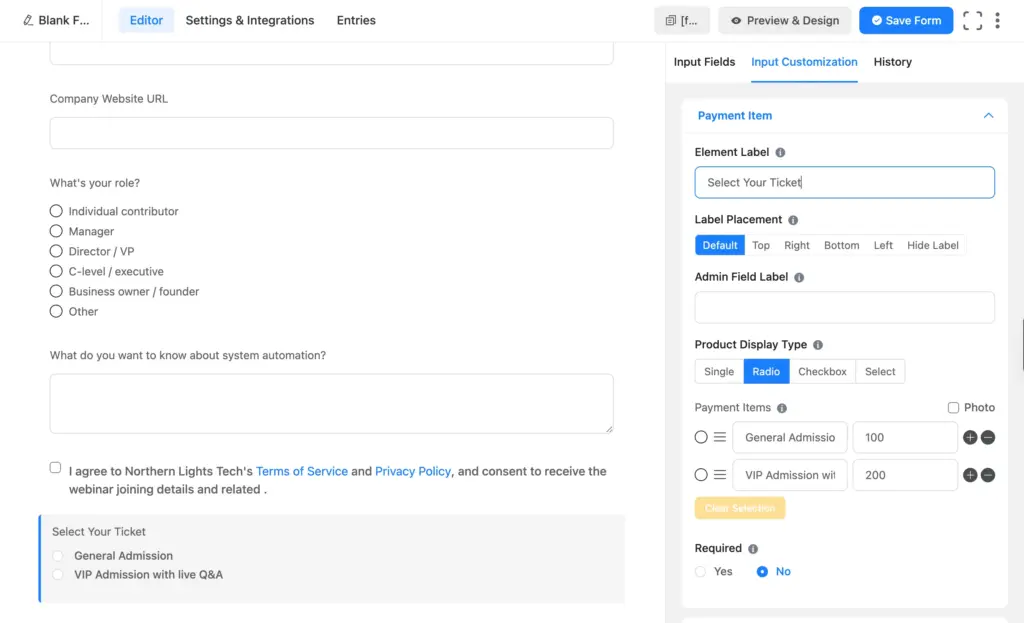
If registrants pay for a seat, add a Payment Item field for the ticket price and a Payment Summary field so they see exactly what they’re paying before they submit. Both are free fields, along with Payment Method, so a paid webinar doesn’t require Fluent Forms Pro on its own.
If you’re only selling one ticket type, set Payment Item’s display to a single row so the price applies automatically with no selection needed. If you’re offering more than one tier (general admission versus a VIP option with live Q&A access, say), use Radio display so only one option can be chosen at a time.
8. Connect a payment gateway
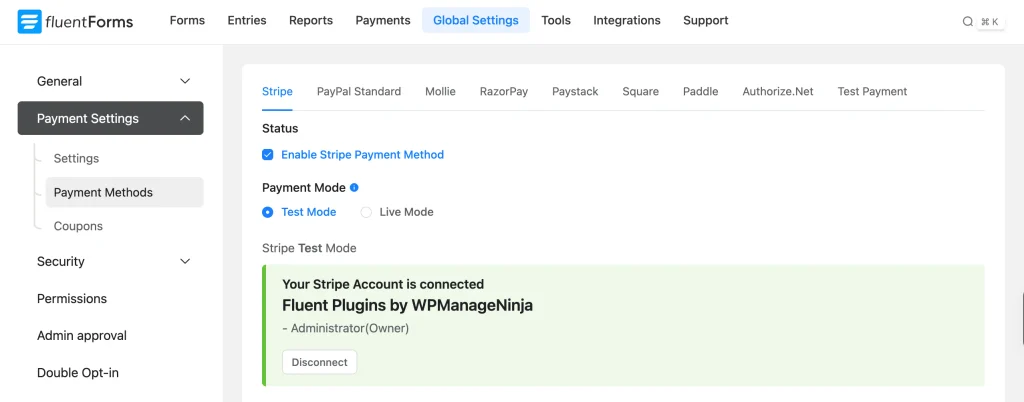
Under Fluent Forms → Global Settings → Payment → Payment Methods, connect a gateway. Stripe is free to use on the free plugin, though Fluent Forms keeps a 1.9 % fee on top of Stripe’s own charges; Fluent Forms Pro removes that fee and adds 7 more gateways: PayPal, Mollie, Razorpay, Paystack, Square, Paddle, and Authorize.net.
9. Set a registration deadline and cap your seats
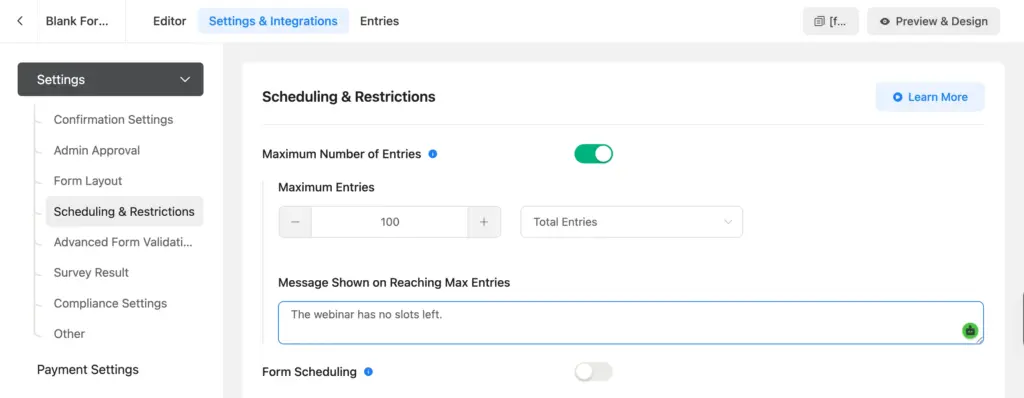
Under the form’s Settings & Integrations → Scheduling & Restrictions (free), set a start and end date so registration automatically closes when the webinar starts, or set a maximum total submission count if your platform limits you to a fixed number of participants.
If you’re selling more than one ticket type and need to cap each one separately, that’s Fluent Forms’ Inventory module (Pro): enable it under Fluent Forms → Integrations. Then set stock limits per option in Global Settings → Inventory Manager → Global Inventory.
10. Turn the form into a dedicated registration page
Fluent Forms Pro includes its own Landing Page mode, so you don’t need a separate page builder plugin for a distraction-free registration screen.
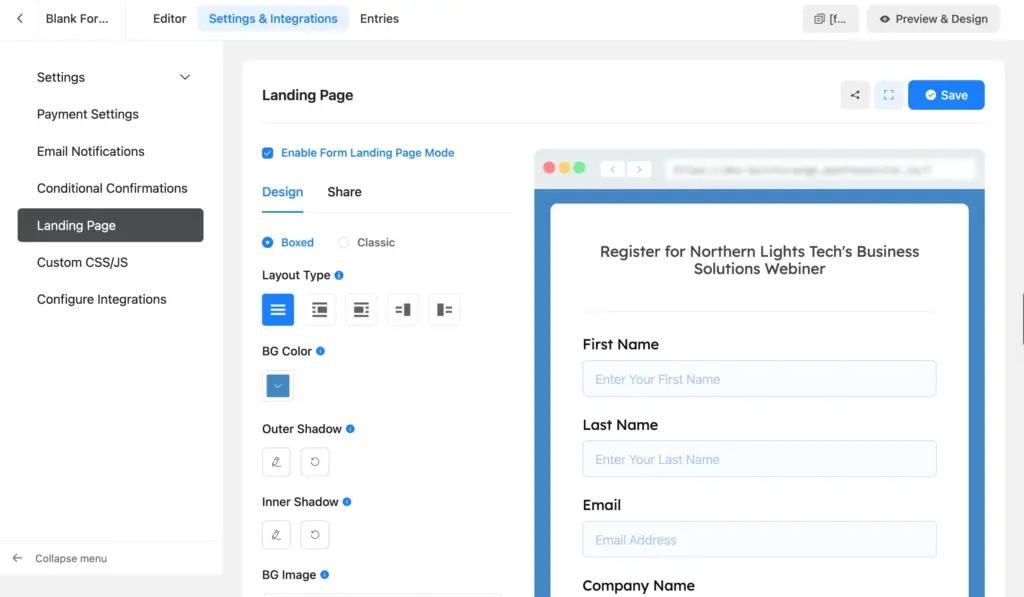
Enable the Landing Pages module under Integrations → Modules, then go to the form’s Settings & Integrations → Landing Page and check Form Landing Page Mode. From there, you can set a background image, a headline, and a custom URL and share the page directly or embed it.
If you’re on the free plugin, embedding the form on a regular WordPress page or post works just as well; you’ll just be styling that page yourself instead of using the built-in mode.
11. Write the confirmation message that hands over the join link
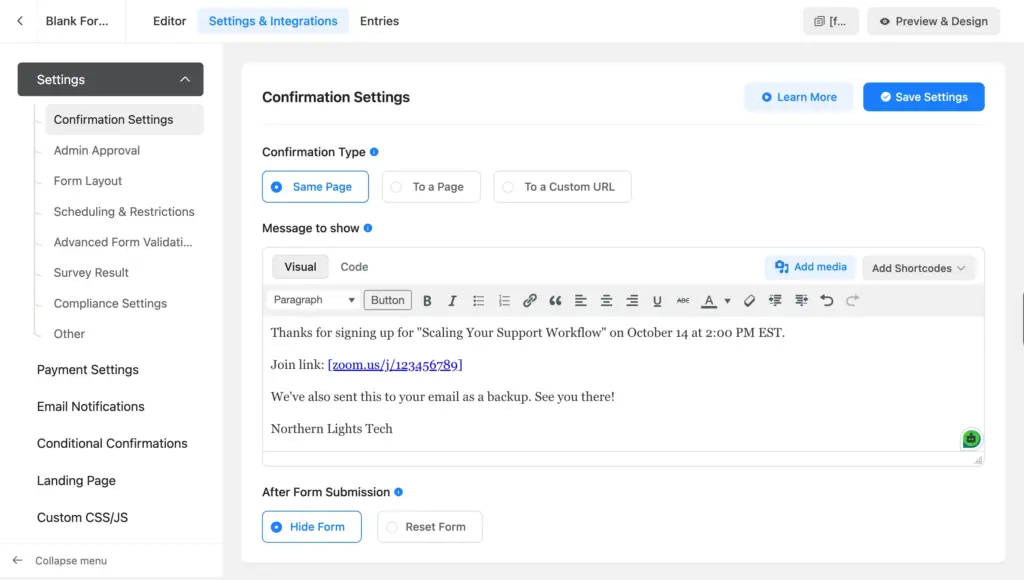
Under Settings & Integrations → Confirmation Settings, write a message that tells the registrant what happens next, and include the actual link right there on the confirmation screen. If it’s a paid webinar, confirm the payment succeeded and restate what they bought.
12. Set up email notifications for you and the registrant
Under Settings & Integrations → Email Notifications, set up one notification to yourself so you know a new registrant came in, and one to the registrant confirming their spot and repeating the join link and date. Sending admin and user email notifications is a free feature. Routing a notification to different people based on an answer (say, a sales rep by region) needs Fluent Forms Pro’s conditional routing. Make sure you have an SMTP set-up for reliable email delivery.
13. Test your form before you publish
Submit the form yourself (from incognito), once as a free registrant and once through the paid path if you’re charging, using Stripe’s test mode. Check that the confirmation message shows the join link, that both email notifications arrive, and that submissions get blocked once they reach your seat cap or deadline. Check the form on a phone to ensure everything looks okay on a narrow screen.
14. Embed and publish your registration page
Add the form to a page using the Fluent Forms block, shortcode, or your page builder’s Fluent Forms widget. If you built the Pro landing page in step 10, share that URL directly instead. Publish the page once everything is okay in your testing.
Getting Registrants Onto Your Video Conferencing Platforms
The simple option is the one built in steps 11 and 12 above: add the join link to the confirmation message and the registrant’s email. This works well for a single webinar with a modest number of registrants, and it’s what most hosts use.
If you want the registrant automatically added as a participant inside Zoom or Google Meet, you have two options.
Fluent Forms’ Zapier integration (Pro) can push each new form entry to over 5,000 connected apps, including video conferencing platforms, so a registration on your site creates a matching registrant on the webinar platform without you doing anything manually. Because this runs through Zapier rather than a direct connection, you also need to consider Zapier’s own task limits and pricing.
The other option is FluentBooking, a scheduling plugin from the same team behind Fluent Forms. FluentBooking has native Zoom, Google Meet, and Microsoft Teams integration (Pro).
If you’re using FluentBooking, add the FluentBooking field in your webinar registration form and select the webinar calendar. Registrants can pick an open slot right from the form and get booked directly. This is a better fit for a recurring session with a fixed time slot than for a one-time webinar with a single registration deadline.
Reminders and Follow-Up With FluentCRM
For a reminder sequence and for following up with attendees and no-shows afterward, you need FluentCRM. The connection between Fluent Forms and FluentCRM is free (works with both plugins’ free versions).
Set it up from the form’s Settings & Integrations → Configure Integrations → Add New Integration → FluentCRM, mapping the registrant’s name and email and selecting proper lists and tags. From there, FluentCRM’s own automation builder handles the timed part: a sequence that fires a reminder 24 hours out, another an hour before, and a follow-up afterward with the recording or a next step, all triggered from the tag this integration applies.
The follow-up matters as much as the reminder. Someone who registered but didn’t attend is still a warm lead; a short automated email pointing them to the recording keeps that lead from going cold. Someone who did attend gets a different follow-up, which could be a demo booking, a course link, or a discount code. Both paths run off the same tag FluentCRM applied at registration, split further by the attendance data from your webinar platform.
Bonus Features to Consider
Registering multiple attendees at once
Some registrants aren’t signing up for themselves. A manager wants to register their whole team for a training webinar in one submission. Fluent Forms’ Repeater field (Pro) lets someone add a name and email row for each additional attendee inside the same form, instead of forcing them to submit the form once per person.
Running the same form for a recurring webinar series
If this webinar repeats on a schedule rather than running once, you don’t need a new form for every date. Add a Dropdown or Radio field listing the upcoming sessions. Use FluentCRM’s Dynamic Tag Selection to tag each registrant by the session they picked, so your reminder and follow-up sequences still go out to the right group. If you’d rather keep each session’s numbers completely separate for reporting, duplicating the form per date works too, but that’ll give you more forms to maintain.
Free vs Pro at a Glance
| Field / feature | Free | Pro |
| Name, Email, Company, Dropdown, Radio, Checkbox, Multiple Choice, Text Area | Yes | Yes |
| Terms & Conditions, GDPR Agreement | Yes | Yes |
| reCAPTCHA, hCaptcha, Turnstile, Honeypot | Yes | Yes |
| Payment Item, Payment Summary, Payment Method, Subscription fields | Yes | Yes |
| Stripe gateway | Yes (1.9% fee applicable) | Yes (no additional fee) |
| PayPal, Mollie, Razorpay, Paystack, Square, Paddle, and Authorize.net gateways | No | Yes |
| Scheduling & Restrictions (deadline, submission cap) | Yes | Yes |
| Inventory module (per-option seat caps) | No | Yes |
| Dedicated Landing Page mode | No | Yes |
| Conditional email routing/settings-level conditional logic | No | Yes |
| Zapier integration | No | Yes |
| Repeater field (register multiple attendees at once) | No | Yes |
| FluentCRM connection | Yes | Yes |
| FluentBooking connection | Yes | Yes |
Build Smarter Forms for Free
Tips to Improve Webinar Registration Completion
- Ask for a job title or company size only if you’ll actually use it to route or approve the registrant. An unnecessary field only causes friction.
- Put the join link on the confirmation screen along with the email. Someone who registers on their phone often doesn’t check the inbox again before the webinar starts.
- If you’re charging for a ticket, add the Payment Summary field so the price is confirmed before submitting.
- Keep the optional “what do you want covered” field genuinely optional. Marking it required will cost you registrants who’d have signed up otherwise.
- Write your own closed-registration message under Scheduling & Restrictions instead of leaving the default text. “Registration is closed, here’s the recording request link” keeps a late visitor from bouncing off the page.
Frequently Asked Questions
Can Fluent Forms cap how many people register for my webinar?
Yes. Scheduling & Restrictions (free) lets you set a total submission limit or a closing date. If you’re selling multiple ticket types and need a separate cap per type, the Inventory module (Pro) handles that, though it disables or hides a sold-out option rather than adding a waitlist.
Can I connect my form directly to Zoom or Google Meet?
Not natively. Fluent Forms doesn’t have a built-in Zoom or Google Meet integration. The simple approach is to put the join link in your confirmation message and email. For an automatic connection, use Fluent Forms’ Zapier integration (Pro) or FluentBooking, a separate scheduling plugin with native Zoom and Google Meet support.
Can I charge for webinar tickets without upgrading to Pro?
Yes. Payment Item, Payment Summary, Payment Method, and Stripe are all free. Fluent Forms keeps a 1.9 percent fee on Stripe transactions on the free plugin; Pro removes it and unlocks the other seven gateways.
How do I send a reminder email before the webinar?
You need FluentCRM for that. Fluent Forms itself only sends its confirmation and notification emails once, at submission. A timed reminder sequence runs through FluentCRM’s own automation builder.
Can I use one form for a webinar series with multiple dates?
Yes. Add a Dropdown or Radio field listing the upcoming sessions and tag each registrant by their selection through the FluentCRM integration, so follow-up emails stay session-specific. Running a separate form per date is also fine if you want cleaner, isolated reporting for each one.
Where should I embed the finished form?
A standard WordPress page or post works fine on the free plugin. If you’re on Fluent Forms Pro, the built-in Landing Page mode gives you a distraction-free page with its own headline, background, and URL, without requiring a separate page builder plugin.
Can one submission register a whole team?
Yes, with the Repeater field (Pro). It lets the person filling out the form add a name and email for each additional attendee in the same submission, as opposed to everyone submitting separately.
What happens if someone tries to register after my deadline or seat cap is reached?
Fluent Forms shows the closed message you wrote under Scheduling & Restrictions instead of the form itself. Write that message with a next step in mind, a waitlist email address or a link to request the recording, rather than leaving the default wording in place.
Will the form work well on a phone?
Fluent Forms forms are responsive by default. Still worth testing yourself: a long Dropdown or a wide Radio layout can feel cramped on a small screen even when it renders correctly, so check your actual field choices on a phone before you publish.
Get Your Webinar Registration Form Live
Everything in the core build, the qualifying fields, consent, spam protection, payment, and the deadline, works on the free version of Fluent Forms. Fluent Forms Pro adds the Phone field, landing page mode, per-tier seat caps, and a Zapier push to Zoom, but none of it is required to get registrations rolling today. Start with Fluent Forms free, build the form, and open registration for your next webinar today.
Build Smarter Forms for Free

Sarika writes for Fluent Forms and loves to offer insights into small businesses. She’s curious and enjoys discussing ideas, interests, and perspectives. In her free time, she’s either marvelling at architectural beauties or trying different cuisines.



Leave a Reply