

Fixing Fluent Forms URL Validation Issues: .co.uk, .com.au, and Custom Domains
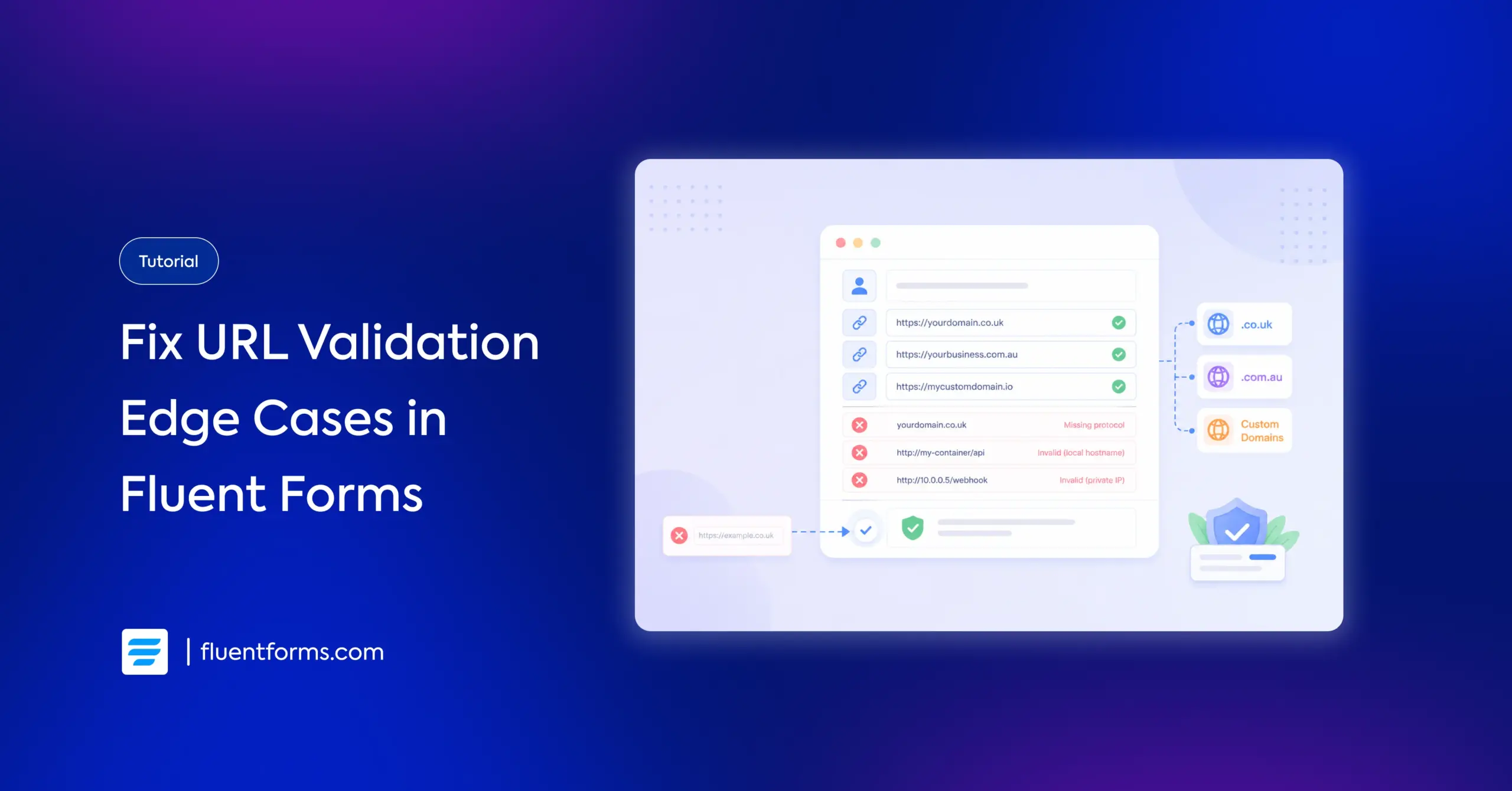
You enter a perfectly valid URL into Fluent Forms’ URL field, and it gets rejected. The domain works in your browser. It loads in Postman. But Fluent Forms says it’s invalid. Here, I’ll show you what’s happening behind the scenes and how to fix it.
TL;DR
- Fluent Forms validates URLs using WordPress’s built-in wp_http_validate_url() function. This function checks DNS resolution and blocks private IP addresses.
- If your URL uses a .co.uk, .com.au, .health, or other newer domain extension and gets rejected, the cause is usually DNS resolution failure on your server, not a blocked TLD.
- Webhook URLs pointing to private/local servers fail because WordPress blocks private IP ranges (10.x.x.x, 172.16-31.x.x, 192.168.x.x) as an SSRF security measure.
- Fix for private IPs: Use the WordPress http_request_host_is_external filter to allow specific trusted hosts.
- Fix for front-end URL field issues: Use the fluentform/validate_input_item_input_url filter to write custom validation logic.
- Fix for DNS issues: Ask your hosting provider to check DNS resolution and consider setting up a public resolver like Google (8.8.8.8) or Cloudflare (1.1.1.1).
Two Types of URL Validation in Fluent Forms
Fluent Forms validates URLs in two separate places, and they work differently.
The Website URL field is the input field your visitors see on the front end of your form. When you toggle the “Validate URL” option to Yes, Fluent Forms checks that the submitted value looks like a valid web address.
Webhook/integration URL validation happens in the admin panel when you set up a webhook, Zapier connection, or other integration that requires a destination URL. This validation is stricter because it involves your server making outbound requests.
Most “invalid URL” errors come from the webhook side. Let’s look at both.
How the Website URL Field Validates Input
Via the “Validate URL” toggle
When you add a Website URL field to your form and set Validate URL to Yes, Fluent Forms runs the submitted URL through WordPress’s built-in wp_http_validate_url() function.
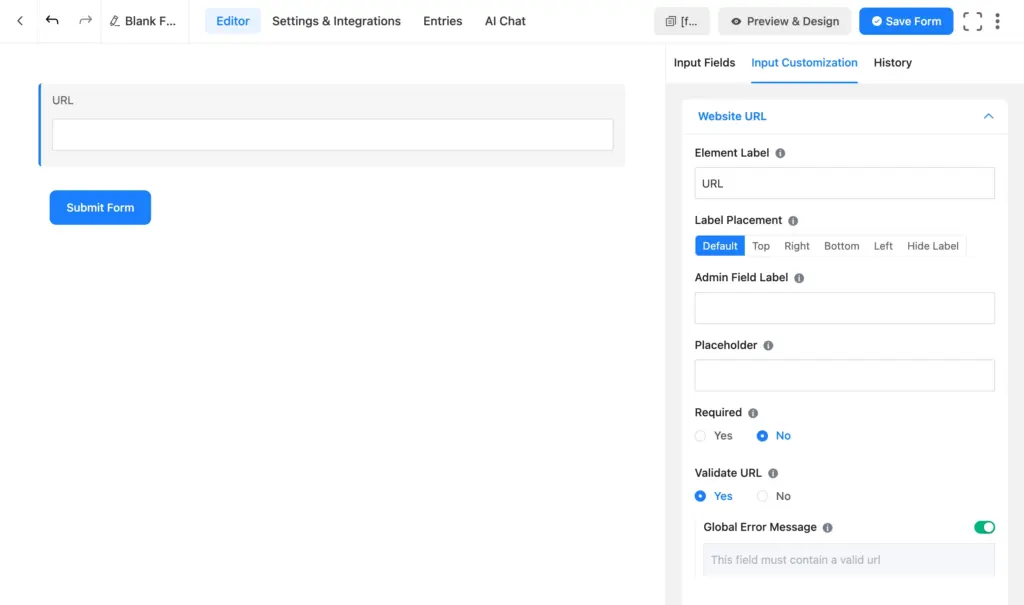
The function checks for:
- A valid structure (scheme, host, path)
- Allowed protocols (only http and https)
- No login credentials embedded in the URL
- A resolvable domain name
If any check fails, the form shows an error.
The protocol requirement
The URL field requires http:// or https:// at the beginning. If your user types example.com without the protocol, validation will fail.
There’s no built-in toggle to change this. If you need to accept bare domains (without http://), you’ll need a custom validation filter. I’ll cover that in the fixes section below.
How Webhook URL Validation Works
When you enter a URL in Settings & Integrations > WebHooks or in any integration that sends data to an external URL, Fluent Forms performs stricter validation.
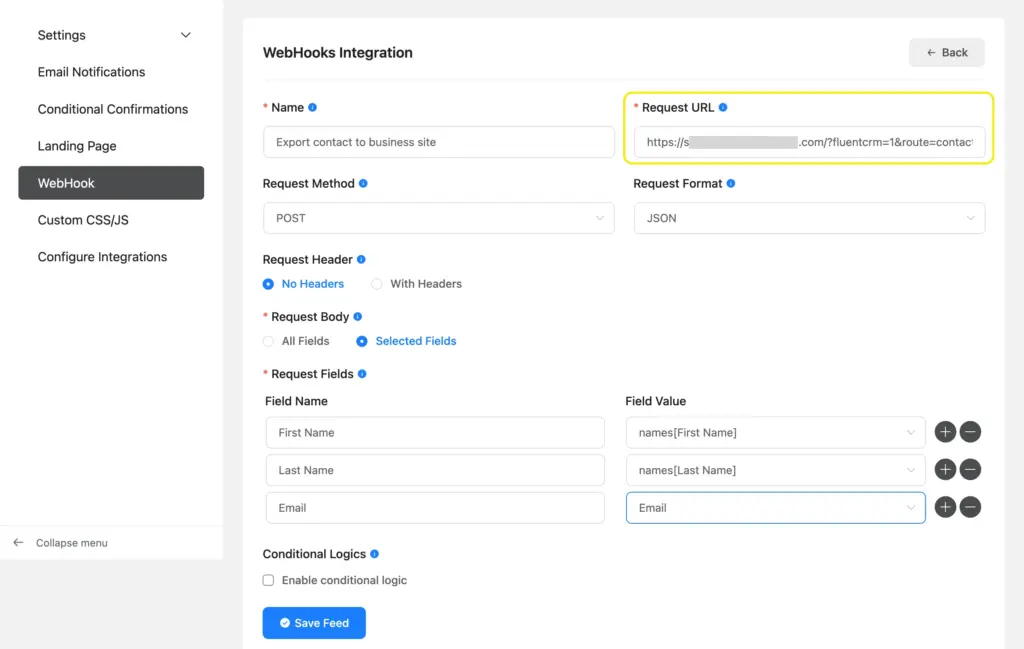
Here’s what it checks in the background.
DNS resolution check
Fluent Forms (through WordPress) runs a DNS lookup on the domain in your URL. It calls a PHP function named gethostbyname(), which asks your server: “What IP address does this domain point to?”
If your server can’t resolve the domain to an IP address, the URL is rejected.
This is why some newer domain extensions like .health, .uk (as opposed to .co.uk), or .biz sometimes fail. The domain itself is valid, but if it doesn’t have a DNS record that your WordPress server can resolve (convert into an IP address), it won’t pass.
This looks like a TLD (top-level domain) issue, but the cause is DNS resolution, not a blacklist of domain extensions.
Private IP blocking (SSRF protection)
After resolving the domain to an IP address, WordPress checks whether that IP falls in a private range:
- 127.x.x.x (localhost)
- 10.x.x.x (private network)
- 172.16.x.x through 172.31.x.x (private network)
- 192.168.x.x (private network)
If it does, the URL is blocked.
Why? It’s a security measure called SSRF protection. SSRF stands for Server-Side Request Forgery. Without this check, someone could trick your WordPress site into making requests to internal services on your network, like a database admin panel or a cloud metadata endpoint. Blocking private IPs prevents this.
The problem: if your webhook destination is on the same network as your WordPress server (a common setup for self-hosted services), the domain will resolve to a private IP, and validation will reject it.
Why Your Valid URL Might Get Rejected
Here’s a quick checklist of the most common causes:
Your domain doesn’t resolve from your server
A domain that works in your browser might not resolve from your WordPress hosting. Different DNS servers, different results. Newer TLDs sometimes have this problem.
Your domain points to a private IP address on the server
This is the most common cause for self-hosted setups. Your webhook destination and your WordPress site share a network, so the domain resolves to a local IP like 10.0.0.5 or 192.168.1.100.
The URL is missing http:// or https://
The Website URL field on the front end requires the protocol prefix. If a user types example.com instead of https://example.com, validation will fail.
You’re using a local hostname
URLs like http://my-container/api or https://server.local/endpoint don’t have public DNS records, so your server can’t resolve them to an IP address. This is common in Docker or containerized setups where services use internal hostnames.
How to Fix URL Validation Errors
Each cause has a different fix. Pick the one that matches your situation.
Fix 1: Allow private/local hosts with the WordPress filter
If your webhook URL resolves to a private IP and you know the destination is trusted, WordPress has a built-in filter for this.
Add this to your functions.php or snippet plugin:
add_filter('http_request_host_is_external', function ($external, $host, $url) {
    if ($host === 'your-internal-domain.example') {
        return true;
    }
    return $external;
}, 10, 3);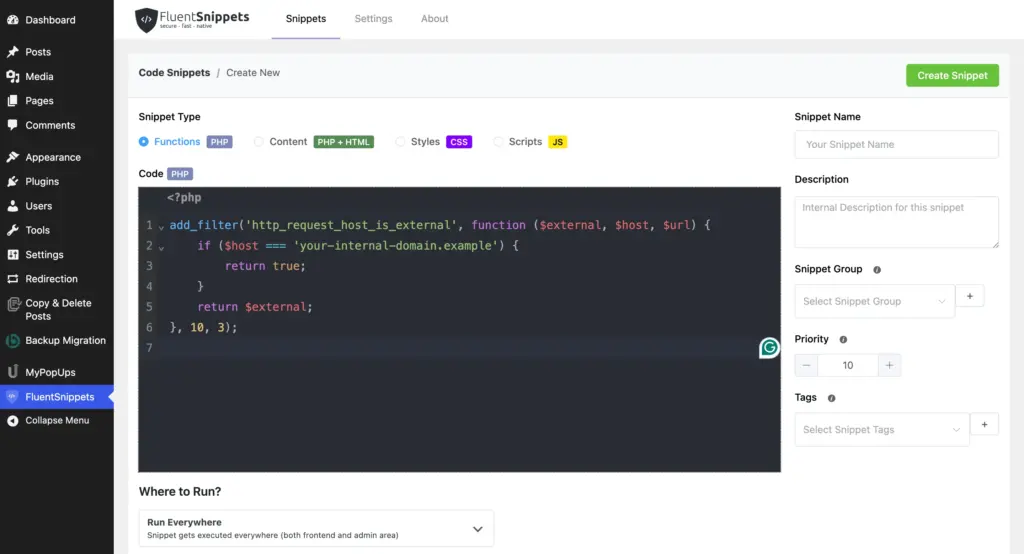
Replace your-internal-domain.example with the hostname in your webhook URL. This tells WordPress: “This host is allowed even though it resolves to a private IP.”
Be specific. Don’t return true for all hosts. That would disable SSRF protection entirely, which is a security risk.
Fix 2: Custom front-end URL validation with the Fluent Forms filter
If the Website URL field on your form is rejecting valid URLs from your visitors (not a webhook issue), you can write your own validation logic.
add_filter('fluentform/validate_input_item_input_url', function ($errorMessage, $field, $formData, $fields, $form) {
    $fieldName = $field['name'];
    $value = $formData[$fieldName] ?? '';

    if (empty($value)) {
        return $errorMessage;
    }

    // Accept URLs with or without protocol
    if (!preg_match('#^https?://#i', $value)) {
        $value = 'https://' . $value;
    }

    if (filter_var($value, FILTER_VALIDATE_URL) === false) {
        return ['Please enter a valid URL.'];
    }

    return $errorMessage;
}, 10, 5);
This snippet auto-prepends https:// if the user left it out, then validates with PHP’s filter_var() instead of the stricter WordPress function.
Fix 3: Check your server’s DNS resolution
If a domain works in your browser but fails in Fluent Forms, the problem might be your server’s DNS.
Ask your hosting provider to check what DNS resolver the server uses. You can also run this quick test in a PHP file on your server:
<?php
echo gethostbyname('your-domain.co.uk');
If it returns the domain name back (instead of an IP address), the server can’t resolve it. Your hosting provider can help configure a public DNS resolver (like Google’s 8.8.8.8 or Cloudflare’s 1.1.1.1).
Ensure Every URL Passes Validation
Most URL validation errors in Fluent Forms aren’t about the URL. They’re about how your server sees the URL. A domain that works in your browser can fail on your server because of DNS resolution, private IP blocking, or port restrictions.
Every scenario has a fix. WordPress provides filters to allow trusted private hosts and custom ports. Fluent Forms gives you a validation hook to write your own front-end URL logic. And your hosting provider can sort out DNS resolution in minutes.
If none of these fixes solves your issue, reach out to Fluent Forms support. Include the exact URL that’s failing (or a test URL with the same domain structure) and your hosting environment details. That gives the team what they need to diagnose it quickly.

Sarika writes for Fluent Forms and loves to offer insights into small businesses. She’s curious and enjoys discussing ideas, interests, and perspectives. In her free time, she’s either marvelling at architectural beauties or trying different cuisines.


Leave a Reply