

How to Organize Long Forms in WordPress: Columns, Steps, Accordions, and Repeaters

A long form doesn’t have to feel overwhelming. When you organize it into clear sections, group related fields, reveal relevant fields, and break a long form into multiple pages, it feels short.
I’ll show you how to organize long forms with four layout tools in Fluent Forms: column containers, steps, repeaters, and accordions. We’ll build an example form, so you can see where each tool fits and how they work together.
TL;DR
- Columns pair fields that belong together, like email and phone. Keep everything else in one column.
- Steps split a long form into short pages with a progress indicator. Use them when the form has a natural order.
- Repeaters let people add rows, like household members or past addresses.
- Collapse optional sections with Accordions so people only open what applies to them.
- The tools combine: our example uses all four inside one four-step form.
- Column containers and Section Break are free in Fluent Forms. Steps, accordions, repeaters, and Save & Resume need Fluent Forms Pro.
- Always check the mobile preview. Columns stack into one column on small screens.
Why Long Forms Feel Longer Than They Are
Everyone mentally calculates the effort and time needed before they start filling a form. A single page with 30 fields lacks visual grouping, the options list increases perceived length, shows questions that don’t apply to everyone, etc. Users can easily feel overwhelmed and abandon the form.
As a fix, two or three inputs on one line cause no trouble when they describe one thing, such as first and last name or city and zip code. The goal is to create a clear path: one direction, short sections, and no irrelevant questions.
Which Layout Tool Fits Which Use Case
Before you build, decide what each part of your form needs. Use this table as a quick reference.
| Tool | What it does | Use it for | Plan |
| Column containers | Places fields side by side in one row | Pairs of related fields: email and phone, start and end date | Free |
| Section Break | Adds a heading and short description between groups of fields | Labeling sections on a single-page form | Free |
| Form Step | Splits the form into pages with Next and Previous buttons and a progress indicator | Forms with a natural order and three or more sections | Pro |
| Accordion/Tab | Wraps a group of fields in a section people can expand or collapse | Optional or “only if it applies” sections | Pro |
| Repeat Field | Lets people add more rows of simple inputs | Short lists: past addresses, references, numbers | Pro |
| Repeat Container | Lets people repeat a whole group of fields, | Repeating records: household members, attendees, line items | Pro |
| Conditional Logic | Shows or hides a field or container based on earlier answers | Hiding sections for specific users that don’t apply to them | Free (in form editor) |
| Save & Resume | Gives people a link to come back and finish later | Forms that need documents or details people have to look up | Pro |
Most long forms need two or three of these, not all of them. Our example uses the four from the title, because a rental application has all four kinds of content.
What You Need Before You Start
- A WordPress site.
- Fluent Forms installed and activated. Column containers and Section Break work on the free plugin.
- Fluent Forms Pro for steps, accordions, the Repeat Field, and the Repeat Container.
Here’s the form we’ll build. It’s a rental application with four sections:
- Applicant: name, contact details, move-in date, lease length, current address.
- Household: other occupants (a repeating group) and a pets question.
- History & income: previous addresses (a repeating list), employer, and income.
- Extras: optional sections for pets, vehicles, and notes, plus a confirmation checkbox.
New to the plugin? Start with how to create your first WordPress form using Fluent Forms.
How to Organize Long Forms in Fluent Forms
Plan the sections first, then build each one with the tool that fits it, so you don’t have to spend time rearranging.
Step 1: Group your questions into sections
Write down every field you need, then group them by topic. Each group becomes a step or an accordion section later.
While you group, keep three questions in mind:
- What goes first: Put easy questions, like name and email, at the start. People who have started are more likely to finish.
- What repeats: Anything that can happen more than once (occupants, past addresses, attendees) needs a repeater.
- What’s optional: Sections that only apply to some people are good accordion candidates.
Once your groups are clear, create a blank form under Fluent Forms > New Form > New Blank Form and give it a name.
Step 2: Pair related fields with column containers
Column containers place one to six fields in one row. Use them only for fields that read as one unit.
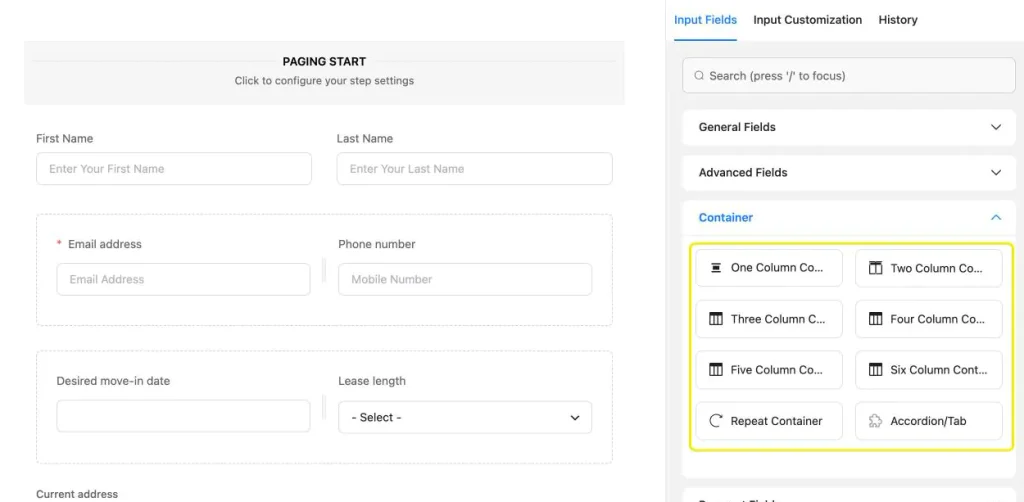
- In the form editor, open the Container section in the Input Fields panel on the right.
- Click Two Column Container (or drag it into the form).
- Click the plus icon inside each column and add a field. In our form, the first container holds Email and Phone/Mobile, and the second holds Desired move-in date and Lease length.
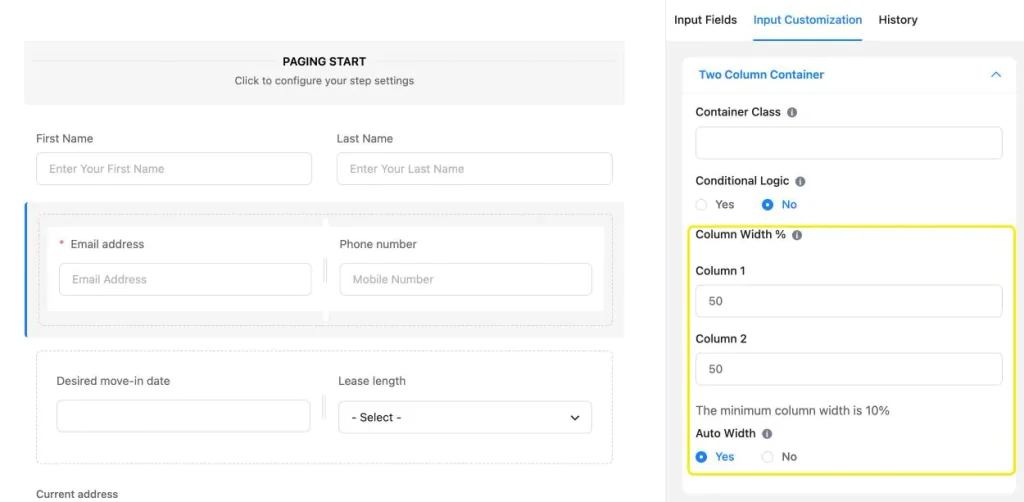
To change the column widths, hover over the container and click the pencil icon. Under Column Width %, set a width for each column (the minimum is 10%), or leave Auto Width on to split the space evenly. You can also drag the divider between columns to resize them right in the editor.
The container settings also include Conditional Logic, so you can show or hide a whole container based on an earlier answer. That’s handy for a pair of fields that only applies to some people, such as a co-signer’s name and email.
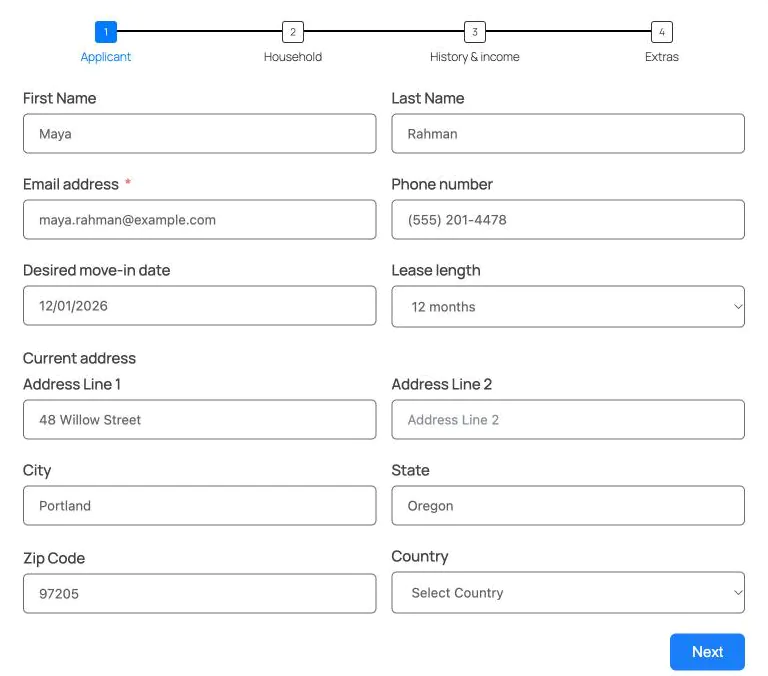
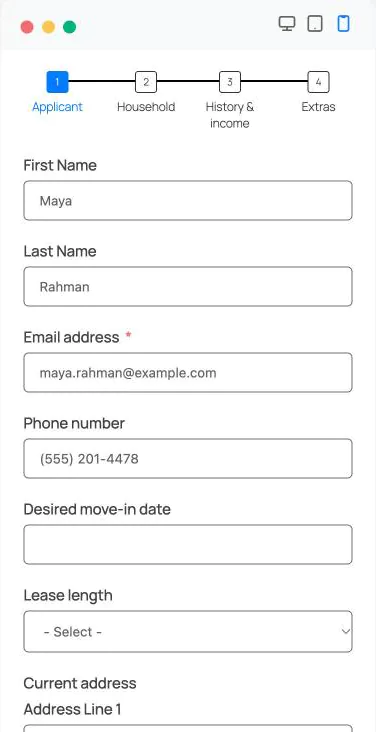
Here’s the first step of the finished form. The Name field already shows first and last name side by side, and the containers pair the contact and lease details.
Step 3: Split the form into steps
With your sections planned, you can split the form into pages. Each step shows one section, and a progress indicator tells people how far they’ve come.
- Open Advanced Fields in the Input Fields panel and click Form Step.
- Fluent Forms adds a Paging Start block at the top of the form, a Page Break where you dropped the field, and a Paging End before the submit button.
- Drag each Page Break to the end of a section. Our form uses three page breaks, which creates four steps.
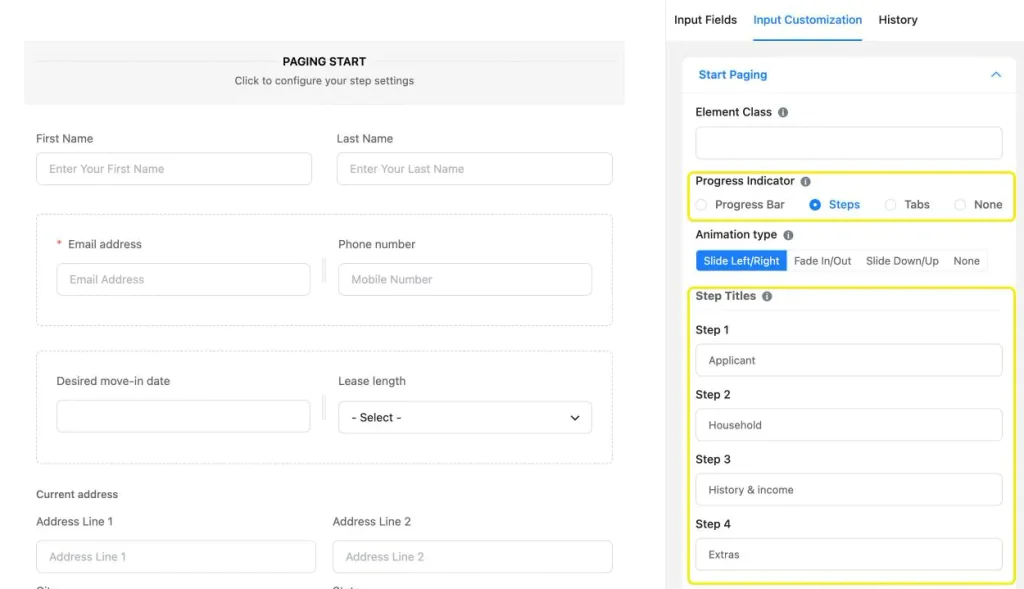
- Click the Paging Start block to open its settings.
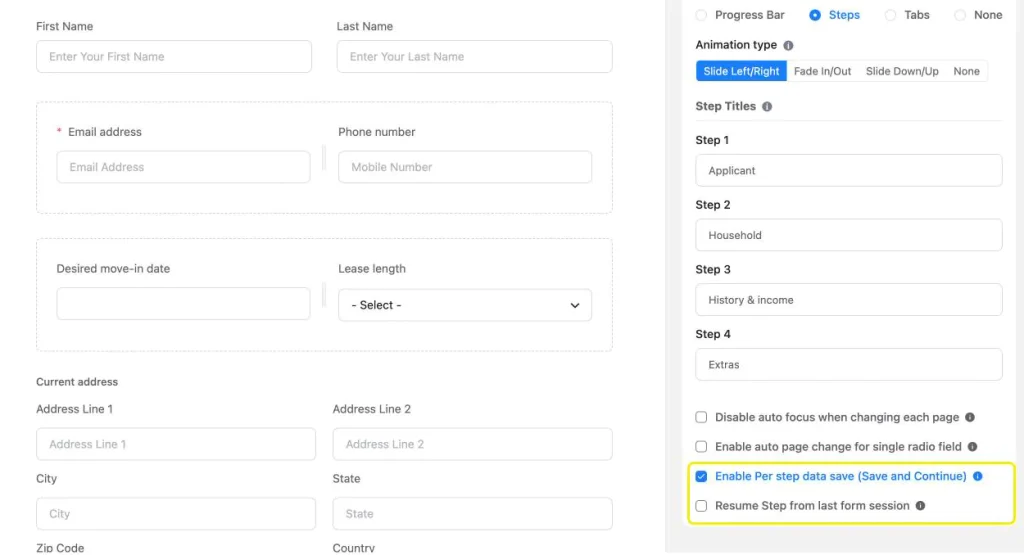
- Under Progress Indicator, choose Progress Bar, Steps, Tabs, or None. We used Steps.
- Under Step Titles, name each step. Short, specific titles (Applicant, Household, History & Income, Extras) tell people what’s coming.
The Steps/Tabs indicators also make navigation easier. Once someone completes a step, they can click its title to jump straight back to it.
For long forms, scroll down in the same panel and check Enable Per step data save (Save and Continue). It saves the person’s answers as they move between steps, so they don’t lose their progress if they leave. A Resume Step from last form session option then appears, which reopens the form on the step where they stopped.
Step 4: Collect repeating groups with a repeat container
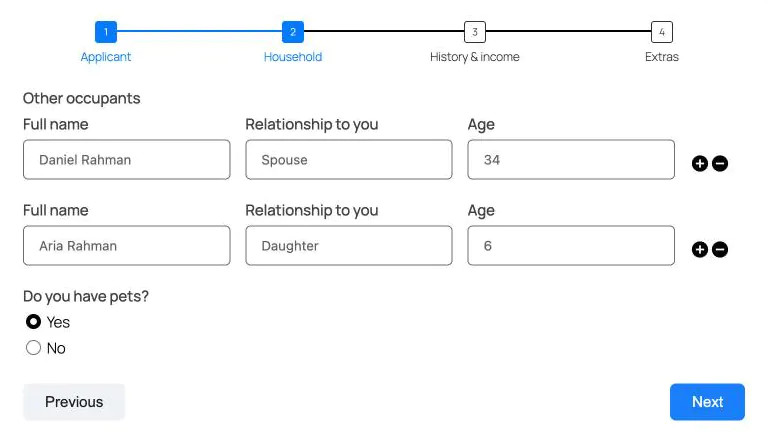
The second step asks about other occupants. Some applicants live alone, and others have a family of five, so a fixed number of fields would be wrong. A Repeat Container solves this by letting people add one row per person.
- In the Container section, click Repeat Container.
- Open its settings and set the Element Label (ours is “Other occupants”).
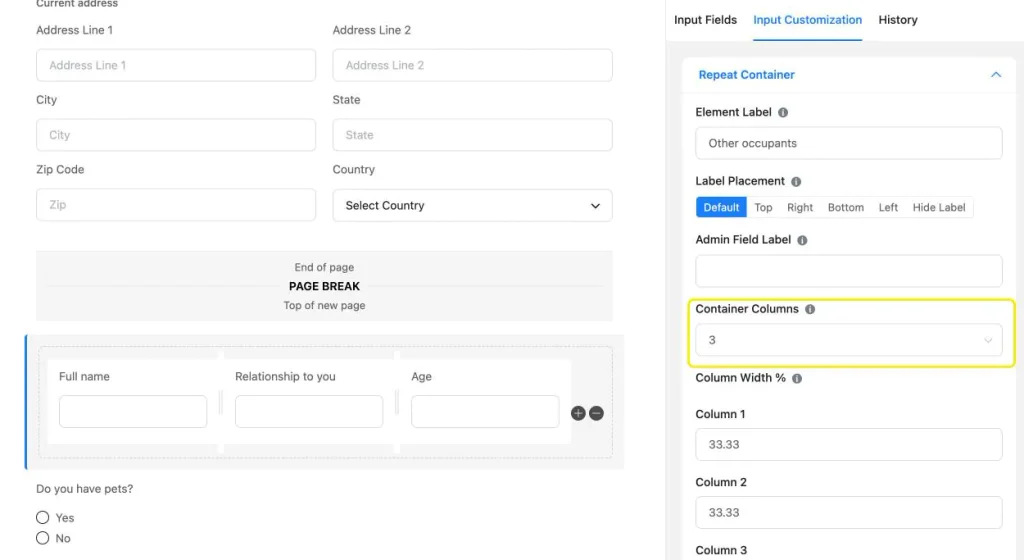
- Under Container Columns, choose how many fields each row has. We used 3.
- Click the plus icon in each column to add a field: Full name, Relationship to you, and Age.
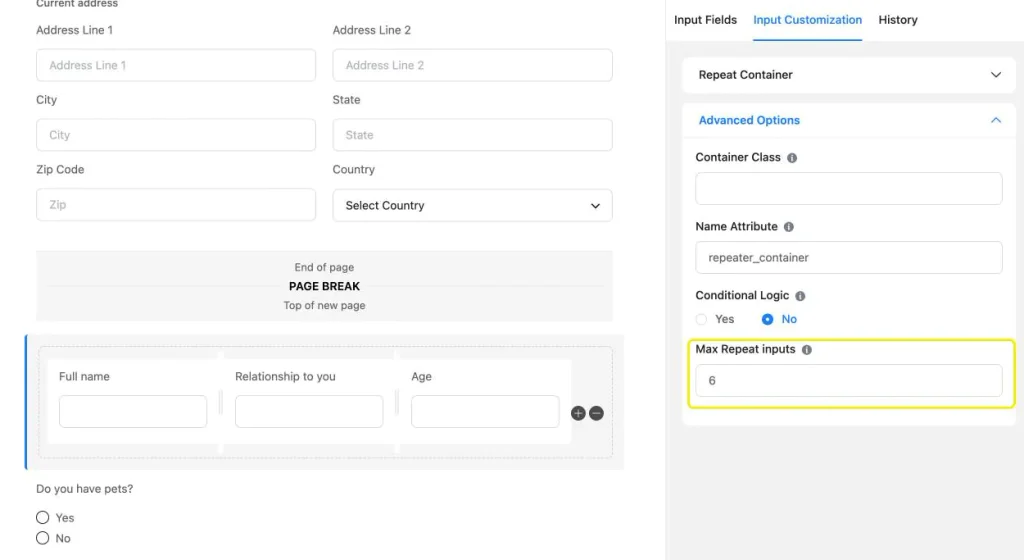
Next, open Advanced Options and set Max Repeat inputs. This caps how many rows someone can add. We set it to 6, which matches the most occupants our example property allows.
Only some field types work inside a Repeat Container. For example, the standard Name field isn’t supported, so use a Simple Text field for names. On the live form, people click the plus icon to add a row and the minus icon to remove one.
Step 5: Use a repeat field for simple lists
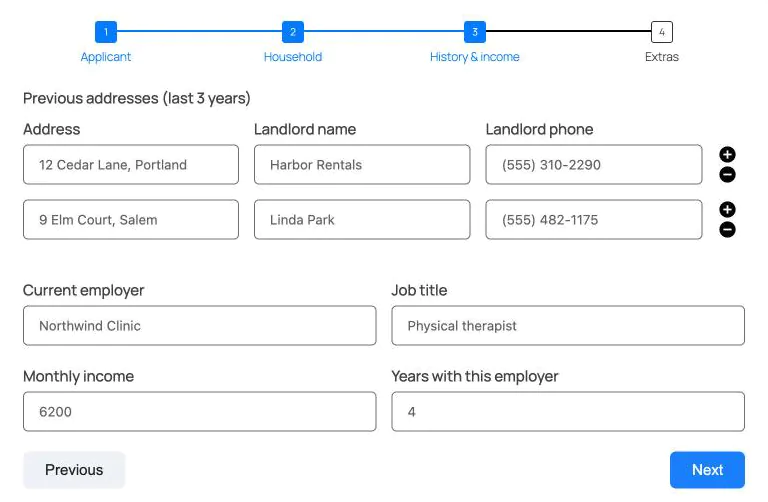
The third step asks for previous addresses. This is a simple list of short text values, so a Repeat Field is lighter to set up than a Repeat Container.
- Open Advanced Fields and click Repeat Field.
- Set the Element Label. Ours is “Previous addresses (last 3 years).”
- Under Repeat Field Columns, add a column for each value with the plus icon. I added Address, Landlord name, and Landlord phone.
- Click the arrow next to a column to choose its Field Type: Text, Email, Numeric, Select, or Input Mask. You can also set a label, default value, placeholder, and whether it’s required.
- Under Advanced Options, set Max Repeat Inputs. We set 3. Leave it blank or at 0 for unlimited rows.
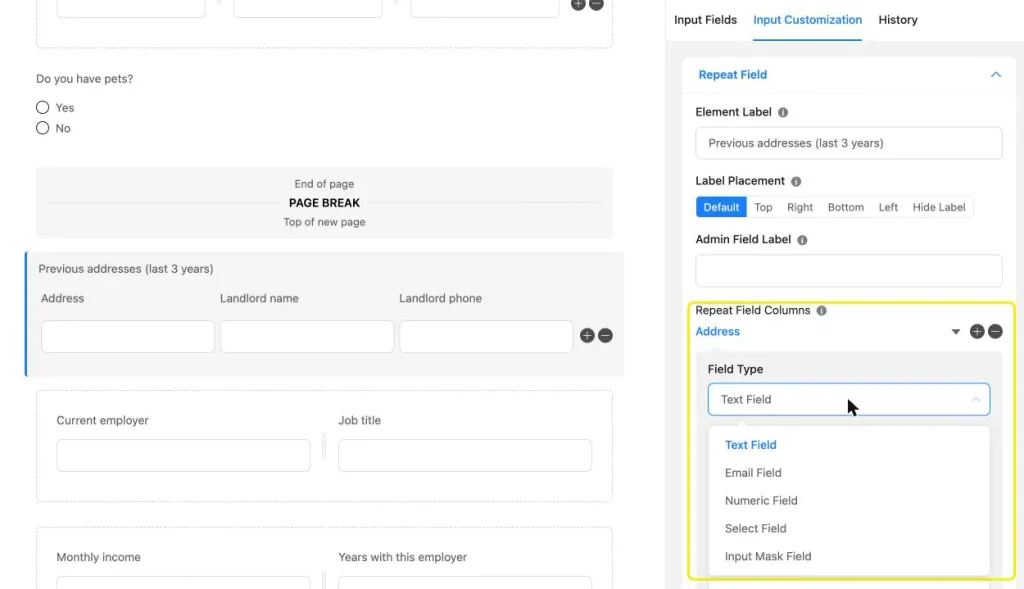
So which repeater should you pick? Use the Repeat Field for quick lists made of simple input types. Use the Repeat Container to set custom column widths.
The rest of this step uses two more column containers for employer, job title, monthly income, and years with the employer.
Step 6: Fold optional sections into accordions
The last step has sections that only apply to some applicants: pets, vehicles, and extra notes. Showing all of them open would make the step look longer than it is for most people. Accordions keep them collapsed until someone needs them.
- In the Container section, click Accordion/Tab. Fluent Forms adds two blocks: the start of the section and its close.
- Click the start block and fill in the Title (Pets) and an optional Description (Only fill this in if you have pets.).
- Under Display Mode, keep Accordion. Choose Tabs if you want horizontal tabs instead.
- Check Start Collapsed so the section is closed when the step loads, and Collapse When Others Opened so only one section is open at a time.
- Drag the fields for that section between the start and close blocks.
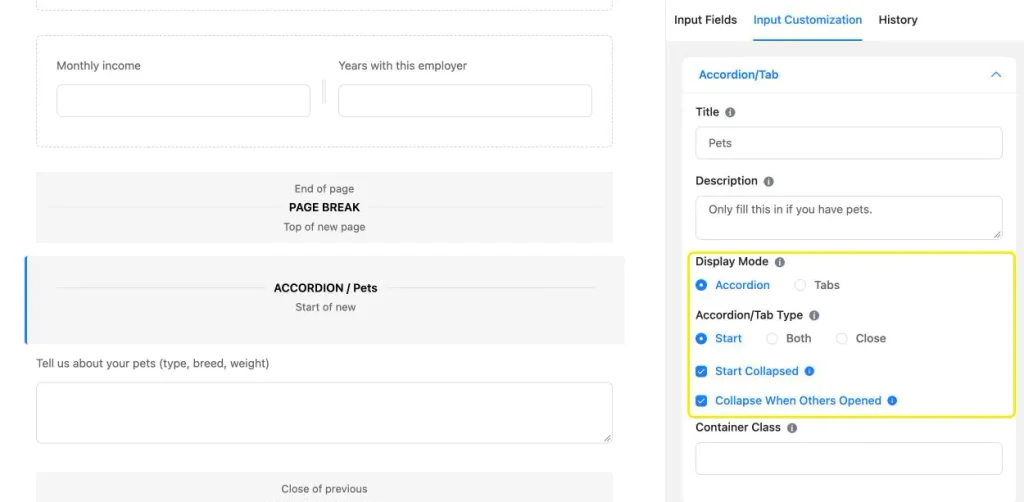
For the next section, click the close block, change its Accordion/Tab Type to Both, and give it a title. It now closes the Pets section and starts the Vehicles section in one block. Repeat this for each section, and end the group with one block set to Close.
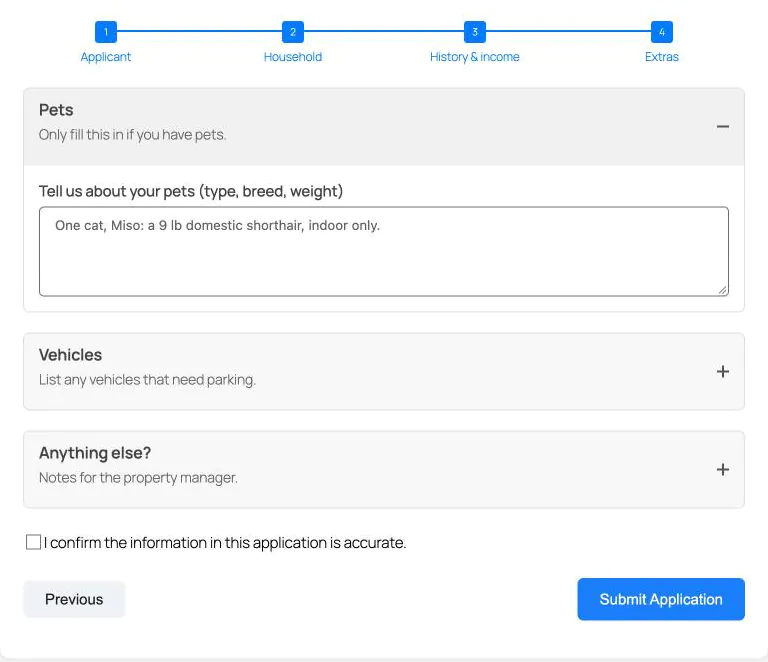
On the live form, people see three section titles and open only what applies to them.
Learn more about how to add accordion and tab sections in WordPress forms.
Step 7: Preview, test, and publish
Click Save Form, then Preview & Design. Before you publish, test the form the way an applicant would.
- Switch the preview to the mobile icon. Column containers stack into a single column on small screens.
- Click through every step with Next and Previous, and click a completed step title to jump back.
- Add and remove rows in each repeater, and try to go past the maximum.
- Open and close each accordion section.
- Submit a test entry and check that the repeated rows appear in the entry.
When everything works, add the form to a page with the Fluent Forms block or the shortcode from the top of the editor.
Accordions vs. Steps: How to Choose
Both tools reduce scrolling, but they offer different approaches to navigate through the form. Steps guide people in a fixed order, one page at a time. Accordions keep everything on one page and let people open sections in any order.
- Choose steps when the form has a natural sequence, when later questions depend on earlier ones, or when the form is long enough to need a progress indicator.
- Choose accordions when sections are optional, unrelated, or likely to be skipped.
- Combine them when a step has optional parts, as the Extras step does here.
Layout Strategies That Keep Long Forms Easy to Finish
- Default to one column. A single column is easier to follow because people read straight down instead of zigzagging across the page. Use multiple columns only for inline opt-ins or fields that describe one thing, like a date range or contact pair.
- Give every step a relevant title. “Household” tells people what to expect. “Step 2” doesn’t.
- Keep steps balanced. One step with 20 fields and another with two feels uneven. Plan your form steps so each takes about the same effort.
- Don’t hide required fields in collapsed sections. Accordions work best for optional content. If a section has required fields, keep it open by default or move it into its own step.
- Use a Section Break on single-page forms. If you’re on the free plugin or don’t want steps, a Section Break gives each group a heading and short description so the page can be easily scanned.
- Hide what doesn’t apply. Conditional Logic on a field or container removes questions that don’t fit specific users. Unlike the layout tools, this actually shortens the form by asking only relevant questions.
Frequently Asked Questions
How many fields make a form “long”?
There’s no fixed number. A form feels long when people can’t scan it or see where it ends. Once a form has more than one clear group of questions, splitting it into sections or steps usually helps.
Are multi-column forms bad for usability?
Extensive multi-column layouts are. People often skip or misread fields when a whole form runs in two columns. Two or three related inputs on one line, like first and last name, don’t cause problems.
Can I use columns inside steps and accordions?
Yes. Our example places column containers inside steps, and an accordion inside the last step. Each tool handles a different part of the layout, so they stack without conflict.
What’s the difference between the Repeat Field and the Repeat Container?
Both let people add rows across columns. The Repeat Field’s rows and numeric columns can be counted or totaled in a calculation. The Repeat Container can’t do that, but it lets you set column widths and offers more field types.
Can people save a long form and finish later?
Yes, with Fluent Forms Pro. In a multi-step form, turn on per-step data save in the Paging Start settings. For a link people can return to on another day, add the Save & Resume field.
Do column layouts work on mobile?
Yes. Column containers stack into a single column on small screens. Check the order in the mobile preview, since the left column’s field always appears first.
Turn Your Long Form Into a Short Path
People finish a long form when each part looks easy and manageable. Columns pair what belongs together, steps break the form into pages, repeaters fit any number of entries, and accordions collapse groups of fields.
Start with the free column containers and Section Break in Fluent Forms. When your form needs steps, accordions, or repeaters, Fluent Forms Pro adds them to the same drag-and-drop editor.

Sarika writes for Fluent Forms and loves to offer insights into small businesses. She’s curious and enjoys discussing ideas, interests, and perspectives. In her free time, she’s either marvelling at architectural beauties or trying different cuisines.





Leave a Reply