

Custom Fluent Forms Hooks Every Developer Should Know
Fluent Forms offers built-in features for most use cases. But sometimes you need your form to do something that the settings don’t cover, like restricting file uploads by user role or redirecting paid and unpaid submissions to different thank-you pages.
You can accomplish those with the Fluent Forms hooks. I’ve compiled a list of useful hooks you can use, with code you can copy right away.
TL;DR
- Fluent Forms has 135+ action hooks and 331+ filter hooks. This guide covers the most common ones with code you can copy and use.
- Action hooks run your code when something happens (submission saved, payment status changed). Filter hooks let you change data before it’s used (email body, confirmation message, field validation).
- All code goes in your child theme’s functions.php or a code snippet plugin like FluentSnippets. Never edit Fluent Forms plugin files directly.
- The most commonly needed hooks are fluentform/submission_inserted (run code after a submission), fluentform/validate_input_item_{input_key} (custom field validation), and fluentform/email_to (change email recipients based on form data).
- Fluent Forms Pro also has a drag-and-drop Action Hook field that lets you fire custom code at a specific position in your form without writing a full hook function.
- For the complete list of all hooks with parameters, check the Fluent Forms developer docs.
What Are Fluent Forms Hooks
A hook is a specific point in the code where WordPress (or a plugin like Fluent Forms) lets you run some code. You write a small function, attach it to that hook, and your code runs at that exact moment.
There are two types.
Action hooks let you run code when something happens, such as when a form is submitted, a payment goes through, or an entry gets deleted. Your code runs alongside the event but doesn’t change the event itself.
Filter hooks let you change data as it passes through. The email body before it’s sent. The confirmation message before the user sees it. The submitted data before it’s saved. Your code receives the data, modifies it, and passes it back.
Fluent Forms has 135 action hooks and 331 filter hooks spread across submissions, payments, emails, form rendering, integrations, and more. You don’t need most of them. The 15 covered here handle the most common requests.
Where to Add Your Hook Code
Every code snippet in this article goes in one of these places:
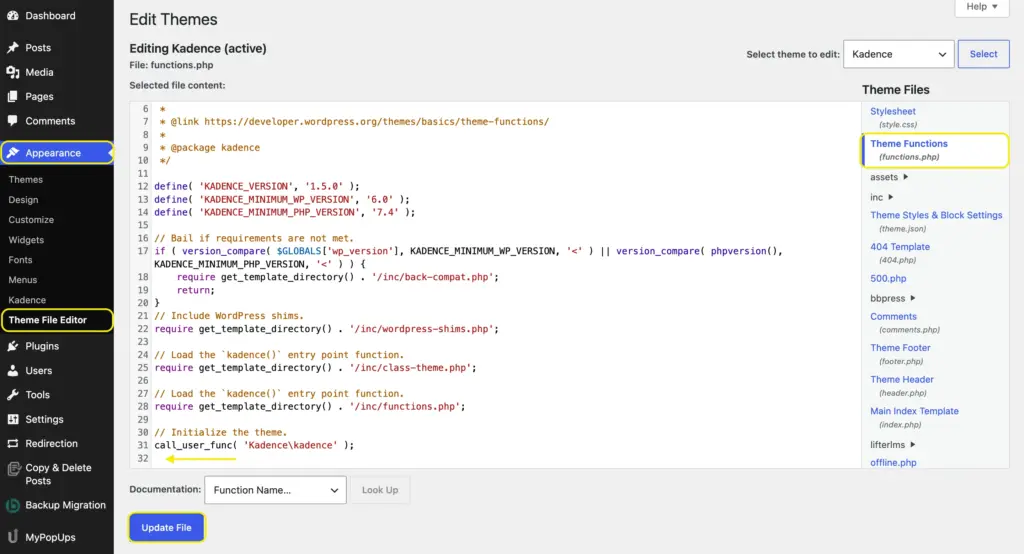
- Your child theme’s functions.php file: Open Appearance > Theme File Editor and select functions.php from the right sidebar. Paste the snippet at the bottom.
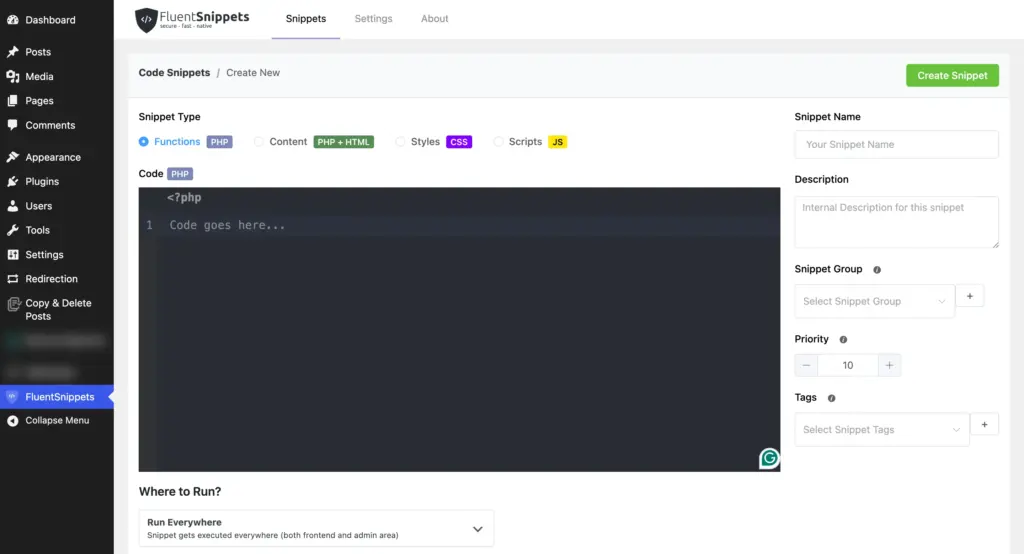
- A code snippets plugin: Plugins like FluentSnippets let you add PHP snippets without touching theme files. This is the safer option because theme updates don’t affect your code.
- A custom plugin: If you’re building something bigger, wrap your hooks in a simple plugin file. But for single snippets, the options above work fine.
One rule: never edit the Fluent Forms plugin files directly. Your changes will be erased on the next update.
Fluent Forms Action Hooks You Should Know
Action hooks run when events happen. You tell Fluent Forms: “When X occurs, also run my function.”
1. Run code after a form submission
This is the most popular hook in Fluent Forms. It runs right after a submission is saved to the database.
add_action('fluentform/submission_inserted', function ($submissionId, $formData, $form) {
    // Your code here
    // $submissionId = the new entry's ID
    // $formData = array of submitted field values
    // $form = the form object
}, 10, 3);
When to use it: Sending data to an external API. Logging submissions to a custom database table. Triggering a webhook to a service Fluent Forms doesn’t integrate with natively.
2. Do something before data is saved
This one fires before the submission is saved to the database. Useful when you want to modify data or run a check before anything is stored.
add_action('fluentform/before_insert_submission', function ($submissionId, $formData, $form) {
    // Check or modify before save
}, 10, 3);
When to use it: Adding a timestamp or custom value to the submission. Running a fraud check on payment forms. Logging the raw submission for debugging.
3. Trigger actions after all notifications finish
After a form is submitted, Fluent Forms processes email notifications, integrations (like Mailchimp or Slack), and other actions. This hook fires after all of that is done.
add_action('fluentform/global_notify_completed', function ($submissionId, $form) {
    // Everything else is done, now do your thing
}, 10, 2);
When to use it: Sending a final confirmation to a third-party system that should only run after all other processing is complete. Logging that the full submission pipeline succeeded.
4. Run code when a payment status changes
For payment forms, this hook fires whenever a payment changes status (pending to paid, paid to refunded, etc.).
add_action('fluentform/after_payment_status_change', function ($submission, $transaction, $formId, $oldStatus, $newStatus) {
    if ($newStatus === 'paid') {
        // Payment confirmed, do your thing
    }
}, 10, 5);
When to use it: Granting access to a course or download after payment clears. Sending a Slack notification when a refund is issued. Updating an external CRM’s payment status.
5. Inject content before or after a form renders
These two hooks fire when a form loads on the page. before_form_render fires right before the form HTML starts. after_form_render fires right after it ends.
add_action('fluentform/before_form_render', function ($form) {
    if ($form->id == 5) {
        echo '<p class="form-notice">Fields marked * are required.</p>';
    }
}, 10, 1);

add_action('fluentform/after_form_render', function ($form) {
    // Load a custom script only for this form
    echo '<script src="/js/my-form-logic.js"></script>';
}, 10, 1);
When to use it: Adding a disclaimer or notice above a specific form. Loading custom JavaScript only on pages where a form appears. Inserting a progress indicator or trust badge next to the form.
6. Run code after a user registration form creates an account
If you use Fluent Forms for user registration (a Pro feature), this hook fires after the WordPress user account is created and all registration fields are processed.
add_action('fluentform/user_registration_completed', function ($userId, $feed, $submissionData, $form) {
    // $userId = the new WordPress user's ID
    // Assign a custom role, send a welcome email, etc.
}, 10, 4);
When to use it: Assigning a custom user role based on a form field. Adding the new user to a membership plugin. Triggering a welcome email sequence through your email marketing tool.
Filter Hooks You Should Know
Filter hooks let you intercept and change data. You receive a value, modify it, and return the modified version.
7. Add custom field validation
This is the go-to hook when you need validation rules that the built-in options don’t cover. Each field type has its own filter. For example, input_url for Website URL fields, input_email for email fields.
add_filter('fluentform/validate_input_item_input_text', function ($errorMessage, $field, $formData, $fields, $form) {
    $fieldName = $field['name'];
    $value = $formData[$fieldName] ?? '';

    if (stripos($value, 'spam-word') !== false) {
        return ['This field contains a blocked word.'];
    }

    return $errorMessage;
}, 10, 5);
When to use it: Blocking specific words or patterns. Enforcing a phone number format the built-in mask doesn’t handle. Requiring that a URL points to a specific domain.
The filter name changes based on the field type. Replace input_text with:
input_emailfor email fieldsinput_urlfor website URL fieldsinput_numberfor numeric fieldstextareafor text area fieldsphonefor phone fields
8. Modify submission data before it’s stored
This filter gives you the submitted data right before it goes into the database. You can add fields, change values, or strip unwanted content.
add_filter('fluentform/filter_insert_data', function ($data, $form) {
    // $data contains the submission array
    // Modify and return it
    return $data;
}, 10, 2);
When to use it: Auto-filling a hidden field with calculated data. Cleaning up formatting before storage. Adding metadata to every submission. Formatting a phone number before it’s stored. Appending a tracking ID from the URL to the submission data. Combining first and last name fields into a single “full name” value before saving.
9. Change the confirmation message
After someone submits a form, they see a confirmation message. This filter lets you change that message based on the submission data.
add_filter('fluentform/submission_confirmation', function ($confirmation, $formData, $form) {
    // $confirmation['message'] contains the message HTML
    // Modify and return the $confirmation array
    return $confirmation;
}, 10, 3);
When to use it: Showing data pulled from an external API in the confirmation (like a shipping estimate based on the submitted zip code). Changing the confirmation based on the user’s WordPress role or membership status instead of form field values. Inserting a server-side calculation result that depends on data outside the form.
10. Customize email notifications
Fluent Forms gives you separate filters for the email subject, body, recipient, and attachments. You can change any of them before the email goes out.
// Change who receives the email
add_filter('fluentform/email_to', function ($to, $notification, $submissionData, $form) {
    // Route emails based on a field value
    $department = $submissionData['department'] ?? '';
    if ($department === 'Sales') {
        return '[email protected]';
    }
    return $to;
}, 10, 4);
Other email filters work the same way:
fluentform/email_subjectto change the subject linefluentform/email_bodyto modify the email contentfluentform/email_attachmentsto add or remove file attachments
When to use it: Appending a disclaimer or legal footer to every notification email. Attaching a dynamically generated file (like a CSV export) that isn’t a form upload. Rewriting the subject line to include data from a field that the SmartCodes don’t cover.
11. Modify how a field looks on the page
Want to change a field’s HTML output before it renders? This filter gives you the full HTML markup for a specific field type.
add_filter('fluentform/rendering_field_html_input_text', function ($html, $data, $form) {
    // Modify the $html string
    return $html;
}, 10, 3);
When to use it: Injecting custom data attributes into an input for third-party scripts. Wrapping a field in extra markup for styling. Adding a live character counter below a text field.
12. Validate multiple fields together
The per-field validation filter I covered earlier checks one field at a time. This filter checks the entire form at once. You need it when validation depends on the relationship between fields.
add_filter('fluentform/validation_errors', function ($errors, $formData, $form, $fields) {
    $start = $formData['start_date'] ?? '';
    $end = $formData['end_date'] ?? '';

    if ($start && $end && strtotime($end) <= strtotime($start)) {
        $errors['end_date'] = ['End date must be after the start date.'];
    }

    return $errors;
}, 10, 4);
When to use it: Checking that an end date comes after a start date. Requiring at least one of two optional fields to be filled. Validating that a password confirmation matches the password field.
13. Create custom SmartCodes
SmartCodes are the merge tags you use in email notifications and confirmation messages, like {wp.user_email} or {submission.id}. This filter lets you create your own.
add_filter('fluentform/shortcode_parser_callback_my_custom_code', function ($value, $parser) {
    // Return whatever value you want this SmartCode to output
    return get_user_meta(get_current_user_id(), 'company_name', true);
}, 10, 2);

After adding this, register your SmartCode so it appears in the editor dropdown:
add_filter('fluentform/editor_shortcodes', function ($shortcodes) {
    $shortcodes[0]['shortcodes']['{my_custom_code}'] = 'Company Name';
    return $shortcodes;
}, 10, 1);
Now you can type {my_custom_code} in any email notification or confirmation message, and it will be replaced with the logged-in user’s company name.
When to use it: Pulling custom user meta into notification emails. Inserting dynamic data (inventory counts, pricing, dates) that isn’t tied to a form field. Building personalized confirmation messages.
14. Change field settings before a field renders
This is different from the rendering_field_html filter covered earlier. That one modifies the final HTML output. This one modifies the field’s settings and data before the HTML is built.
add_filter('fluentform/rendering_field_data_select', function ($data, $form) {
    // Dynamically change dropdown options based on the logged-in user
    if (is_user_logged_in()) {
        $data['settings']['options'] = [
            ['label' => 'Option A', 'value' => 'a'],
            ['label' => 'Option B', 'value' => 'b'],
        ];
    }
    return $data;
}, 10, 2);
Replace select in the filter name with the field type you’re targeting: input_text, input_email, input_url, textarea, etc.
When to use it: Hiding specific dropdown options based on the logged-in user’s role. Changing a field’s placeholder text based on the referring URL. Setting a different max character limit for a text field depending on which page the form is embedded on. Setting a different default value for returning visitors.
15. Add custom file upload validation rules
The built-in file upload settings let you restrict file types and set a max size. This filter goes further.
add_filter('fluentform/file_upload_validations', function ($validations, $file, $formData, $form) {
    // Example: Block files larger than 2MB for non-admin users
    if (!current_user_can('administrator') && $file['size'] > 2 * 1024 * 1024) {
        $validations[] = 'File size must be under 2MB.';
    }
    return $validations;
}, 10, 4);
When to use it: Setting different file size limits based on user role. Blocking uploads with specific filename patterns. Running a custom virus scan check before accepting the file.
The Action Hook Field
Fluent Forms offers a field type called Action Hook. It’s different from the PHP hooks discussed here.
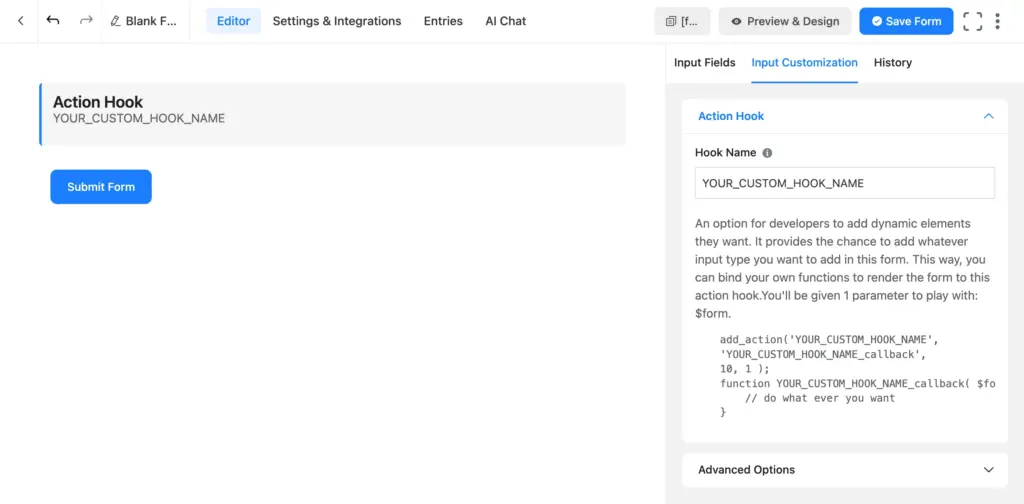
This is a drag-and-drop field you add to your form in the editor. It doesn’t show anything to the user filling out the form. Instead, it fires a custom WordPress action at that exact position when the form renders.
To add it:
- Open your form in the editor.
- Click the Plus Icon and search for Action Hook or find it in the Advanced Fields.
- Drag Action Hook into your form where you want your code to run.
- Click the field and enter a Hook Name in the settings panel.
Then in your theme or snippet plugin, add:
add_action('your_hook_name', function ($form) {
    echo '<p>Custom content injected here!</p>';
}, 10, 1);
When to use it: Showing the logged-in user’s account balance or subscription status pulled from WordPress user meta. Injecting output from a third-party API (like a live exchange rate) at a specific position in the form. Rendering a custom map or widget between form fields that depends on server-side data.
The Action Hook field requires Fluent Forms Pro.
All 15 Hooks at a Glance
| Hook | Type | What it does |
| `fluentform/submission_inserted` | Action | Runs after a submission is saved |
| `fluentform/before_insert_submission` | Action | Runs before a submission is saved |
| `fluentform/global_notify_completed` | Action | Runs after all notifications and integrations finish |
| `fluentform/after_payment_status_change` | Action | Runs when a payment status changes |
| `fluentform/before_form_render` | Action | Runs before a form’s HTML is output |
| `fluentform/after_form_render` | Action | Runs after a form’s HTML is output |
| `fluentform/user_registration_completed` | Action | Runs after a user account is created from a form |
| `fluentform/validate_input_item_{input_key}` | Filter | Adds custom validation to a single field |
| `fluentform/validation_errors` | Filter | Validates multiple fields together |
| `fluentform/filter_insert_data` | Filter | Modifies submission data before storage |
| `fluentform/submission_confirmation` | Filter | Changes the confirmation message |
| `fluentform/email_to` | Filter | Changes the email recipient |
| `fluentform/email_body` | Filter | Modifies email content |
| `fluentform/rendering_field_html_{$elementName}` | Filter | Changes a field’s rendered HTML |
| `fluentform/rendering_field_data_{$elementKey}` | Filter | Changes a field’s settings before rendering |
| `fluentform/shortcode_parser_callback_{$key}` | Filter | Creates custom SmartCodes |
| `fluentform/file_upload_validations` | Filter | Adds custom file upload rules |
Where to Find All Fluent Forms Hooks
This article covers the most used hooks. Fluent Forms offers 460+ total.
For the complete list with code examples and parameters, check thedeveloper docs: Action Hooks and Filter Hooks. It organizes hooks by category (Submission, Payment, Email, Form, Editor, etc.) and includes the parameters each hook receives.
If you’re looking for a specific behavior, start with the Submission hooks and Submission filter hooks. They cover the most common customization needs.
Try Fluent Forms Pro to unlock the full hook system, the Action Hook field, and 60+ input fields for your WordPress forms.

Sarika writes for Fluent Forms and loves to offer insights into small businesses. She’s curious and enjoys discussing ideas, interests, and perspectives. In her free time, she’s either marvelling at architectural beauties or trying different cuisines.




Leave a Reply