

Why Fluent Forms Payments Break with Caching Plugins and the Exact Fix
You set up Stripe payments in Fluent Forms. Everything looks great. Then someone tries to pay, and it fails. You disable the caching plugin, try again, and it works perfectly.
So, is Fluent Forms incompatible with caching?
Not at all. In most cases, the caching plugin is not the real problem. It’s a symptom that points to something else. Once you know what to look for, the fix is simple.
This guide covers exactly why this happens, what’s actually causing it, and how to fix it for the most common caching setups, including WP Rocket, Redis, LiteSpeed Cache, and W3 Total Cache.
TL;DR
- The Root Cause: Payment failures are usually caused by delayed Stripe scripts or expired WordPress security tokens (nonces), not a core incompatibility with caching.
- JS Caching Fix: Exclude js.stripe.com and the Fluent Forms directory from all JavaScript minification and delay features (WP Rocket, LiteSpeed, W3).
- Nonce Fix: Completely exclude your payment pages from page caching and lower your global cache lifespan to 10 hours or less.
- Cloudflare Fix: Overly strict firewalls often block required scripts; check Security Events and create a “Skip” rule for blocked wp-includes/ or wp-content/ files.
- Redis Fix: If using object caching, clear it and exclude nonce-related transients to prevent stale database queries.
- Other Checks: If issues persist, check your browser console for specific errors, verify your SSL and Stripe API/webhooks, and ensure PHP memory is at least 256MB.
What’s Actually Happening in the Background
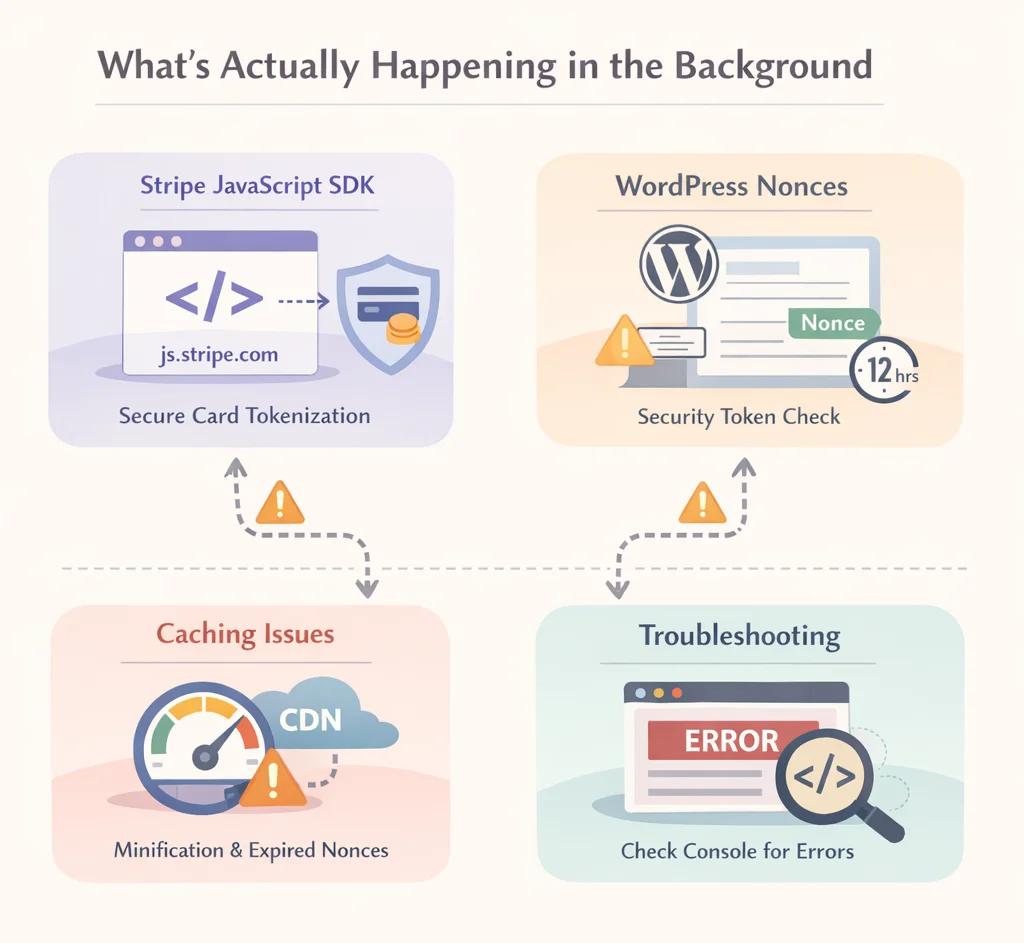
Let’s understand the issue first. Stripe payments in Fluent Forms rely on these two things loading correctly every time a user tries to make a payment:
The Stripe JavaScript SDK: This is an external script loaded from js.stripe.com. It handles all the secure card tokenization (converts a user’s card details into a token before anything is sent to your server). If this script is blocked, delayed, or minified incorrectly, the payment form simply stops working.
WordPress nonces: A nonce is a security token that WordPress generates and embeds into your form. When the form is submitted, WordPress checks that the nonce is valid. Nonces are only valid for a certain length of time, 12 hours by default. On a cached page, the nonce can expire in the background while its ID is still present in the HTML source code. If that happens, the HTML is referencing an invalid nonce, and things break.
Caching plugins can interfere with both of these. They might minify or delay the Stripe SDK. They might serve a cached page with a nonce that has already expired. And if you’re running Cloudflare on top of a caching plugin, Cloudflare’s firewall rules can block the JavaScript files that Stripe and WordPress need to load in the first place.
Not using Fluent Forms yet?
How to diagnose the problem
Before applying any fix, check the browser console. This tells you exactly what’s failing.
Open your payment page in Chrome or Firefox. Press F12 to open Developer Tools and click the Console tab. Then attempt to trigger the payment. Look for any red error messages.
The most common errors you’ll see:
- Uncaught ReferenceError: Stripe is not defined (the Stripe SDK failed to load)
- Failed to load resource: net::ERR_BLOCKED_BY_CLIENT(a script was blocked, often by Cloudflare or a browser extension)
- Nonce verification failed or invalid nonce (the security token expired because a cached page was served)
- 403 Forbidden on a wp-includes/ file (Cloudflare or a server-level rule is blocking a WordPress core script)
Check the Network tab as well and filter by JS. Look for any scripts with a red status code (403, 404, or 0). These are the files causing the failure.
Once you know which error you’re dealing with, move to the relevant fix below.
Fix 1: Cloudflare Firewall Rules Blocking WordPress Scripts
This is the most commonly overlooked cause, and it creates confusion that the caching plugin is at fault.
If you’ve set up Cloudflare firewall rules to lock down your WordPress site (a very common security practice), you may have a rule that blocks direct access to files inside /wp-includes/ or /wp-content/,(along with xmlrpc.php) to prevent direct file access.
The problem is, Stripe and WordPress both need to load JavaScript files from these directories when processing a payment. If Cloudflare is blocking those requests, the payment form breaks, even though the caching plugin gets the blame.
How to check if Cloudflare is the issue:
- Log in to your Cloudflare dashboard
- Go to Security > Events
- Filter by your domain and look for recent blocked requests
- Look specifically for requests to paths containing wp-includes or wp-content that were blocked or challenged
If you see them there, Cloudflare is the issue.
The fix: create a WAF exception:
You need to create an exception that allows JavaScript files from wp-includes/ and wp-content/ to load without being blocked. The most effective way is to create a custom rule with the Skip action. This allows matching requests to bypass certain security features. Skip rules must be positioned before the Block or Challenge rule they are designed to bypass.
Here’s how to do it:
- Go to Security > WAF > Custom Rules in your Cloudflare dashboard
- Click Create rule
- Set the expression to match requests to your payment page URL or to the specific wp-includes paths being blocked. For example:
(http.request.uri.path contains “/wp-includes/js/”) or
(http.request.uri.path contains “/wp-content/plugins/fluentformpro/”)
- Set the Action to Skip and select the WAF rules you want to bypass
- Make sure this Skip rule sits above your existing block rules in the rule order
- Save and test
Note: The exact rule expression depends on which Cloudflare rule is doing the blocking. Check your Security Events log first to identify the specific rule ID being triggered, then target your exception accordingly. Check Cloudflare’s official documentation on WAF exceptions for details.
Also, check if the subdomain you’re running your forms on inherits firewall rules from the primary domain. Firewall rules set for the main domain were also blocking JavaScript on a subdomain, and the fix was adjusting those rules to account for the subdomain’s needs.
Fix 2: WP Rocket Is Delaying or Minifying the Stripe SDK
WP Rocket’s JavaScript optimization features, specifically Delay JS and Minify JS, can break Stripe payments when they touch scripts they shouldn’t.
Payment gateways like Stripe or PayPal rely on complex JavaScript to tokenize credit card data securely. Minifying these scripts can sometimes strip necessary attributes. And when Delay JS postpones loading the Stripe SDK until after user interaction, the payment form renders before Stripe is ready. This causes errors when someone tries to enter their card details.
The fix: exclude the Stripe SDK from WP Rocket’s optimizations:
- Go to WP Rocket > File Optimization
- Find the Excluded JavaScript Files box under both the Minify JS and Delay JS sections
- Add the following exclusions:
js.stripe.com
/wp-content/plugins/fluentformpro/
- Save and clear your WP Rocket cache
- Test the payment form
WP Rocket’s Delay JavaScript Execution feature has a One-click exclusions section where you can find common plugin and service exclusions. If Stripe is not listed there, you can manually add the script URL to the Excluded JavaScript Files text area.
Also, check the Cache Lifespan setting:
After the cache is cleared, the HTML gets regenerated and references a correct nonce again. The only way to keep nonces updated on cached pages is to set the Cache Lifespan option in WP Rocket to a value below 12 hours; 10 hours is a good starting point.
Go to WP Rocket > Cache > Cache Lifespan and set it to 10 hours or less if your payment pages are cached.
For your payment page specifically (exclude it from page caching):
- Go to WP Rocket > Cache > Never Cache These Pages
- Add the URL of your payment form page
- Save and clear cache
This ensures users always get a fresh page with a valid nonce when they land on your payment form.
Fix 3: Redis Object Cache Causing Nonce Issues
Redis Object Cache works differently from page caching. Instead of caching full HTML pages, it caches database query results. This can cause a subtler version of the nonce problem.
The nonce mismatch can be caused by an older nonce being served by caching plugins or server-side caching. WordPress generates nonces and stores them, but if a cached version of the data is returned instead of a fresh database query, the nonce that gets validated against does not match the one in the form.
If you’re running Redis alongside a page caching plugin and seeing payment failures, the most likely culprits are:
- Redis is caching session data that includes stale nonce values
- The nonce stored in Redis has expired, but the cached HTML is still referencing it
The fix:
First, try clearing your Redis cache entirely and testing the payment. If it works immediately after clearing but breaks again after a while, the issue is nonce expiry in the Redis cache.
The cleanest solution is to exclude nonce-related transients from Redis caching. Add this to your wp-config.php:
php
define(‘WP_CACHE_KEY_SALT’, ‘your-unique-salt’);Then in your Redis Object Cache plugin settings, look for an option to set a global cache group exclusion. Exclude the nonces group if your plugin supports it.
Note: Redis configuration varies significantly depending on your host and how Redis Object Cache is set up. If the above does not resolve the issue, contact your hosting provider. Many managed hosts (like WP Engine or Kinsta) have their own Redis implementation with specific configuration options. Your host’s support team will be able to tell you exactly which transients or groups to exclude.
Fix 4: LiteSpeed Cache
LiteSpeed Cache has its own page optimization settings that can interfere with Stripe in the same ways as WP Rocket.
The fix:
- Go to LiteSpeed Cache > Page Optimization > JS Settings
- Find the JS Excludes field
- Add js.stripe.com and the path to your Fluent Forms Pro plugin folder
- Go to LiteSpeed Cache > Cache > Excludes
- Add your payment form page URL to the Do Not Cache URIs list
- Save all settings and purge the LiteSpeed cache
Fix 5: W3 Total Cache
W3 Total Cache handles page caching and JS minification separately, and both can interfere with Stripe. Here’s what to adjust:
- Go to W3 Total Cache > Page Cache > Never cache the following pages
- Add your payment form page URL
- Go to Performance > Minify and add js.stripe.com to the JS file exclusions list
- Save and purge all caches
The Universal Checklist Before You Troubleshoot
Whichever caching plugin you’re using, go through these Fluent Forms payment troubleshooting steps first:
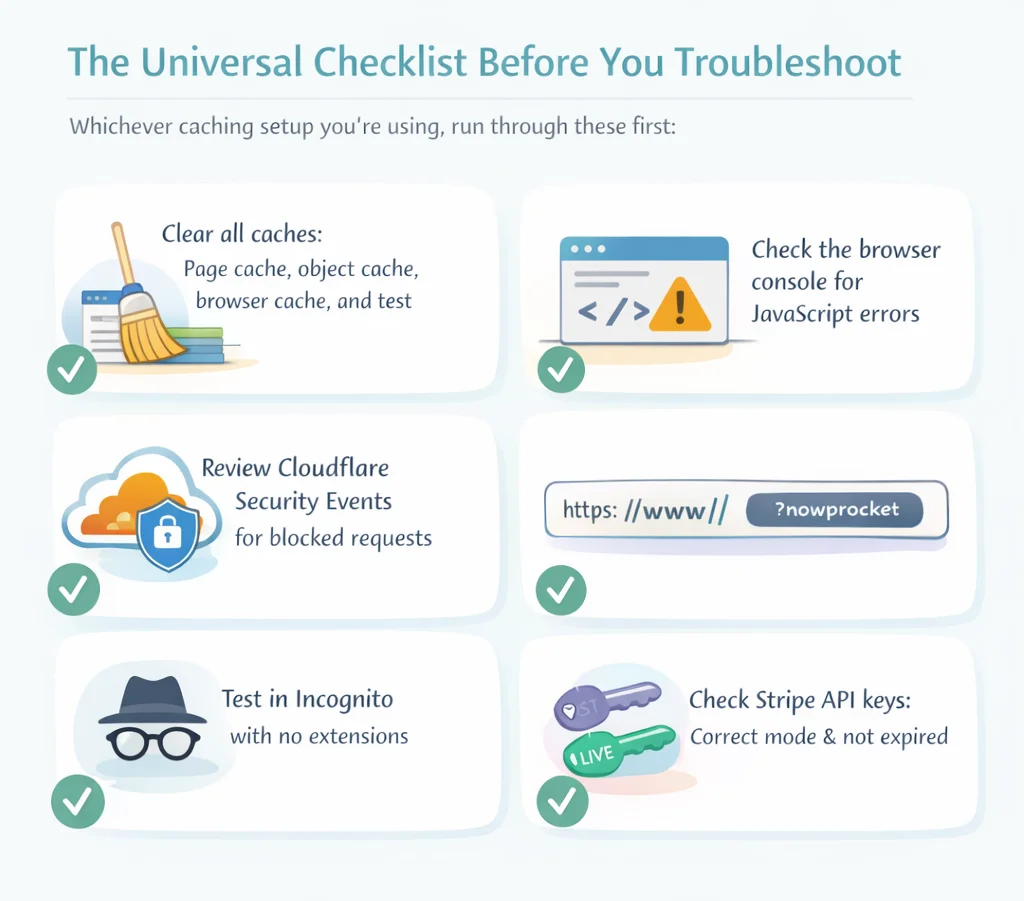
- Clear all caches, page cache, object cache, browser cache, and test immediately
- Check the browser console for specific JavaScript errors
- Check Cloudflare Security Events for blocked requests (if using Cloudflare)
- Append ?nowprocket to your payment page URL (WP Rocket users) to bypass cache entirely and test. If it works without cache, the cache is definitely involved
- Test in an incognito window with no browser extensions; ad blockers sometimes interfere with Stripe scripts
- Confirm your Stripe API keys in Fluent Forms are set to the correct mode (test vs. live) and have not expired
Other Common Causes of Fluent Forms Payment Failures
Caching is the most common culprit, but it’s not the only one. If you’ve worked through all the fixes above and payments still fail, check these:
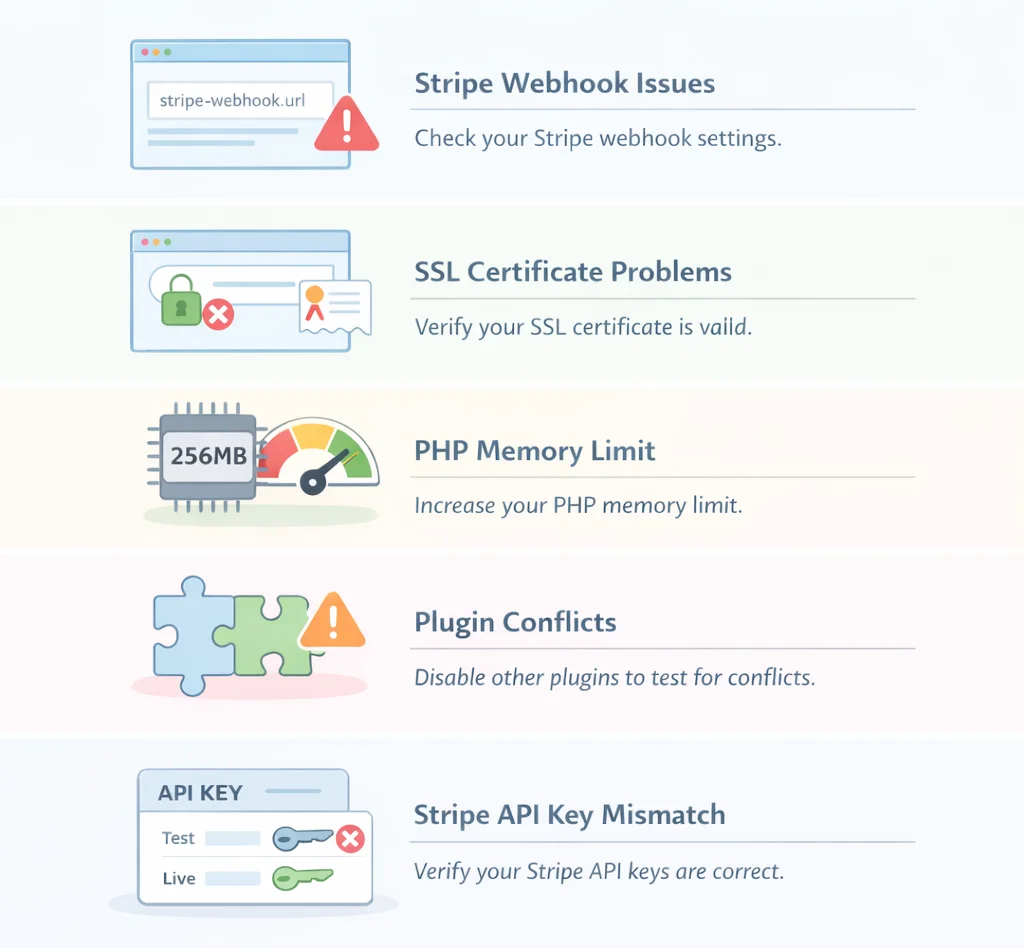
Stripe webhook configuration: If payments are processed but Fluent Forms doesn’t register them as complete, your Stripe webhook URL may be incorrect or unreachable. Go to your Stripe Dashboard > Developers > Webhooks. Confirm the endpoint URL matches what’s configured in Fluent Forms.
SSL certificate issues: Stripe requires HTTPS. If your SSL certificate has expired or is misconfigured, payment requests will fail. Check your certificate status in your browser’s padlock icon.
PHP memory limit: Payment processing is memory-intensive. If your PHP memory limit is too low (below 256MB), the process can time out mid-transaction. Add define(‘WP_MEMORY_LIMIT’, ‘256M’); to your wp-config.php and check with your host whether this is configurable.
Plugin conflicts: Deactivate all plugins except Fluent Forms Pro and test the payment. If it works, reactivate plugins one by one to identify the conflict.
Stripe API key mismatch: Double-check that the keys entered in Fluent Forms > Payment Settings > Stripe match exactly with those in your Stripe Dashboard. A common mistake is using test keys in a live environment or vice versa.
Configure Caching Plugins Correctly for Successful Payments
Fluent Forms payments work perfectly with caching plugins when they’re configured correctly. The most important things to do:
- Exclude js.stripe.com and your Fluent Forms plugin directory from JS minification and delay
- Exclude your payment form page from page caching
- Set your cache lifespan below 12 hours to prevent nonce expiry
- Check Cloudflare Security Events for blocked requests if you’re using Cloudflare; overly aggressive firewall rules blocking wp-includes/ are a surprisingly common cause that disguises itself as a caching problem
- Clear your Redis cache and test if you’re running object caching
The fix in most cases is a few settings changes, not a choice between caching and payments. If you’ve worked through the fixes above and payments are still failing, contact our support team or go through Fluent Forms’ Stripe setup guide.
Build Smarter Forms for Free

Sarika writes for Fluent Forms and loves to offer insights into small businesses. She’s curious and enjoys discussing ideas, interests, and perspectives. In her free time, she’s either marvelling at architectural beauties or trying different cuisines.



Leave a Reply