
How to connect Discord with WordPress forms
Leads. Support requests. Internal alerts. They come in fast. If your team waits on inbox refresh or scattered chat threads, things slip.
What if every important form submission on your WordPress site could ping the right Discord channel in real time? No copy and paste. No forwarding.
That is where Discord helps. And Fluent Forms makes the handoff easy.
In this guide, we will show you how to connect Discord to your WordPress forms using Fluent Forms. You will send structured messages into a Discord channel the moment someone submits a form. Clean. Fast. Trackable.
Let’s get started.
TL;DR
- Goal: Get instant WordPress form alerts in Discord.
- Requirements: Fluent Forms Pro + a Discord Webhook URL.
- The Process:
1. Copy a Webhook URL from your Discord channel settings.
2. Enable the Discord Module in Fluent Forms.
3. Create a Feed in your form settings and paste the URL.
4. Map your fields (Name, Email, etc.) and save.- Pro Tip: Use Conditional Logic to only ping Discord for high-priority leads.
Why use Discord for form submission notifications
Discord is built for quick conversations. Channels keep topics organized. Mentions grab attention. Mobile, desktop, and browser apps all stay in sync.

It is simple to start. Most core features are free. Voice, text, screen share, roles, and moderation tools are built in.
Best of all, Discord supports webhooks. That means tools like Fluent Forms can push new form submissions straight into a channel where your team will see them and act.
Why Fluent Forms
Fluent Forms is the fastest drag-and-drop form plugin for WordPress. It’s a perfect no-code builder that is incredibly user-friendly for both beginners and advanced users. Over 600,000 users use Fluent Forms to create contact forms, payment forms, conversational forms, calculator forms, quizzes, surveys, and more.
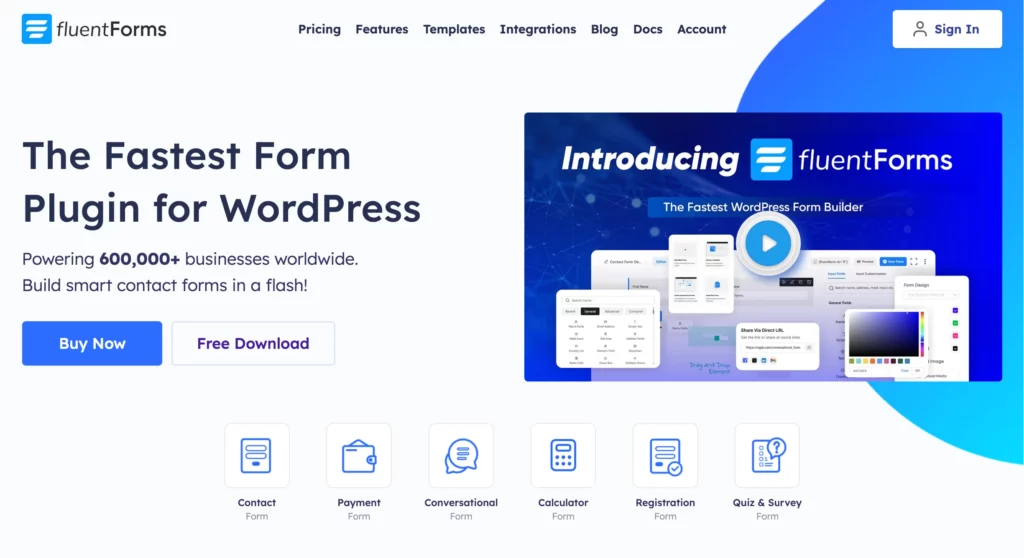
Some of the key features of Fluent Forms are:
- 60+ input fields to collect any type of information
- Numeric calculation to create forms with calculators
- Multi-step forms to break long forms into multiple steps
- Conversational forms to provide a better form-filling experience
- Advanced post creation to collect user-generated content
- Conditional logic to show/hide input fields based on user behavior
- Integration with popular payment gateways to collect payments and donations
- Spam protection using hCaptcha, reCAPTCHA, Turnstile, Honeypot, Akismet
- Quiz and survey with advanced scoring
- Advanced form styler to align form with your brand identity
- Custom CSS and JS to create more advanced forms
- Export entries in CSV, Excel, ODS and JSON format
- PDF add-on to turn form submissions into PDF files
- Form scheduling and restriction based on different rules
- Double opt-in confirmation to ensure efficient data collection
- Email notification after form submission
- Conditional confirmation to show confirmation messages based on predefined conditions
- Advanced form validation to accept eligible submissions
- Fully responsive and accessible to ensure inclusivity
- 60+ integrations to expand core functionalities
Check out the feature page to find the features you want to level up your form building experience. Currently, more than 600K+ websites use this form builder plugin, and the number is constantly growing. Although the free version of Fluent Forms can handle most of your basic needs, the Pro edition further pushes the limit.

🔔 Get Instant Slack Alerts
Never miss a form submission again.
Connect Fluent Forms with Slack to receive real-time notifications right in your workspace.
Connect Discord to WordPress with Fluent Forms
You only need four steps. Make sure Fluent Forms Pro is installed and updated.
Workflow overview:
- Create or choose a Discord channel and copy its webhook URL.
- Enable the Discord module in Fluent Forms.
- Add a Discord feed to your form and map fields.
- Test and go live.
Let’s walk through each step.
Step 1: Create (or choose) a Discord channel and copy the webhook URL
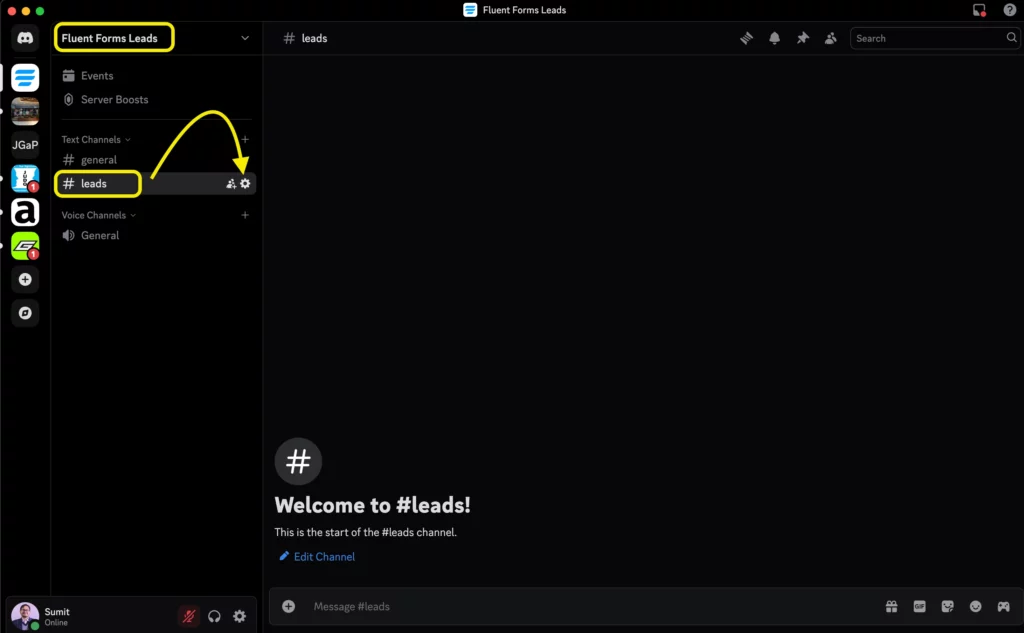
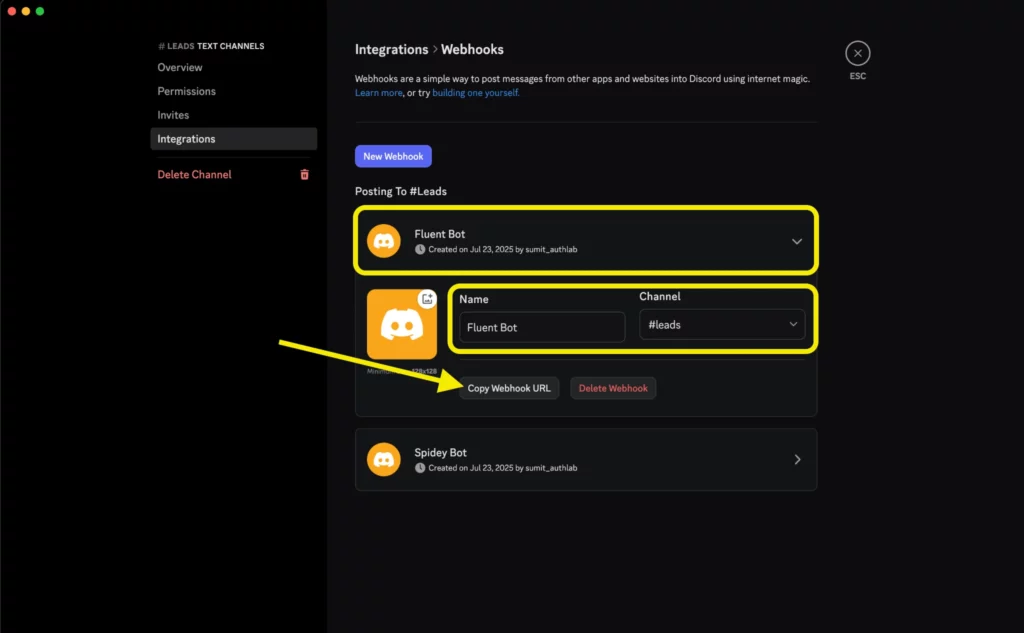
Open Discord. Use an existing server and channel or create a new channel just for WordPress alerts.
Open the channel settings (gear icon).
Select Integrations. Choose Create Webhook or edit an existing one.
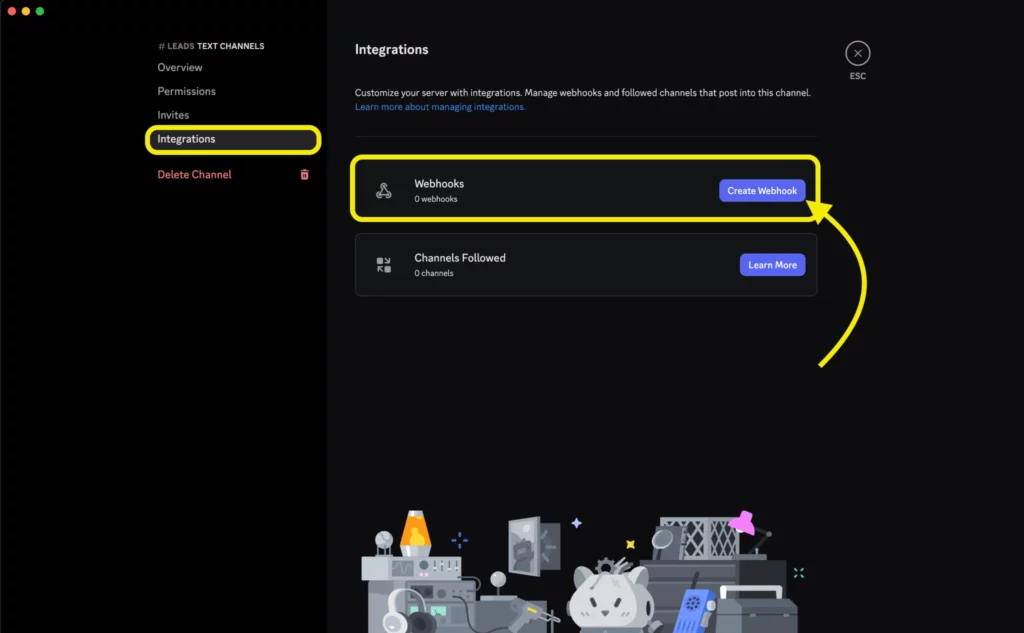
Copy the Webhook URL. This URL is the endpoint Fluent Forms will call each time someone submits your form.
Step 2: Enable the Discord module in Fluent Forms
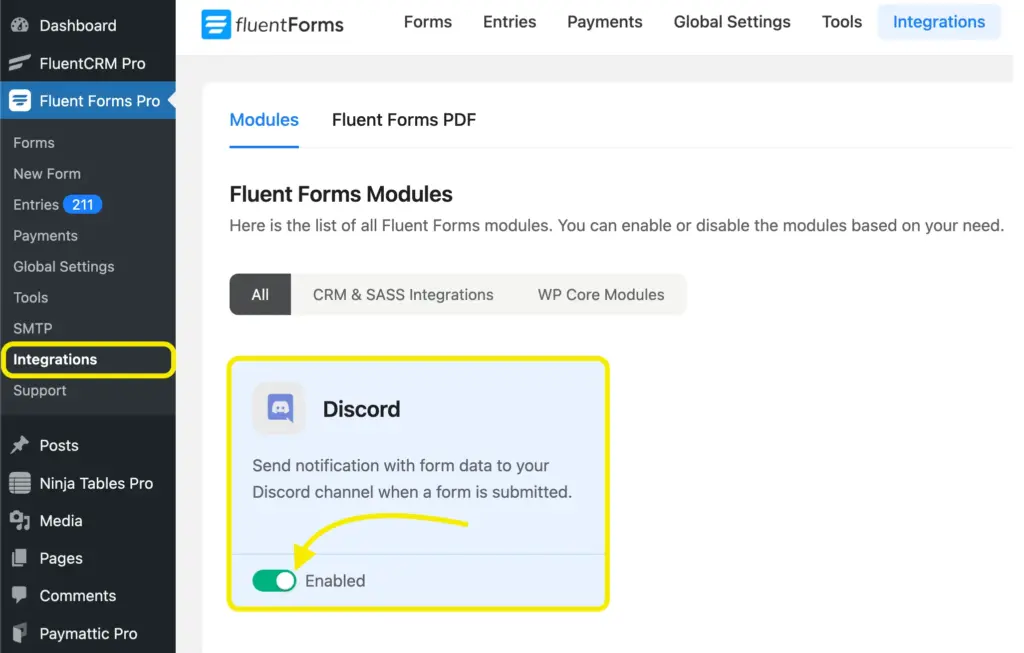
Go to your WordPress dashboard. Navigate to Fluent Forms Pro → Integrations. Find Discord in the list and toggle it on. This activates the integration.
Step 3: Add a Discord feed to your form
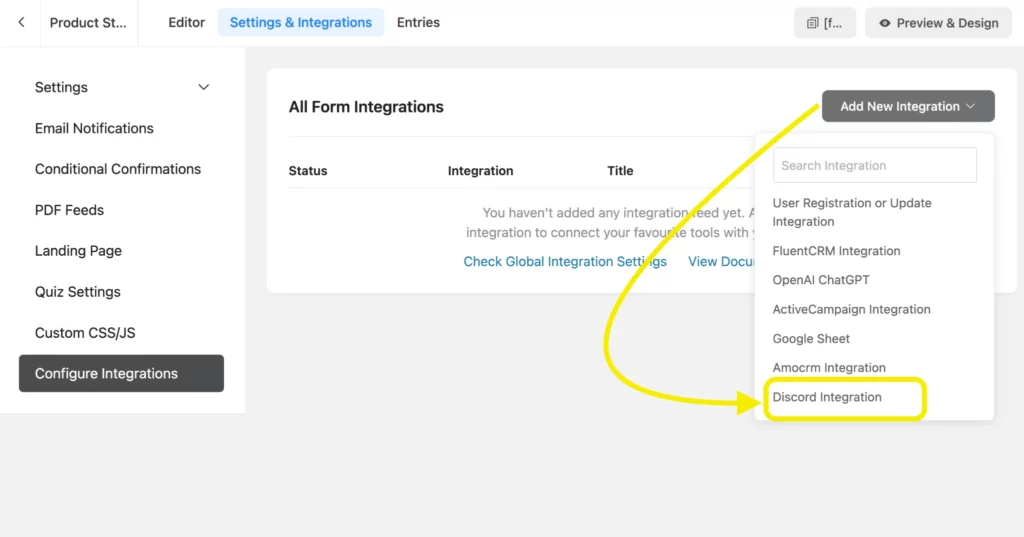
Open the form you want to connect. In the form editor, go to Settings & Integrations. Then click Configure Integrations, then Add New Integration. Choose Discord Integration.
Paste the Webhook URL you copied from Discord. Give the feed a clear name (for example, “Discord Integration Feed”, or “Lead gen Feed”). Add an optional description or footer text to display in the Discord message.
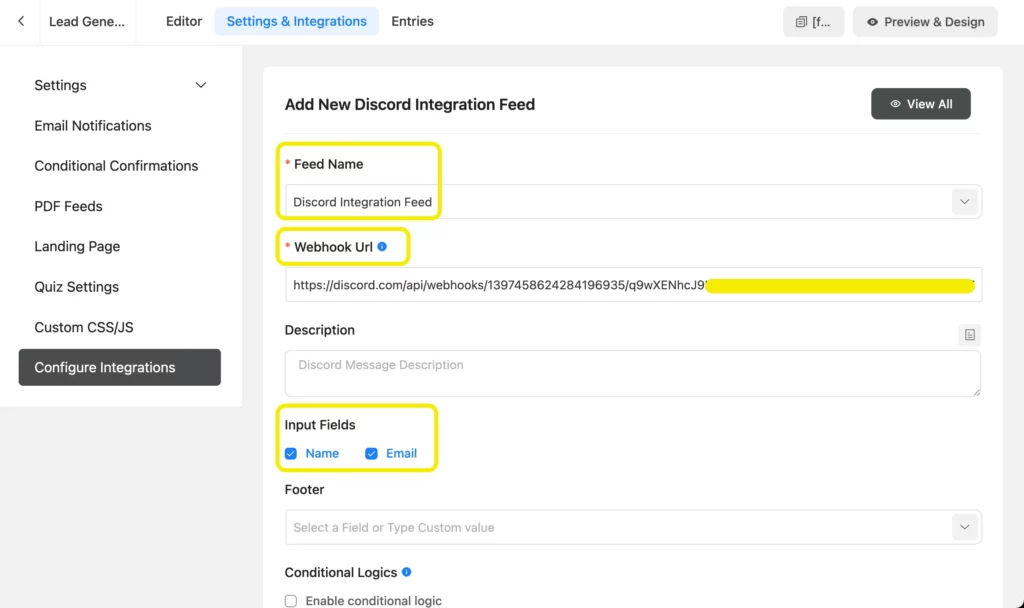
Select the fields you want to include: Name, Email, Message, Product, Priority, anything collected in your form.
Want to cut noise? Turn on Conditional Logics so only qualified submissions trigger alerts. For example, send to Discord only when “Priority = High” or “Budget > 5000.”Click Save Feed.
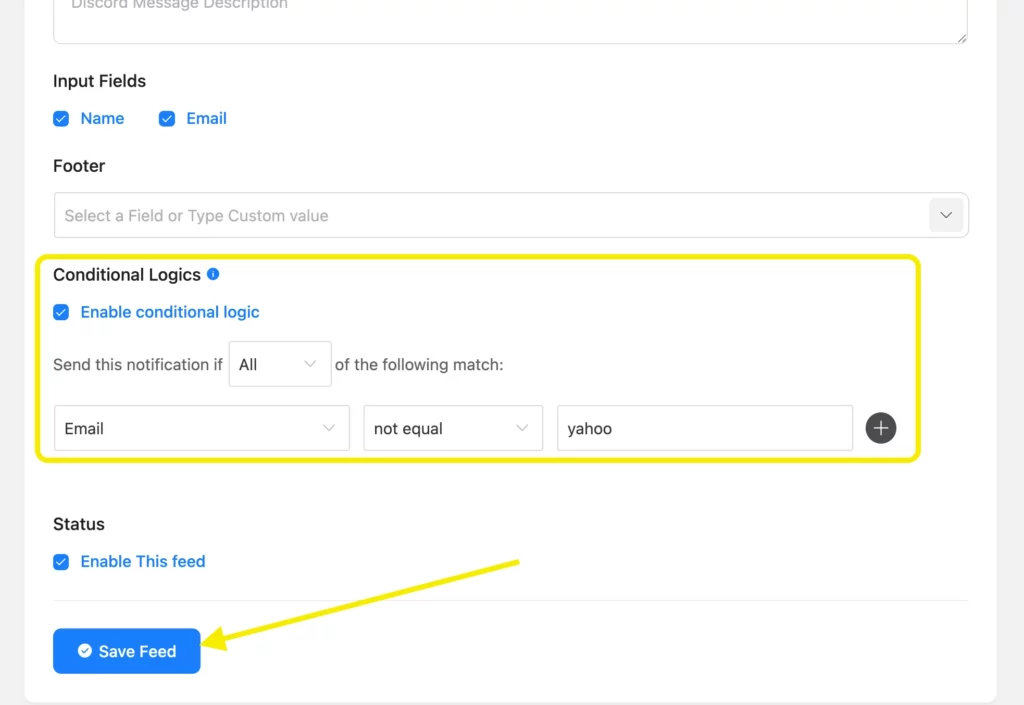
Step 4: Test and go live
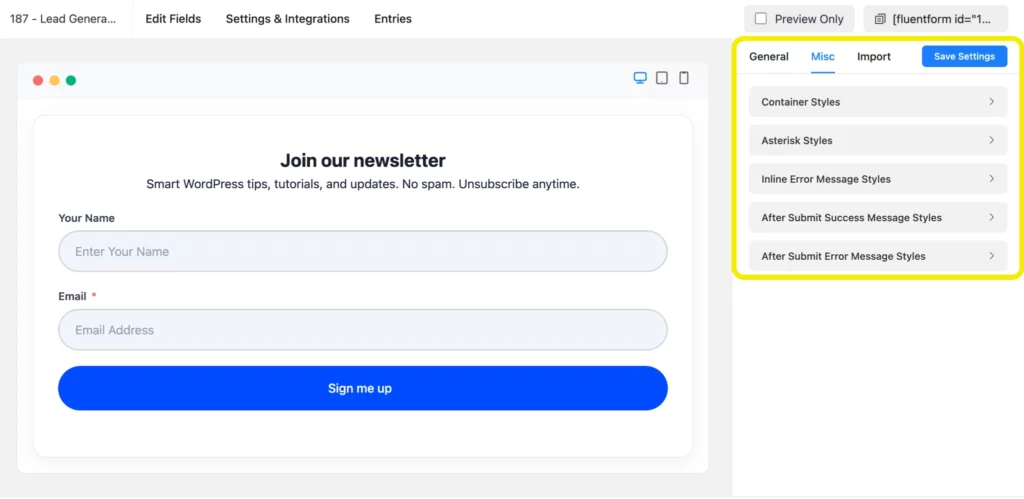
Submit the form once from your site or the form preview screen.
Switch to Discord and confirm the message appears in the correct channel. Check that fields are readable and in the order you expect.
If formatting looks off, return to the feed and adjust labels or the field mapping. Save and test again.
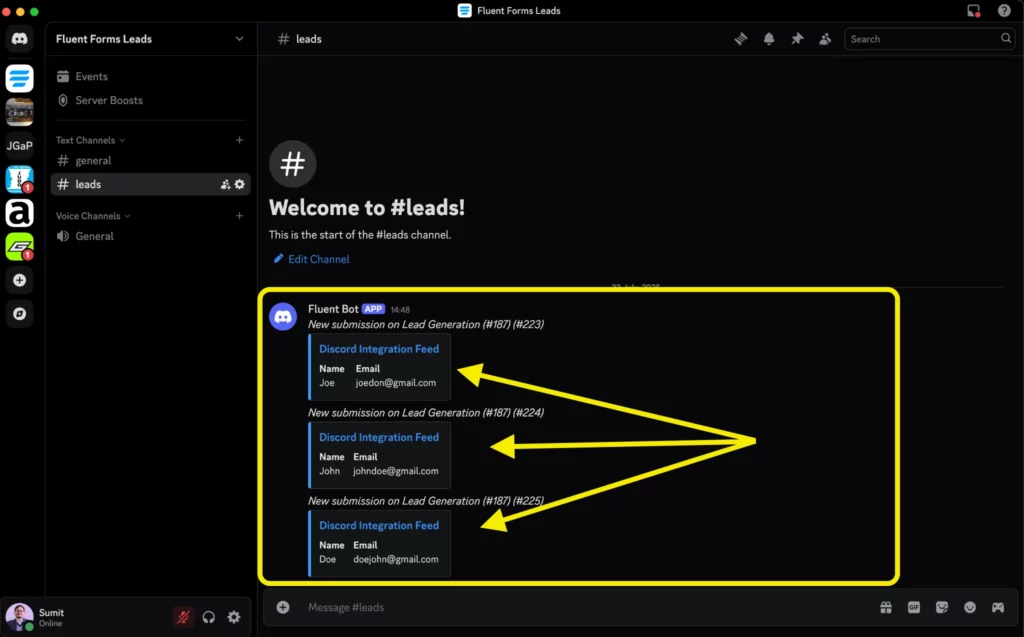
When everything looks good, publish the form and share it. Your team now sees new submissions in real time.
Tips to get more from your Discord alerts (In a highlighted block with a grey background)
Use dedicated channels- Keep leads separate from support or internal tasks.
Mention roles- Include @sales or @support in the message body to alert the right people.
Filter noise- Use conditional logic to push only high‑value or time‑sensitive entries.
Format cleanly- Label fields clearly. Example: Name: Jane Smith. Message: Need a quote.
Layer notifications- Keep email notifications enabled as a fallback while Discord handles real time alerts.

📲 Send SMS with Twilio
Reach users where it matters most.
Send instant text messages when someone submits your form using Fluent Forms + Twilio.
Turn submissions into conversations
Connecting Discord to Fluent Forms does more than send alerts. It shortens the time between a customer reaching out and your team responding. Faster replies build trust. Better conversation leads to better conversions.
Now that data is flowing into Discord, expand the workflow. Use separate channels for leads, demos, support, and events. Combine with tags or roles so the right team members step in quickly. Pair Discord alerts with your CRM or email automation to keep the follow up moving.
Ready to go deeper? Capture the lead here, nurture the relationship there. Read our guide on connecting ActiveCampaign to WordPress with Fluent Forms and turn conversations into automated follow ups.
Have questions about the setup? Want help deciding which fields to send? Drop a comment below. We are always happy to help.

This is Sumit. He’s a physics major who’s trying to understand both the physical as well as the WordPress worlds. Whenever he’s not busy, plays fifa or spends time with his family.


Leave a Reply