

How to Create a GDPR Compliance Form on WordPress
If your WordPress site collects form submissions from EU visitors, GDPR applies to you regardless of your realization about it. And when your forms collect personal data without clear consent or transparency, you are not just risking compliance issues; you are also breaking user trust. Here’s exactly what that means for your forms and how you can fix it.
A simple GDPR field with a clear message and transparency, packed with clarity all over the form, can make your form a GDPR-compliant one. A GDPR compliance form gains user trust and keeps up a solid track record of your business with a proper legal standing.
Please be noted that whatever this blog describes is limited to a certain area of GDPR regarding the GDPR form compliance, and unlikely to reflect as a whole; and it may not exactly resemble the verbal approach as written officially. For more details, you can check the official page. And, obviously, this is not legal content; this is technical content that helps you comply with GDPR while making a form.
TL;DR
- A GDPR compliance form helps you collect data in a way that respects user consent, data minimisation, and transparency.
- In WordPress, you can maintain GDPR compliance in forms with a few actions, such as collecting the information you actually need
- Add a clear consent checkbox
- Explain how the data will be used and ensure secure data storage as long as it’s needed
- Avoid pre-ticked boxes and vague language
- Form-specific, customized GDPR fields can make it more understandable
What is GDPR Compliance, and Why Is It Important
GDPR, or the General Data Protection Regulation, is the EU law that sets rules for how personal data is collected, stored, processed, and protected. If your website collects data from people in the EU, you have no choice but to comply with GDPR.
That matters for two reasons:
- Legal compliance: You need a lawful basis for collecting personal data, and consent is often the cleanest option for forms.
- User trust: Visitors are more likely to submit a form when they know exactly what will happen to their data.
7 Principles of GDPR Compliance
Before you build your form, it helps to understand the seven core principles of GDPR. These principles shape how you should design, label, and manage every form field.
1. Lawfulness, fairness, and transparency
You need a valid reason to collect personal data, and you must be honest about what you are doing with it. For forms, that usually means clear consent and plain-language explanations.
In practice, this means users should possess a clear concept of why you are asking for their name, email address, or other details. If the form is for support, say that. If it is for a newsletter, say that clearly too. The more transparent you are, the easier it is to build trust and avoid confusion.
2. Purpose limitation
Collect data for a specific, stated reason. If someone fills out a contact form, do not quietly reuse that data for unrelated marketing unless they agreed to it.
This principle is about keeping your use of data locked to the purpose the user understood at the time of submission. A contact form should not become a lead-generation trap in the background. If you want to use data for something else later, that needs to be disclosed upfront and handled separately.
3. Data minimisation
Only ask for the information you actually need. A simple inquiry form does not need a full address, phone number, company size, or birthday unless there is a real reason for each field.
This is one of the easiest principles to apply and one of the most ignored. The shorter and more focused the form, the less personal data you collect and the easier it becomes to manage. A lean form also improves completion rates, which is good for users and good for you.
4. Accuracy
Make sure the data you collect is usable and correct. That means using validation where needed and giving users a chance to review or edit their submission.
If the form accepts broken email addresses or incomplete entries, you create avoidable problems for support, sales, and compliance. Accuracy matters because bad data is still data you are responsible for. Validation, clear field labels, and sensible required fields all help here.
5. Storage limitation
Do not keep personal data forever. If you no longer need form submissions, delete or archive them according to your retention policy.
This is the principle where a lot of sites get sloppy. Forms are easy to collect and hard to clean up later, so it is worth deciding early how long submissions should remain in your system. Keep what you need for the intended purpose, and get rid of the rest before it becomes a liability.
6. Integrity and confidentiality
Personal data must be protected against unauthorized access, loss, or misuse. Use secure storage, limited access, and good site hygiene.
A GDPR compliant form is not just about consent. It is also about making sure the data is not sitting around unprotected, where anyone on the team, or worse, anyone else, can access it. Use strong passwords, limit permissions, keep plugins updated, and treat submission data like something that actually matters.
7. Accountability
You are responsible for proving that your site handles data properly. That means keeping your form process documented and using tools that help you manage consent and submissions cleanly.
Accountability is the principle that stops GDPR from being a vague promise. If you ever need to explain your setup, you should be able to show what data you collect, why you collect it, how consent is captured, and how long data is retained. That is where good documentation and clean form workflows save you from a headache later.
How to Create a GDPR Compliance Form in WordPress
A GDPR compliant form is not just about adding a checkbox. It is about designing the form so that the data collection itself is fair, transparent, and limited to what you truly need.
The right form builder is a must to build a GDPR compliance form in WordPress easily. Use a form builder that lets you control fields, add consent, and manage submissions without extra code.
Here, I will show you how you can build a GDPR compliance form on WordPress quickly and perfectly using Fluent Forms as your primary form builder.
You can use Fluent Forms as your primary form builder, which will help you make the form without coding or setting up critical functionalities. Fluent Forms comes with a particular field and feature that makes your form GDPR-compliant.
Step 1: add a clear GDPR consent checkbox
This is the part many people get wrong.
Add a checkbox that is:
- Unchecked by default
- Written in plain and clear language
- Linked to your privacy policy if needed
- Tied to the specific purpose of the form
In the Fluent Forms editor page, you can find the GDPR input field, which you can add to the form by dragging and dropping or simply clicking on the field icon.
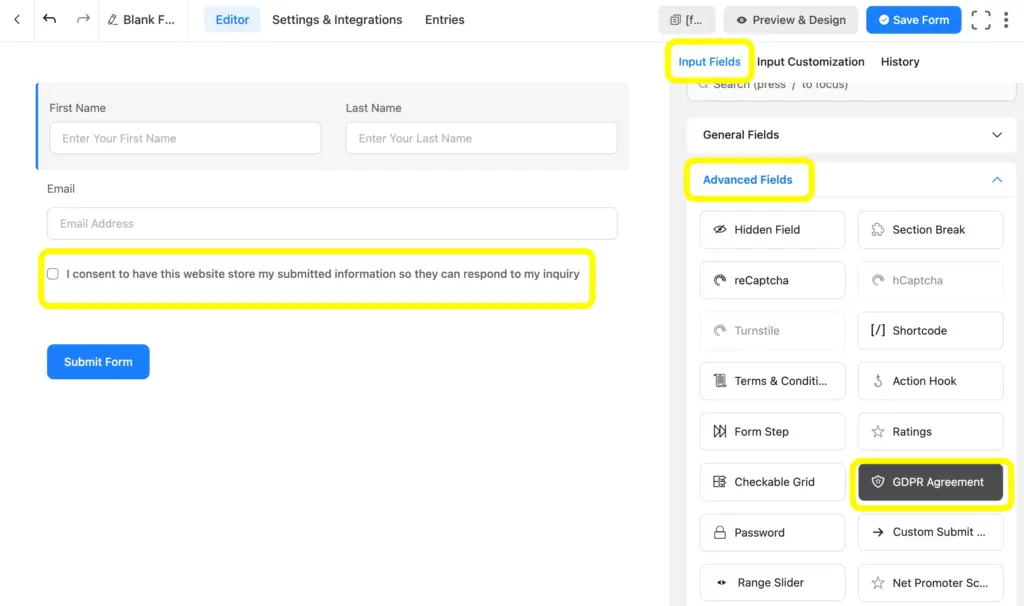
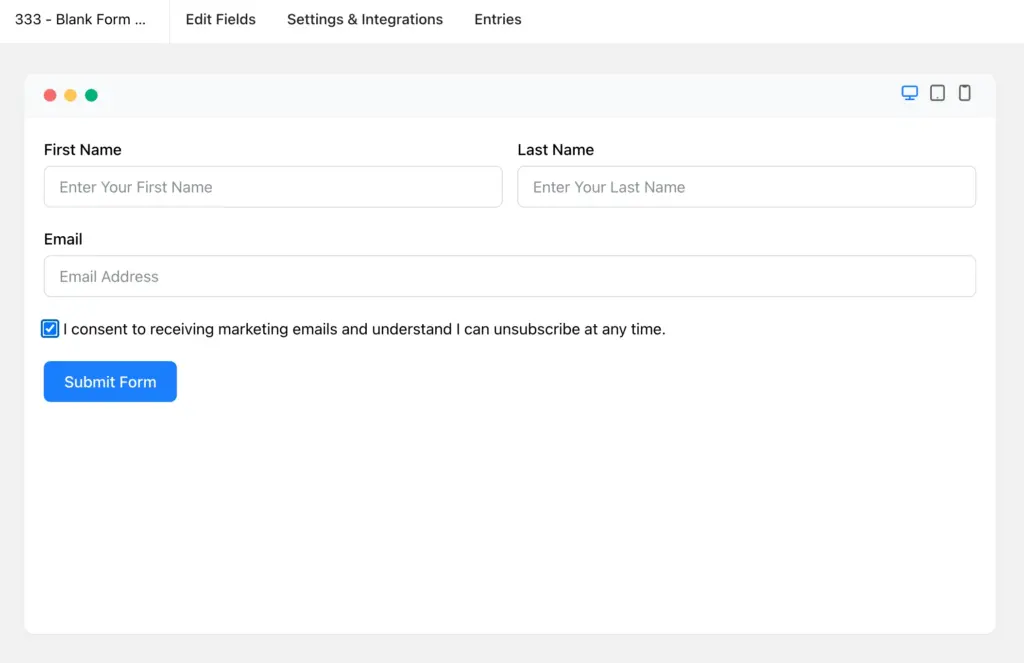
As you can see here, along with the checkbox, a text appears there stating “I consent to have this website store my submitted information so they can respond to my inquiry”. You can edit the text using the ‘Input Customization’.
Step 2: Customize the consent and make it form-specific
Do not use one vague consent for everything.
If the form is for contact, the consent should cover contact response. If it is for marketing, make that separate and explicit. If someone is joining your newsletter, they should know what kinds of emails they are signing up for, not just marketing emails.
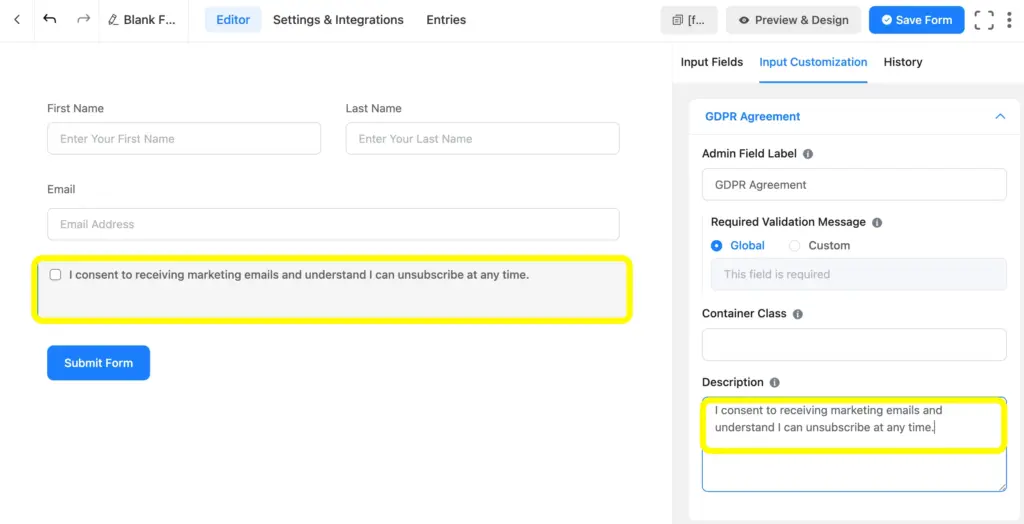
As Fluent Forms gives you the flexibility to customize the GDPR field, you can change the consent box’s text according to the form’s relevance, which eventually enables you to provide your users with a tailored experience. Changing the description text will change the text on the appearance.
Step 3: Set up admin approval where needed
If your form handles sensitive requests, admin approval can be useful before a submission is processed further.
For GDPR purposes, this means no unreviewed personal data enters your system or triggers integrations without a human checkpoint.
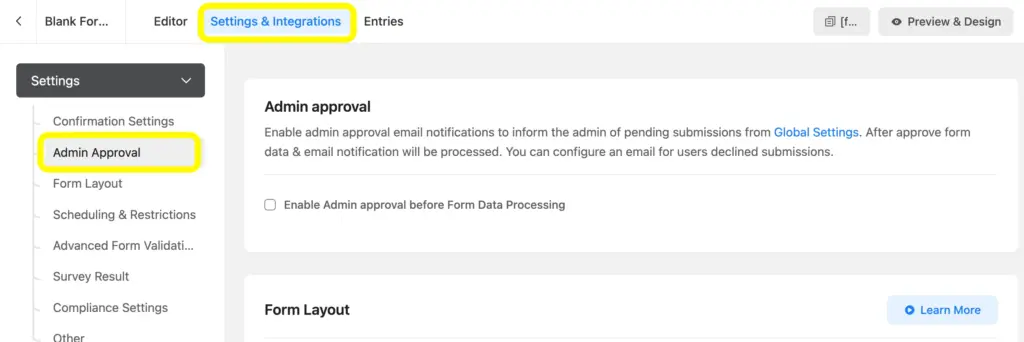
To enable the admin approval, go to the respective form’s Settings and Integrations, and click on the Admin Approval.
Step 4: Review data storage and access
A GDPR compliant form is not finished when the user clicks submit. You also need to think about what happens to the data afterward.
Before publishing any form that handles personal data, verify the following:
- Who can access submissions?
- How long are they stored?
- Do you really need every field saved?
- Is the data being used only for the stated purpose?
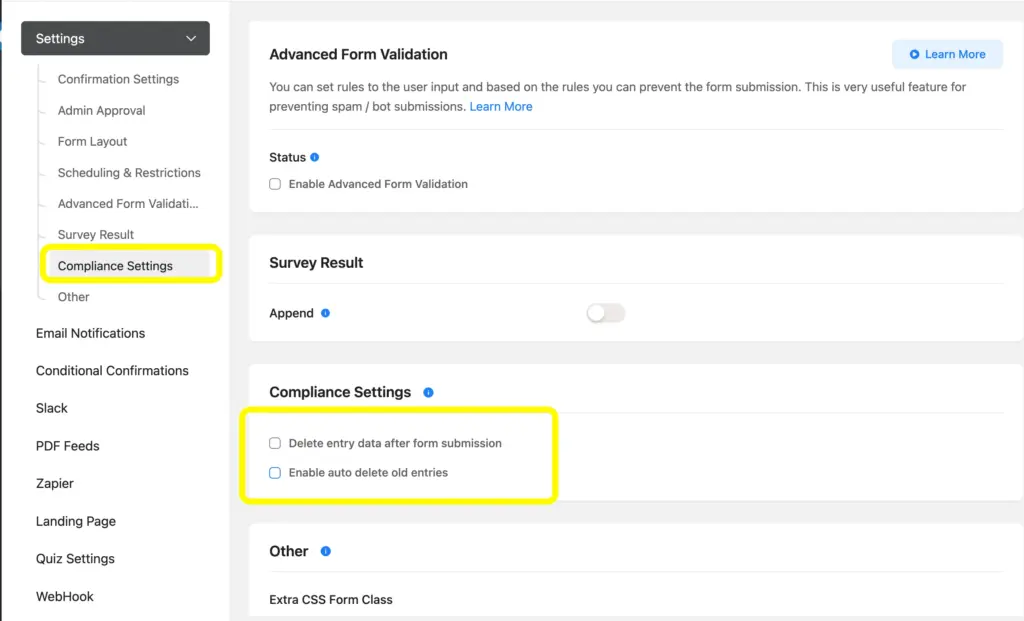
Keep your retention policy simple and consistent.
For example, you can use Fluent Forms compliance settings to enable post-submission auto-delete entries.
Step 5: Test the form as a user
Before publishing, submit the form yourself and check:
- Is the consent checkbox obvious?
- Is the privacy explanation easy to understand?
- Are any fields unnecessary?
- Does the form work on mobile?
- Are error messages clear?
If the form feels confusing to you, it will feel worse to a visitor.
So, we always suggest checking the preview before you finalize the version and show it to the users.
Best Practices to Make Your Forms GDPR Compliant
Use separate consent for separate purposes
Do not bundle marketing consent with contact consent. Let users choose what they are agreeing to. It’s better to customize consent text for different types of forms.
Ask for the minimum amount of data
Less data means less risk. Keep the form short unless you truly need more information.
Avoid pre-checked boxes
Consent must be active and informed. Don’t use a pre-ticked box.
Explain what happens after submission
Tell users what you will do with their data, how long you may keep it, and who will see it.
Review your retention policy regularly
Delete or archive data when it is no longer needed, especially when the user provides information for a single purpose.
What not to include in a GDPR compliance form
A lot of form problems come from asking too much.
Do not include:
- Pre-checked consent boxes
- Vague wording like “I agree to everything.”
- Unnecessary personal details
- Hidden marketing opt-ins
- Unrelated questions that do not serve the form’s purpose
- Confusing legal language that normal users will not understand
If a field does not help you complete the stated purpose of the form, leave it out.
So, as you can understand now, the main priority is to bring clarity and transparency and gain users’ trust before submitting their personal information; that is how your form becomes GDPR-ready.
Relevant Features
Admin approval
Using the admin approval settings of Fluent Forms, admins can review, approve, or reject submissions directly from the dashboard, ensuring that only valid and relevant data moves forward in the workflow. This is especially useful for applications, registrations, or listings where quality and authenticity matter.
Advanced form validation
Using the advanced form validation feature of Fluent Forms, you can enforce specific input rules such as character limits, pattern matching, numeric ranges, or custom conditions. This reduces errors, prevents invalid entries, and improves overall data quality. As a result, users are guided to provide the right information from the start, minimizing the need for follow-ups or corrections later.
Enjoying this article?
We regularly publish actionable content on our blog. Subscribe to get them delivered straight to your inbox.
We won’t spam you. You can unsubscribe whenever you want.

Hi, this is Aparup. I am a Literature postgraduate, mixing my creative thoughts with my experience in the tech industry to surpass AI. Professionally, I am a content marketer seeking solutions to users’ problems regarding WordPress.




Leave a Reply