

Billing Address vs. Shipping Address: What’s the Difference and How to Handle Both in Your Forms
Most people know what an address is. It gets confusing when that address becomes “billing address” or “shipping address.” They serve two distinct purposes. Mixing them up might cause payment failures or undelivered packages. Not to mention, this confusion is often the reason behind cart abandonment.
Whether you’re building a form for your business or filling out one, it’s important to know the difference. This guide covers what each address means, when they differ, and if you’re building a form, how to structure them without making your checkout process unnecessarily long or confusing.
TL;DR
- The Core Difference: Billing addresses verify payment with your bank, while shipping addresses tell the carrier where to deliver your order.
- Cost of Errors: A wrong billing address causes declined payments, whereas a wrong shipping address leads to lost packages.
- Digital Purchases: Transactions without physical delivery only require a billing address for payment verification and tax compliance.
- Form Order: Always ask for the shipping address first, as physical delivery is the shopper’s primary focus.
- Keep it Short: Use a default “billing address is the same as shipping” checkbox; only reveal billing fields via conditional logic if the user unchecks it.
- Reduce Friction: Clearly label each section and use address autocomplete to speed up checkout and prevent typos. Use help texts to guide users.
- In Fluent Forms: You can easily build this optimized, conditional checkout flow using the built-in Address fields & conditional logic, and Google Maps integration in Fluent Forms.
What’s a Billing Address
A billing address is the address associated with your payment method. The address you gave your bank or credit card company when you opened the account.
When you enter a billing address at checkout, the payment processor uses it to verify that you are the legitimate cardholder. This process is called Address Verification System (AVS) checking. The billing address you enter is compared against what your bank has on file. If the two don’t match, the payment can be declined or flagged as potentially fraudulent.
In short: the billing address confirms identity. It has nothing to do with where your order is going. It’s a security checkpoint.
Common situations where someone provides a billing address:
- Paying with a credit or debit card online
- Setting up a recurring subscription
- Completing a B2B procurement order
What’s a Shipping Address
A shipping address is where you want your order physically delivered.
It can be your home, your office, a gift recipient’s house, a warehouse, or any other location the carrier can reach. The shipping address has nothing to do with your bank. It’s purely a delivery instruction.
Common situations where the shipping address is the focus:
- Sending a gift to someone else’s address
- Getting products delivered to a workplace while the credit card is registered to a home address
- A business paying from its headquarters but shipping to a branch office
Billing Address vs Shipping Address: Key Differences
Here’s a side-by-side breakdown of how the two address types differ:
| Billing Address | Shipping Address | |
|---|---|---|
| Purpose | Verifies payment and identity | Directs physical delivery |
| Linked to | Your bank or card issuer | Your delivery location |
| Who checks it | Payment processor (AVS) | Shipping carrier |
| Can it vary | Only changes when you update bank records | Can be any valid address |
| Required for | Card payments, fraud prevention | Any physical order |
| If entered incorrectly |
Payment may be declined or flagged
Payment risk
|
The package goes to the wrong address
Delivery risk
|
| Visible to | Payment processor and merchant | Merchant and carrier |
The simplest way to remember it: the billing address protects the payment, and the shipping address directs the delivery.
When the Billing Address Differs from the Shipping Address
For most everyday online shoppers, the billing and shipping addresses are the same. Someone ordering a product to their home uses the same address for both. That’s the most common scenario.
But they often differ. Here are the most common situations where they won’t match:
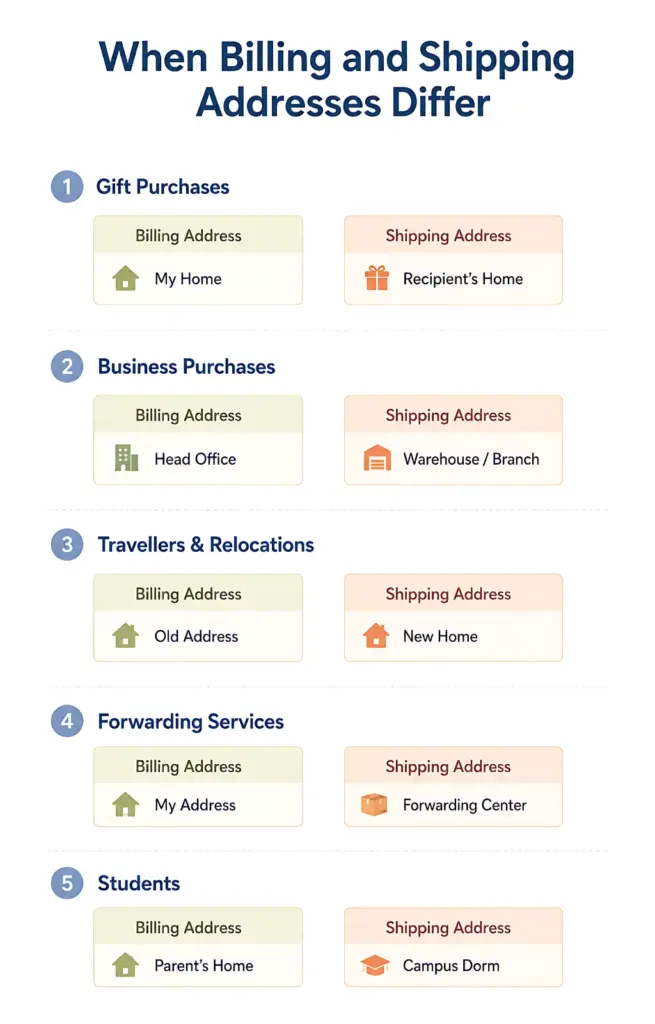
Gift purchases: Someone buys a birthday gift and ships it directly to the recipient. Their billing address is their own home. The shipping address is someone else’s entirely.
Business purchases: A company’s accounts payable team processes payments from the head office. The order ships to a warehouse or regional branch with a completely different address.
Travellers and relocations: Someone in the middle of moving hasn’t updated their billing address with their bank yet. Their shipping address is the new home. Their billing address is still the old one.
Forwarding services: Some shoppers use a package forwarding service, particularly for international purchases. The shipping address is a local forwarding warehouse rather than their actual home.
Students: Living on campus (shipping address), but the card is registered to their parents’ home address.
When You Only Need a Billing Address (No Shipping Address Required)
Not every transaction involves a physical delivery. For digital products, services, and financial transactions, there is no shipping address.
The billing address is still required for payment verification and tax calculation (many jurisdictions determine sales tax or VAT based on the customer’s location). EU VAT rules, for example, require sellers of digital products to charge VAT based on the buyer’s country, making the billing address a compliance requirement. Moreover, B2B customers need the correct billing address on their invoices for internal accounting and expense reporting.
Here are some common scenarios where only a billing address is needed:
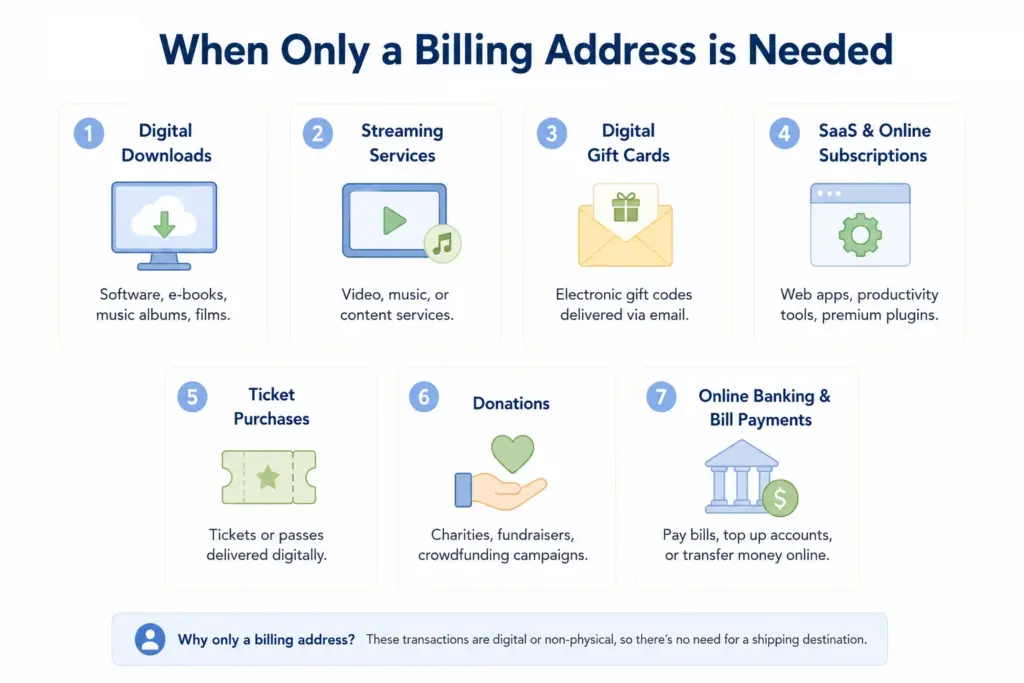
- Digital downloads: buying software, an e-book, a music album, or a film online.
- Streaming services: signing up for a video, music, or content service that charges you regularly.
- Digital gift cards: electronic gift codes delivered via email.
- SaaS and online subscriptions: paying for a web-based application, a productivity tool, or a premium plugin subscription.
- Ticket purchases: buying a ticket or pass that arrives digitally rather than by post.
- Donations: online contributions to a charity, a fundraiser, or a crowdfunding campaign.
- Online banking and bill payments: paying a bill, topping up an account, or completing a bank transfer online.
For all of these, your checkout form only needs one address field. Label it clearly as “Billing Address,” not just “Address.” Users have no physical delivery happening, so a vague label creates unnecessary confusion.
Why Getting Either Address Wrong Is Expensive
Billing address errors stop your payment. If the billing address you enter doesn’t match what your bank has on record, the payment processor’s AVS check may decline the transaction. At best, the customer has to retry with the correct address. At worst, they give up and abandon the order or flag/block the transaction.
Shipping address errors cause misdelivery. A wrong shipping address means a package is going to the wrong place. The carrier may attempt redelivery, return it to the sender, or leave it at an incorrect address entirely. To acquire the shipment, customers need to pay address correction charges. It leads to a delayed delivery, among other complications.
Both types of error are largely preventable with a well-designed form.
How Checkout Forms Should Handle Both Addresses
Follow these tips to create a smooth checkout process for your users:
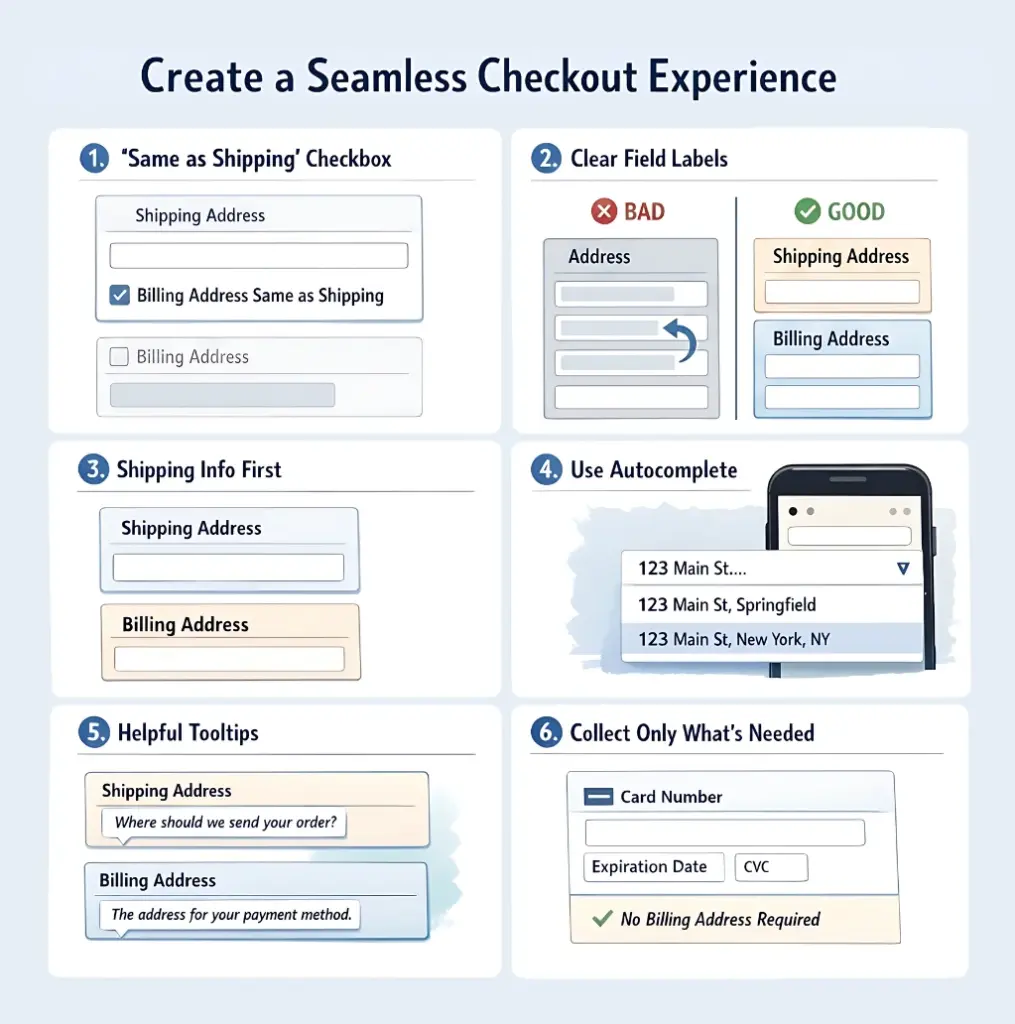
1. The “same as shipping” checkbox is not optional
For the majority of users, the billing and shipping addresses are identical. Yet many checkout forms still display both sets of fields by default, making the form longer and more intimidating than it needs to be, increasing the risk of abandonment.
The standard and correct approach is this: collect the shipping address first. Then ask, with a single checkbox or radio button, whether the billing address is the same. Default that option to “yes.” For the minority of users who need a different billing address, show the billing address fields conditionally when they uncheck the “billing address same as shipping address” box.
This approach keeps the form short for most users and fully functional for all users.
2. Label each address field clearly
“Address” with no qualifier is vague when a form has two address sections. Label the first set “Shipping Address” and the second set “Billing Address.” Users should never have to guess which is which.
3. Ask for the shipping address before the billing address
The shipping address represents where the order is going, the user’s primary intent. The billing address is a secondary verification step. Asking for the delivery destination first matches the mental order most users have when they start a checkout.
4. Use address autocomplete wherever possible
Typing a full address is slow and error-prone, especially on a mobile. Address autocomplete saves time and reduces manual error, particularly for users who need to enter two separate addresses.
5. Add help text to explain each address
Not every user knows the difference between a billing and shipping address. A short line of help text/tooltip beneath each address section removes that uncertainty. For the shipping address, something like “Where should we send your order?” is enough. For the billing address, “The address associated with your payment method” tells users exactly what you need and why, and prevents errors.
6. Don’t ask for information you don’t need
Not every form needs a billing address at all. If you’re using a payment processor that handles its own address verification (many modern payment gateways do), you may not need to collect the billing address in your form separately. Know what your payment integration actually requires before adding fields.
How to Add Billing and Shipping Address Fields in Fluent Forms
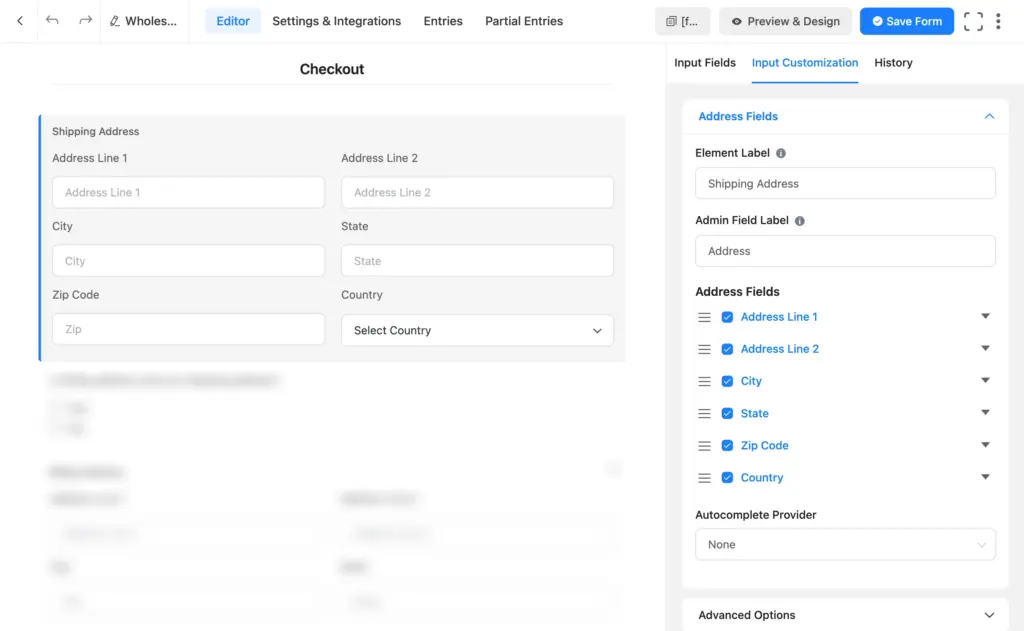
Fluent Forms has a dedicated Address field that includes address line 1, address line 2, city, state, ZIP, and a country dropdown in a structured format. Here’s how to set up a form that collects both addresses cleanly, without showing the billing fields to users who don’t need them.
Step 1: Add the shipping address field
Open your form (built with or migrated to Fluent Forms) to edit, or build one from scratch. From the field panel on the right, drag an Address field onto the canvas. In the field label, type “Shipping Address.” This becomes the primary address, the one all users fill out.
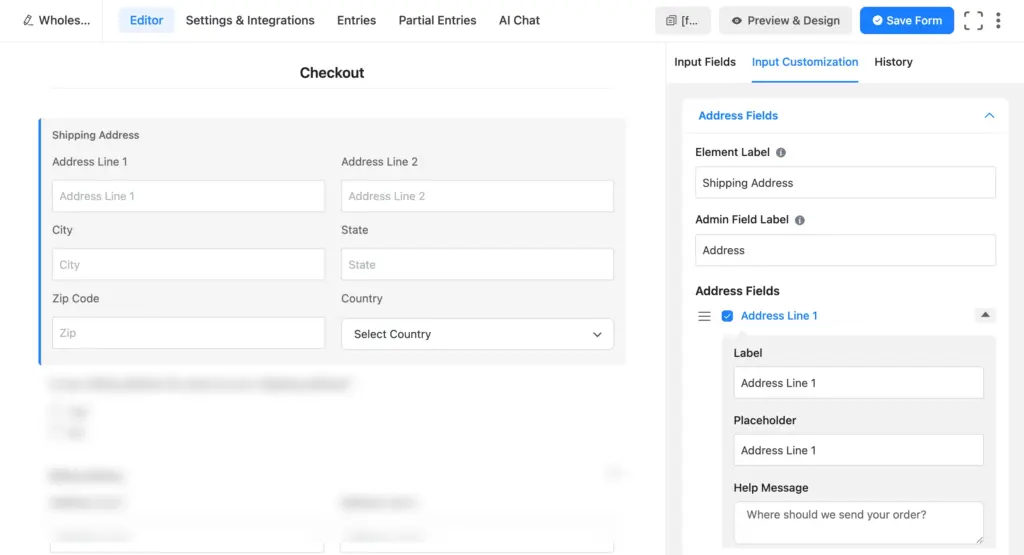
To add help text, expand the Address Line 1 using the downward arrow on its right. Scroll down to Help Message and add the help text.
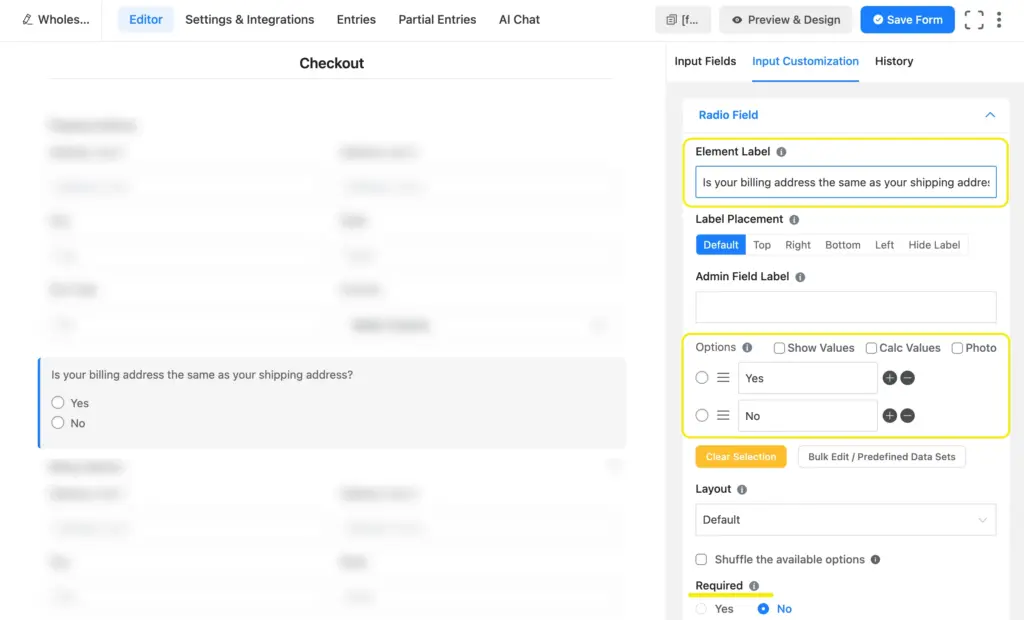
Step 2: Add a radio field asking about the billing address
Drag a Radio field below the shipping address. Set the label to something like “Is your billing address the same as your shipping address?” Add two options: “Yes, it’s the same” and “No, I have a different billing address.”
You can also set “Yes, it’s the same” as the default selected option (by checking yes inside the editor). Making it Required means users can’t skip this field.
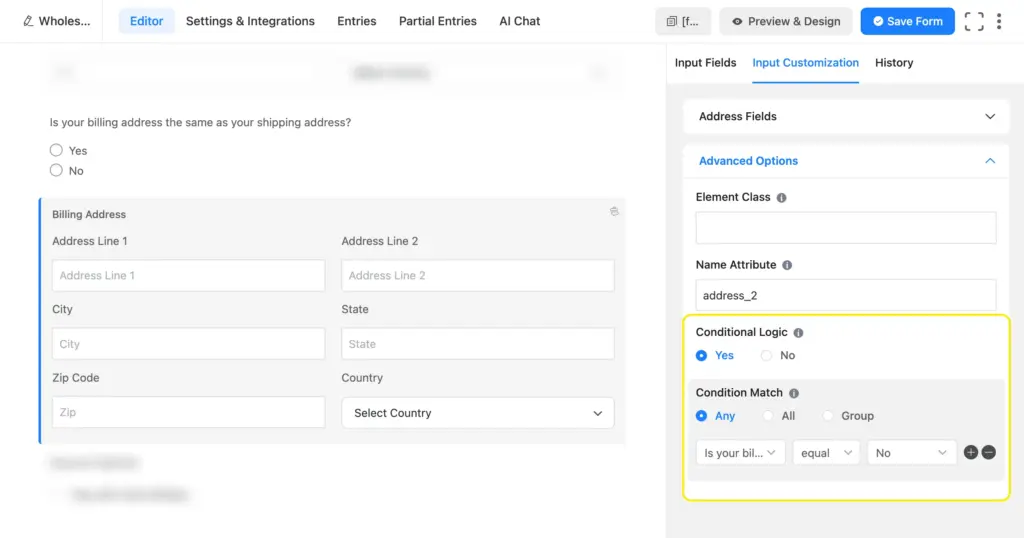
Step 3: Add the billing address field with conditional logic
Drag a second Address field below the radio field. Label it “Billing Address.” Then go to Advanced Options and check Yes under Conditional Logic for this field. Set the condition to show this field only when the radio answer is “No, I have a different billing address,” using the dropdowns.
Now users who select “Yes” see a clean, short form. Users who select “No” get the billing address fields revealed automatically.
Step 4: Enable address autocomplete (optional but recommended)
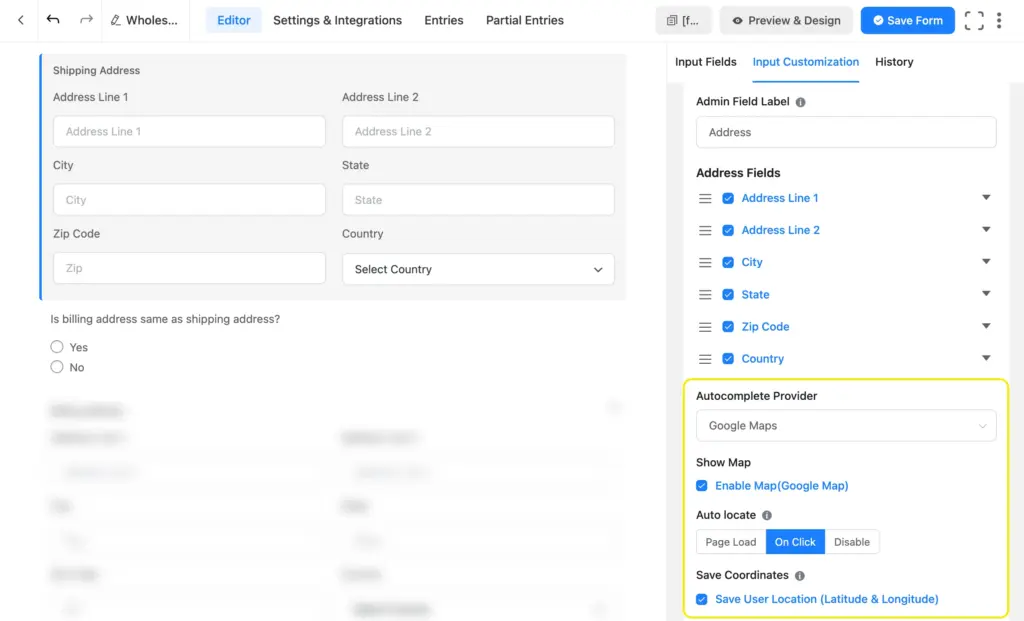
If you want to reduce typing errors and speed up completion, enable the address autocomplete feature. For that, you need to connect Fluent Forms to Google Maps first. Once the integration is set up, you can enable autocomplete from individual forms.
Click the address field to open its customization options. Select Autocomplete Provider from the dropdown. Click Enable Map. This will suggest addresses in real time as users type.
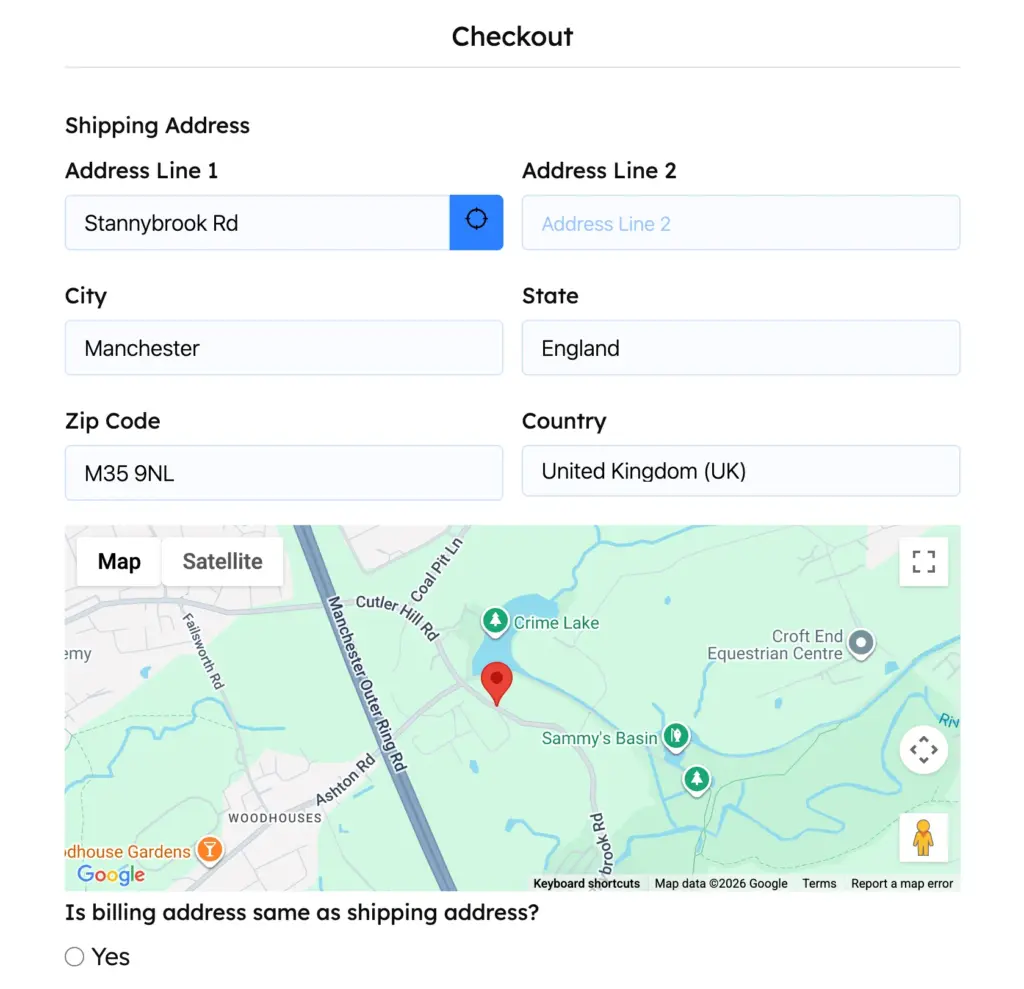
You can also turn on Auto Locate so the map can detect users’ coordinates and autofill the address fields. Click Page Load or On Click under auto locate. Maps will ask users’ permission before accessing their location.
Users get real-time address suggestions as they type, and can optionally allow location detection to fill the address automatically. This works on both the shipping and billing address fields.
Use Address Fields Correctly to Avoid Costly Mistakes
Address fields are a small part of the form. But they’re often the last thing standing between a user and a completed order. And getting them wrong leads to consequences like declined payments, misdelivered packages, failed tax calculations, and frustrated users.
The fix is not complicated. Understand what each field is actually for, structure your form around how users naturally think, and only ask what’s required. Show both address fields when needed. Show one when one is enough. Make the distinction clear and keep the form short and relevant using conditional logic.
Build Smarter Forms for Free

Sarika writes for Fluent Forms and loves to offer insights into small businesses. She’s curious and enjoys discussing ideas, interests, and perspectives. In her free time, she’s either marvelling at architectural beauties or trying different cuisines.


Leave a Reply