

Google Drive vs Dropbox: Best Form File Storage for WordPress
Every time someone submits a file through your WordPress form, that file lands on your server. At low volume, that is not a problem. Scale it up with resumes, portfolios, onboarding documents, or client briefs, and it becomes one fast.
The fix is cloud storage. But which one? Google Drive and Dropbox are the two most popular options, and both work with Fluent Forms. This post breaks down how they compare so you can pick the right one for your workflow and your team.
TL;DR
- Google Drive is better if your team already uses Google Workspace, needs generous free storage, or wants tight collaboration on uploaded files.
- Dropbox is better if you need faster desktop sync, a cleaner interface for client-facing file sharing, or to work with large media files regularly.
- Both platforms connect to Fluent Forms via the Cloud Storage Manager add-on from FluentWiz, an officially approved 3rd-party partner of WPManageNinja.
- Google Drive and Dropbox integrations are available on the free plan of Cloud Storage Manager; no paid tier is required to get started.
- Cloud Storage Manager works with Fluent Forms Pro. The file upload field is a Pro feature that requires Fluent Forms Pro.
Why WordPress File Uploads Need Cloud Storage
WordPress stores uploaded files locally on your server by default. That works for images added through the media library, but form uploads behave differently. A single intake form for a design agency, an HR application portal, or a course submission page can generate dozens or hundreds of files each week.
The consequences are predictable: storage costs go up, site performance goes down, and finding a specific file from three months ago becomes a chore. Cloud storage solves all three problems at once. Files move off your server automatically, stay organized in folders, and become accessible to anyone on your team with a link.
Google Drive vs Dropbox: Key Differences
Both platforms are mature, reliable, and widely used. The differences mostly come down to pricing, sync speed, and how each tool fits your workflow.
Free storage
Google Drive offers 15 GB of free storage shared across your Google account. Dropbox’s free plan gives you 2 GB, which fills up quickly if you are collecting file uploads at any real volume. For teams getting started without a budget, Google Drive has a clear edge here.
Sync and desktop performance
Dropbox has historically been the faster-syncing option, especially for large files or teams that work heavily on their desktops. Its sync engine is efficient, and the desktop app is lightweight. Google Drive’s desktop client, Drive for Desktop, has caught up considerably but still has a reputation for being resource-intensive.
Collaboration and sharing
Google Drive is built for collaboration. Files stored in Drive can be opened and edited directly in Google Docs, Sheets, or Slides without downloading anything. Shared links come with granular permission controls. If your team reviews or annotates uploaded documents, Drive fits that workflow naturally.
Dropbox is better for straightforward file sharing with external parties. Shared links are clean, work without requiring a Dropbox account, and the overall sharing experience feels more polished for one-off client handoffs.
Security
Both platforms use 256-bit AES encryption at rest and TLS in transit. Dropbox Business adds more granular admin controls, remote device wipe, and detailed audit logs. Google Workspace’s admin console offers similar device and access controls. For most small- to mid-size WordPress sites, both are secure enough out of the box.
Integration with other tools
Google Drive connects natively with the entire Google Workspace suite, Gmail, Calendar, Meet, and third-party tools like Zapier, Slack, and Notion. Dropbox integrates well with tools like Zoom, Slack, and Canva, but the breadth of native integrations is narrower than Google’s.
Pricing for teams
Beyond free tiers, both platforms charge per user per month. Google Workspace plans start at $6 per user per month (Business Starter, 30 GB pooled) and go up from there. Dropbox Plus for individuals is $9.99 per month for 2 TB. Dropbox Business plans start at $15 per user per month.
When Google Drive Is Better for You
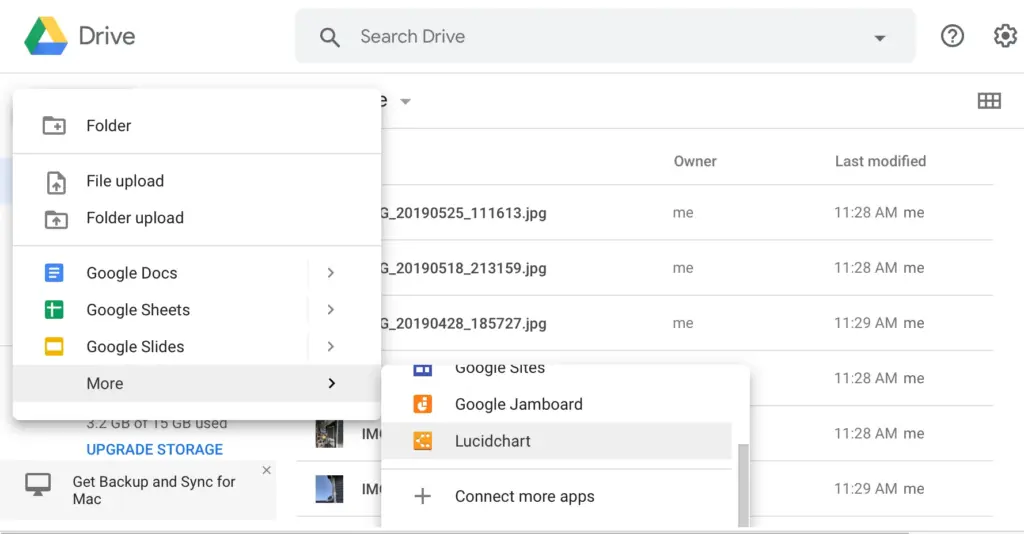
Google Drive makes more sense if:
- Your team already uses Gmail or Google Workspace for daily work
- You need a free storage tier before committing to a paid plan
- Uploaded files need to be reviewed, annotated, or edited collaboratively
- You want to pipe form data into Google Sheets alongside the uploaded files
- Your submitters are often individuals who already have Google accounts
When Dropbox Is Better for You
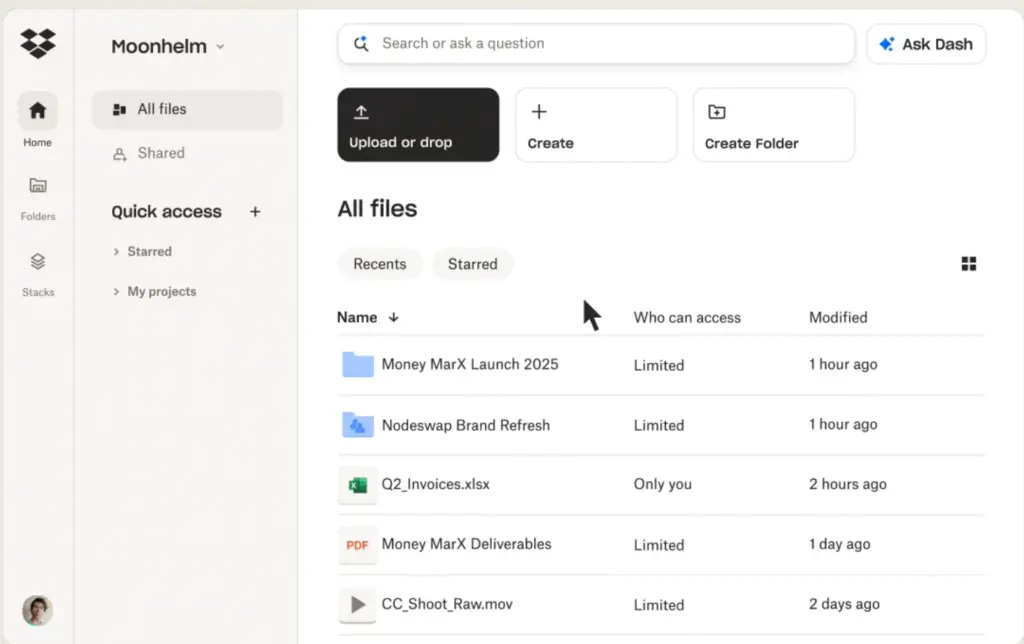
Dropbox makes more sense if:
- Your team works heavily from a desktop and values fast, reliable sync
- You share files externally with clients and want a cleaner sharing experience
- Your uploads include large video or media files that need efficient syncing
- You prefer a focused, no-frills file management interface
- You are already paying for Dropbox Business for other reasons and want to consolidate
How to Use Google Drive & Dropbox with Fluent Forms
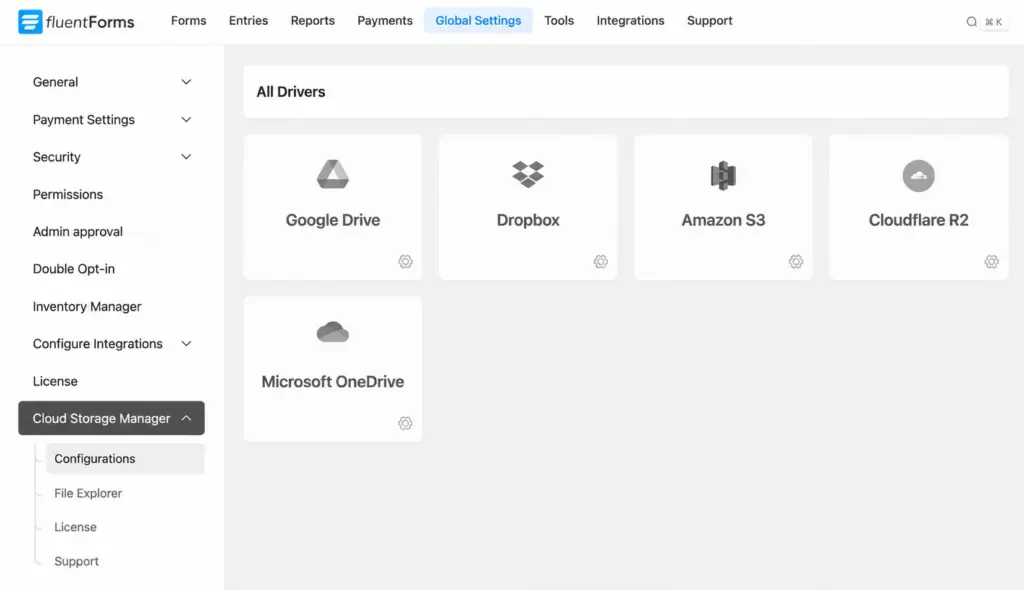
Fluent Forms does not include native cloud storage, but it has an official partner solution that handles exactly this. Cloud Storage Manager for Fluent Forms, built by FluentWiz and approved by WPManageNinja, connects Fluent Forms directly to Google Drive, Dropbox, Amazon S3, Cloudflare R2, and Microsoft OneDrive.
The way it works: a user submits your form with an attached file, Fluent Forms processes the submission as usual, and Cloud Storage Manager automatically picks up the uploaded file and routes it to the cloud folder you have set up. The local copy can be deleted afterward to keep your server clean.
Setting up the Cloud Storage Manager takes a few minutes. You install the plugin, connect your chosen cloud account using OAuth or API credentials, and assign a destination folder. From that point, every upload through your forms moves to the cloud automatically, no manual exports, no third-party automation layers.
What FluentWiz’s Cloud Storage Manager adds on top of basic file transfer:
- Dynamic folder naming using Fluent Forms SmartCodes, so uploaded files can be sorted automatically by submitter name, email, country, or any other field value
- Conditional subfolder logic to route files to different folders based on user inputs
- Custom file renaming so a generic “upload.pdf” becomes “john_application.pdf”
- A built-in file explorer inside your WordPress dashboard so you can browse and download files without leaving WordPress
- Background uploads so form submissions confirm instantly while files transfer quietly
The free version of Cloud Storage Manager supports Google Drive and Dropbox connections. Dynamic folder naming, conditional subfolders, custom file naming, and the file explorer are Pro features.
You can learn more about how the add-on works in detail in the Fluent Forms Cloud Storage Add-on guide.
Which Cloud Should You Choose
If you are still unsure which to pick, here is a simple way to frame it.
Choose Google Drive if your priority is free storage, collaboration on uploaded documents, or fitting into an existing Google Workspace setup. It is the simplest default for most WordPress site owners.
Choose Dropbox if your priority is desktop sync speed, external file sharing with clients, or working with large media files. It is the right tool for teams that think of files as deliverables rather than documents to collaborate on.
The best storage platform is the one your team will actually use. Both integrate with Fluent Forms in minutes. The barrier to getting started is low either way.
Ready to stop storing uploads on your server? Get Fluent Forms and explore the full feature set to see how it fits your workflow.
FAQs on Google Drive and Dropbox for WordPress Forms
Do I need the File Upload field to use this Add-on?
Yes, you need to use the File Upload or Image Upload field. The Cloud Storage Manager plugin by FluentWiz works specifically by offloading attachments that your users submit through your form. So, your forms must include native File Upload or Image Upload fields to capture those files.
Is Google Drive or Dropbox secure enough for form uploads?
Both of the cloud platforms encrypt your files and allow you to restrict who can open a folder. The data of Google Drive is encrypted in-transit and at-rest, and Dropbox maintains the Advanced Encryption Standard (AES).
Do I need Fluent Forms Pro to use the add-on?
Yes, you need to use the Fluent Forms Pro version to use the Add-on for free. You can also use the Pro version of the add-on to access other cloud platforms.
Do I need the pro version of Cloud Storage Manager for Fluent Forms to use Google Drive or Dropbox?
No. You can access Google Drive or Dropbox with the free version. But there will be some limitations compared to the Pro version.

Hi, this is Aparup. I am a Literature postgraduate, mixing my creative thoughts with my experience in the tech industry to surpass AI. Professionally, I am a content marketer seeking solutions to users’ problems regarding WordPress.




Leave a Reply