

Multi-step forms are an effective way to collect more data from users without overwhelming them. Breaking down the form into multiple steps makes the process less daunting and more manageable for users. This article will guide you through creating a multi-step form with Fluent Forms.
Remember, to create and manage multi-step forms in WordPress, you need to install and activate the Fluent Forms Pro Add-on.
Creating a Multi-Step Form #
To learn how to create a Multi-Step Form, follow the steps with screenshots below –
Initially, you can choose Pre-built Templates or start with a Blank Form. Let’s begin with a Blank Form so you can build it from scratch.
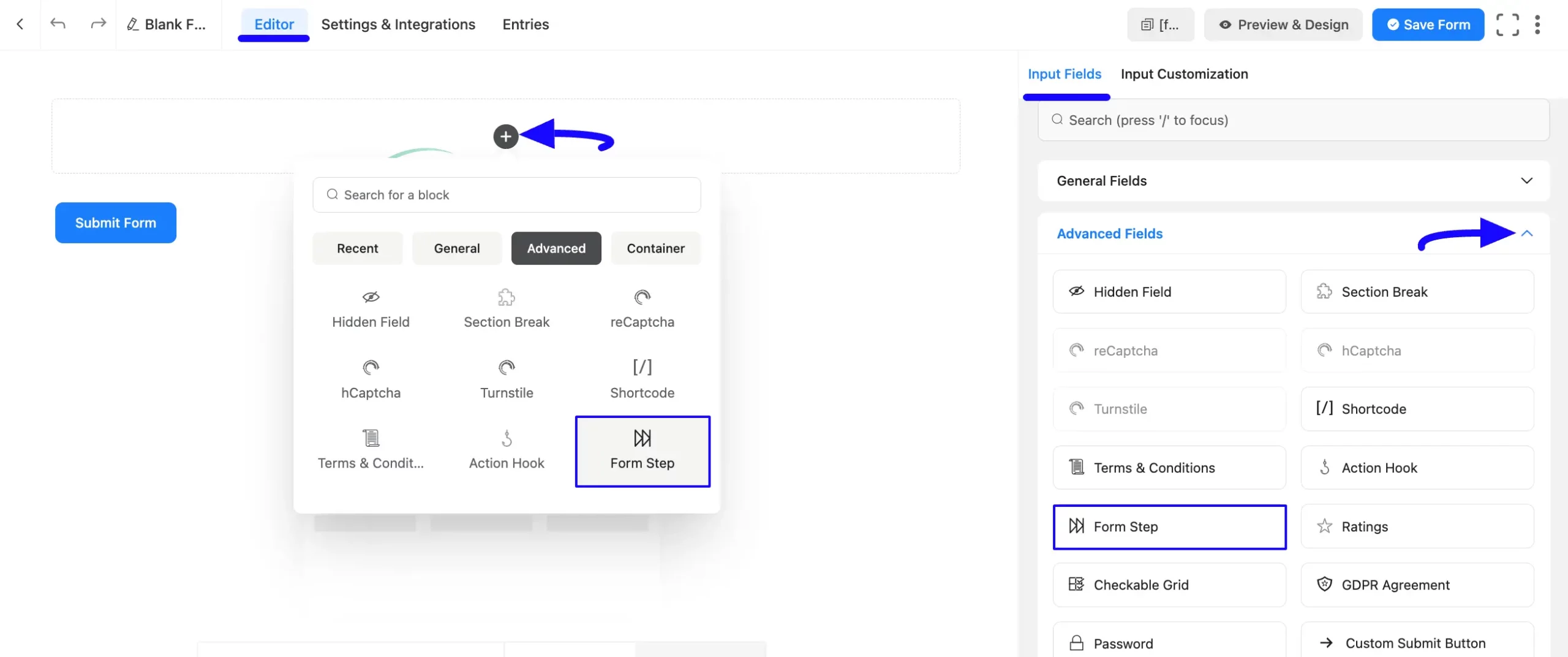
Once you are on the Editor page, click the Plus Icon, open the Advanced Fields section, and choose the Form Step field.
The Advanced Fields option is also in the right sidebar under the Input Fields tab. To set it up, click on the Form Step field you want or drag and drop it into your editor.
The Form Steps are divided into Three steps. These are:
- PAGING START
- PAGE BREAK
- PAGING END
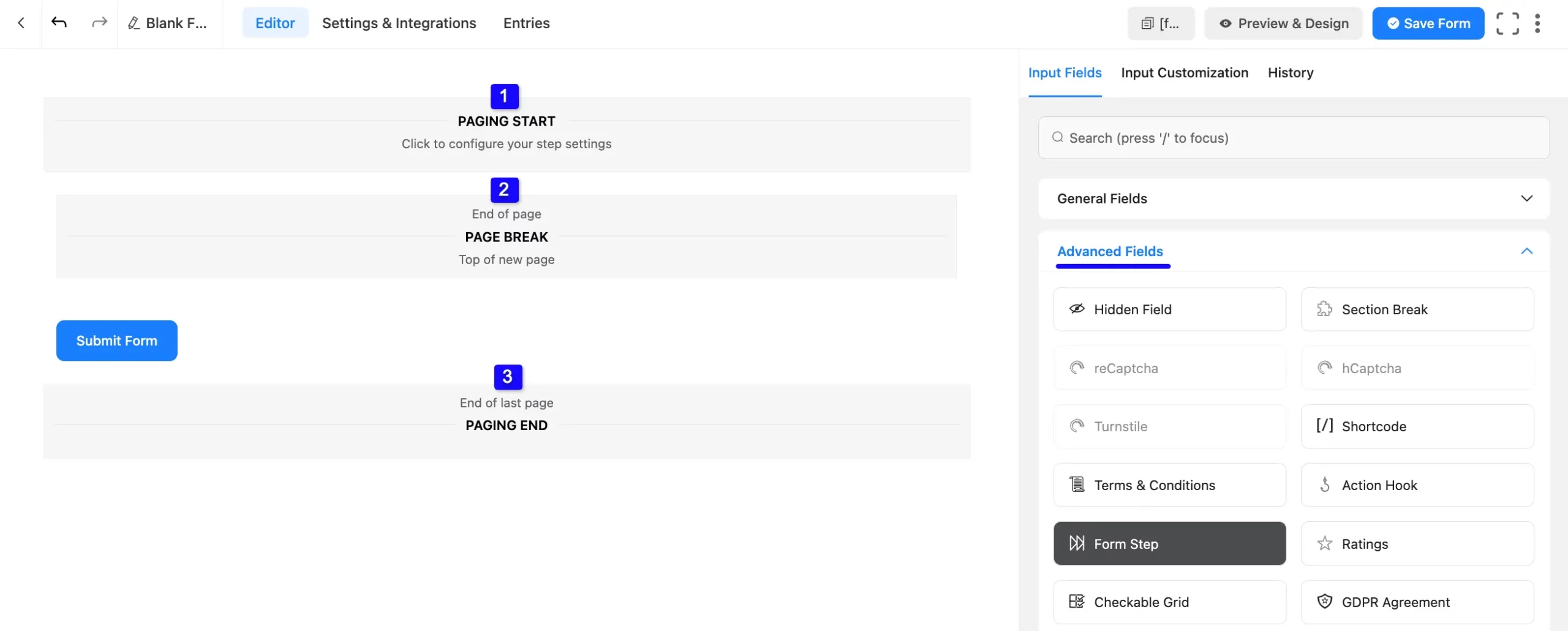
The form steps mentioned above are explained below:
1. Paging Start #
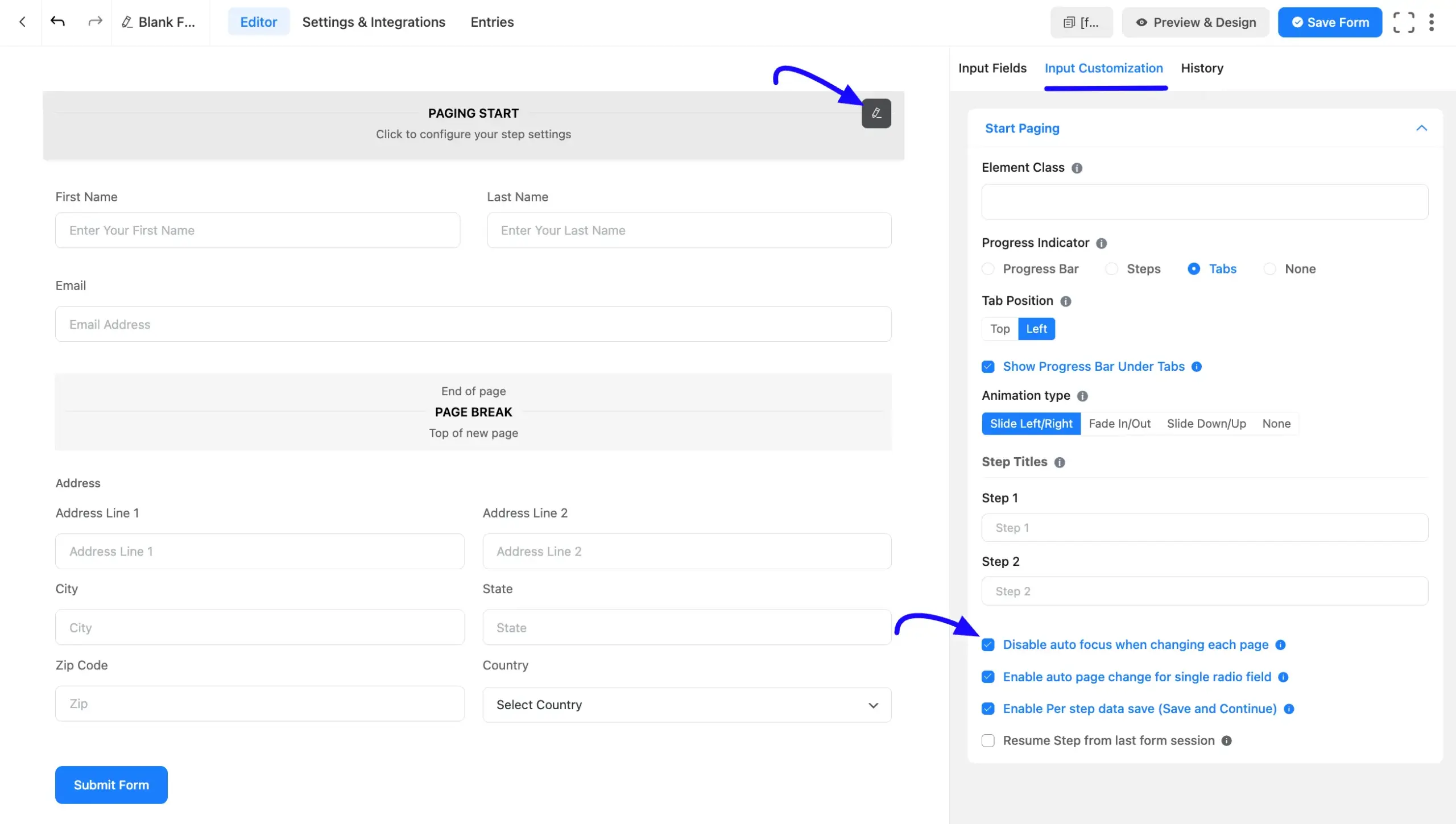
The Paging Start block controls the global indicator behavior and styles for the multi-step sequence. Hover over the PAGING START bar in your editor and click the Pencil Icon to open the Input Customization settings.
Progress Indicator #
The Progress Indicator setting controls how step progress is shown at the top of a multi-step form. You can choose between four distinct layout styles:
- Progress Bar: Displays a standard progress bar that gives users a numeric percentage indication of their progress (e.g., “1 of 2 steps completed”).
- Steps: Displays a numbered list of structural step titles with the current active step highlighted.
- Tabs: Renders step titles as interactive, clickable tab buttons. This configuration allows visitors to quickly jump back to any previously completed step in a single click.
- None: Completely hides all progress indicators from the form interface.
Tip: Whichever indicator you pick, the values you enter in the Step Titles section become the labels. If left blank, Fluent Forms falls back to Step 1, Step 2, etc.
Tabs Indicator Settings #
When you select Tabs as your progress indicator, two additional sub-settings will appear immediately below:
Tab Position: Determines the structural layout orientation of your step tabs:
- Top (Default): Tabs align horizontally above the form. If they overflow the screen width, they scroll horizontally rather than wrapping.
- Left: Tabs render vertically in a sidebar column to the left of the form body, making it ideal for a large number of steps or long step titles.
Show Progress Bar Under Tabs: Toggle this checkbox to position a compact visual progress bar directly beneath the horizontal tab strip. This is disabled by default.
Animation & Page Controls #
- Animation Type: Choose the transition style when moving between steps (Slide Left/Right, Fade In/Out, Slide Down/Up, or None).
- Step Titles: Enter personalized text labels for Step 1, Step 2, etc., to replace the default step text.
- Disable auto focus when changing each page: Check this to stop the page from automatically scrolling to the top of the form when a user changes steps.
- Enable auto page change for single radio field: When enabled, the form will automatically transition to the next step immediately after a user selects an option in the last radio field of the current step.
- Enable Per-step data save (Save and Continue): Saves the form input data locally step-by-step as the user proceeds, letting them safely resume if they leave mid-session.
- Resume Step from last form session: If your website has a sticky header menu, you might encounter problems, such as the form being hidden beneath it while auto-scroll is enabled.
Watch this Video Tutorial to learn the process of multi-step forms automatically to the next-step form in Fluent Form.
2. Page Break #
The Page Break section creates new steps within the form. Each time you add a Page Break, a new section is created for the next step.
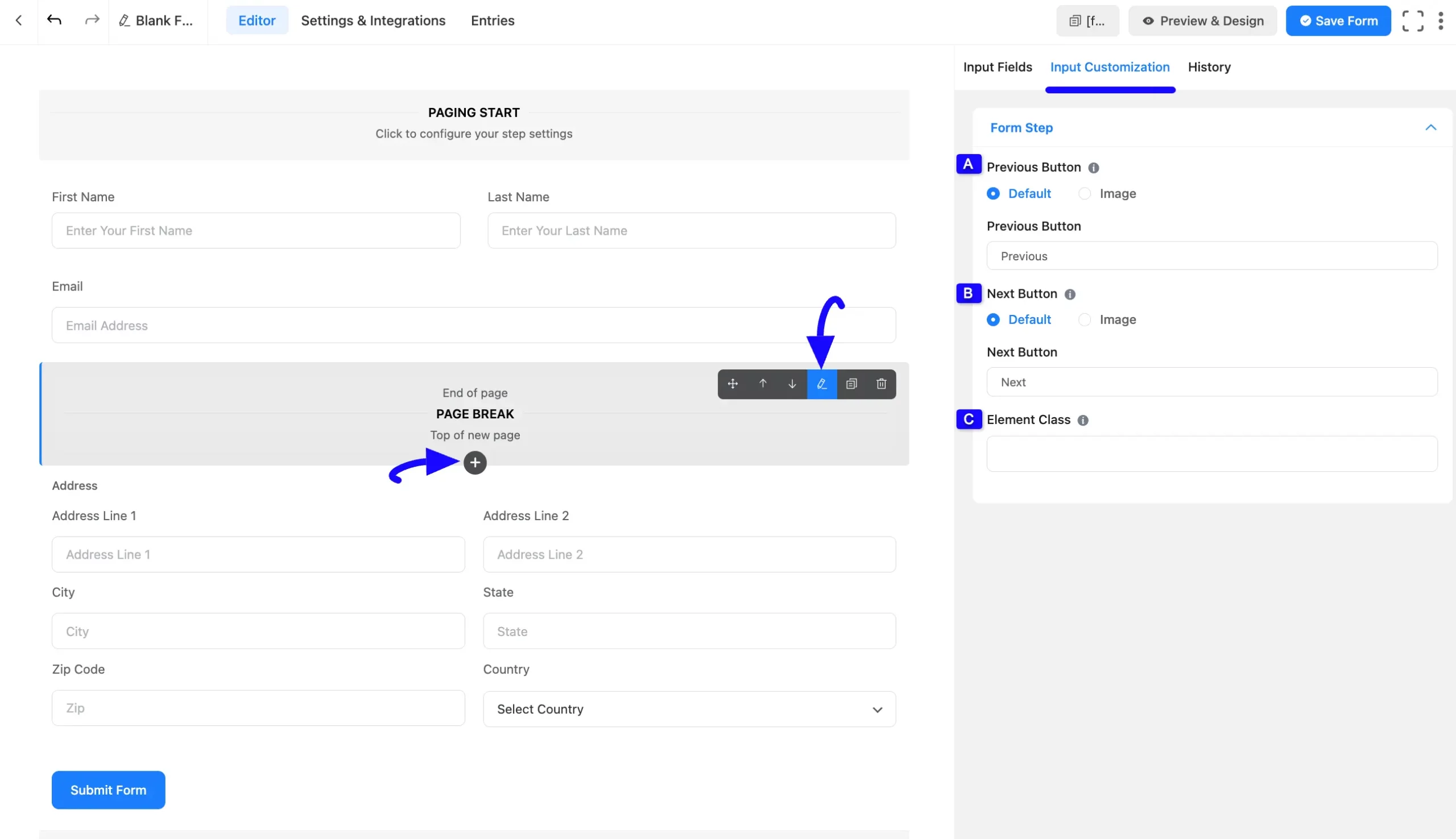
You can customize this part by clicking the Pencil/Edit Icon when hovering over the field.
- Previous Button: Choose between a Text button or an Image icon in the prior page button. Also, can customize the text or add an image link for the last button.
- Next Button: Like the Previous Button, choose between a Text button or an Image icon for the next page. Also, can customize the text or add an image link for the following button.
- Element Class: Add custom CSS classes to style the input field.
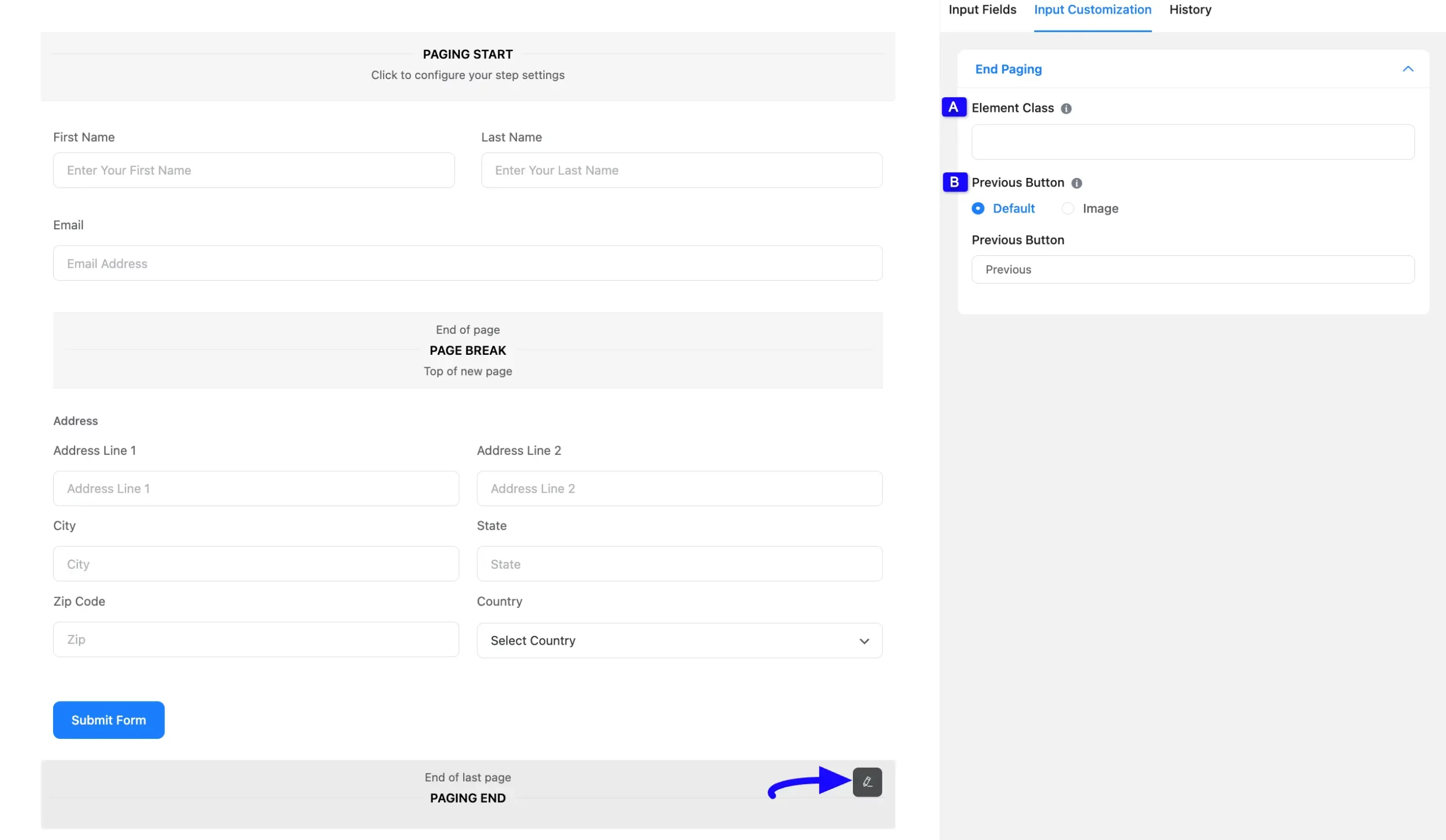
3. Paging End #
The last portion of the Form Step is the Paging End section. It determines the ending of the multiple-page form.
You can also customize this part by clicking the Pencil/Edit Icon when hovering over the field.
- Element Class: Add custom CSS classes to style the input field.
- Previous Button: Choose between a Text button or an Image icon for the previous page button. If you choose the Default option, you will get the Previous Button field to customise the text. If you select the Image option, you can add an image link for the previous button.
Embed the Form into Frontend #
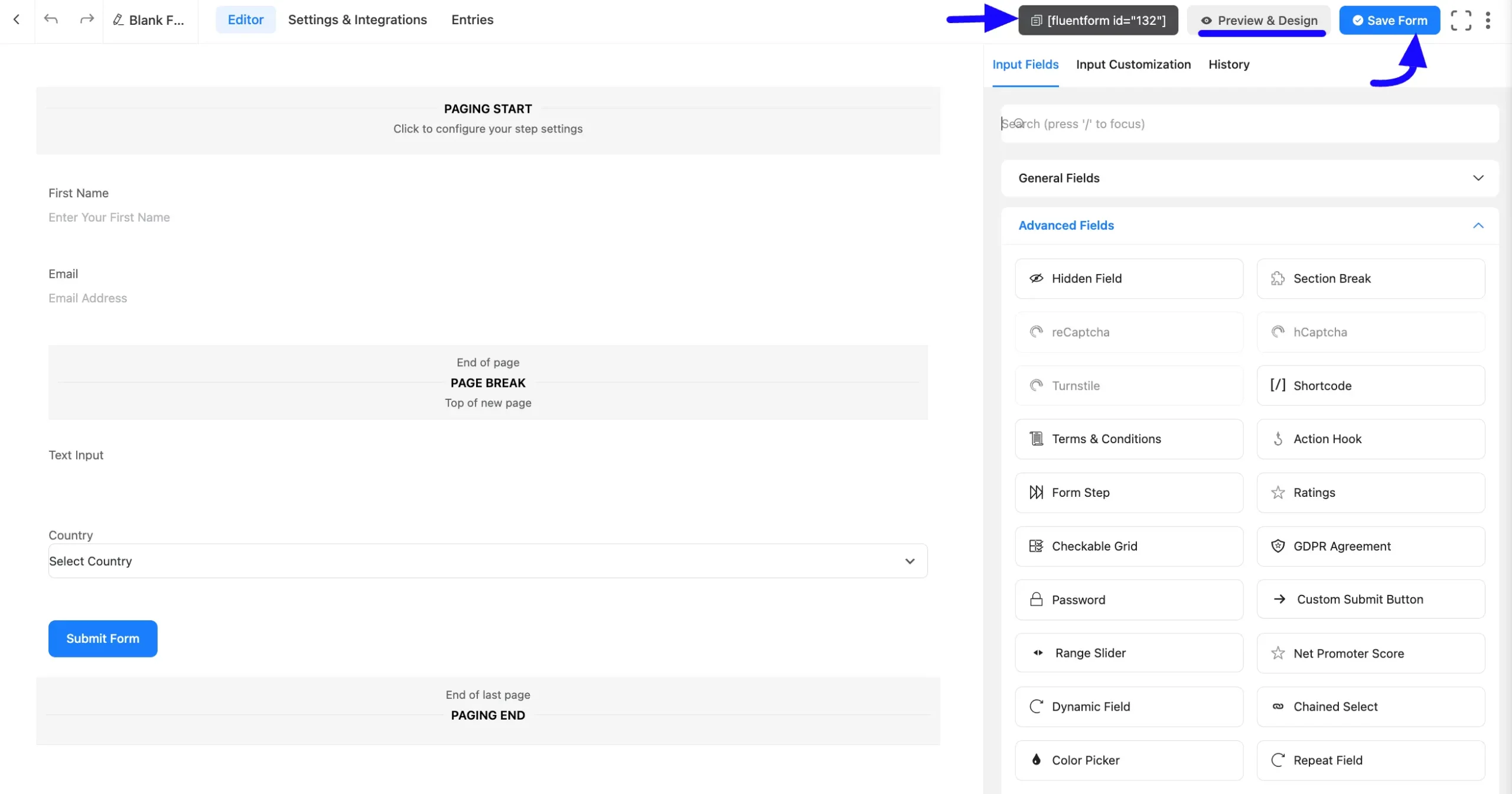
Once you complete the customization, click the Save Form button to save all your changes. Click the Preview & Design button in the middle to see the form preview.
To integrate and display the form on a specific page or post, copy the Shortcode from the top right side and paste it into your desired page or post.
Preview of Added Form Step Field #
Here is the preview of the added Form Step field under the Form.
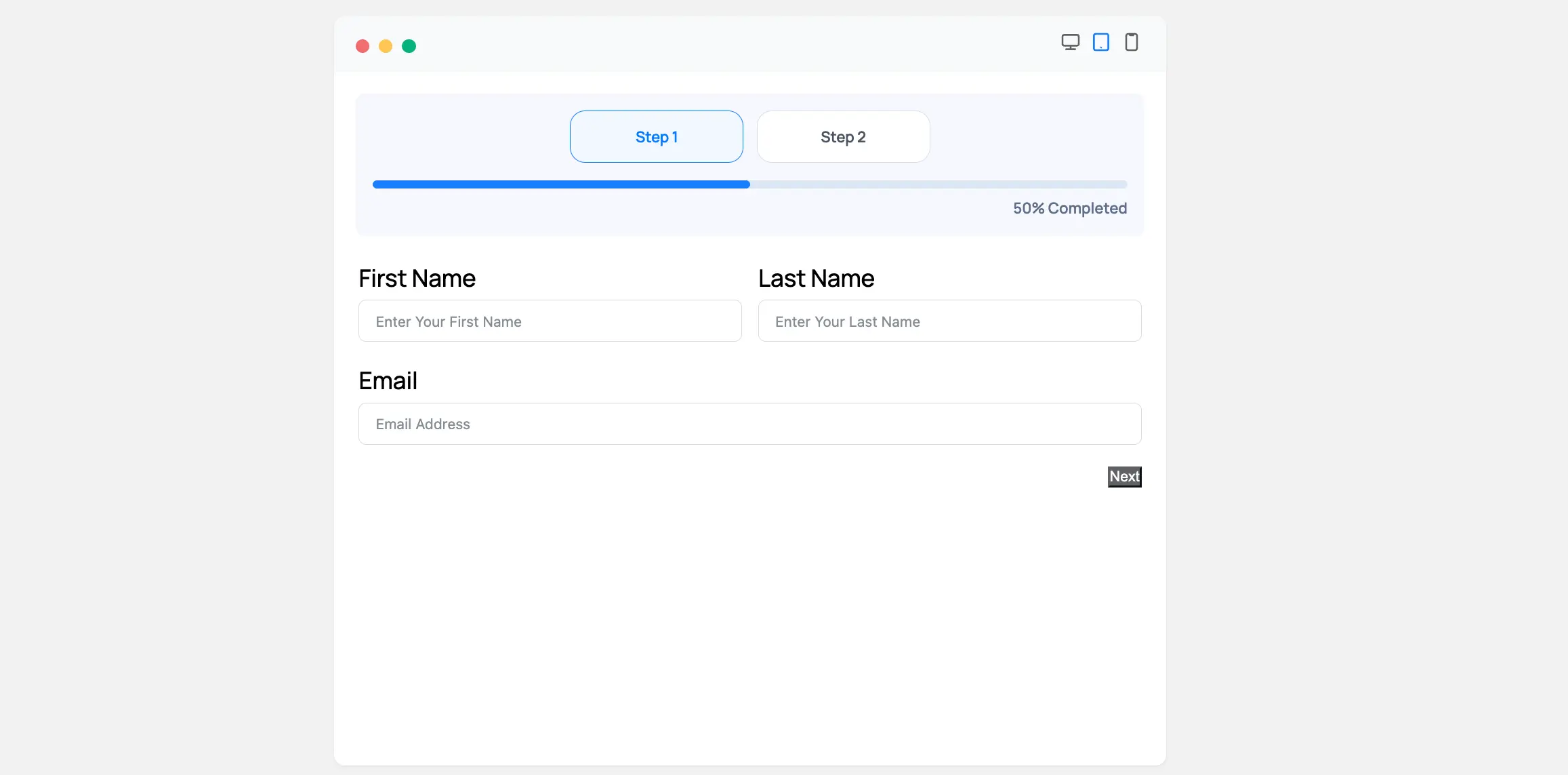
This way, you can create as many Multi-step Forms as you want with Fluent Forms.
If you have any further questions, concerns, or suggestions, please do not hesitate to contact our support team. Thank You.


